If you are searching for how to remove CCleaner, you may want to uninstall the program because you no longer need it, are troubleshooting an error, or plan to switch to another PC cleanup tool. Although Windows provides built-in uninstall options, removing the main program may not always clear every related file. This guide covers several practical ways to uninstall CCleaner and clean up remaining data on Windows 11 and 10.
What to Know Before Uninstalling CCleaner?
Before removing the program, it helps to understand what the process actually changes. Uninstalling CCleaner removes the main application from your PC, so its cleanup and maintenance features will no longer be available. However, removing CCleaner does not disable Windows' own built-in storage and maintenance features.
Depending on the removal method, some CCleaner-related preferences, folders, or other residual data may remain afterward. This matters particularly if you are uninstalling the program before a clean reinstall or want to remove its traces from the computer.
For a more complete cleanup, you can either inspect remaining CCleaner data manually or use an uninstall utility that scans for leftovers automatically.
Method 1. Uninstall CCleaner Through Windows Settings
Windows Settings is the easiest place to start if you want to know how to uninstall CCleaner without using additional software. Both Windows 11 and Windows 10 provide built-in app management options, although the menus look slightly different. This method is ideal when CCleaner is working normally and appears correctly in your installed applications.
How to Uninstall CCleaner from Windows 11
Step 1. Press Windows + I to open Settings.
Step 2. Select Apps > Installed apps.
Step 3. Type CCleaner in the search box or scroll through the installed applications list until you find it.
Step 4. Click the three-dot button beside CCleaner and select Uninstall.
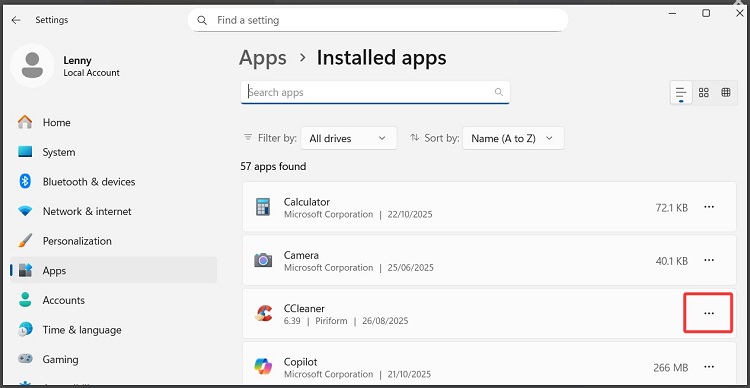
Step 5. Confirm the action and follow the uninstall wizard to remove the program.
These steps are the most direct solution for how to uninstall CCleaner from Windows 11 when the program is still registered correctly with Windows.
How to Uninstall CCleaner from Windows 10
Step 1. Press Windows + I to open Settings.
Step 2. Go to Apps > Apps & features.
Step 3. Find and select CCleaner.
Step 4. Click Uninstall and confirm the action.
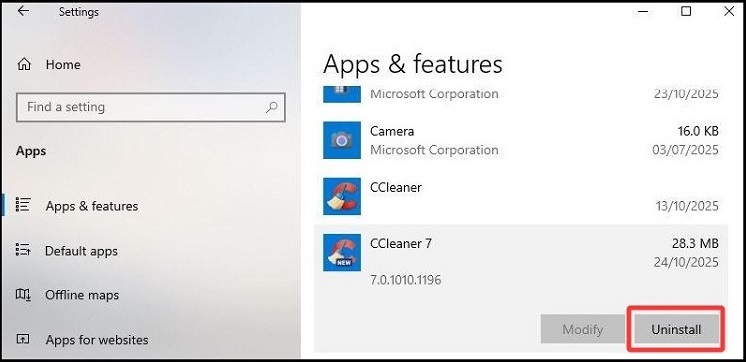
Step 5. Complete the on-screen removal process.
If CCleaner is missing from the Settings application or clicking Uninstall does not work, you do not need to start deleting its program files manually. Windows includes another program-management interface that can launch registered uninstallers directly and is particularly useful for traditional desktop applications.
Method 2. Remove CCleaner Through Control Panel
Control Panel provides another built-in approach to how to remove CCleaner from computer, particularly if you prefer the traditional Programs and Features interface. Although Windows Settings is now the primary app-management tool, Control Panel remains useful for desktop programs and may provide an alternative when you have trouble starting the removal process through Settings.
Step 1. Press Windows + R.
Step 2. Type appwiz.cpl and press Enter to open Programs and Features.
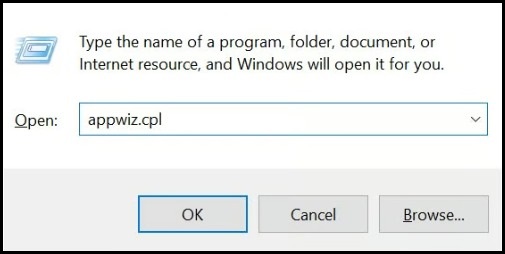
Step 3. Find CCleaner in the installed programs list.
Step 4. Select CCleaner and click Uninstall at the top of the window.
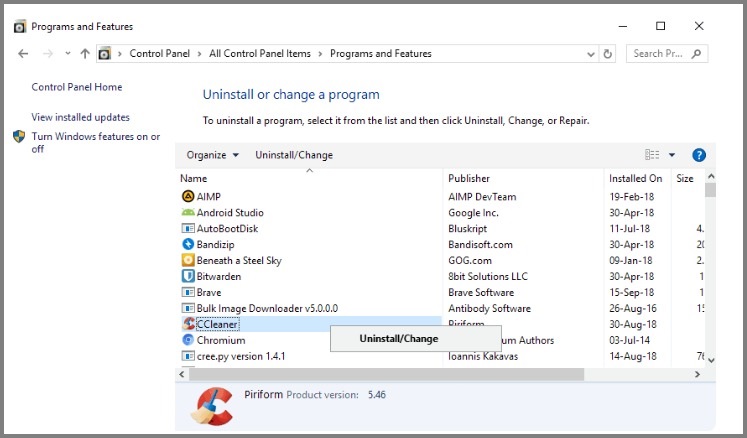
Step 5. Follow the CCleaner uninstall wizard until the process is complete.
Once the standard uninstall finishes, the main application should be removed. However, users asking how to get rid of CCleaner completely may want to go further. Application settings and other residual data can sometimes remain after a normal uninstall, so the next method focuses specifically on finding and removing CCleaner leftovers.
Method 3. Delete CCleaner Leftover Files After Uninstalling
A normal uninstall is designed primarily to remove the application itself rather than guarantee that every piece of related data disappears. If you plan to reinstall CCleaner cleanly or simply want fewer unused files remaining on the PC, checking for clearly identifiable leftovers provides a more thorough approach to how to remove CCleaner from PC.
Step 1. Restart your PC after uninstalling CCleaner.
After uninstalling CCleaner, open Start > Power > Restart. Restarting helps ensure that any processes associated with the removed program are no longer running.
Step 2. Check the Previous CCleaner Installation Folder
Open File Explorer and check the previous CCleaner installation directory. Look for a remaining CCleaner folder only after confirming that the main program has already been uninstalled.
Step 3. Check User Application-Data Locations
Open File Explorer and inspect relevant AppData locations for folders clearly associated with CCleaner. Windows' AppData directory contains application-specific settings, preferences, caches, and other user data.
Step 4. Delete Identifiable CCleaner Leftovers
If you find a remaining folder that you can confidently identify as belonging to CCleaner, select it and use Delete. Avoid removing files or folders when their purpose is unclear.
Step 5. Empty the Recycle Bin
Once you've verified that the deleted files are no longer required, right-click the Recycle Bin and choose Empty Recycle Bin.
Be careful with manual cleanup, especially when working with system folders or the Windows Registry. Removing an unrelated entry can affect another application or Windows itself. If manually searching through several locations feels unnecessarily complicated, a dedicated uninstaller can automate much of this work and identify program-related leftovers for review.
Method 4. Remove CCleaner Completely with IObit Uninstaller
If how to uninstall CCleaner completely is your priority, IObit Uninstaller provides a more automated alternative to manually checking folders after the standard removal. It can initiate program removal and then scan for associated leftovers, which is useful when CCleaner cannot be removed cleanly, or you want to reduce residual program data afterward.
How IObit Uninstaller Helps Remove CCleaner
Thoroughly Clean CCleaner Leftover Files
Checks for CCleaner-related folders, files, and registry data that may remain on your PC after the main application has been removed.
Remove CCleaner When Uninstall Fails
Provides an alternative way to remove CCleaner when its built-in uninstaller stops responding, or standard Windows methods fail, making it a practical solution for users searching for how to force uninstall a program completely.
Uninstall Multiple Unwanted Programs Together
Lets you select CCleaner along with several unwanted applications and remove them in one cleanup session. This batch-removal capability can save considerable time and is a useful feature to look for in the best uninstaller for Windows 11.
Manage Related Browser Extensions Easily
Provides centralized management for installed browser extensions and plug-ins, making it easier to identify unwanted add-ons and learn how to remove extensions while cleaning CCleaner and other unnecessary software from your PC.
Review Installed Software After Removal
Checks the condition of installed applications and highlights items that may need attention, making it easier to continue cleaning and managing your PC after CCleaner is removed.
How to Uninstall CCleaner with IObit Uninstaller
Step 1. Download and install IObit Uninstaller on your Windows computer.
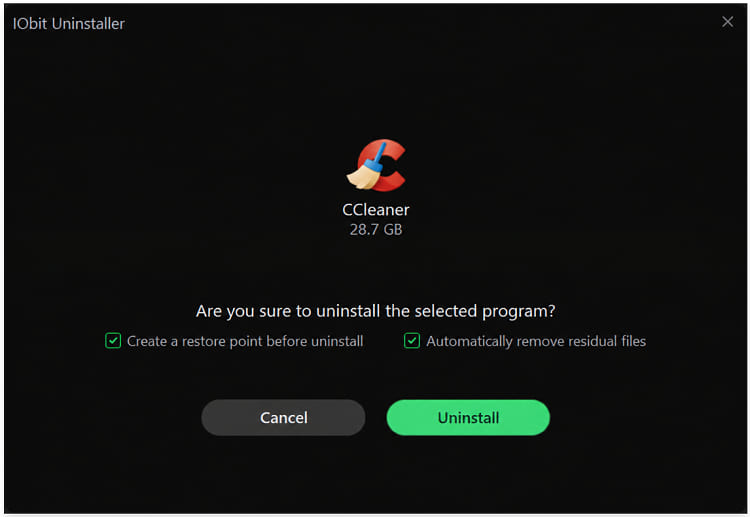
Step 2. Open Programs, locate CCleaner, and select it from the software list. Click Uninstall and follow the prompts to remove the main CCleaner application.
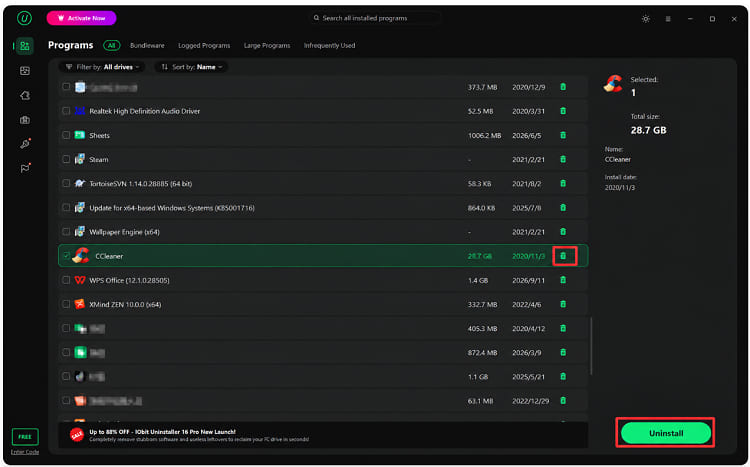
Step 3. After the standard removal, allow IObit Uninstaller to scan for associated residual files, folders, and registry entries. Review the detected items before removing them.
For users researching how to get rid of CCleaner without manually hunting through folders and settings, these features provide a simpler route to a more thorough removal.
What to Do If CCleaner Won't Uninstall
Sometimes the problem is not finding an uninstall option but getting the removal process to finish successfully. CCleaner may still have an active process, or its installation information may be damaged. Instead of repeatedly launching the same uninstaller, work through several basic troubleshooting steps before attempting the removal again.
Close CCleaner completely.
Restart your computer and try uninstalling CCleaner again.
Try the alternative built-in removal method. For example, use Control Panel if Windows Settings does not work.
If standard removal continues to fail, use IObit Uninstaller to locate CCleaner and attempt removal through its program-management interface.
Avoid simply deleting the CCleaner installation folder before uninstalling the application. Doing so can remove program files while leaving Windows with application records and other related data.
FAQs About Removing CCleaner
Is it safe to uninstall CCleaner?
Yes. CCleaner is a third-party utility and is not required for Windows 11 or Windows 10 to operate. Windows will continue to function after you uninstall it.
Does uninstalling CCleaner remove all its files?
The main application should be removed, but some settings or residual data may remain depending on the installation and removal process. You can check for leftovers afterward if a more complete cleanup is necessary.
Can I reinstall CCleaner after uninstalling it?
Yes. If you are removing CCleaner to troubleshoot an installation or application problem, you can reinstall it later.
Should I delete the CCleaner folder directly?
Not as your first removal method. Use Windows Settings, Control Panel, or a dedicated uninstaller first. After the application is successfully uninstalled, you can check for remaining CCleaner folders.
Conclusion
Windows Settings and Control Panel are usually sufficient if you simply want to remove the main CCleaner application. If standard removal fails, try closing active processes and restarting Windows before uninstalling again.
For a more thorough cleanup, IObit Uninstaller can remove the application and scan for related leftovers afterward. This provides a convenient solution for users who want to know how to remove CCleaner completely from a Windows PC.
IObit Uninstaller Free
- Complete forced uninstallation for stubborn programs.
- Uninstall a batch of programs at once.
- Scan and remove leftover files, folders, and registry entries.
- Support the management of Universal Windows Platform apps.