How to uninstall Adobe Creative Cloud? Adobe series software is the toughest one to get uninstalled. Photoshop, Creative Cloud, Illustrator, and Lightroom all require you to login to uninstall. If you forget the account and password, only a third-party uninstaller can help you. And when the uninstall is confirmed, a window will stop you, saying other Adobe processes still exist and you cannot uninstall the software you choose (CoreSync).
Even when you uninstall Adobe Creative Cloud, the leftover documents may come back. The stubborn Adobe Creative Cloud processes appear again because of Adobe auto updates. This blog shares 5 free methods to uninstall Adobe Creative Cloud without a login, avoid CoreSync, and handle uninstallation errors.
Adobe Creative Cloud: Windows/Mac Settings Cannot Uninstall
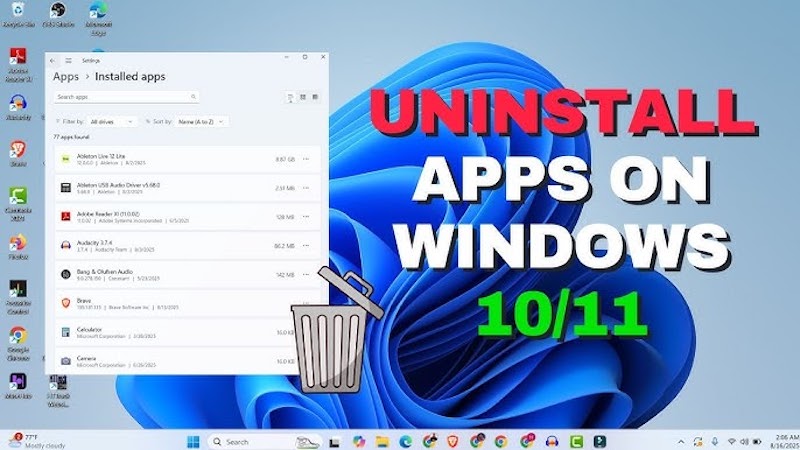
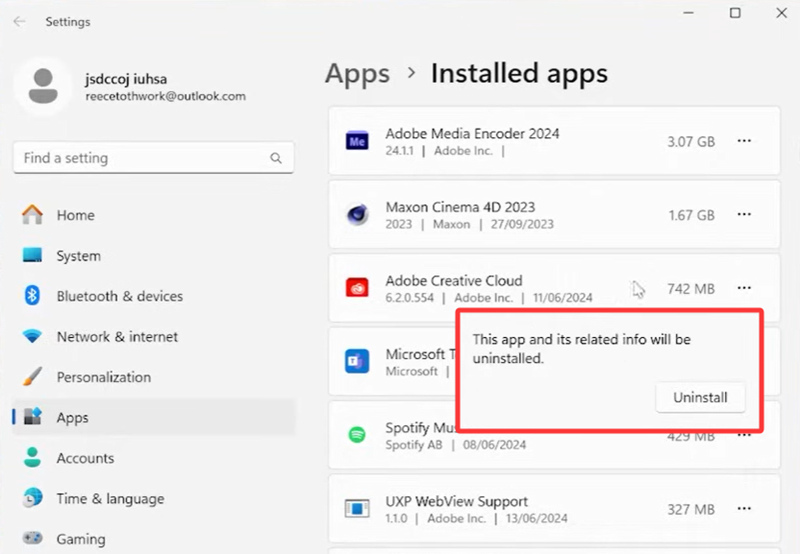
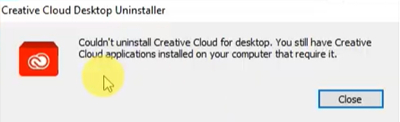
Windows users prefer to remove an app via Settings > Apps > Installed Apps. And for Mac users, this workflow is Finder > Applications. But unfortunately, this basic entry cannot uninstall Adobe Creative Cloud at all. When the 'Uninstall' button is pressed, a window pops up, telling them that other Adobe processes are running now and you cannot uninstall Creative Cloud. This is the CoreSync issue that many users are complaining about. If you don’t close all the Adobe background processes (this is unlikely too), you cannot uninstall Adobe Creative Cloud.
To remove the stubborn software, this blog shares 4 types of tools, both official tools and third-party uninstallers.
#1. Disable all Adobe processes to prevent CoreSync
(Need to be quick, or the programs will be reactivated by built-in Adobe processes)
#2. Use Adobe Creative Cloud Uninstaller to manually remove this software
(This tool requires you to login to proceed with uninstallation)
#3. Use the Adobe Cloud Clean tool to uninstall without logging in
(Very strong and handy tool that doesn't require you to login, but cannot complete cleaning Adobe leftovers)
#4. Use a third-party software uninstaller to remove Adobe Creative Cloud
(Must be a reliable uninstaller and can force clean Adobe files)
How to Uninstall Adobe Creative Cloud Without CoreSync?
Cannot uninstall because other Adobe programs are running - CoreSync is the root cause. When Creative Cloud needs to be uninstalled, users’ situations are different; some end Creative Cloud and the uninstallation could be successful, while most of them need to end all Adobe processes to permanently uninstall Creative Cloud.
Whatever the situation, one thing to keep in mind: Never delete CoreSync.exe, registry files, or the Adobe folder from Program Files, which can lead to other Adobe software’s malfunction and file corruption.
How to disable CoreSync and remove Adobe Creative Cloud?
Step 1. Open Task Manager (Ctrl+Shift+Esc) on Windows or Activity Monitor on Mac
Step 2. End the tasks and wait 3-5 seconds.
Step 3. Try uninstalling Creative Cloud.
If it is not working, then try to end more processes. Here is the list of all Adobe-related:
CoreSync.exe
Adobe Content Synchronizer.exe
Creative Cloud Libraries Synchronizer.exe
Creative Cloud Content Manager.exe
CCLibrary.exe
CCXProcess
Adobe Desktop Service
AdobeIPCBroker
If things go well, you can uninstall Creative Cloud when CoreSync is responding fast. If things go wrong, CoreSync is awakened by other latent Adobe processes again. Now, two more tools we can use to uninstall Creative Cloud.
How to Uninstall Adobe Creative Cloud with Its Official Uninstaller?
Adobe knows how complex it is to delete its own product, and this company has developed an uninstaller to cope with the hard task. Navigate to the official website to download this tool. Link address: https://helpx.adobe.com/creative-cloud/apps/manage-apps/creative-cloud-desktop-app/uninstall-creative-cloud-desktop-app.html
Many people feel bad about this detour, thinking they have lost control over their PC. Negative comments are everywhere.

What’s even worse is that this uninstaller cannot completely remove Creative Cloud. The leftovers on your PC will roll back and one day reappear in your system background. The leftover documents can also be the root cause of uninstallation errors when you uninstall Photoshop or Lightroom the next time. If you want a deep uninstallation, you can jump to the final section of this blog for a practical solution.
How to uninstall Adobe Creative Cloud with a dedicated uninstaller?
Step 1. Visit the official website to download the uninstaller offered by Adobe.
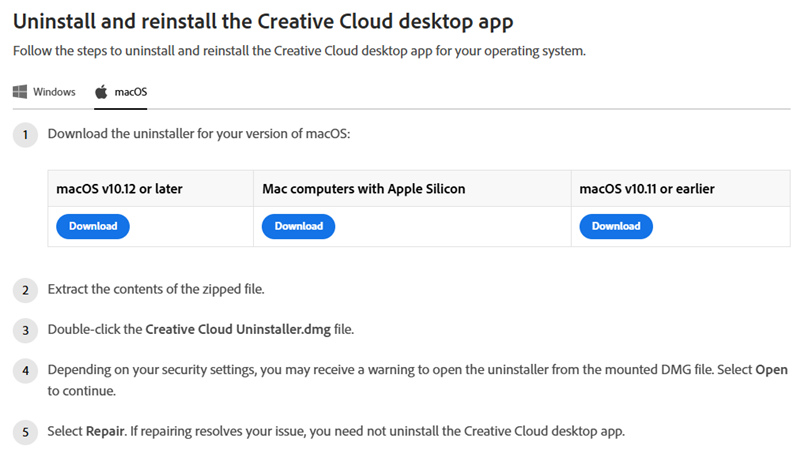
Step 2. Activate the uninstaller and follow its lead to remove Creative Cloud.
Step 3. Finish the uninstallation.
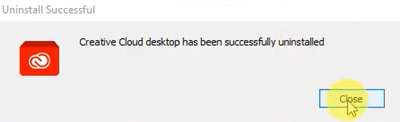
However, this method is still not perfect. This downloader sometimes asks users to login to their Adobe account to uninstall Creative Cloud. If you happen to forget the password for, the uninstallation cannot proceed. Fret not, read on to learn about another tool that helps you uninstall without login.
How to Uninstall Adobe Creative Cloud Windows Without Login?
For those who bought a second-hand MacBook or forgot Adobe account passwords, uninstallation cannot proceed without login. For this very situation, Adobe suggests users download another uninstaller called Adobe Creative Cloud Cleaner Tool. This software is regarded as a final resort, and its features are more functional compared with the Adobe Creative Cloud uninstaller. It can clean uninstall, remove CoreSync, and clean corrupted installation files.
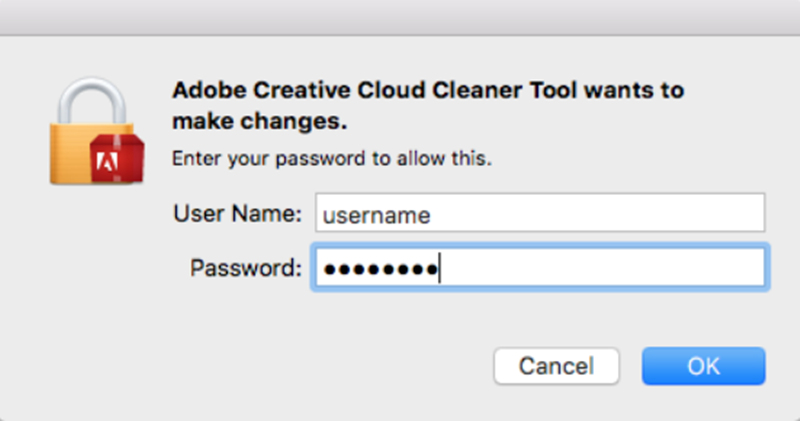
The core features of Adobe Creative Cloud Cleaner Tool:
Resolve CoreSync Issues - CoreSync or Adobe Content Synchronizer continues running, consumes resources, or causes sync-related problems after uninstalling apps.
Clean Up Multiple Adobe Products - You want to remove several Adobe applications and shared Creative Cloud components in one cleanup process.
Remove Leftover Adobe Files - Normal uninstallation leaves behind Adobe services, folders, or registry entries that prevent a clean setup.
Failed Adobe App Uninstall - An Adobe app (e.g., Photoshop or Illustrator) won't uninstall due to errors or stuck background processes.
How to completely uninstall Adobe Creative Cloud with Creative Cloud Cleaner Tool?
Step 1. Navigate to the official website to download this tool: https://helpx.adobe.com/creative-cloud/apps/troubleshoot/diagnostics-repair-tools/run-creative-cloud-cleaner-tool.html
Step 2. Launch this tool and select which Adobe software needs to be uninstalled. Here, select Adobe Creative Cloud Desktop.
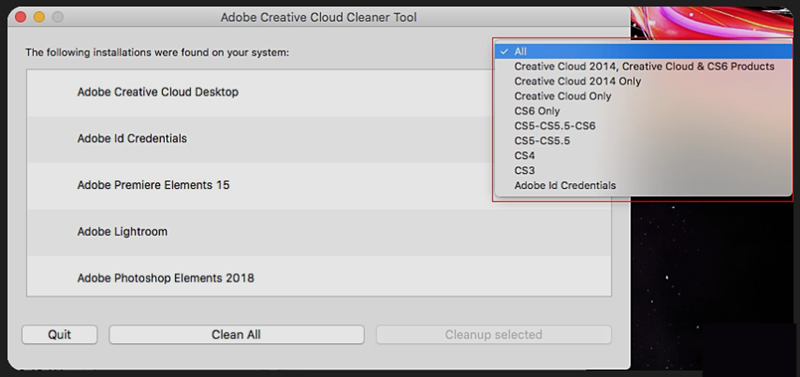
Step 3. Finish the uninstallation and check if leftover.
If there are still errors during uninstallation, please read on to check the final method for uninstalling without errors.
How to Uninstall Adobe Creative Cloud Without Errors?
Adobe uninstall error codes (error code 1, 12, 131, etc) typically indicate corrupted installation files, missing components, insufficient permissions, running background processes, etc. If this prompt occurs during uninstallation, the process is very likely to fail. As mentioned, Adobe Creative Cloud leftovers can hinder your subsequent uninstallation and software running. Using a force uninstaller can help with this issue. IObit Uninstaller is one free and green solution to completely remove any files on your PC.
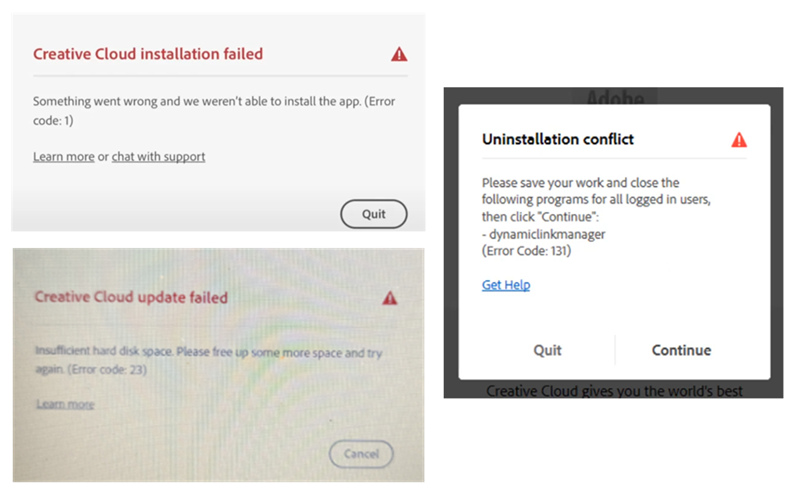
How to force uninstall Adobe Creative Cloud, clean leftovers and avoid errors?
Step 1. Download, install and launch IObit Uninstaller.
Step 2. Locate Adobe Creative Cloud.
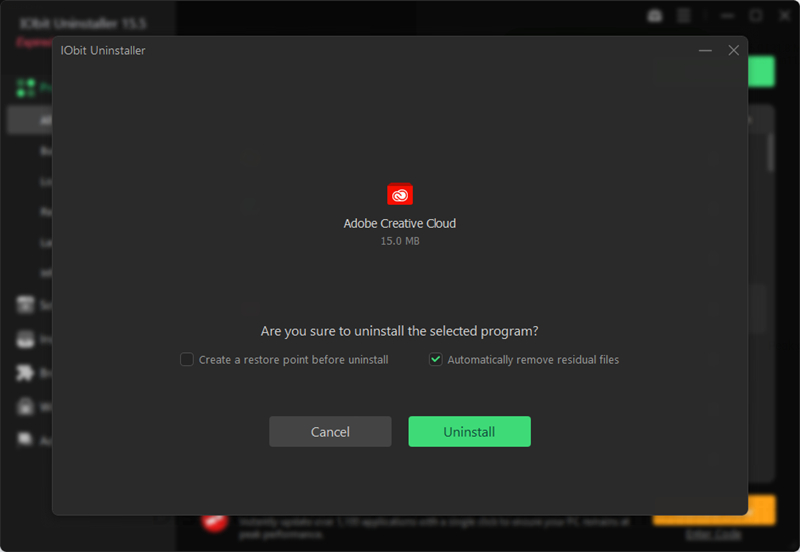
Step 3. Start the uninstallation
Step 4. Enable leftover scanning.
After the standard uninstallation finishes, check the option:
Adobe registry entries
Installation records
Empty folders
Cache files
Shared Creative Cloud components
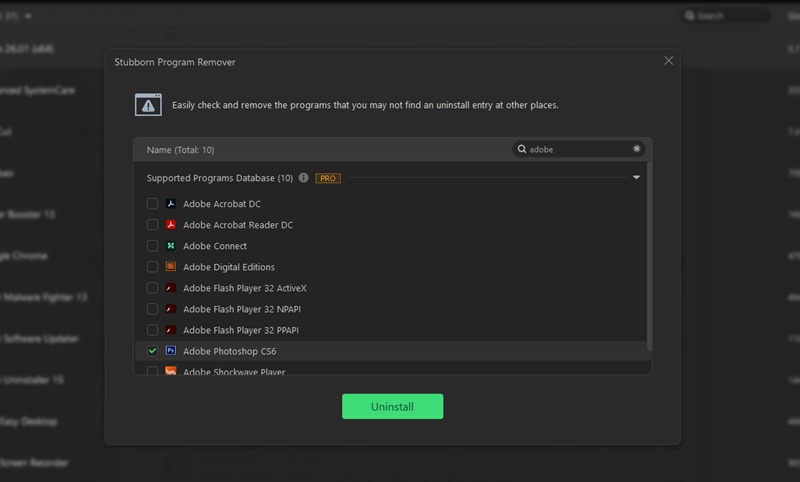
IObit Uninstaller is also good at clean uninstalling other Adobe software.
Conclusion
Removing Adobe Creative Cloud completely requires more than a standard uninstall. Cleaning up CoreSync, leftover files, and installation records helps prevent uninstall errors and ensures a smoother experience if you reinstall Adobe software later. IObit Uninstaller is a quick answer to the question 'how to uninstall Adobe Creative Cloud', this free software deals with stubborn leftovers and prevents documents from being restored. Please feel free to try it.
IObit Uninstaller Free
- Complete forced uninstallation for stubborn programs.
- Uninstall a batch of programs at once.
- Scan and remove leftover files, folders, and registry entries.
- Support the management of Universal Windows Platform apps.