







Kevin Hart
Kevin is an experienced editor focused on tech blog writing. Familiar with all kinds of PC software on the market. All the topics he chooses are aimed at bringing more benefits to users.
Expert in
PC Health Solution

All-in-one PC health solution: clean, optimize and secure

Comprehensive PC cleaning, optimization and protection

Keep drivers always up-to-date

More stable performance with less system crashes

Protect millions of computers against malware

Top computer security with full-round protection

Protect against viruses & boost PC performance
Clean: 420 billion traces removed & 85 EB junk files cleaned
Protect: 80 million unauthorized access blocked & 20 million bugs fixed
Speed Up: 6 million hours of startup time saved & Turbo boost
Optimize: Auto clean and auto care your PC with AI mode

Learn how to fix CPU bottleneck issues with four practical methods, Advanced SystemCare, and safe performance tuning—without replacing your CPU.

Kevin Hart


Has your PC started stuttering in games even though the graphics card isn't fully loaded? A CPU bottleneck can hold back frame rates, cause frame-time spikes, and make the system feel less responsive. The cause is not always outdated hardware. Background programs, uncapped FPS, CPU-heavy game settings, heat, and unnecessary startup items can all add processor load. This guide explains how to fix CPU bottleneck problems with four practical methods, a Windows optimization tool, and performance testing. It also shows where software can help—and where a hardware limit remains.
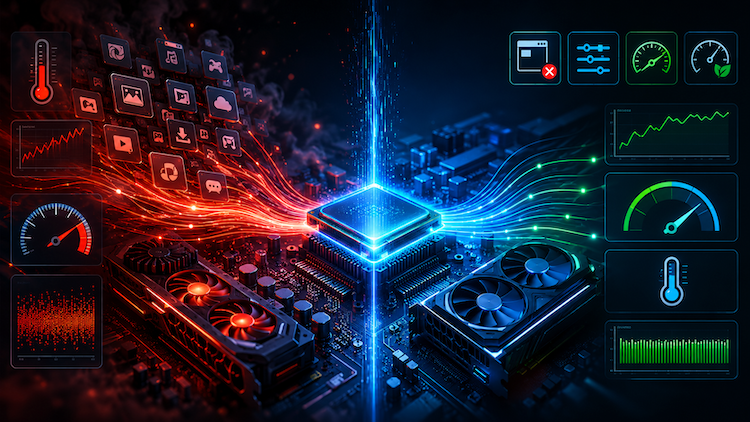
A CPU bottleneck occurs when the processor cannot prepare instructions quickly enough for the GPU or another component. In games, the CPU handles work such as game logic, physics, AI, audio, and draw calls. When it falls behind, GPU usage may remain lower than expected, and FPS may become unstable. Other signs include one or more CPU cores running near full load, frame-time spikes, and larger drops in crowded or simulation-heavy scenes.
Before deciding how to fix CPU bottleneck issues, run a computer performance test and compare CPU usage, GPU usage, temperatures, FPS, and frame time in the same scene. A bottleneck calculator can provide a rough hardware estimate, but it should support—not replace—real testing.
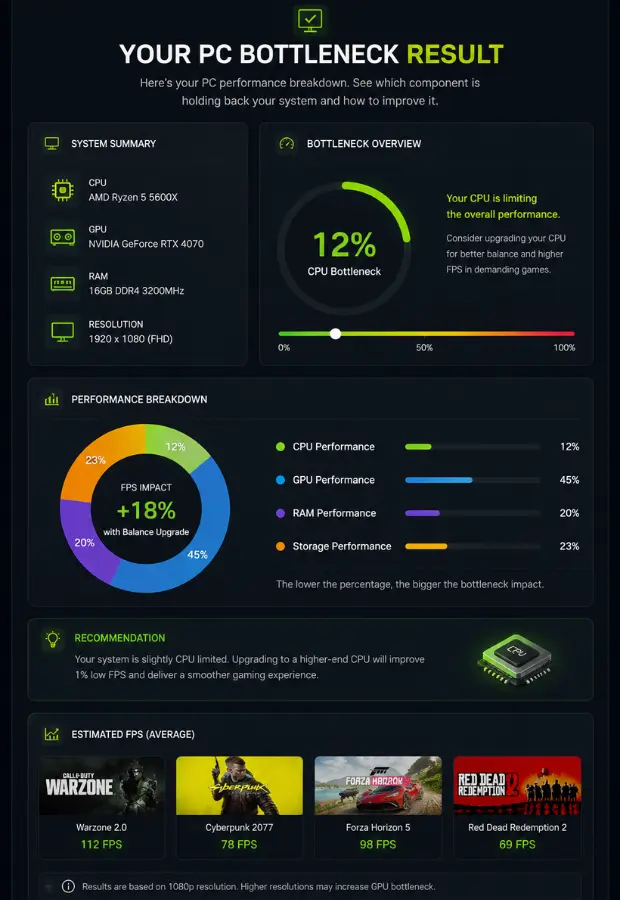
The following methods explain how to reduce CPU bottleneck pressure without replacing the processor. They are also useful for anyone researching how to fix CPU bottleneck without upgrading.
Browsers, game launchers, recording software, cloud-sync tools, and update services can compete with a game for processor time.
1. Press Ctrl + Shift + Esc to open Task Manager.
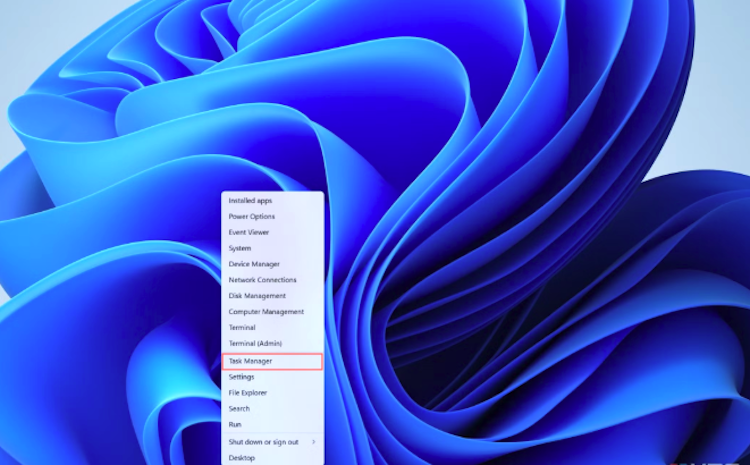
2.On the Processes tab, select the CPU column to sort apps by usage.
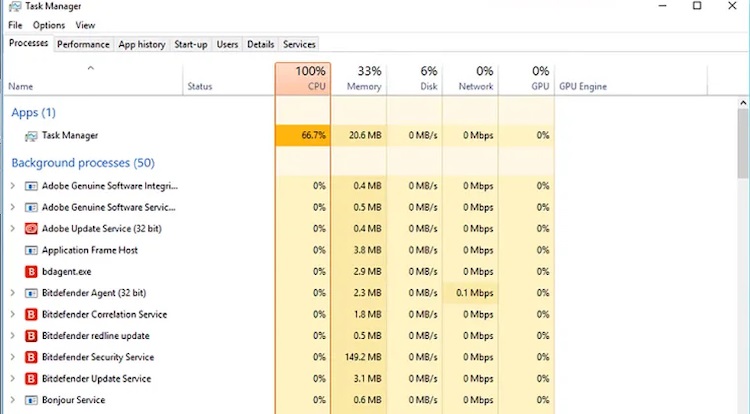
3.Save your work, select an app you recognize and do not need, and click End task.
4.Open Startup apps and disable nonessential programs.
Do not end unfamiliar Windows, security, driver, or hardware processes. This is especially useful for readers asking how to fix CPU bottleneck on laptop systems, where heat and power limits leave less performance headroom. Microsoft also recommends Task Manager for identifying resource-heavy processes and disabling unnecessary startup apps.
If processor use remains high outside games, review the causes of high CPU usage. When Task Manager shows storage rather than the CPU at its limit, troubleshoot 100 disk usage Windows 11 separately.
Raising the resolution or a GPU-focused option can move more work to the graphics card. This does not make the CPU faster or guarantee higher FPS, but it can improve workload balance in a CPU-limited game.
1.Open the game’s graphics settings.
2.Raise the resolution one step if the monitor and GPU can handle it.
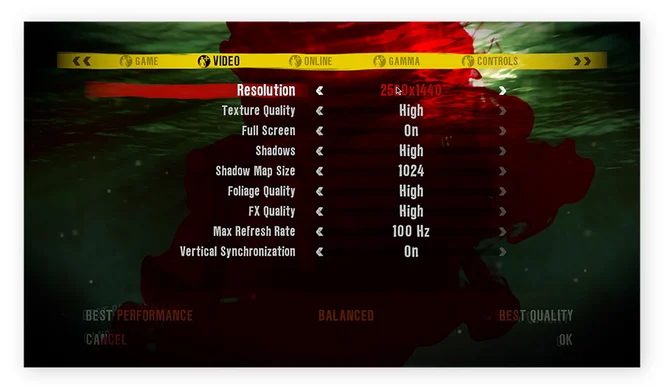
3.Increase one GPU-heavy option, such as anti-aliasing.
4.Replay the same scene and compare FPS, frame time, CPU use, and GPU use.
5.Revert the change if performance falls too far.
This method can help when learning how to fix CPU bottleneck behavior at high frame rates. It shifts the workload rather than removing the processor’s limit.
An uncapped game may ask the processor to prepare more frames than the monitor can display. A stable FPS limit can reduce unnecessary CPU work and improve frame pacing.
1.Check the monitor’s refresh rate in Windows Display settings.
2.Set a cap the system can maintain, such as 60, 90, 120, or 144 FPS.
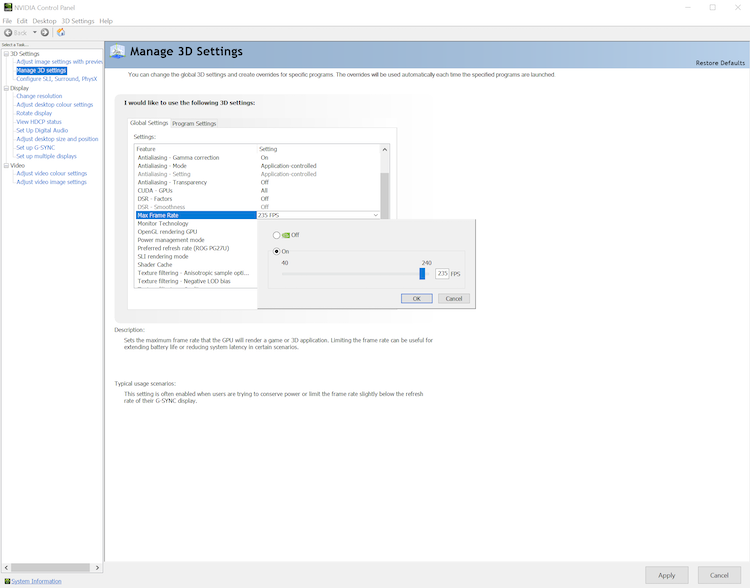
3.Use the game’s built-in limiter first.
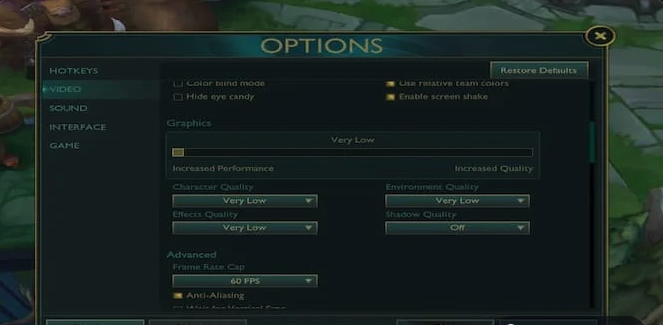
4.Test a busy gameplay scene.
5.Lower the cap slightly if CPU usage and stuttering remain high.
For many games, this is one of the simplest ways to fix CPU bottleneck symptoms without lowering visual quality. It may also reduce heat and fan noise.
Crowd density, traffic, physics, simulation detail, AI count, and object distance can increase CPU work per frame.
1.Save the current preset before changing anything.
2.Lower one CPU-heavy setting at a time.
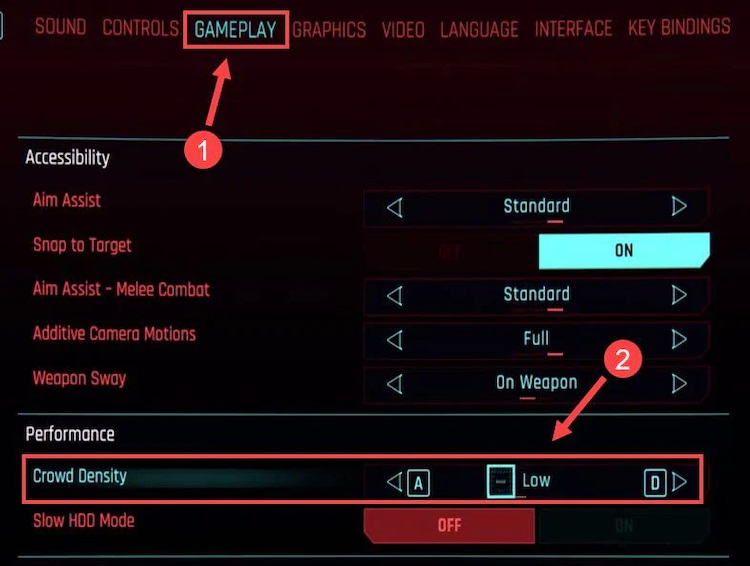
3.Leave texture quality unchanged unless video memory is also limited.
4.Replay the same demanding area and compare minimum FPS and frame time.
5.Keep only the changes that help.
This shows how to prevent CPU bottleneck spikes in scenes with many characters, vehicles, or physics objects. Combined with an FPS cap, it reduces the work the processor must finish for every frame. Afterward, repeat the same benchmark to see which adjustment produced a real improvement.
Manual changes work best when you know which apps and settings are causing the load. When several startup items, background services, and resource-heavy programs are involved, Advanced SystemCare brings related controls into one Speed Up panel. It cannot make the CPU itself faster, but it can reduce avoidable Windows activity while you test how to fix CPU bottleneck problems caused by software.

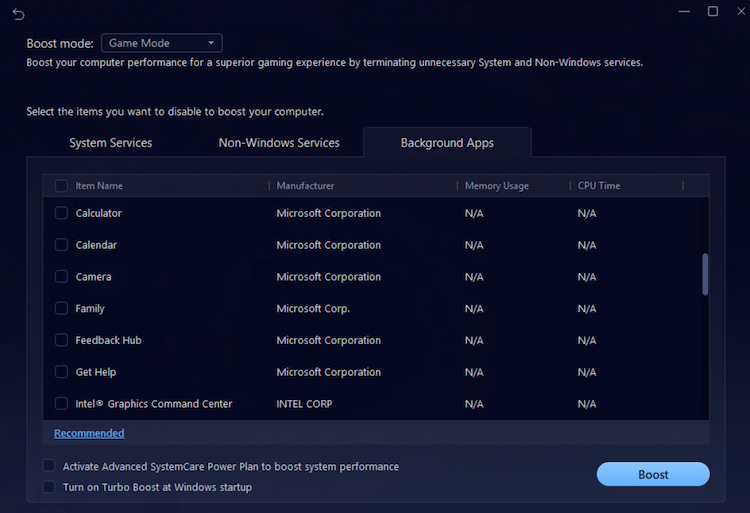
Turbo Boost: Turbo Boost mode by this Windows optimizer temporarily disables selected unnecessary services and background apps to free system resources. Work Mode prioritizes everyday productivity, Game Mode applies a deeper game-focused boost, and Economy Mode balances performance with lower power consumption to help extend laptop battery life. Before turning it on, users can review the selected items and keep any essential services enabled.
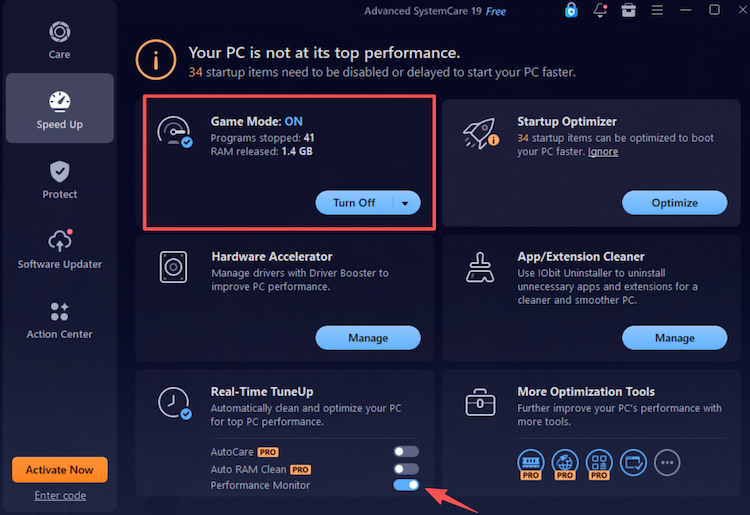
Real-time TuneUp: Real-time TuneUp combines Performance Monitor and Auto RAM Clean. Performance Monitor displays live CPU, RAM, and disk usage and helps identify processes consuming excessive system resources. Auto RAM Clean, available only in the Pro version, helps release memory automatically in real time, reducing the need for repeated manual cleanup and leaving more RAM available for active programs. Readers comparing memory tools can also review a RAM optimizer Windows 11 guide.
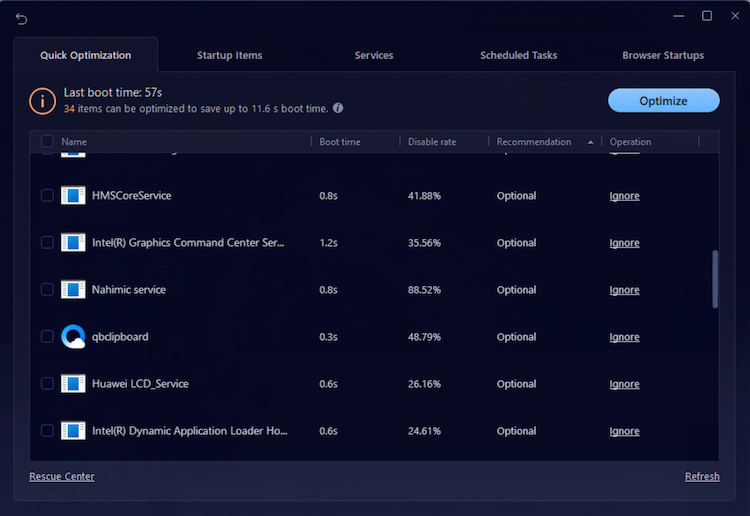
Startup Optimizer: Startup Optimizer helps shorten boot time by analyzing startup items and allowing recognized entries to be disabled or delayed. It also manages browser startups, computer services, and scheduled tasks, helping prevent unnecessary activity from returning after every reboot. Users can review each item’s disable rate and boot-time impact before making changes.
Follow these steps:
1. Download and install Advanced SystemCare from the official product page.
2.Open the program and select Speed Up.
3.Find Turbo Boost and click Configure while it is off.
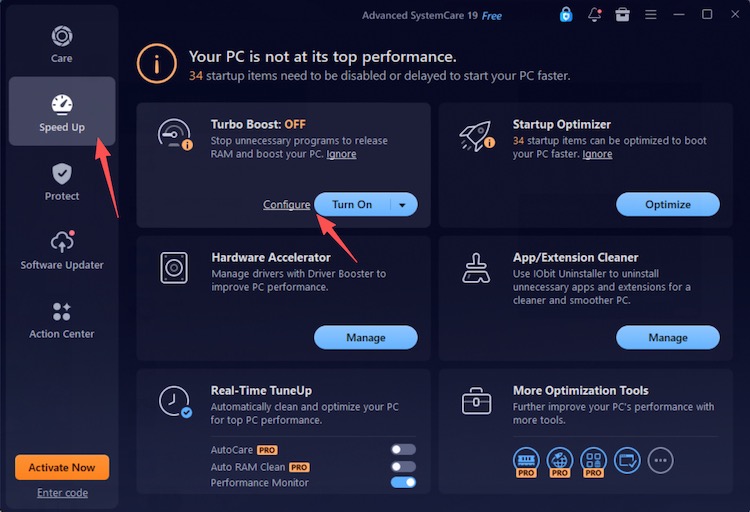
4.Choose Game Mode and review the selected services and apps.
5.Return to Speed Up and click Turn On under Turbo Boost.
6.Enable Real-time TuneUp and use Performance Monitor to check high-CPU processes.
7.Open Startup Optimizer and disable or delay only items you recognize.
8.Launch the game and repeat the same test scene rather than judging only by average FPS.
These steps help when background activity is the main cause. If storage is nearly full, follow a guide on how to free up disk space, because low storage and CPU saturation are different problems.
CPU overclocking can improve supported unlocked processors, but it is unavailable on many systems and is rarely suitable for laptops. It raises heat and power use, so adequate cooling and stability testing are important. On supported Intel systems, tuning is usually done through the BIOS or Intel Extreme Tuning Utility. Intel states that CPU overclocking support is limited to compatible unlocked processor and platform combinations.
Smart Game Booster can support game performance, but it is not a CPU-overclocking tool. Its official materials describe GPU and VRAM overclocking, background-process cleanup, network acceleration, and hardware monitoring.
1.Download and install Smart Game Booster.
2.Add or select the game you want to run.
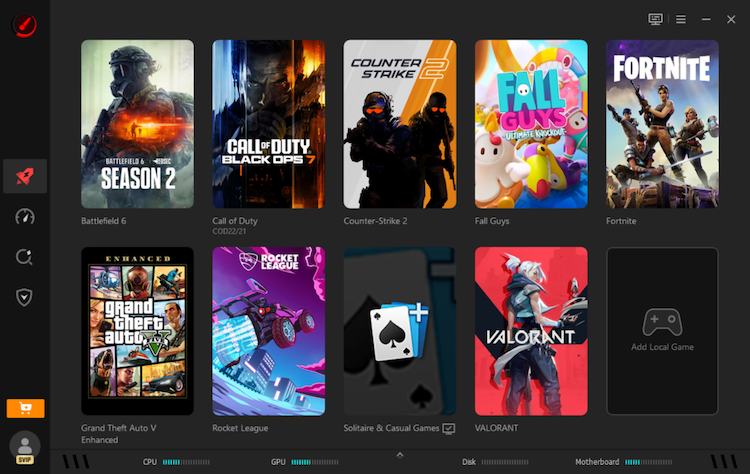
3.Choose the available PC boost and network settings.
4.Click Accelerate Now.
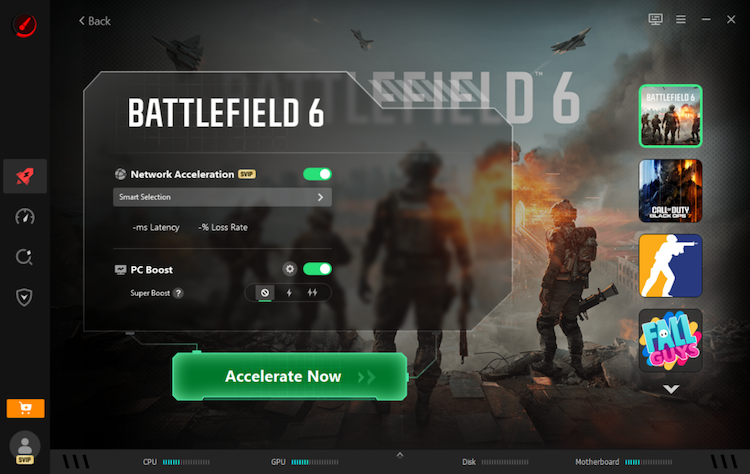
5.Monitor FPS, temperatures, and system stability.
The product’s current instructions use an Accelerate Now workflow after a game and boost settings are selected. The tool can free CPU and RAM resources around the game, but it cannot remove a hard CPU performance limit. Treat it as an extra step rather than a guaranteed answer to how to fix CPU bottleneck problems.
Learning how to fix CPU bottleneck problems starts with measuring the right component, closing background apps, balancing graphics settings, limiting FPS, and reducing CPU-heavy options. These steps show how to reduce CPU bottleneck pressure and how to prevent CPU bottleneck spikes. Advanced SystemCare can simplify background and startup management, while a true hardware limit may still require a future upgrade.

All-in-one PC health solution.
Free Download