Many people feel frustrated by the slow internet caused by a weak WiFi signal. Buffering videos, dropped video calls, and lagging games can ruin your productivity and entertainment at home or in the office. So, how to enhance WiFi signal? This complete guide offers 9 effective methods. You can find practical ways to boost your WiFi signal in your home, and the best internet booster and optimizer to speed up both your Wi-Fi and overall system network efficiently.
What Impacts Your WiFi Signal?
Weak WiFi signals and slow internet often stem from various reasons. Before looking into how to enhance WiFi signal in home, let’s check out the major causes behind the issue.
Physical barriers (thick walls, floors, and furniture) block signals; the distance from the router also weakens the signal.
Interference from neighboring networks, microwaves, cordless phones, Bluetooth devices, etc., might disrupt your Wi-Fi signal.
Too many connected devices compete for bandwidth, and outdated router firmware or poor channel selection adds congestion.
Accumulated cache on your router and modem might also affect the speed and performance.
Even router placement in corners or near metal objects can reduce coverage.
How to Enhance WiFi Signal in Home: 9 Tips for Higher Internet Speed
Once you have identified the cause behind it, you can proceed to the next step—how to improve WiFi signal in my house. Here, we have concluded 9 proven ways to boost internet speed. Just check them out.
1. Optimize Your Router Location
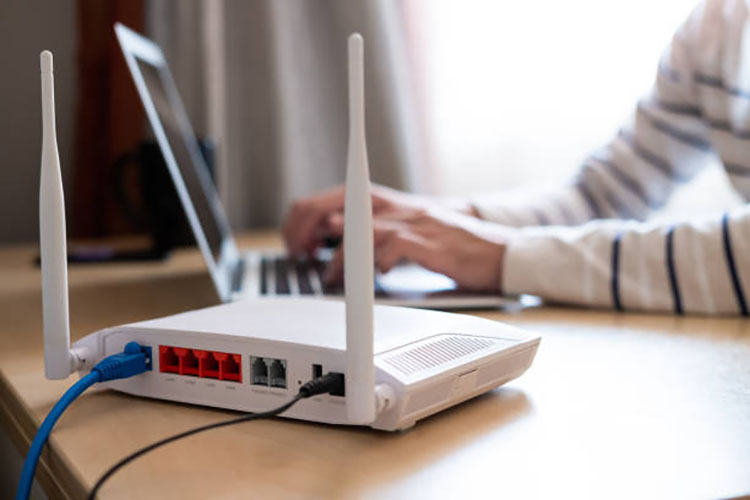
How to boost your WiFi signal for free? One of the quickest ways is to reposition your router. It’s recommended to place it in a central, open, and elevated spot(on a shelf about 5-7 feet high) for even signal distribution. Avoid corners, floors, cabinets, or areas near thick walls and metal objects, because they can block waves.
2. Switch to A Better Channel
WiFi channels can get crowded, especially on 2.4 GHz, which then causes interference and slower speeds. Here’s how to boost WiFi signal in home by switching it to a less congested channel using the D-Link router.
Step 1. Access the router settings page and log in to the admin panel.
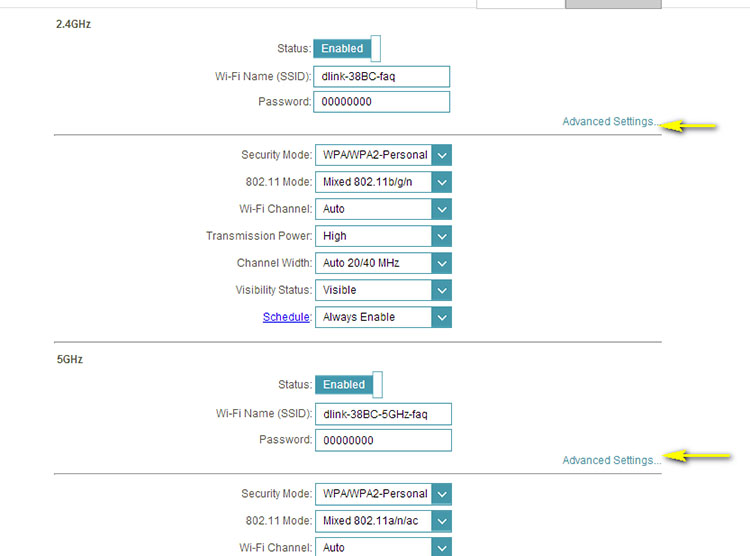
Step 2. Go to wireless settings. Choose the frequency band you want to modify (2.4 GHz or 5 GHz), then open its advanced settings.
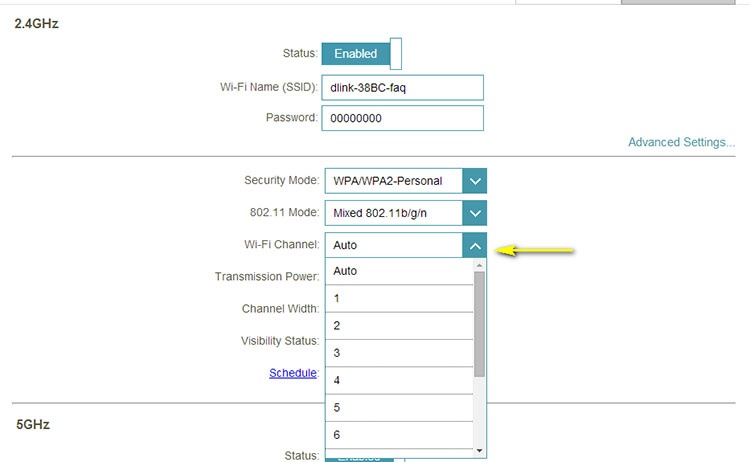
Step 3. From there, pick a new channel from the drop-down list. Save your changes.
3. Reduce the Number of Connected Devices
To improve performance, disconnect devices you’re not actively using and prioritize the ones that matter most. For high-bandwidth activities(streaming, gaming, etc.), consider switching to a wired Ethernet connection to free up wireless capacity and get a more stable connection.
>> Also learn how to update WiFi drivers to improve WiFi performance.
4. Keep It Away from Electronics
As introduced earlier, electronics can create interference to your Wi-Fi signal. It’s best to relocate your router at least several feet away from these sources, such as TVs, microwaves, and cordless phones. This helps maintain a more stable connection throughout your home.
5. Restart Router and Modem Regularly
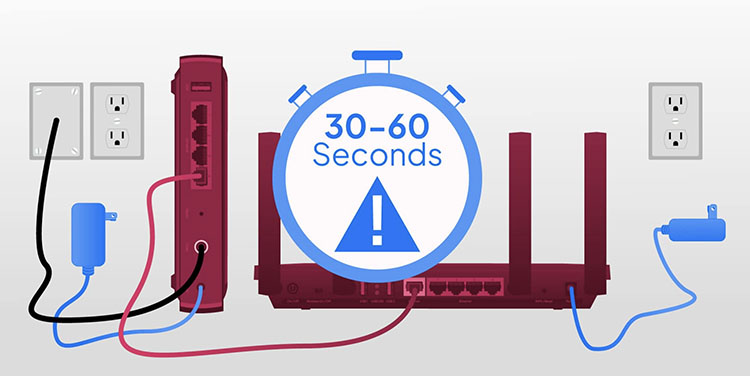
Over time, your router might accumulate temporary glitches that can weaken performance. So, how to boost WiFi signal in home in this case? You can restart your router and modem weekly to clear memory and refresh connections. Also, you can unplug both for 30-60seconds, then plug the modem back in first, followed by the router, to resolve minor issues.
6. Update Your Router Firmware
If your firmware is outdated, it’s time to update it to boost signal stability and speed. Here’s how to enhance WiFi signal by updating your router firmware.
Step 1. Log in to your router account. Navigate to the settings menu and locate the firmware update section. This is often found under Administration or a similar tab.
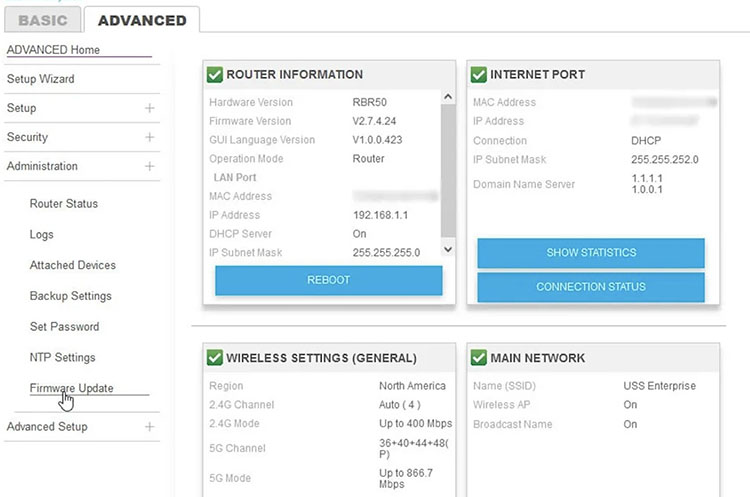
Step 2. Open the firmware update page and start a check. Some routers do this automatically. If a new version is available, download and install it.

7. Set Up a Mesh WiFi System is Possible
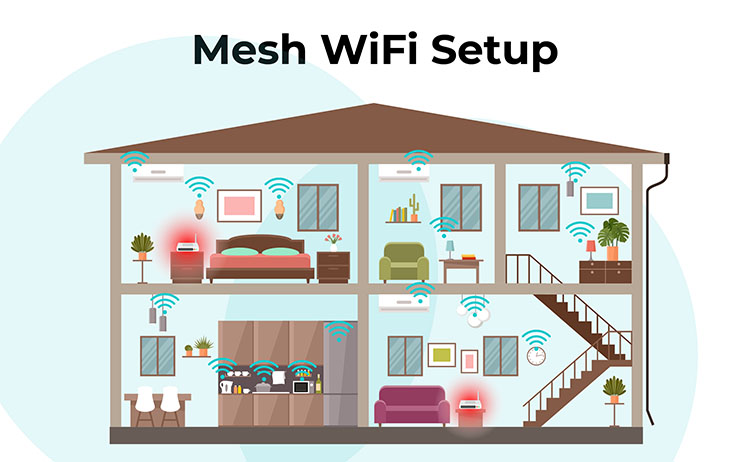
For larger homes or persistent dead zones, a mesh WiFi system is a great choice, which adopts multiple nodes for seamless coverage. Unlike traditional extenders, mesh creates one unified network with automatic handoff as you move. It eliminates weak spots effectively and supports the WiFi signal across bigger spaces.
8. Strengthen Your WiFi Password
Weak or default passwords might invite neighbors or unauthorized users to join, thus consuming your bandwidth. It’s recommended to use a strong password with a mix of letters, numbers, and symbols. Meanwhile, change it regularly to prevent slowdowns and enhance security.
9. Use a WiFi Extender/Booster
How to boost up internet speed when basic tweaks are not enough? Try a WiFi extender or booster to rebroadcast the signal to reach farther areas. So, will a WiFi booster increase speed for sure? Yes, if you place it in the right place. Just position it midway between your router and the weak-signal zone to get better coverage and more stable speeds.
Enhance WiFi Signal with Advanced WiFi Booster & Optimizer
The previous sections have introduced how to enhance WiFi signal with 9 useful methods. But if you want a faster and more convenient solution on Windows, IObit Advanced SystemCare is an excellent choice that can actually make a noticeable improvement! As the best TCP optimizer, it can effectively help you fine-tune network settings, reduce latency, and improve overall connection stability. Let’s check out its powerful features to learn more.
Advanced SystemCare Free
- Clean: 420 billion traces removed & 85 EB junk files cleaned
- Protect: 80 million unauthorized access blocked & 20 million bugs fixed
- Speed Up: 6 million hours of startup time saved & Turbo boost
- Optimize: Auto clean and auto care your PC with AI mode

Why Use IObit Advanced SystemCare to Boost WiFi Signal?
The software is capable of optimizing your TCP/IP parameters for improved data transmission. You can enjoy a much faster network for downloading, streaming, or PC gaming with reduced latency.
It’s also an Internet speed booster for PC, which can greatly optimize the settings of your Internet Explorer, Firefox, Opera, and Edge to speed up your connection for smooth browsing.
The Turbo Boost feature can temporarily shut down unnecessary background processes, free up RAM, and prioritize system resources, which helps your PC run more smoothly while improving overall WiFi performance.
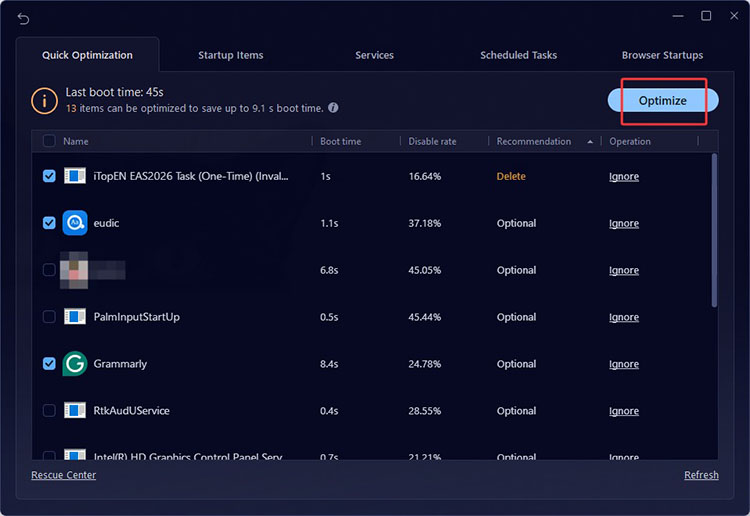
Its Startup Optimizer disables unnecessary programs that launch at boot, allowing your computer to start faster and run more efficiently without slowing down network-related tasks.
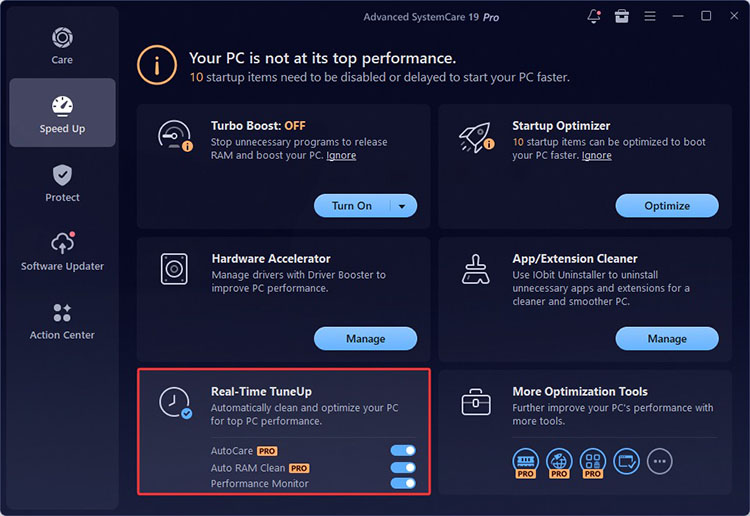
With tools like AutoCare, Auto RAM Clean, and Performance Monitor, the software continuously optimizes your system in the background. This can help keep your internet speed stable and consistently enhance your WiFi performance.
How to Enhance WiFi Signal with IObit Advanced SystemCare
Step 1. Free download and install the IObit Advanced SystemCare on your Windows PC.
Step 2. Go to Speed up > More Optimization Tool in the right corner. Choose the Internet Booster(the second icon).
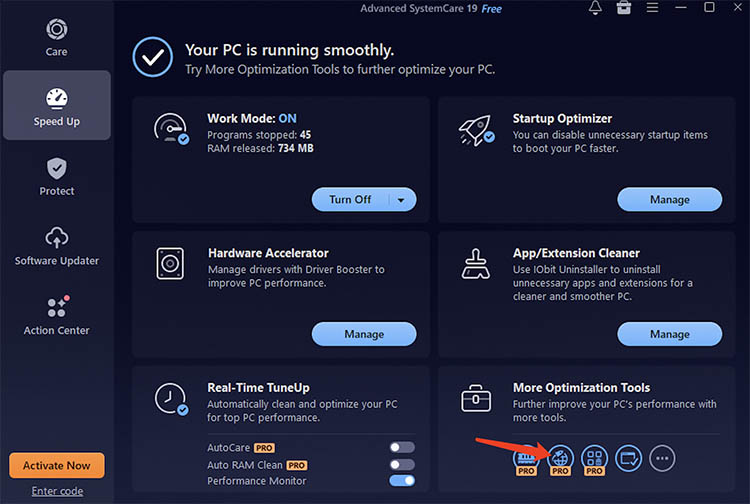
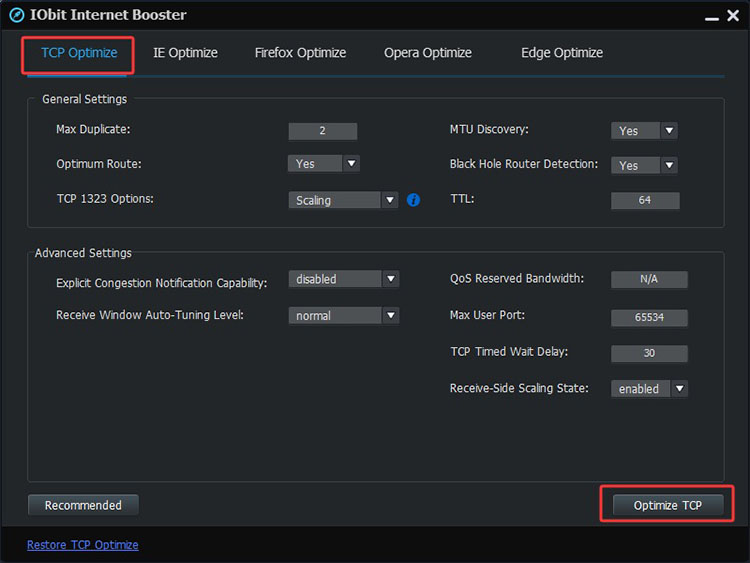
Step 3. In the TCP Optimize tab, click on the Recommended settings(left corner). Then click on the Optimize TCP button to improve your network settings.
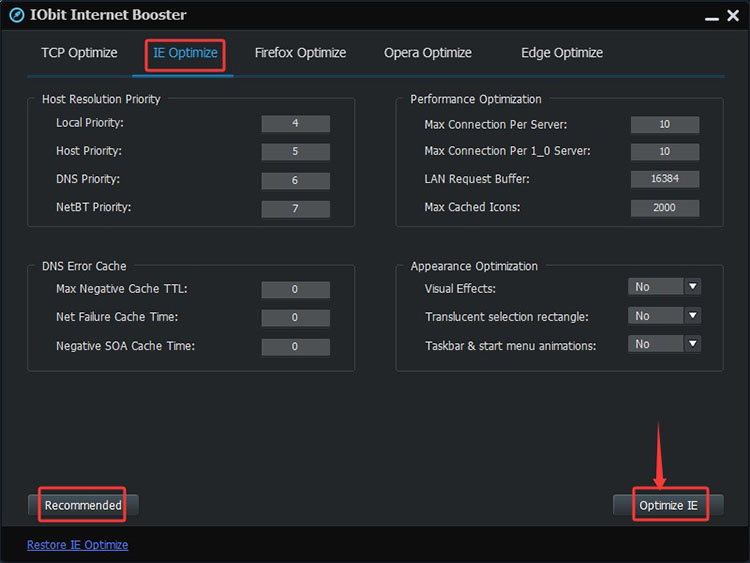
Step 4. To optimize your Internet Explorer, just select the IE Optimize tab. Click Recommended, then the Optimize IE button on the right.
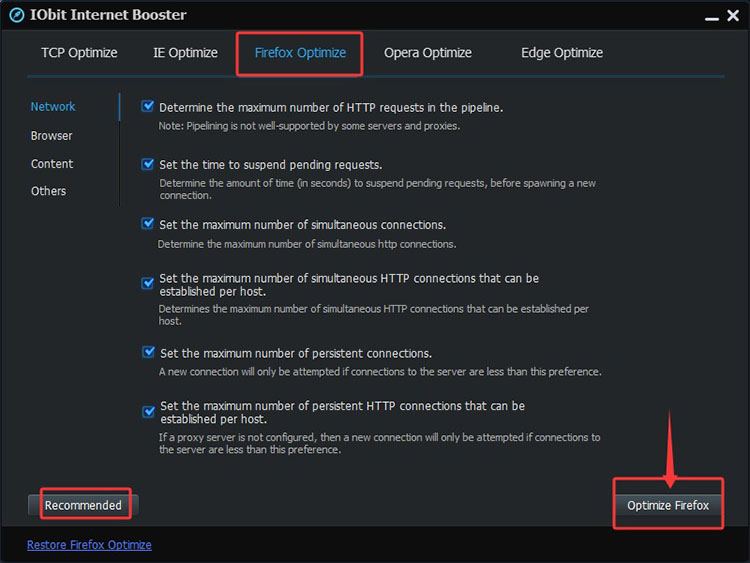
Step 5. Similarly, you can optimize your Firefox/Opera/Edge browser. Just choose the rest of the tabs and improve the performance in one click.
Free Speed Up Windows for Faster Internet
In addition, IObit Advanced SystemCare provides several tools to boost your PC performance further and improve your internet speed.
Turbo Boost
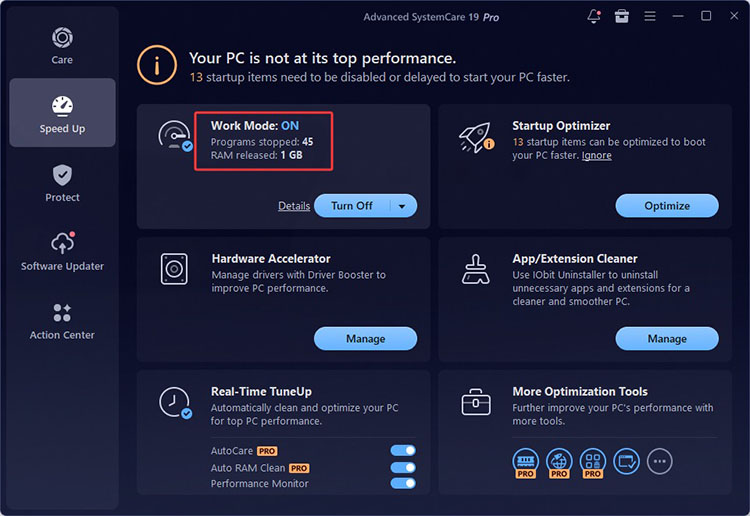
Step 1. Go to the Speed Up section, select Turbo Boost, and turn on Work Mode.
Step 2. Once activated, Turbo Boost will automatically stop unnecessary background processes and free up RAM to enhance your system's efficiency.
Start Up Optimizer
Step 1. Open the Startup Optimizer(next to Turbo Boost), enable it.
Step 2. Disable the apps to reduce boot time and prevent unnecessary programs from consuming bandwidth.
Real-time TuneUp
Step 1. Select the Real-time TuneUp at the bottom.
Step 2. It will automatically clean and optimize your PC for top performance.
How to Enhance WiFi Signal - FAQs
1. Does Your WiFi Signal Affect Internet Speed?
Yes. While your ISP determines maximum speed, a weak WiFi signal causes packet loss, lower data rates, and retransmissions, reducing effective speeds.
2. What Is the Fastest Way to Boost WiFi Signal?
Start with the quick fixes introduced above. For instance, place your router in a central location, switch to a less crowded channel, and restart your device. For an extra boost on Windows, try IObit Advanced SystemCare, which can act as a virtual WiFi speed enhancer to optimize network settings and improve overall performance.
3. What Devices Will Commonly Slow Down WiFi?
Devices that use a lot of bandwidth or connect inefficiently can slow your network. For instance, smart TVs, gaming consoles, multiple smartphones or tablets running/streaming, IoT devices, and older devices. Heavy streaming or large downloads can make the issue even worse.
4. How Far Can I Extend My WiFi Range in Home?
A standard extender can add 30-50 meters indoors, depending on the walls and model. You can also adopt a mesh system, which might offer better whole-home coverage up to several thousand square feet.
The Bottom Line
How to enhance WiFi signal? This guide has covered 9 practical tips along with a powerful optimization tool. As you can see, IObit Advanced SystemCare stands out as a practical Internet booster and TCP optimizer. It automatically fine-tunes your PC and network settings for a smoother experience. Try it for free and enjoy a more reliable connection from now on!
Advanced SystemCare Free
- Clean: 420 billion traces removed & 85 EB junk files cleaned
- Protect: 80 million unauthorized access blocked & 20 million bugs fixed
- Speed Up: 6 million hours of startup time saved & Turbo boost
- Optimize: Auto clean and auto care your PC with AI mode