Chrome keeps a record of the websites you visit, which can be useful for revisiting pages but may also leave behind more browsing data than you want. Removing this history is the quickest way to protect your privacy, reclaim some browser storage, and sometimes resolve sluggish browsing. Whether you're using Windows, Mac, Android, or iPhone, Chrome provides built-in options to remove your browsing records. This guide explains how to history delete Chrome on any device and what to do if your browsing history won't clear. Keep reading for step-by-step solutions.
How to Delete History in Chrome on Windows
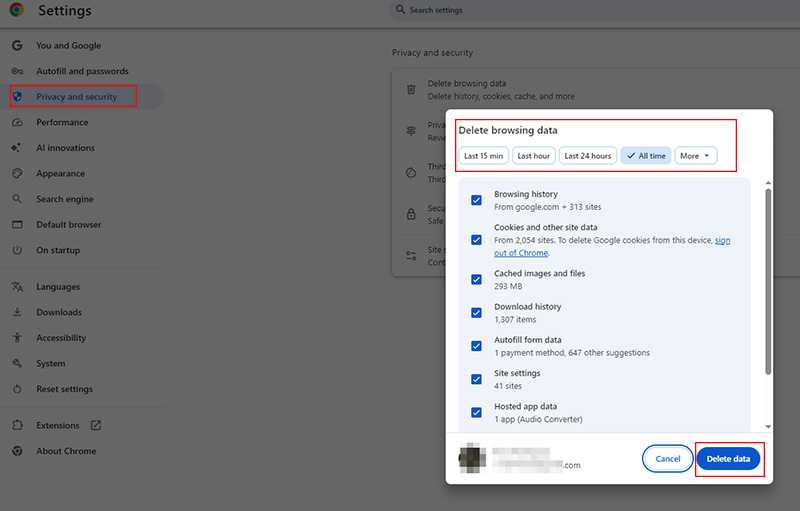
Windows users can clear Chrome history directly from the browser without navigating through several settings menus. For history delete Chrome options on Windows, this shortcut is usually the fastest method. Use the Ctrl + Shift + Delete shortcut to open the Delete browsing data panel immediately. Then follow the guide below on how to delete Google Chrome history on Windows.
Step 1. Under the Delete browsing data option, locate the time range menu, and choose how far back Chrome should remove records. Select All time to wipe the complete browsing history.
Step 2. Under the available data categories, select Browsing history. Check cookies and other site data based on your needs. The same process also covers how to delete download history in Chrome.
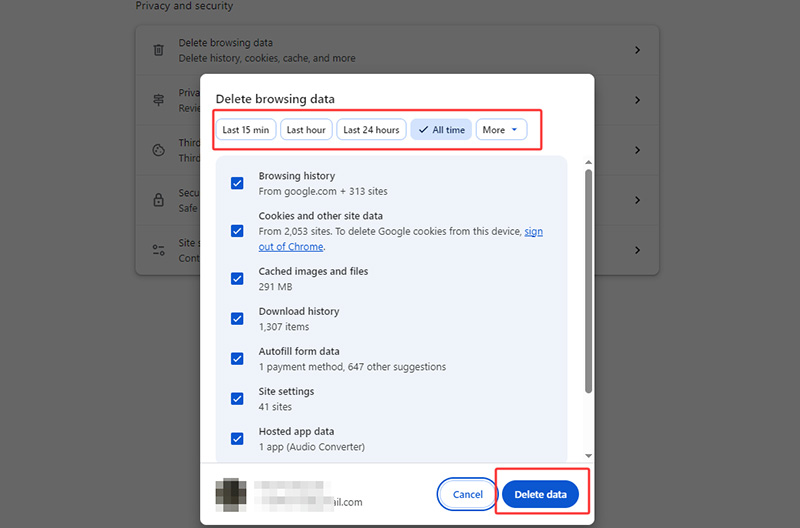
Step 3. Click Delete data to apply your selections to delete browser history in Chrome. Chrome will remove the matching history from the selected time period.
Advanced Tip: Remove More Than Just Chrome History
Clearing Chrome history removes the list of websites you've visited, but it does not necessarily erase every browsing trace left elsewhere on a Windows PC. Cookies, cached content, download history, and activity from other browsers or applications may remain. For a broader and quicker cleanup, IObit Advanced SystemCare includes a Privacy Sweep feature set to locate and remove these traces from supported browsers and apps.
Advanced SystemCare Free
- Clean: 420 billion traces removed & 85 EB junk files cleaned
- Protect: 80 million unauthorized access blocked & 20 million bugs fixed
- Speed Up: 6 million hours of startup time saved & Turbo boost
- Optimize: Auto clean and auto care your PC with AI mode

What Advanced SystemCare Can Do
One-Click Chrome History Cleanup: Scan Chrome for browsing history and other selected privacy data without manually working through Chrome's settings.
Multi-Browser & App Privacy Cleaning: Clean traces from Chrome, Edge, IE, Firefox, along with app activity such as cache, cookies, and temporary files.
Customizable Privacy Data Selection: Choose the types of records to remove instead of deleting every available item.
Automatic Privacy Traces Clean: Automatically wipe browser and application traces, including history, cookies, cache, and more whenever Windows starts, requiring no extra computer performance test.
Deep Privacy Trace Removal: Dig deep into your system to remove hidden traces from browsers, utilities, Office, Windows, and more.
How to Delete Chrome History with Advanced SystemCare
Step 1. Free download and install Advanced SystemCare on your Windows PC, then open it.
Step 2. Switch to Manual Mode. Find Privacy Sweep, hover over it, and click the Settings icon beside it.
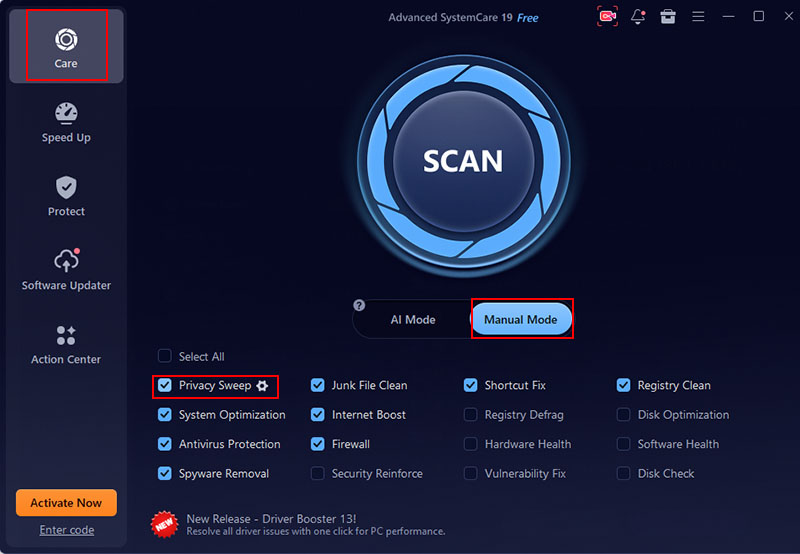
Step 3. In the Privacy Sweep settings, check History and any other privacy categories you want to remove under Google Chrome. Click OK to save your selections.
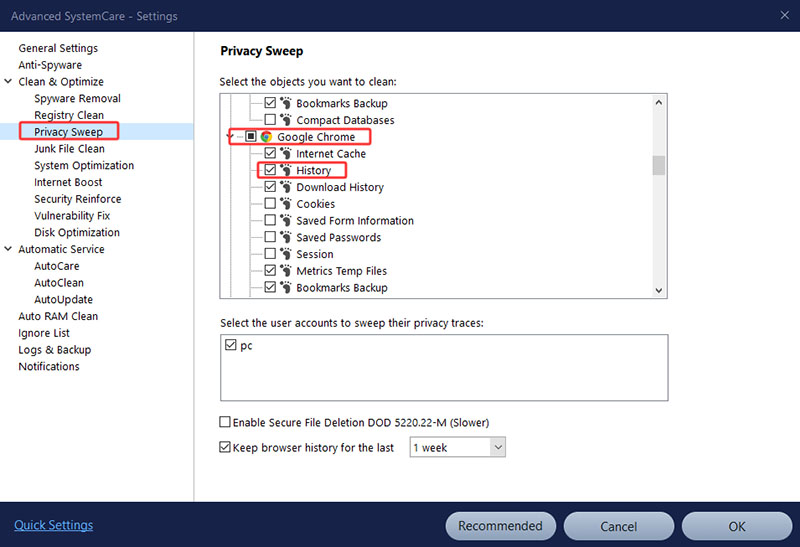 Step 4. Return to the main interface and click Scan. Advanced SystemCare will check the selected locations for removable privacy traces.
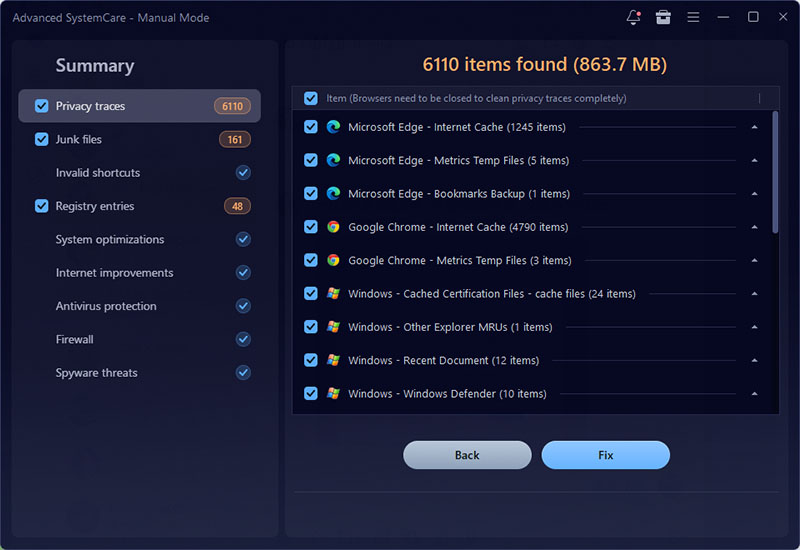
Step 5. When the scan finishes, review the detected items and click Fix to delete browser history in Chrome and other selected privacy data.
How to Delete Chrome Browser History on Mac
On a Mac, Chrome gives you a quick shortcut as well as a more familiar menu-based route for removing browsing records. Press Command + Shift + Delete to bring up Chrome's Delete browsing data window on your Mac. You can then choose how much history to remove and decide whether other browsing data should be cleared at the same time.
Step 1. On the Delete browsing data window, use the Time range drop-down menu to decide how far back you want to go.
Step 2. Tick Browsing history if you only want to erase visited pages. You can also block ads in Chrome free via Privacy and security> Site settings> Additional content settings or Ads.
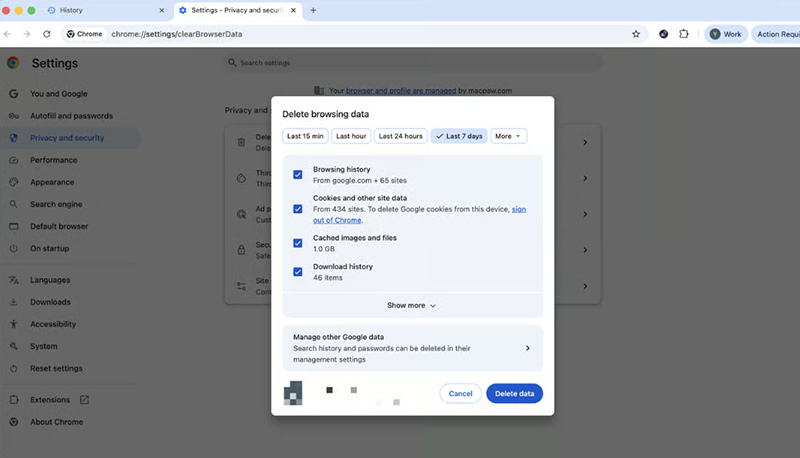
Step 3. Review your selections, then click Delete data to finish.
How to Clear Chrome Browsing History on Mobile
The mobile app has its own controls for removing Chrome recent activity, although the menu layout is slightly different on iPhone and Android. The process takes only a few taps to delete history in Chrome, needless of searching for “how do I uninstall Chrome extensions” to protect privacy.
On iPhone
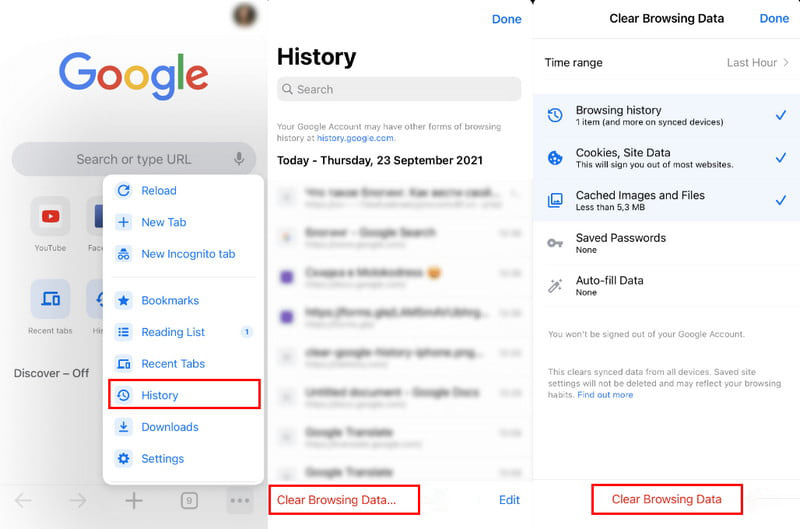
Step 1. Launch the Chrome app on your iPhone and tap the three-dot menu in the bottom-right corner.
Step 2. Tap History and tap Delete Browsing Data.
Step 3. Select the Time Range you want to clear, tap Delete Browsing Data again and confirm the action.
On Android
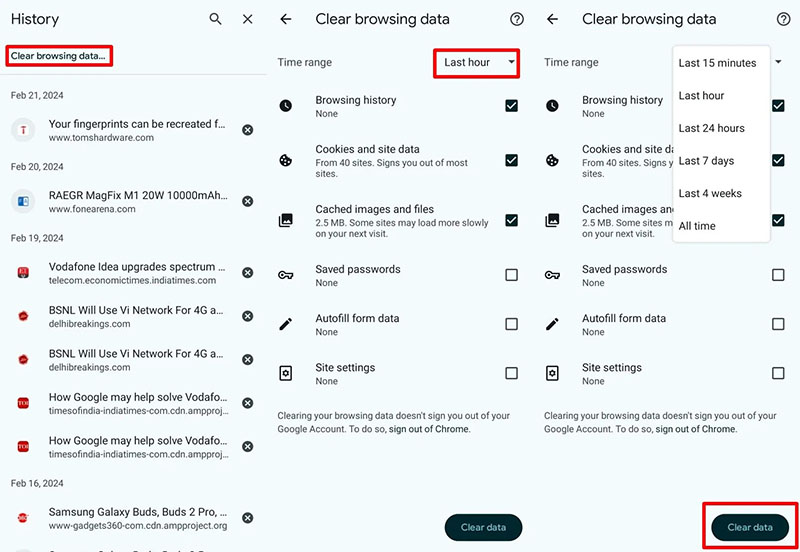
Step 1. Open Chrome on Android and tap the three-dot menu.
Step 2. Choose Delete browsing data and select a Time range. Pick All time to remove your complete history.
Step 3. Select Browsing history, deselect anything you want to keep, then tap Delete data to delete browser history in Chrome on Android mobile.
How to Delete Chrome History Across All Synced Devices
When Chrome Sync is turned on, browsing history can be available on other devices signed in to the same Google Account. This means removing a record from one synced device may also remove it from Chrome on your other synced devices. If you're searching for history delete in Chrome across multiple devices, check your sync settings first, then follow these steps to figure out how to delete history Chrome across your Google Account.
Step 1. Open Chrome on a device where you're signed in to your Google Account.
Step 2. Tap or click your profile picture, then open History and choose History.
Step 3. Select Delete browsing data, choose a Time range, and make sure Browsing history is selected.
Step 4. Click or tap Delete data. With Chrome Sync enabled, the selected history can be removed from your synced Chrome history as well.
How to Remove Activity From Google My Activity?
Chrome history and Google Account activity are related but aren't exactly the same. Use the following guide to remove Google activity.
Step 1. Visit Google My Activity and sign in.
Step 2. Choose Delete activity by, select a time period, and confirm the activity you want to remove.
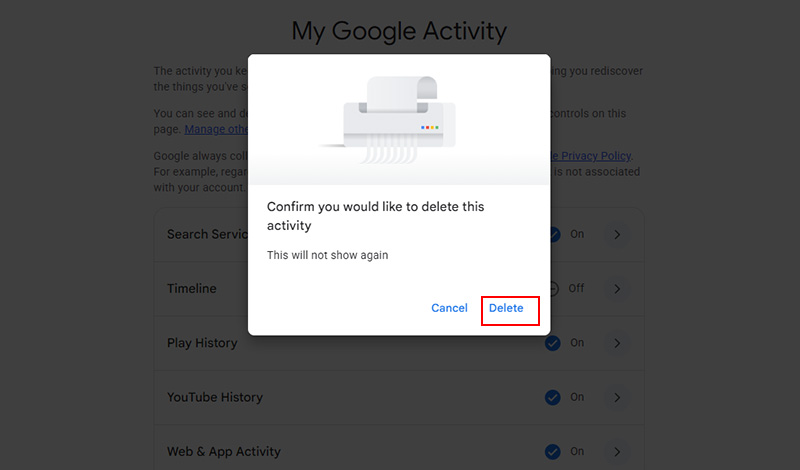 To understand how to clear your Google Chrome history, remember the distinction: deleting Chrome history removes browsing records from Chrome, while deleting activity in Google Account settings manages activity saved to your account.
Why Can't I Delete My Chrome History?
Chrome refuses to remove your browsing history? The cause is often something behind the scenes rather than the deletion process itself. Fortunately, most cases can be fixed with a few quick checks.
Check Chrome Sync. Open Chrome Settings > You and Google > Sync and Google services and review your Sync settings.
Delete Google Account Activity. Open Google My Activity, select Delete, choose a time range, and confirm.
Disable Conflicting Extensions. Go to Extensions > Manage Extensions and temporarily turn off recently installed or suspicious extensions. Then try to history delete Chrome again.
Clear Corrupted Cache and Browser Data. Open Delete browsing data, select Cached images and files, and remove the cached data. Restart Chrome and retry the deletion.
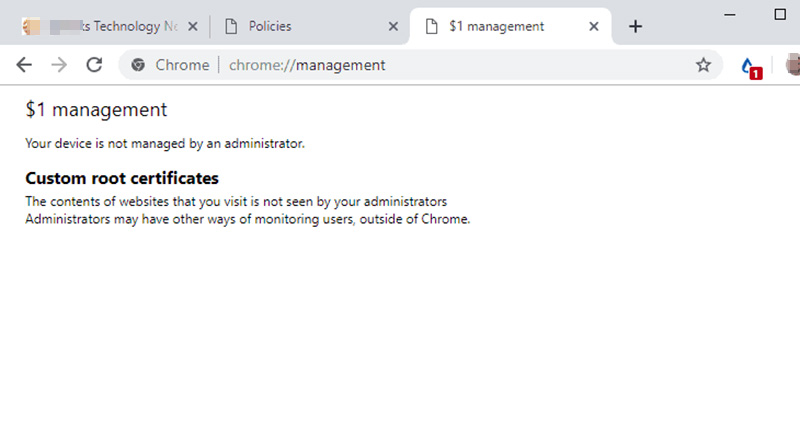
Check for Managed Browser Restrictions. Enter chrome://management in the address bar. If Chrome is managed by an organization, certain browser settings or data-removal options may be restricted by an administrator.
FAQs about History Delete Chrome
1. Does deleting Chrome history delete everything?
No. It removes the browsing history you select, but cookies, cached files, saved passwords, and autofill data remain unless you choose to clear them separately.
2. How do I delete all Chrome history at once?
Open Delete browsing data, set Time range to All time, select Browsing history, and click Delete data.
3. Can Chrome history be recovered?
Once deleted from Chrome, history is not normally recoverable through the browser. However, if you were signed in to your Google account and had history sync enabled, your previous browsing activity may still be available in your Google My Activity dashboard.
4. What's the difference between browsing history, cookies, and cache?
History records visited pages. Cookies store website preferences and login-related information, while cached files help Chrome load content faster.
5. How often should I clear my Chrome history?
There is no fixed schedule for history delete Chrome. Clear it when privacy matters, you share a device, or you want to remove old browsing records.
Conclusion
Clearing Chrome history is straightforward on Windows, Mac, Android, and iPhone, but Chrome's built-in tools may not remove every privacy trace stored on your PC. For a more comprehensive history delete Chrome cleanup, Advanced SystemCare can scan Chrome and other supported apps for additional browsing traces through Privacy Sweep. Give Advanced SystemCare a try and get a simpler way to manage more than browser history.
Advanced SystemCare Free
- Clean: 420 billion traces removed & 85 EB junk files cleaned
- Protect: 80 million unauthorized access blocked & 20 million bugs fixed
- Speed Up: 6 million hours of startup time saved & Turbo boost
- Optimize: Auto clean and auto care your PC with AI mode