GPU usage suddenly spikes in Task Manager? Client Server Runtime Process (csrss.exe) is probably what to blame. Client Server Runtime Process is an essential Windows component to manage system operations, which should not normally consume a significant amount of GPU resources. But if Client Server Runtime Process high GPU usage happens, you should face a set of system issues, from unnecessary power consumption to decreased system responsiveness. It's important to identify the root cause and resolve the problem as soon as possible.
In this guide, we will explain why Client Server Runtime Process using high GPU and show several proven solutions to restore normal GPU performance.

What Causes Client Server Runtime Process High GPU Usage
Let’s have an in-depth look at common reasons that may be triggering very high GPU usage by csrss.exe.
Outdated graphics drivers: Old or damaged graphics drivers can cause Client Server Runtime Process to use more GPU resources than normal. You can update drivers for lowering GPU consumption.
Windows display and graphics issues: Problems with display settings or grphics features may increase GPU usage.
Corrupted system files: Broken Windows system files can affect how csrss.exe works and lead to high GPU usage.
-
Third-party software conflicts: Some apps, such as screen recorders, overlays, or remote desktop tools, may interfere with Windows graphics processes.
Malware disguised as csrss.exe: In some cases, malware may pretend to be csrss.exe and cause unusually high GPU usage.
How to Check Client Server Runtime Process GPU Usage
Before trying any fixes, first verify that csrss.exe is the process responsible for the high GPU usage. This step is important because csrss.exe is a critical Windows system process that normally uses very little GPU power. In some cases, malware may disguise itself as csrss.exe, or another process may be causing the GPU spike while appearing related to it. Confirming the process identity and its resource usage helps you apply the correct solution and avoid overlooking potential security threats.
Method 1. Using Task Manager
Task Manager provides a quick way to monitor GPU usage.
Step 1. Press Ctrl + Shift + Esc to open the Task Manager.
Step 2. Click the Processes tab. This tab shows all running applications and background processes.
Step 3. Right-click any column header (CPU, Memory, Disk, etc.).
Step 4. Scroll through the process list to find Client Server Runtime Process. Then, check the GPU usage column.
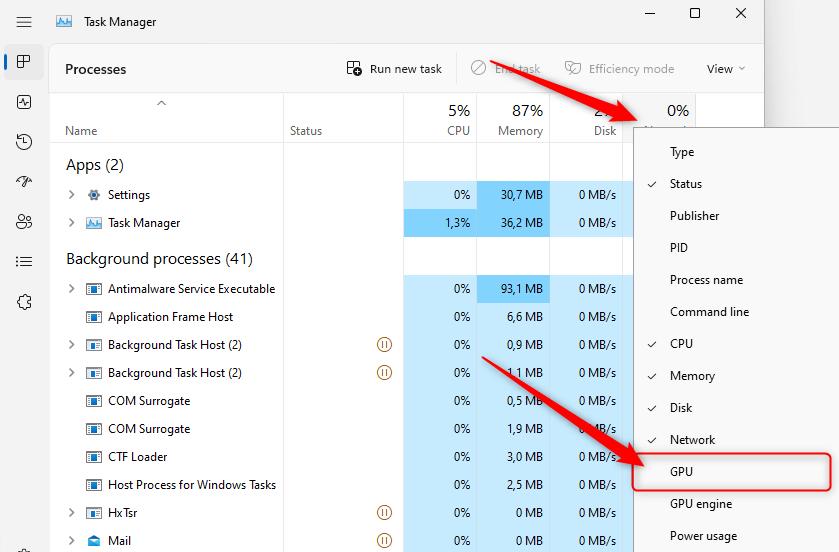
If the process consistently consumes significant graphic resources, proceed with Client Server Runtime Process high GPU fixes below.
Method 2. Using Resource Monitor
Resource Monitor offers more detailed system information and may help identify related processes affecting GPU performance.
Verify the Location of csrss.exe
Legitimate csrss.exe files should be located in:
C:\Windows\System32
If the file is running from another location, perform a malware scan immediately.
Fix 1. Update Graphics Drivers with Driver Booster
Driver Booster is a driver update utility that can be particularly helpful when troubleshooting Client Server Runtime Process (csrss.exe) high GPU usage. Since outdated, corrupted, or incompatible graphics drivers are a common cause of excessive GPU consumption, Driver Booster scans your system for driver-related issues and identifies available updates for NVIDIA, AMD, and Intel graphics cards.
By installing the latest compatible GPU drivers, the automatic driver updater can improve communication between Windows and your graphics hardware, reduce unnecessary GPU load, and help resolve situations where Client Server Runtime Process is using unusually high GPU resources.
Driver Booster Free
- Automatically scan and update drivers.
- Update game ready drivers for peak gaming performance.
- Identify and fix various common of hardware issues.
- Boost 30% of system performance for fast & smooth running.

Key Features of Driver Booster:
One-click driver updates: Driver Booster scans your system for outdated, missing, or faulty drivers and lets you update graphic drivers in a single click.
Extensive driver database: The software maintains access to a large database of drivers for graphics cards, sound devices, network adapters, and other hardware, helping users find compatible updates for a wide range of devices.
Automatic driver backup and restore: Before installing new drivers, Driver Booster creates backups of existing drivers. If a newly installed driver causes problems, you can easily restore the previous version.
Game Ready driver support: Driver Booster can detect and install the latest Game Ready drivers released by GPU manufacturers, helping improve gaming performance, stability, and compatibility with newly launched games.
Driver error detection and repair: The tool can identify driver-related issues such as corrupted, missing, or malfunctioning drivers and provide fixes that help improve hardware performance and system stability. If you can’t update NVIDIA driver, this driver booster can fix it easily.
How Driver Booster Helps Resolve Client Server Runtime process Using High GPU? Here are the steps.
Step 1. Download and launch Driver Booster on your computer.
Step 2. Click the SCAN button to search for outdated, missing, and faulty drivers on your system.
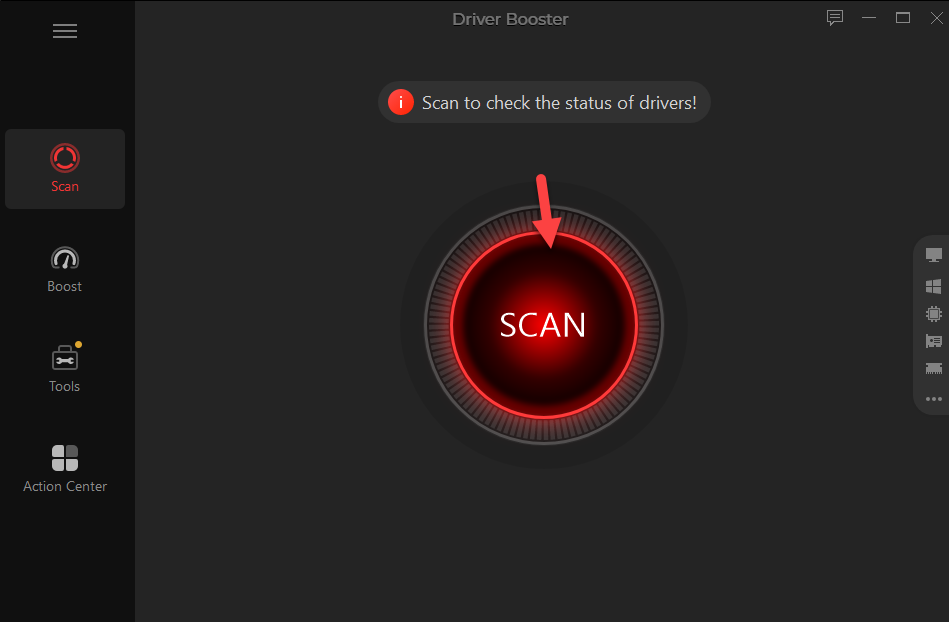 Step 3. After the scan completes, review the list of available updates.
Find your graphics driver, such as:
NVIDIA Graphics Driver
AMD Graphics Driver
Intel Graphics Driver
Click Update beside the graphics driver, or select Update Now to install all available driver updates.
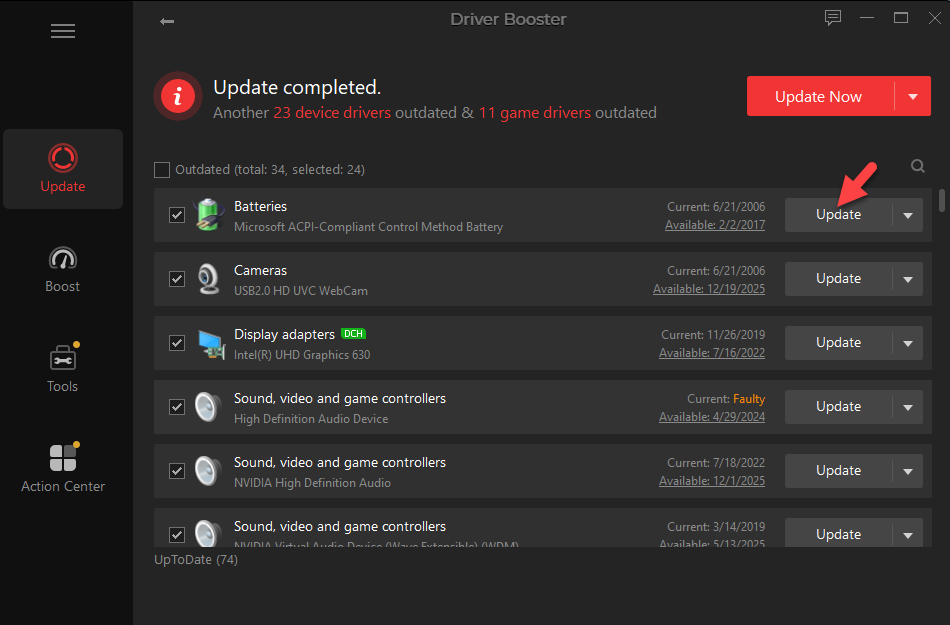
Step 4. Allow Driver Booster to finish downloading and installing the updated driver and then restart your computer.
Fix 2. Restart Windows Explorer
Windows Explorer manages many graphical elements within the operating system. Restarting it can refresh system resources and resolve temporary GPU usage spikes. Here’s how to do it.
Step 1. Press Ctrl + Shift + Esc on your keyboard. Alternatively, right-click the taskbar and select Task Manager.
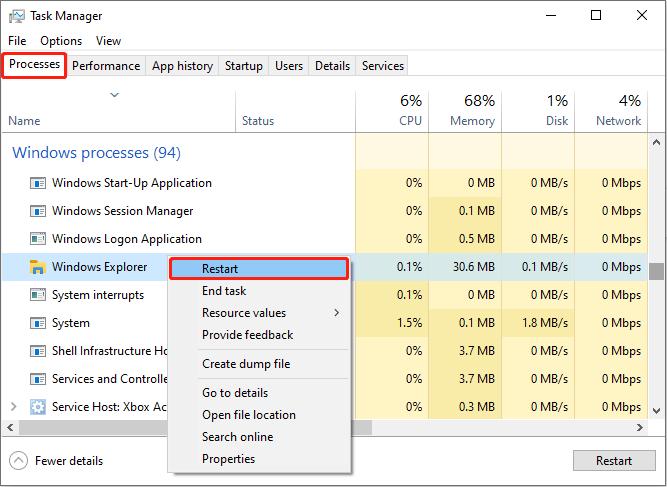
Step 2. In Task Manager, select Processes from the left navigation pane. The Processes tab displays all running applications and background processes.
Step 3. Scroll down the list of running processes. Locate Windows Explorer under the Windows processes section.
Step 4. Select Windows Explorer. Right-click it and select Restart.
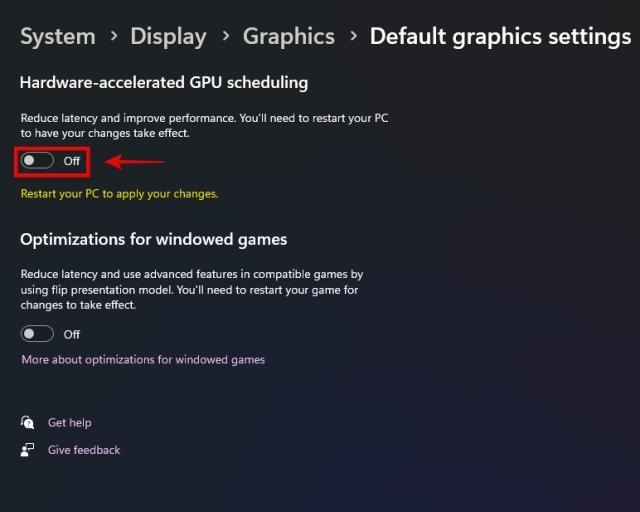
Fix 3. Disable Hardware-Accelerated GPU Scheduling
If restarting Windows Explorer doesn't resolve the issue, the next step is to examine Windows graphics settings. One feature worth checking is Hardware-Accelerated GPU Scheduling. Although it is designed to improve performance and reduce latency by allowing the GPU to manage certain tasks directly, it can sometimes cause compatibility issues, increased GPU usage, or unexpected behavior on specific hardware configurations. Disabling this feature may help fix Client Server Runtime process using GPU load associated with Client Server Runtime Process high GPU reddit and restore normal system performance.
Step 1. Press Windows + I to open Settings.
Step 2. Navigate to System > Display > Graphics > Default Graphics Settings.
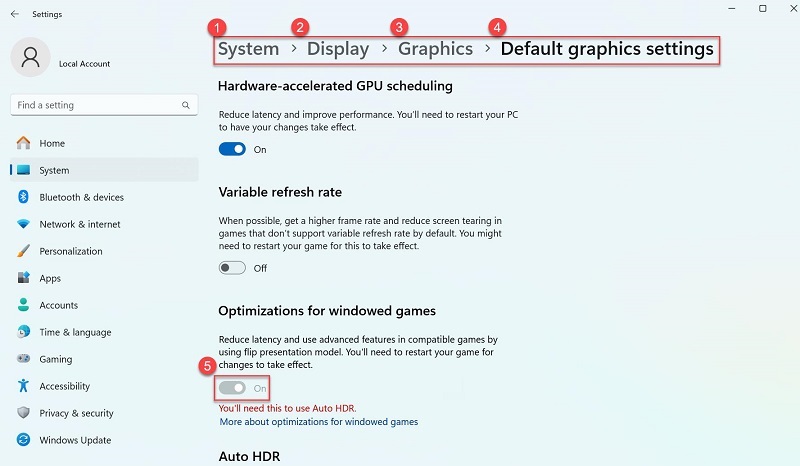
Step 3. Locate Hardware-accelerated GPU scheduling and toggle the switch to Off.
Step 4. Close Settings and restart your computer to apply the changes.
Fix 4. Run System File Checker and DISM
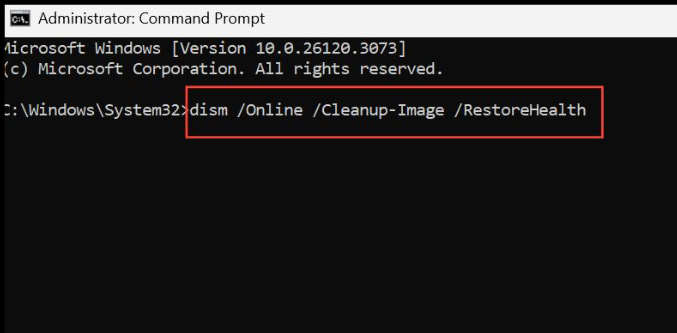
Since csrss.exe is an important Windows process, it depends on healthy system files to work properly. If Windows files become corrupted because of failed updates, sudden shutdowns, disk problems, or malware, csrss.exe may not function correctly and could use more CPU or GPU resources than normal. Running System File Checker (SFC) and DISM can find and fix damaged system files, helping csrss.exe run normally again and reducing unnecessary resource usage.
Step 1. Click the Start button, right-click Command Prompt and select Run as administrator. Click YES if prompted by User Account Control.
Step 2. Run the following commands one by one, pressing Enter after each command:
sfc /scannow
DISM /Online /Cleanup-Image /CheckHealth
DISM /Online /Cleanup-Image /ScanHealth
DISM /Online /Cleanup-Image /RestoreHealth
Step 3. After all scans are complete, restart your PC and check whether GPU usage has improved.
Fix 5. Adjust Visual Effects Settings
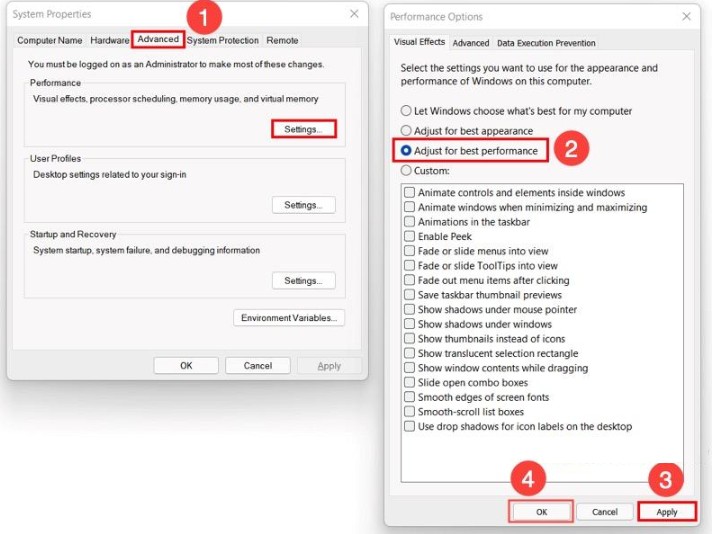
If updating drivers and repairing system files doesn't resolve the issue, adjusting Windows visual effects can help reduce unnecessary GPU workload and improve overall system performance.
Step 1. Press Windows + R to open the Run dialog box.
Step 2. Type sysdm.cpl and click OK.
Step 3. The System Properties window will open.
Step 4. In the Advanced tab, locate the Performance section and click Settings.
Step 5. In the Visual Effects tab, select Adjust for best performance. Windows will automatically disable most animations and visual effects.
Step 6. Click Apply. Then, click OK to save the new settings.
Fix 6. Install the Latest Windows Updates
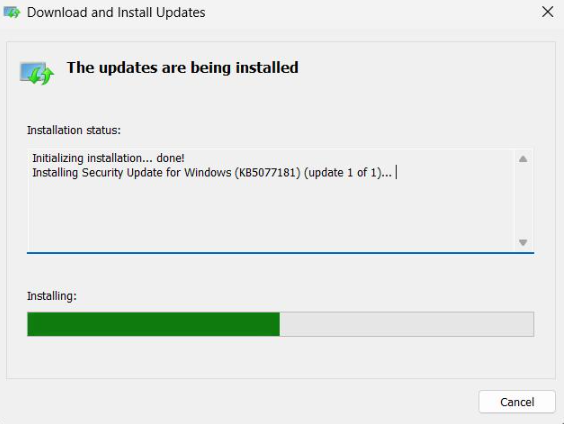
If outdated system components are contributing to Client Server Runtime Process high GPU fix, installing the latest Windows updates can help resolve bugs, improve system stability, and ensure your PC has the most recent performance and security fixes.
How to check for updates:
Step 1. Click the Start button and select Settings.
Step 2. In the Settings window, select Windows Update from the left navigation pane.
Step 3. Click the Check for updates button. Windows will search for the latest available updates for your system.
Step 4. If updates are found, click Download & install or Install now.
Tip: Windows Update often occupies a lot of disk space. Clear Windows Update cache to free up your hard drive if needed.
Fix 7. Perform a Malware Scan
It is worth investigating whether malicious software is involved as well. In some cases, malware can disguise itself as legitimate Windows processes, including csrss.exe, leading to unusually high GPU usage and other performance problems. Running a thorough malware scan can help identify and eliminate potential threats before they cause further system instability.
Step 1. Click the Start button and type Windows Security in the search box. Select Windows Security from the search results.
Step 2. In Windows Security, click Virus & threat protection. This section contains Windows Defender's malware scanning tools.
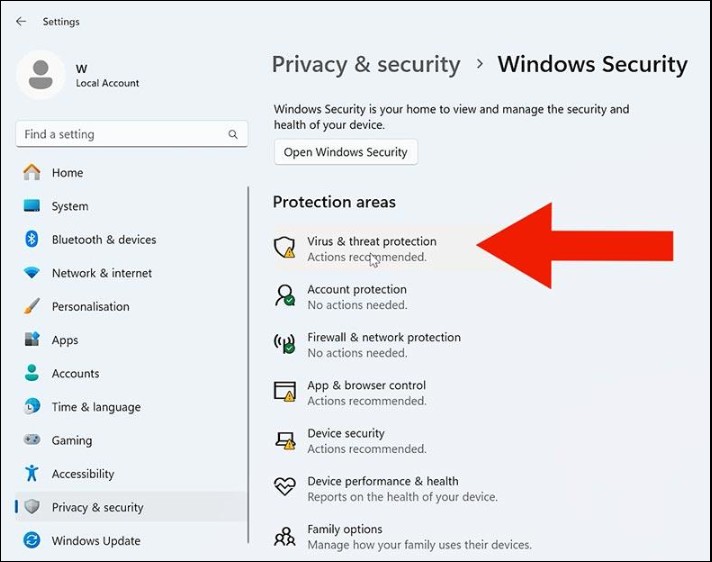
Step 3. Click Quick scan. Windows Security will scan common locations where malware is typically found.
Step 4. Wait for the scan to complete and review any detected threats. Then, follow the recommended actions to quarantine or remove malicious files.
Step 5. Restart your computer.
Conclusion
Client Server Runtime Process high GPU usage can affect system performance, gaming, and daily tasks. Common causes include outdated graphics drivers, corrupted system files, incorrect display settings, or software conflicts. One of the most effective fixes is updating your graphics drivers. Driver Booster simplifies this by automatically detecting and installing the latest compatible drivers. Combined with Windows updates, malware scans, and system repairs, it can help reduce GPU usage and improve overall system performance.
Driver Booster Free
- Automatically scan and update drivers.
- Update game ready drivers for peak gaming performance.
- Identify and fix various common of hardware issues.
- Boost 30% of system performance for fast & smooth running.