Realtek audio driver is an important component of OEM computers, which delivers enhanced high-quality audio solutions to users. However, you may encounter annoying Realtek audio driver issues, such as no sound, missing devices, or unresponsive speakers, caused by outdated audio drivers or incorrect updates.
How to update Realtek sound driver? This guide will show you 4 different methods to update your Realtek drivers easily and efficiently on Windows.
Method 1. Update Realtek Audio Driver via Device Manager
How to update Realtek drivers manually? Updating your Realtek audio driver using Device Manager is a quick and effective way to fix sound issues or boost your audio performance. Here is a step-by-step guide to walk you through the entire process.
Step 1. Open Device Manager
Press Win + X on your keyboard to open the Quick Link menu > Click on Device Manager from the list.
Step 2. Find Your Audio Device
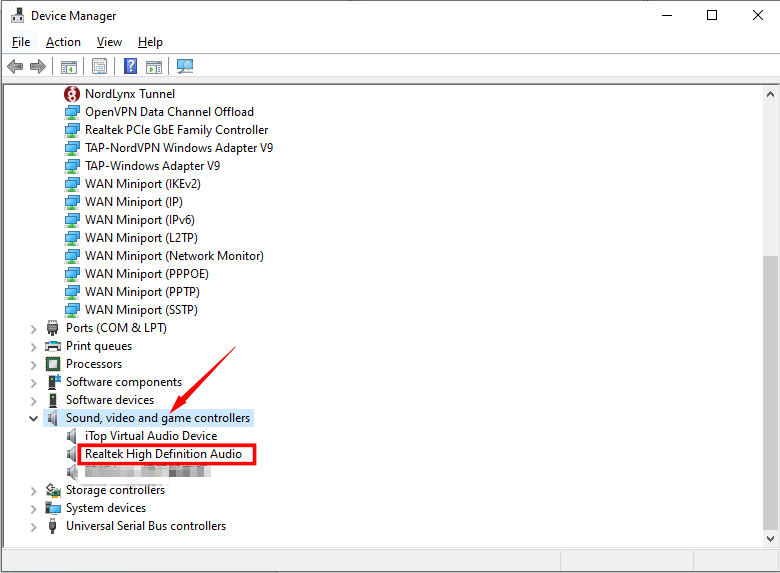
Scroll through the list to find Sound, video and game controllers.
Click the small arrow next to it to expand the menu.
Look for Realtek High Definition Audio.
Step 3. Update the Realtek Driver
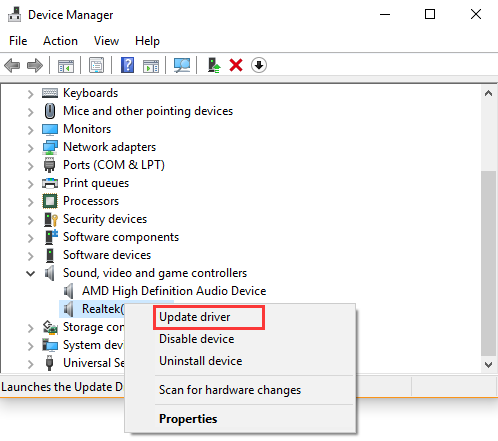
Right-click on Realtek High Definition Audio > Update Drivers.
Step 4. Search for Updates Automatically
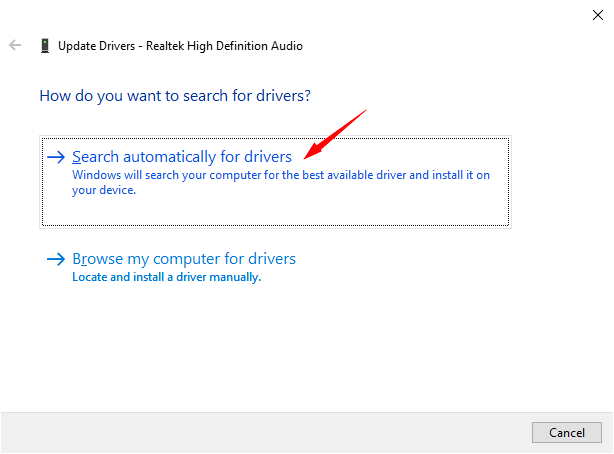
Click Search automatically for drivers. If a new version is found, Windows will download and install it automatically.
Step 5. Restart Your PC
Remember to restart your PC if a Realtek audio driver update is installed.
Method 2. Update Realtek Sound Driver Using Windows Update
How to update Realtek audio driver? Fortunately, Windows Update makes it easy to install the latest compatible audio drivers without downloading them manually. Check the following step-by-step guide to fix audio driver not working Windows 11/10.
Step 1. Open Windows Update Settings
Step 2. Check for General Updates
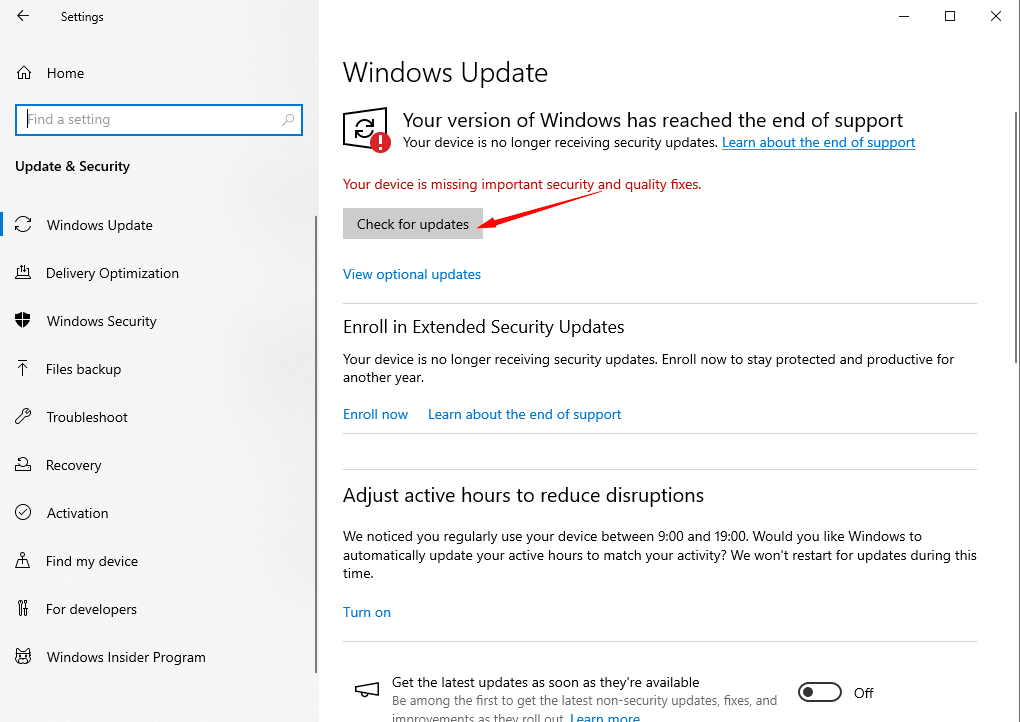
Click the Check for updates button at the top. Then Windows will automatically download and install updated drivers.
Step 3. Enable Optional Updates
On Windows 11: Click on Advanced options > Optional updates, and expand the Driver Updates option.
On Windows 10: Click View optional updates, and expand the Driver Updates option.
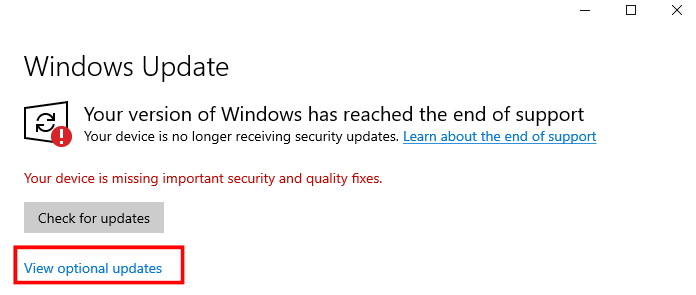
Step 4. Download and Install Realtek Drivers
Check the box next to the Realtek driver update > Click Download & install. (Windows 11)
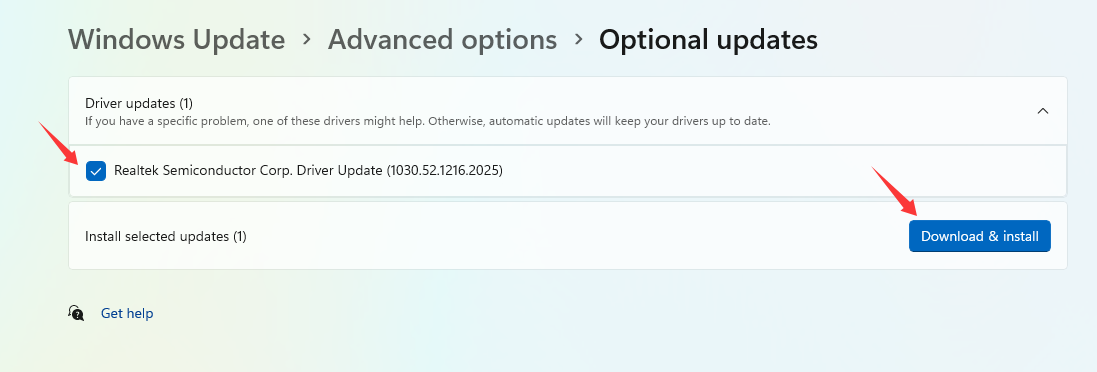
Step 5. Reboot Your Computer
Restart your computer to allow new driver settings to apply properly.
How to update Realtek WiFi drivers to fix poor internet connection? You can also rely on Windows Update to get WiFi driver update.
Method 3. Automatically Update Realtek Sound Driver (Recommended)
If you’re looking for a quick and easy method that requires no computer skills to update Realtek audio driver, Driver Booster is your best option. This professional driver updater and booster provides an automated solution for updating Realtek drivers and multiple tools to fix sound issues. Read on to learn more about how to fix audio issues with Driver Booster.
Driver Booster Free
- Automatically scan and update drivers.
- Update game ready drivers for peak gaming performance.
- Identify and fix various common of hardware issues.
- Boost 30% of system performance for fast & smooth running.

How to Update Realtek Sound Driver with One Click (Easiest)
Step 1. Free Download & install Driver Booster on your device.
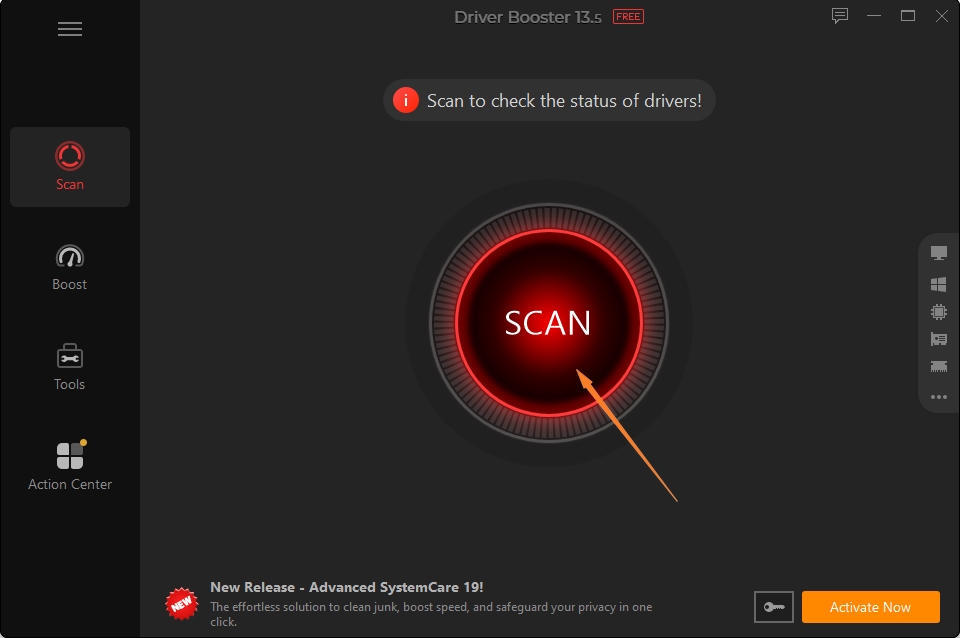
Step 2. Launch the software and click on Scan to check the Realtek driver status.
Step 3. After a deep scan, you’ll see how many device/game drivers are outdated. Check the Sound, video, and game controllers and click on “Update Now”.
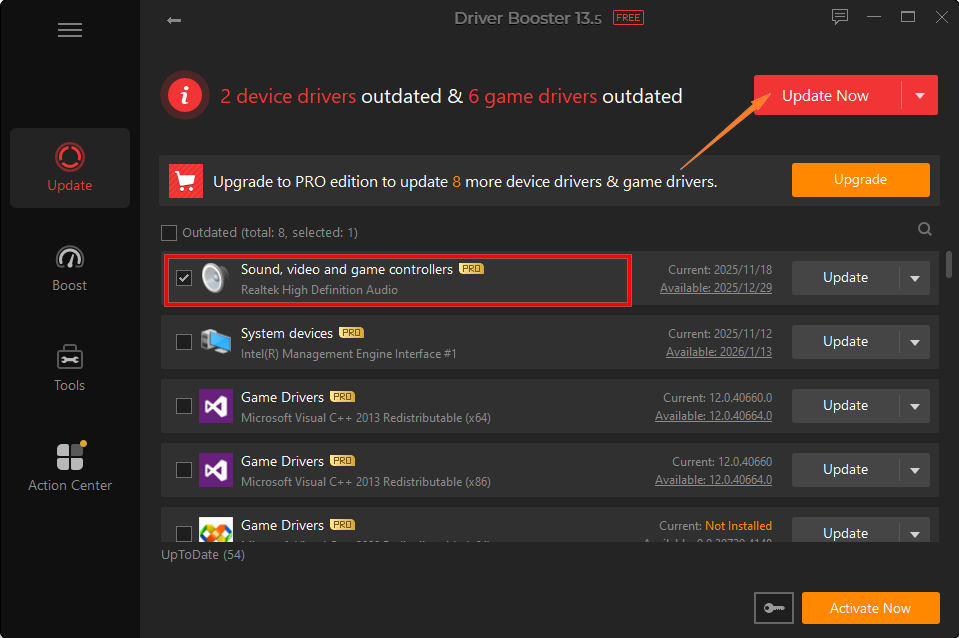
Step 4. Your Realtek audio drivers will be updated to the latest version in seconds.
How to Update Realtek Sound Driver Automatically (Advanced)
Step 1. Launch IObit Driver Booster, locate and hover on Activate Now.
Step 2. Select “Auto Driver Update” from the list. Upgrade to “PRO” following the in-screen instructions.
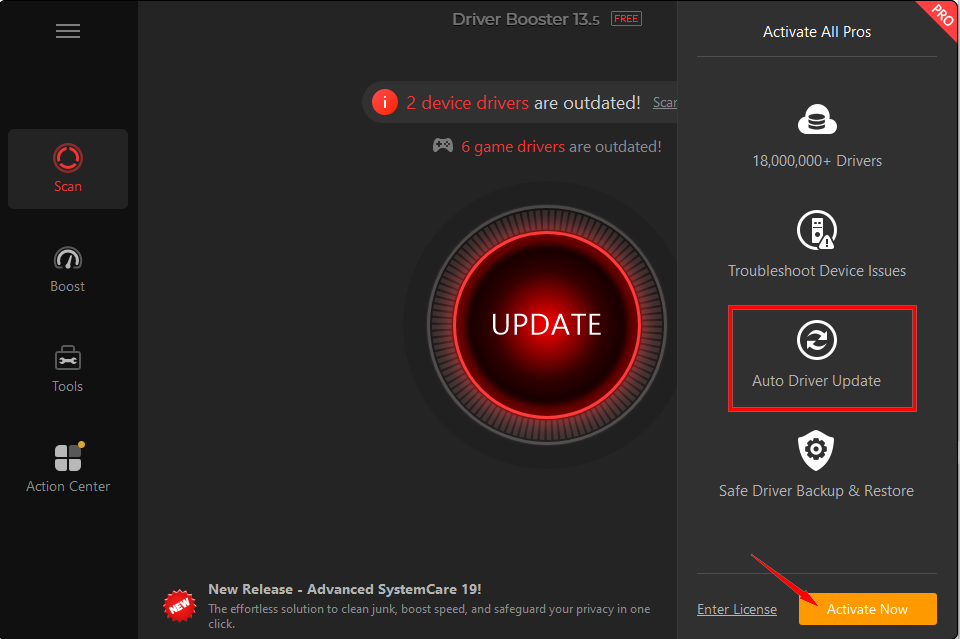
Step 3. Now you can enjoy automatic Realtek sound driver updates and always keep them up to date.
Why Choose Driver Booster?
Driver Booster will run a full scan on your Windows PC to detect and update all outdated/problem drivers, fixing any audio issue.
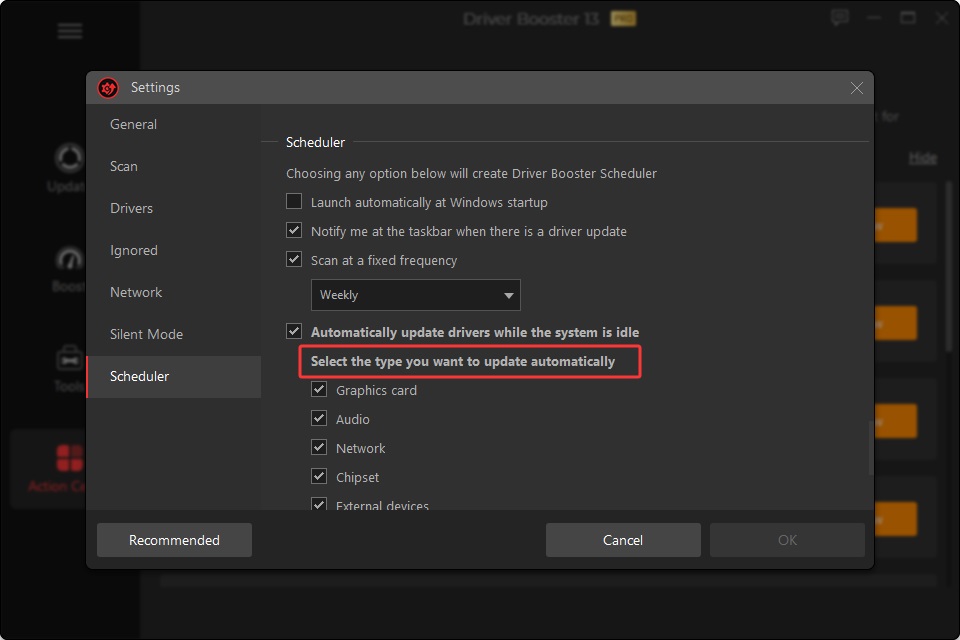
The premium automatic driver updater will auto check & update drivers while the system is idle, keeping all Realtek drivers up-to-date.
Driver Booster provides multiple tools to fix no sound & device errors, network failures, and backup & restore issues on Windows.
Not just the best driver updater, it also works as an excellent PC booster to deliver a smoother gaming experience by closing unused apps & releasing RAM.
Offline Driver Updater enables you to update drivers offline for network cards and for the reinstalled or upgraded system.
Method 4. Update Realtek Audio Driver from OEM Manufacturers
Unwilling to use a third-party driver updater? You can also download and update Realtek audio driver from its official website. But before visiting any support websites, you need to know your computer's specific model or serial number.
Step 1. Check System Details
Press Win + R, type msinfo32, and note your exact PC or motherboard model.
Step 2. Visit OEM Official Support
Go to your manufacturer's official support page (such as Dell, HP, Lenovo, ASUS, or MSI) and search for your model.
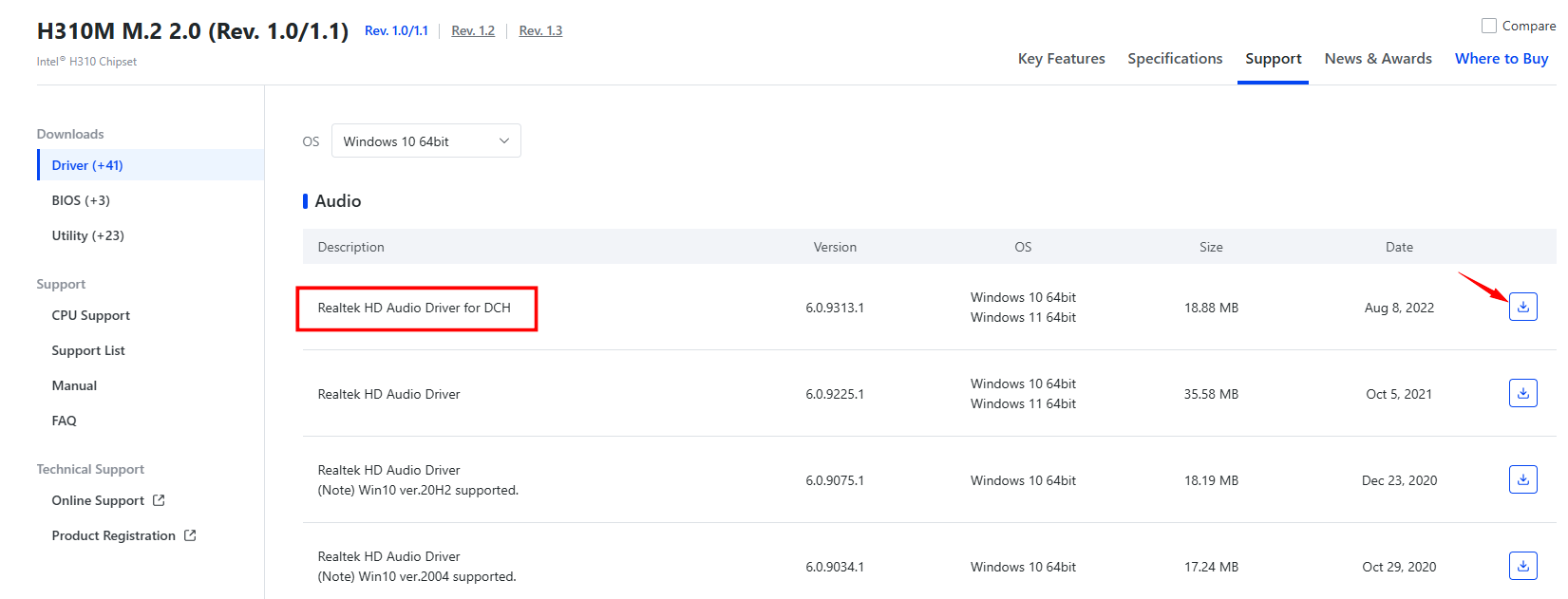
Step 3. Download Realtek Driver
Navigate to Drivers & Downloads, select your operating system, expand the Audio section, and download the latest Realtek driver.
Step 4. Install the Latest Realtek Driver
Open the downloaded folder (extract if zipped), right-click Setup.exe, and select Run as administrator.
Step 5. Reboot your computer to apply the new driver settings.
Why Should You Update Realtek Drivers?
Why do you need a Realtek driver update? Updating your Realtek audio driver ensures your PC delivers clear, reliable sound and optimal hardware performance. Here is why it matters:
Fix Audio Glitches: Resolves common sound issues like static, sudden muting, audio delay, or crackling speakers.
Enhance Sound Quality: Unlocks better audio clarity, improved bass response, and support for spatial sound formats.
Prevent Compatibility Issues: Keeps your sound card working smoothly after major Windows operating system updates.
Enable New Features: Grants access to updated audio control software, advanced equalizer options, and enhanced microphone noise-cancellation tools.
How to update Realtek Ethernet driver to fix network errors? No worries, Driver Booster can also quickly resolve it with a one-click update and system optimization.
Tips to Prevent Future Realtek Driver Update Failures
What if you failed to update Realtek drivers? How can you avoid Realtek sound/audio driver update failures? Follow these practical tips to ensure smooth driver updates:
Disable Antivirus Temporarily: Security software can mistake installer files for threats. Pause real-time virus prevention shortly before starting the update.
Run Installers as Administrator: Right-click the .exe setup file and select Run as administrator to avoid permission errors.
Use Trusted Driver Updaters: Avoid unreliable third-party driver updaters. Driver Booster is a secure tool to download verified Realtek drivers easily.
Clean Install the Driver: Uninstall the previous Realtek driver through Device Manager and reboot before installing the new version to prevent software conflicts.
Pause Windows Update: Block automatic Windows updates while installing OEM drivers to keep Windows from overwriting your setup with generic files.
You May Like: How to Uninstall Realtek Audio Driver & Reinstall it on Windows 11? >>
FAQ About Realtek Driver Update
1. What Can’t I Update Realtek Audio Drivers?
There are multiple issues that can block Realtek Audio Driver updates, such as corrupted installation files, active antivirus software, or missing Windows permissions. Try uninstalling the old driver first via Device Manager.
2. Why Does My Realtek Audio Stop Working after a Windows Update?
Windows Update sometimes replaces your custom Realtek driver with a generic audio driver that conflicts with your hardware.
3. How Do I Update Realtek Driver Automatically?
To automatically update Realtek drivers, download and launch Driver Booster > click on “Scan” to detect outdated drivers > select Realtek drivers and click “Update Now”.
4. How Frequently Should I Update My Realtek Audio Driver?
Only update when you experience audio glitches, missing features, or system bugs. If your sound is working normally, routine updates aren't necessary.
Final Thoughts
How to update Realtek sound driver? You can try the above 4 effective solutions to update Realtek drivers and fix all Windows audio issues. To get a fast and easy Realtek audio update, just free download Driver Booster to enjoy 1-click and automated driver updates on PC without any skill and effort!
Driver Booster Free
- Automatically scan and update drivers.
- Update game ready drivers for peak gaming performance.
- Identify and fix various common of hardware issues.
- Boost 30% of system performance for fast & smooth running.