Are you experiencing stuttering on Microsoft Office apps like Word and Excel? Office stores cache data to make your workflow smoother, but these caches can slow down your system and lead to unexpected issues when they grow large or get corrupted. Clearing unnecessary caches helps you fix most Office errors.
How to clear Office cache? Don’t worry, you’re not alone. This guide will walk you through 4 different ways to safely delete Microsoft Office cache on Windows and Mac.
What is Office Cache? Why Clear Office Cache?
The Microsoft Office Cache is a dedicated storage area on your computer where Office apps, like Word, Excel, and PowerPoint, keep temporary copies of the documents you work on.
While the Office cache is designed to speed things up, it can occasionally cause problems. Here are several reasons for clearing it:
Fix Sync Errors: Sometimes, the cloud version of a file and the local cached version may encounter error loops like "Upload Failed" or "Changes Could Not Be Saved." Clearing the cache forces Office to pull a fresh, clean version from the cloud.
Resolve App Lag and Freezes: If the temporary files become too large or corrupted, they can cause Office programs to stutter, freeze, or crash entirely upon opening.
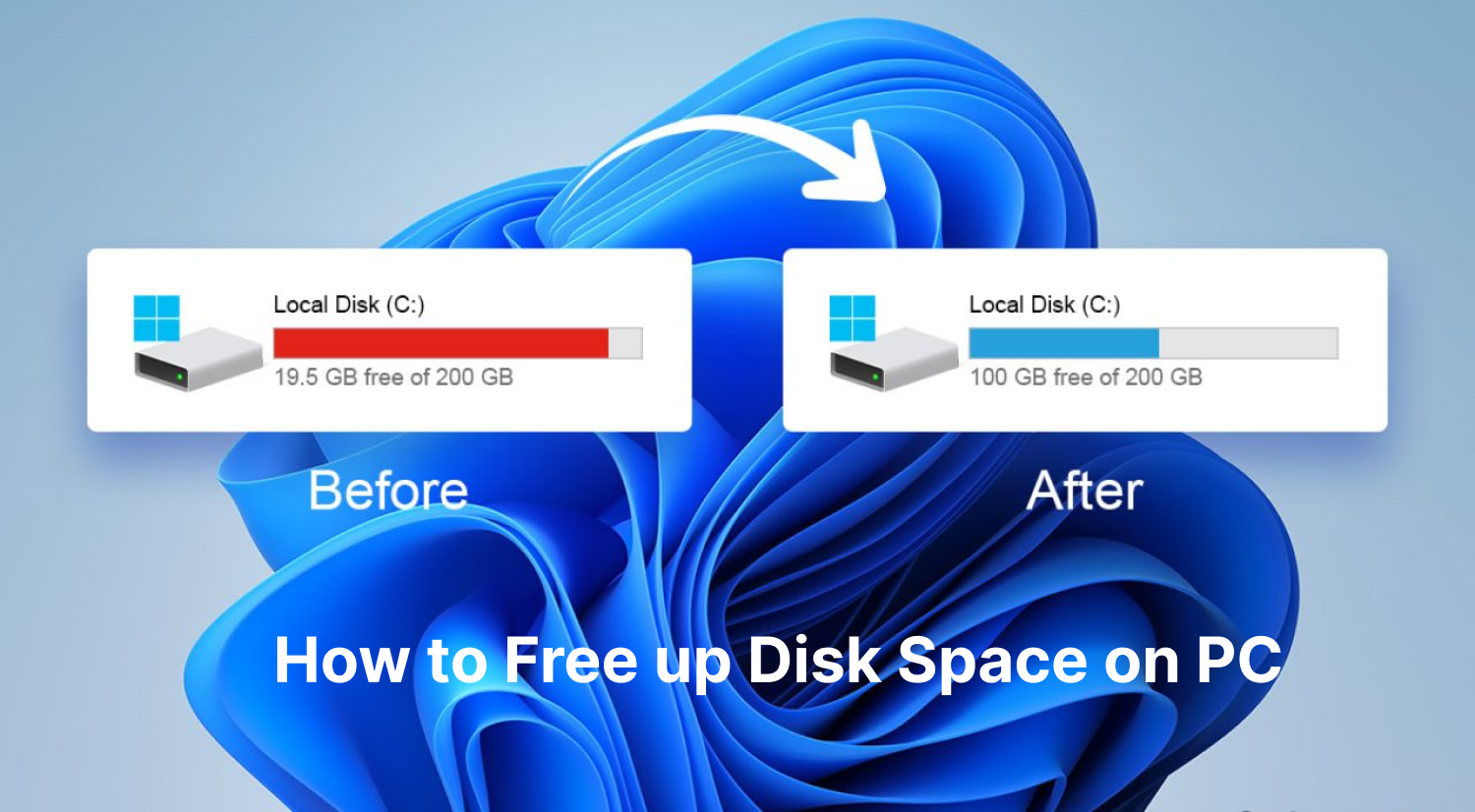
Free Up Disk Space: Frustrated by the 100 disk usage Windows 11 issue? Your massive Excel spreadsheets or PowerPoint presentations with high-resolution graphics may consume valuable storage space on your hard drive.
Remove Outdated Data: Clearing the cache ensures that you are always looking at the absolute latest version of a collaborative document.
How to Clear Office Cache on Windows 11 (Word, Excel, PowerPoint)
So how to clear Microsoft Office cache? Here you’ll be introduced 3 proven ways to safely delete Office cache on Window 11.
Method 1. Clear Office Cache on Windows with Advanced SystemCare (Easiest Way)
Tired of the time-consuming manual deletion of Office cache? Here comes the best free PC cleaner, IObit Advanced SystemCare, which helps clean up all unwanted junk files and corrupted caches to optimize your system effortlessly.
With this amazing tool, you won't be troubled by annoying caches in Word, Excel, or PowerPoint, and can work more efficiently and smoothly.
Advanced SystemCare Free
- Clean: 420 billion traces removed & 85 EB junk files cleaned
- Protect: 80 million unauthorized access blocked & 20 million bugs fixed
- Speed Up: 6 million hours of startup time saved & Turbo boost
- Optimize: Auto clean and auto care your PC with AI mode

Notice: Before You Clear Office Cache, Close All Office Apps!
Close all Microsoft Office applications completely.
Press Ctrl + Shift + Esc to open Task Manager and ensure no background Office processes are running. If they are, right-click them and select End Task.
Here’s how to clear Microsoft Office cache with Advanced SystemCare:
Step 1. Safe download and install IObit Advanced SystemCare on your Windows for free.
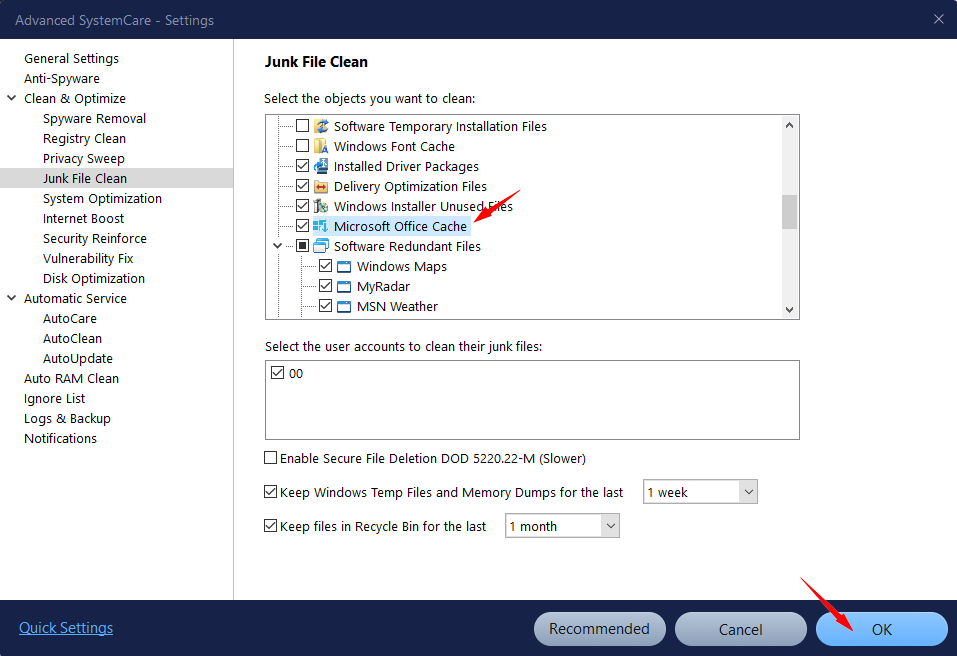
Step 2. Go to “Care”, click “Manual Mode”, check “Jun File Clean” and click on the “Setting” icon nearby.
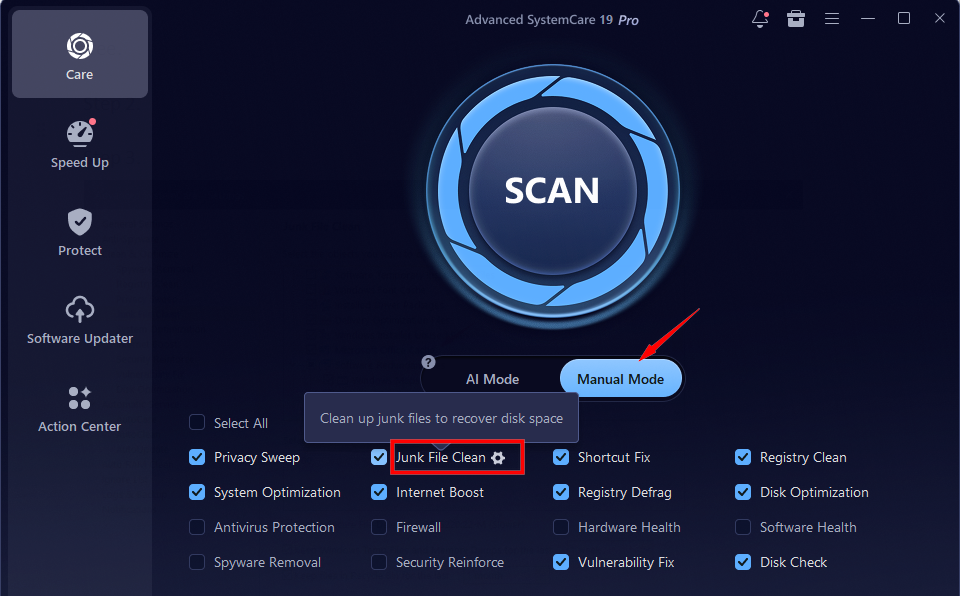
Step 3. On the Settings window, scroll down to find Microsoft Office Cache, check it and click “OK”.
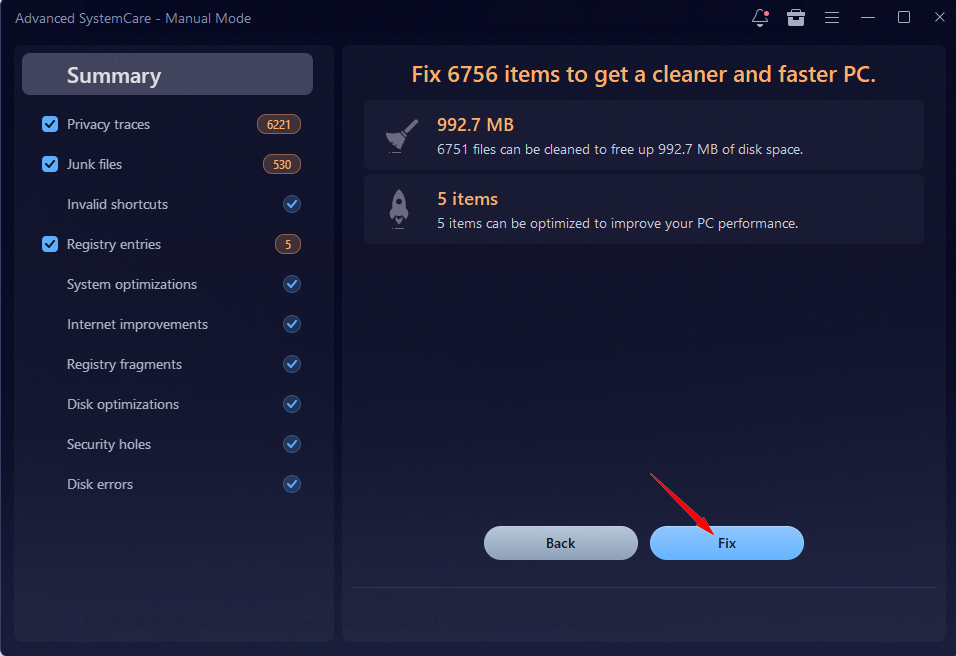
Step 4. Click on “Scan” to deeply detect all Office cache and click “Fix” to safely clear Office caches instantly.
Why Choose IObit Advanced SystemCare?
One-Click Automatic Office Cache Cleanup: Based on a smart detection of your PC system, it can automatically clean up all Office caches within seconds.
Remove Junk Files to Recover Disk Space: As a powerful RAM optimizer Windows 11, Advanced SystemCare helps remove all unnecessary junk files to free up your disk space.
Real-Time Internet Boost & System Optimization: It provides Real-Time TuneUp Turbo Boost, and Startup Optimizer to optimize PC for top performance.
All-Round Privacy & Security Protection: It’s also a highly safe tool to use, since it offers multiple security protections to safeguard your online safety.
100% FREE and Easy to Use: IObit’s Office cache cleaner is totally free of charge, ads-free, and extremely easy to use.
Method 2. Clear Office Cache on Windows 11 Through Office App Settings
How to clear Office cache Windows 11 manually? You can clear the cache directly from inside any Microsoft 365 or Office application (such as Word, Excel, or PowerPoint).
Step 1. Open your Office app, like Word or PowerPoint.
Step 2. Click on File in the top-left corner, then click on Options (usually at the bottom of the left sidebar).
Step 3. In the pop-up window, click the Save tab on the left.
Step 4. Scroll down to the Cache Settings section > Click the Delete cached files button.
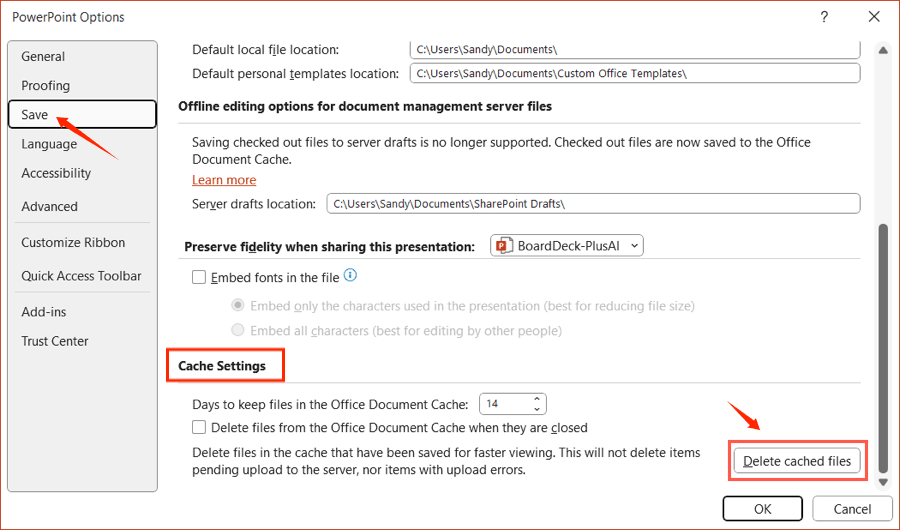
Step 5. When the confirmation box appears, click Delete cached files again to confirm.
Method 3. Delete Office Cache on Windows Using File Explorer
How can you clear Office 365 cache with the Windows built-in cleaner? File Explorer can help you directly remove Office caches from your system folders. But you’d better follow this guide to avoid deleting essential files.
Step 1. Press the Windows Key + E to open File Explorer.
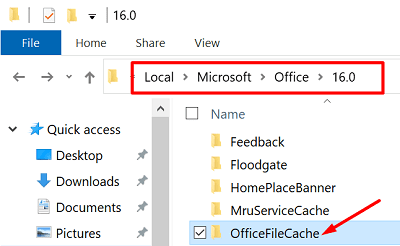
Step 2. Click on the address bar at the top of the window, paste the following folder path into the bar and press Enter:
%localappdata%\Microsoft\Office\16.0\
Step 3. Inside the 16.0 folder, locate the folder named OfficeFileCache and open it.
Step 4. Select everything inside this folder by pressing Ctrl + A on your keyboard.
Step 5. Right-click on the highlighted files and click the Delete icon (or press the Delete key on your keyboard).
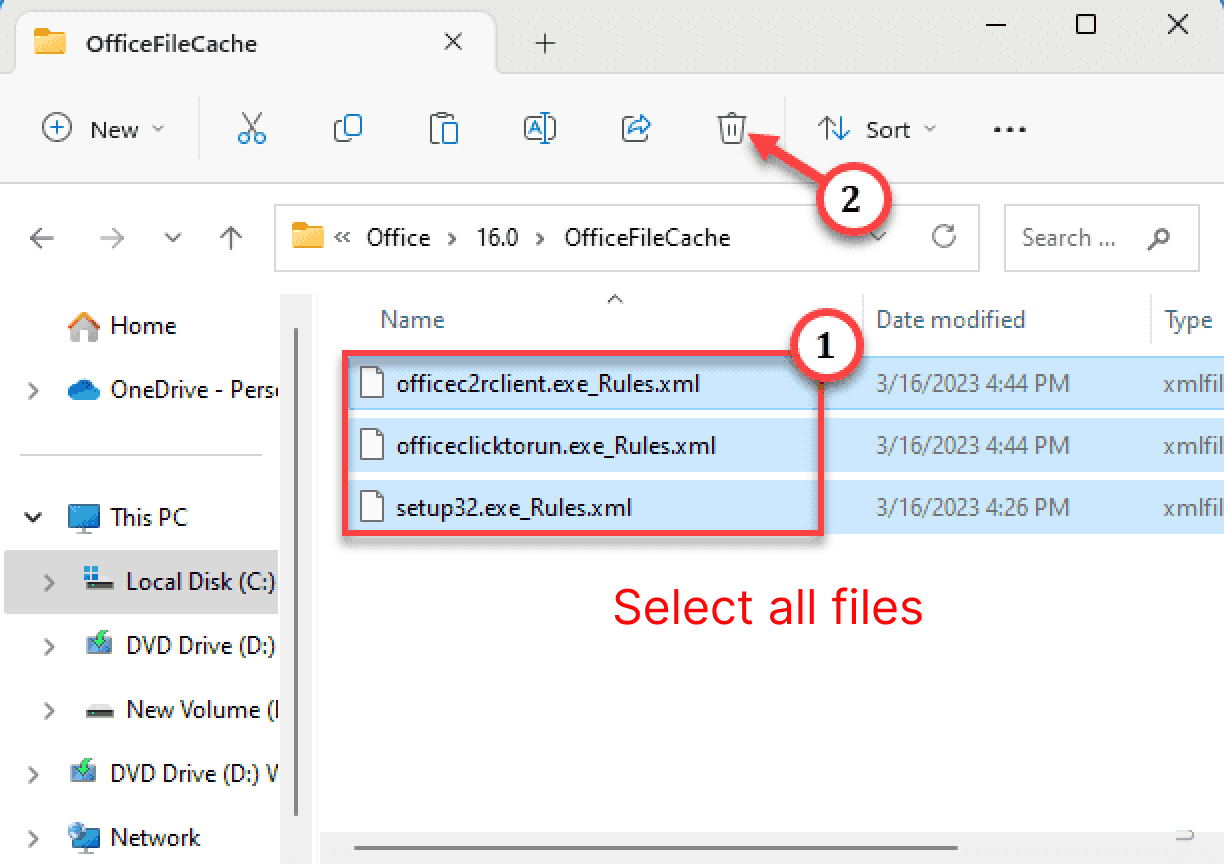
Note: If a pop-up appears stating that a file cannot be deleted because it is in use, restart your computer and try Step 3 again immediately before opening any Office programs.
>> Want to know how to boost internet speed on PC? Check this please.
How to Manually Clear Office Cache on Mac
Clearing the Microsoft Office cache on a Mac is slightly different than on Windows because the files are stored deep within your user Library folders. Check how to clear Office document cache on your macOS:
Step 1: Close All Office Applications
Before deleting any temporary files, make sure Word, Excel, and PowerPoint are completely shut down.
Step 2: Use the "Go to Folder" Command
Open Finder > Click on Go in the top menu bar, then select “Go to Folder”.
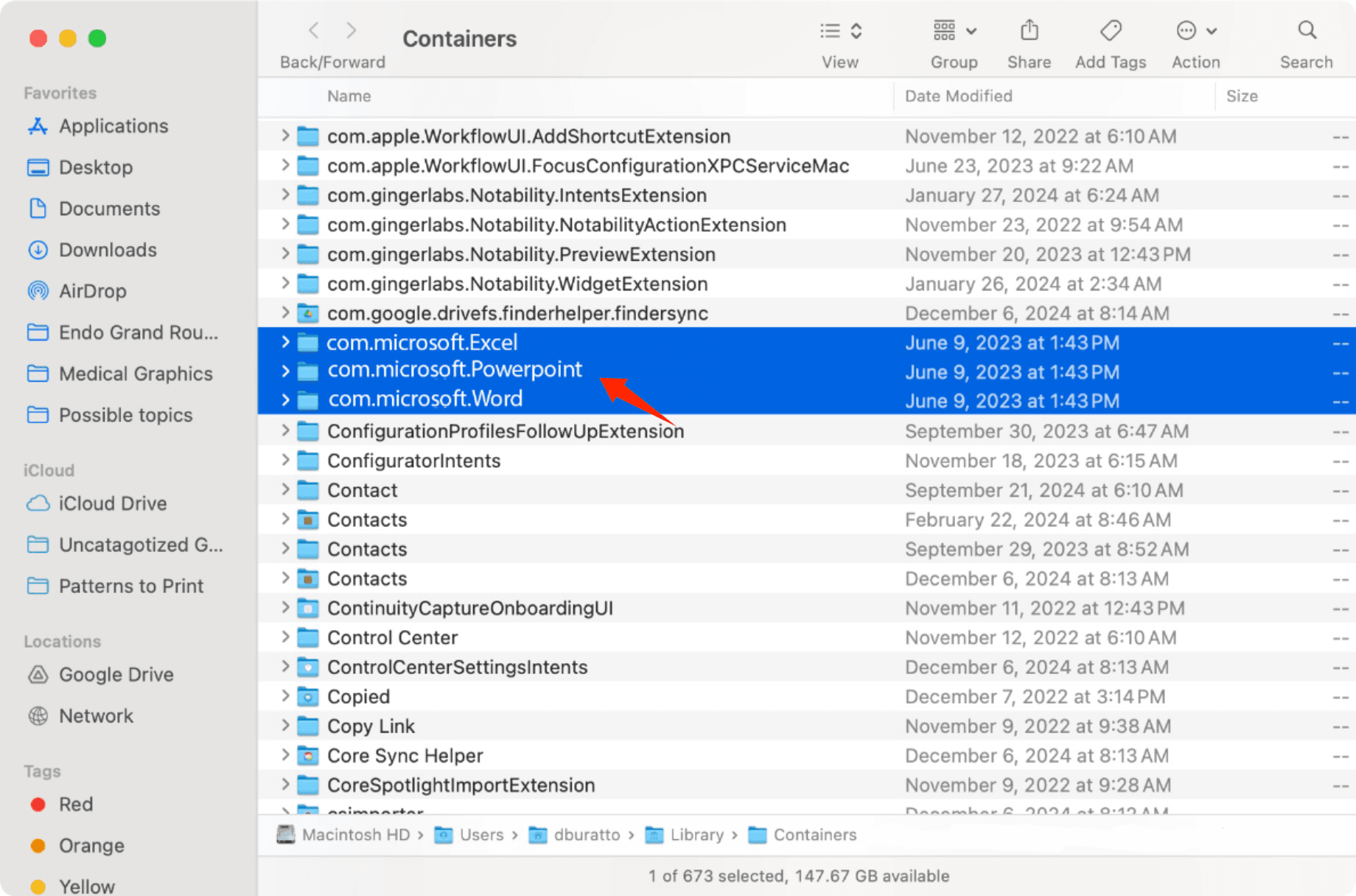
Step 3: Delete the Office Cache Folders
~/Library/Containers/
com.microsoft.Word
com.microsoft.Excel
com.microsoft.Powerpoint
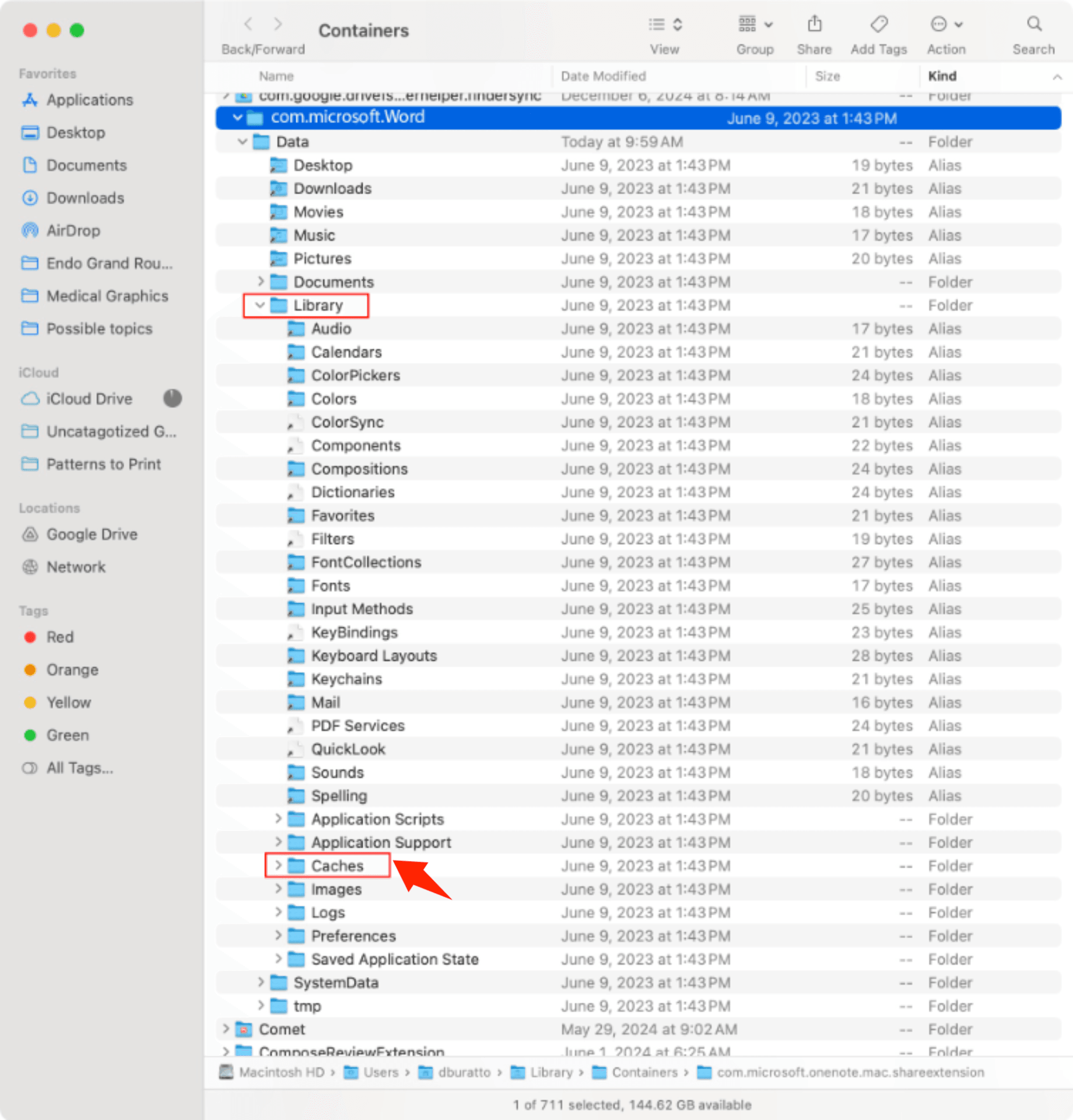
Step 4. Right-click your Trash icon in the Dock and select Empty Trash.
FAQs on How to Clear Office Cache
1. How Often Should I Clear Office Cache?
You don’t need to do this regularly. Only clear Office cache when you are actively experiencing troubleshooting issues, such as file syncing errors, constant "Upload Failed" warnings, or application lags.
2. Will Clearing the Office Cache Delete My Files or Data?
No, it will not delete your saved local or cloud documents. However, if you have a file with unsaved changes that is currently stuck uploading to the cloud, those specific unsaved edits could be lost. Ensure you've saved essential data before you clear the cache.
3. What Happens If I Clear the Cache in Office?
Office removes its local database of temporary files. But it does not delete your actual documents or account settings. And it will rebuild a fresh cache automatically.
4. What’s the Best Tool to Clear Office Cache for Free?
To get a clean and safe Office cache removal for free, IObit Advanced SystemCare is the best tool for you. No need for complex manual operations. All your unused Office document caches will be cleaned automatically with just one click!
Final Thoughts
How to clear Office cache? Stop being stuck with slow Office performance and safely remove all caches from Office apps using these methods.If you're expecting a quick and easy way to clear the Office cache, download IObit Advanced SystemCare to enjoy one-click complete Office cache cleanup!
Advanced SystemCare Free
- Clean: 420 billion traces removed & 85 EB junk files cleaned
- Protect: 80 million unauthorized access blocked & 20 million bugs fixed
- Speed Up: 6 million hours of startup time saved & Turbo boost
- Optimize: Auto clean and auto care your PC with AI mode