As one of the most renowned PC brands, ASUS delivers high-quality devices known for their performance and reliability. However, outdated drivers can lead to system crashes and unstable performance. That’s why it’s crucial to keep the drivers up to date, so your ASUS machine can run at its best.
Fortunately, there are several reliable ways for ASUS driver update, ranging from automatic tools to ASUS’s official utilities. In this blog, we will introduce the most effective methods to keep your system optimized and running smoothly. Don’t miss out!

Why is ASUS Driver Update Important?
Every Windows update and software upgrade relies on compatible hardware drivers. When drivers become outdated, your system may experience blue screens, lag, and even device malfunctions. That’s why ASUS update driver is necessary, which can ensure your system is stable.
Here are the key benefits of ASUS driver update:
Improved system stability and fewer crashes
Stronger Wi-Fi, Bluetooth, and audio performance
Better gaming FPS and graphics optimization
Proper hardware detection and functionality
You can update a wide range of ASUS drivers, including:
Chipset drivers
Graphics (GPU) drivers
Audio drivers
Network drivers (LAN and Wi-Fi)
Storage controller drivers (SATA/NVMe)
Touchpad and keyboard drivers
Bluetooth drivers
BIOS/firmware updates (advanced users)
Method 1. Update ASUS Drivers Automatically with Driver Booster (Best Choice)
Many users are unsure about their exact device model or which driver version is truly compatible with their system. Manually searching for drivers can easily lead to downloading the wrong files, which may cause further issues. This is the time you need an automatic driver updater, which can scan your system, identify outdated or incompatible drivers, and install the correct versions in a few moments.
Among all the options, Driver Booster is a professional Windows driver updater that simplifies the entire process. It automatically detects outdated, missing, or faulty drivers and installs the latest certified versions.
Driver Booster Free
- Automatically scan and update drivers.
- Update game ready drivers for peak gaming performance.
- Identify and fix various common of hardware issues.
- Boost 30% of system performance for fast & smooth running.

Why Choose IObit Driver Booster for ASUS Driver Update?
One-Click ASUS Driver Scan & Update: It scans your entire ASUS system in seconds, identifies every outdated or missing driver, and installs the correct latest versions with a single click!
Massive Driver Database: With a database of over 12 million drivers for motherboards, graphics cards, and hardware, Driver Booster supports a wide range of devices. You can also update MSI driver with it!
Automatic ASUS Driver Backup & Restore: The software can automatically create a complete backup of your original drivers before any change. You can restore the previous versions safely whenever needed.
Fix Common ASUS Driver Problems: As the best driver updater, it can quickly resolve common driver issues. For instance, system crashes, weak Wi-Fi connections, audio problems, and hardware detection failures on ASUS devices.
Keep ASUS Drivers Up to Date: IObit Driver Booster automatically keeps your ASUS drivers updated with the latest compatible versions, which greatly reduces the need for manual operations.
How to update ASUS drivers with Driver Booster:
Step 1. Get the IObit Driver Booster from the links below. Launch it after installation.
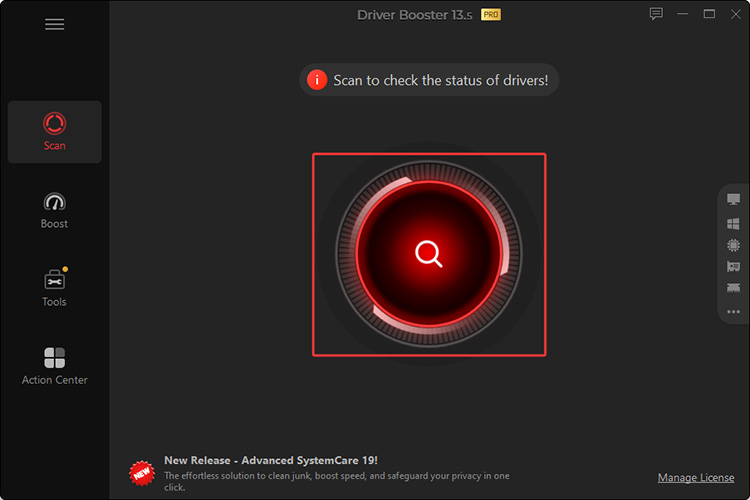
Step 2. On the main panel, click the big Scan button to identify all the outdated/faulty drivers on your PC.
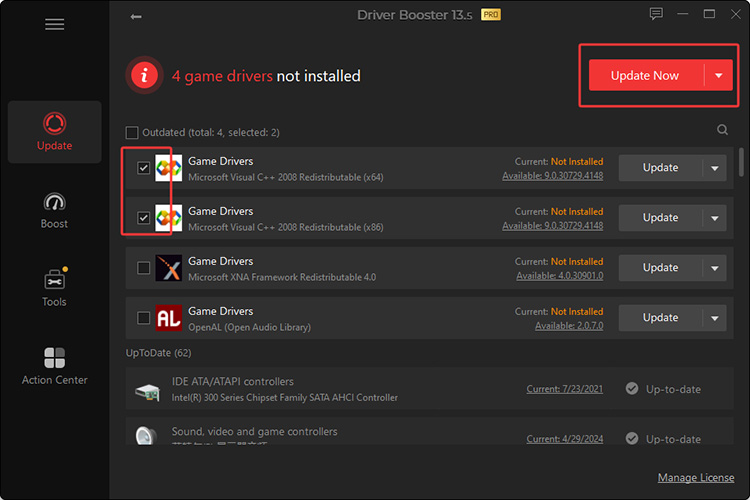
Step 3. The software will list all the drivers that need to be updated. Select preferred drivers and click Update Now to proceed.
Step 4. Your outdated drivers will be updated to the latest version in a few seconds.
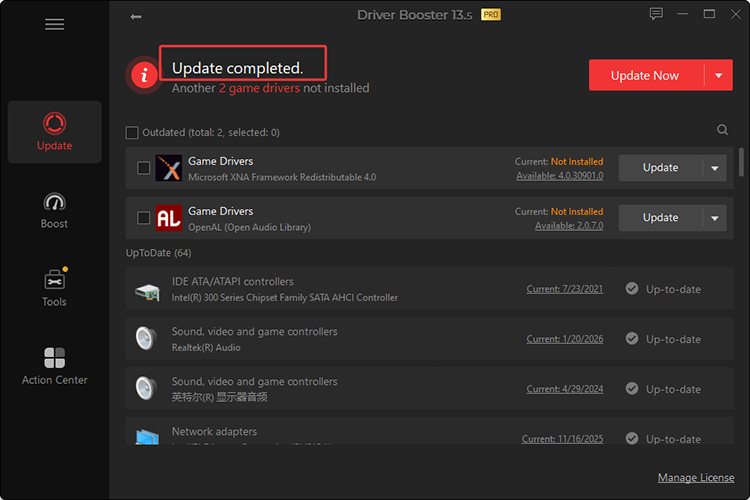
Tips: IObit Driver Booster supports drivers from a wide range of hardware brands. In addition to ASUS, it supports Lenovo driver update, MSI, HP, and more!
Method 2. ASUS Update Drivers with MyASUS
If users prefer using ASUS's own software, MyASUS is another convenient option. It checks the system model and offers the official ASUS update driver. Here’s how to use MyASUS to update drivers easily.
Step 1. Search for “MyASUS” in the Windows search bar and open the app. If it is not installed, download it from the Microsoft Store.
Step 2. Click System Update. MyASUS automatically scans and lists Critical, Recommended, and Optional updates for your specific device. Select the drivers or packages you want and click Update Selected Items.
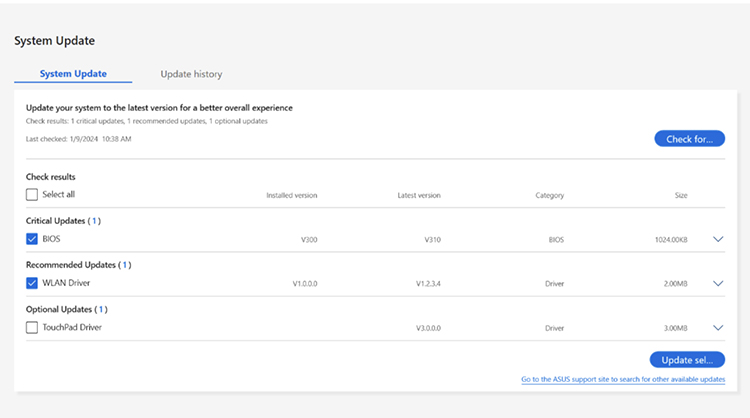
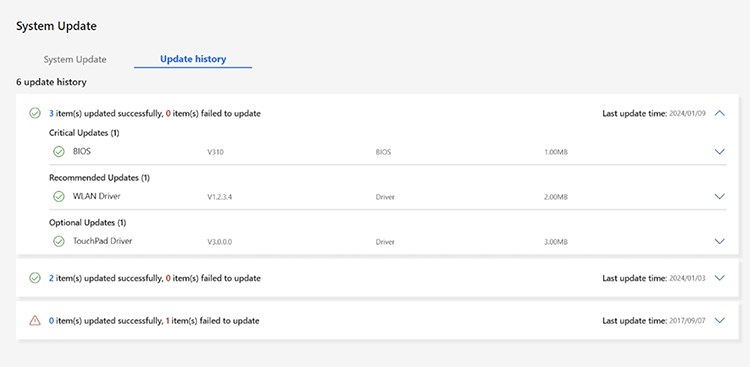
Step 3. Then the app will download and install them automatically. You can go to the Update History to have a full review.
Pros:
Cons:
May not include the latest ASUS driver update
Available drivers can vary, depending on models & regions
Method 3. ASUS Update Drivers via Device Manager
Like all Windows computers, ASUS devices come with a built-in Device Manager that allows users to manage hardware drivers. If you do not want to install software, you can use Windows Device Manager to perform a basic ASUS driver update. It works for network adapters, graphics cards, audio devices, and other hardware. Here’s how.
Step 1. Right-click the Start button and choose Device Manager.
Step 2. Find the hardware category you want to update. Right-click the ASUS device, and select Update driver.
Step 3. Windows will look for the driver. If none is found, you will need to search and download it manually.
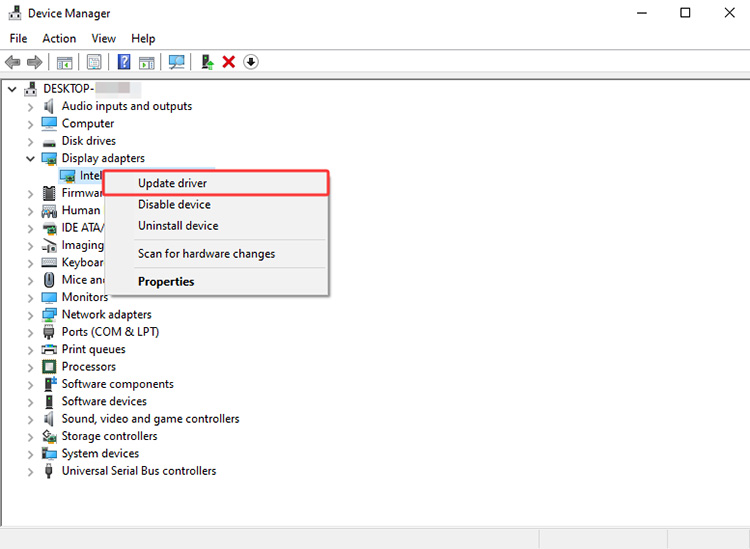
That’s it. You can also make ASUS update the Wi-Fi driver via the Device Manager. Check out how to update Wi-Fi drivers to learn more!
Pros:
Cons:
Method 4. Use ASUS Motherboard Driver Update Tool
Desktop users often need updated chipset, LAN, or storage drivers after a Windows upgrade or hardware change. ASUS provides motherboard-specific utilities and support pages that allow users to download compatible drivers directly for their board model. Let’s see how to update it step by step.
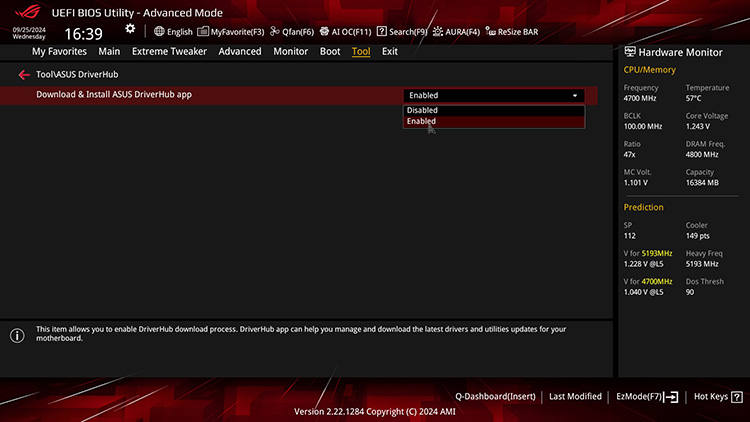
Step 1. Press Del or F2 during startup to enter the BIOS. Switch to Advanced Mode > Tool > ASUS DriverHub. Set “Download & Install ASUS DriverHub APP” to Enabled. Save changes and exit.
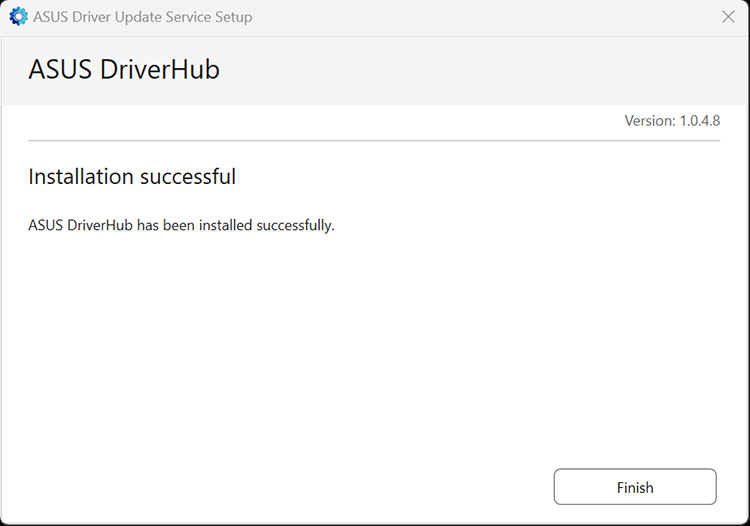
Step 2. Once Windows loads (ensure you are connected to the internet), accept the DriverHub installation prompt and complete the installation.
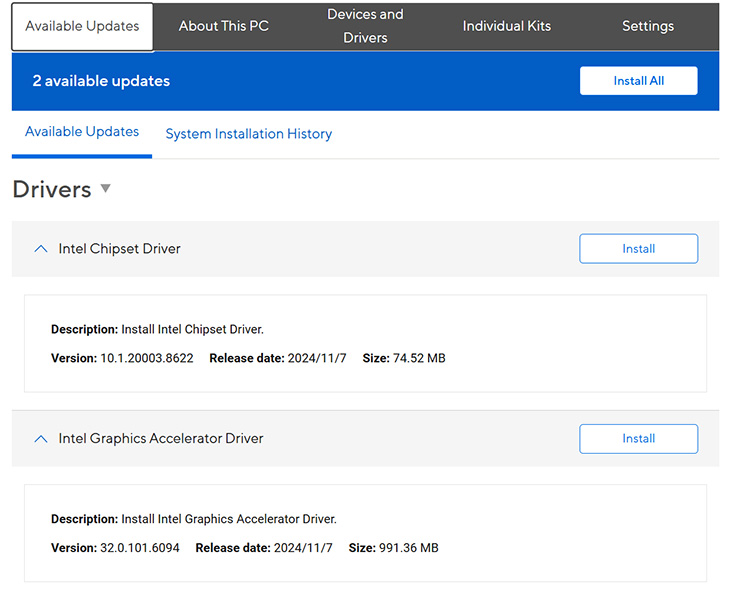
Step 3. Launch DriverHub from your desktop, go to the Available Updates tab, select the drivers you need, or click Install All. The tool will download and install updates automatically. Restart your system when finished.
Pros:
Official ASUS driver update
Support bulk update
Ideal for chipsets, LAN, and critical motherboard components
Cons:
Method 5. Update ASUS Drivers via Windows Update
When device manufacturers release driver updates through Microsoft, you can receive them directly via Windows Update. This method is also rather convenient because it is built into Windows, which requires minimal effort. In this part, let’s see how to make an ASUS update driver with it.
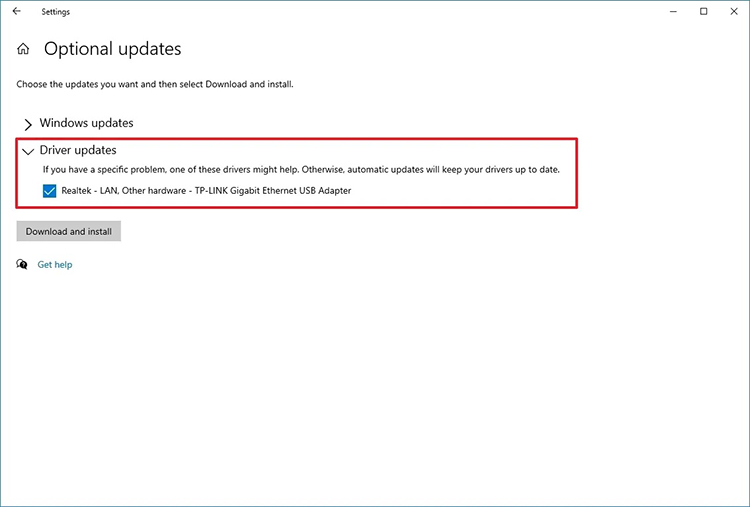
Step 1. Open Settings > Update & Security > Windows Update.
Step 2. Click “View optional updates,” then go to the Driver updates section.
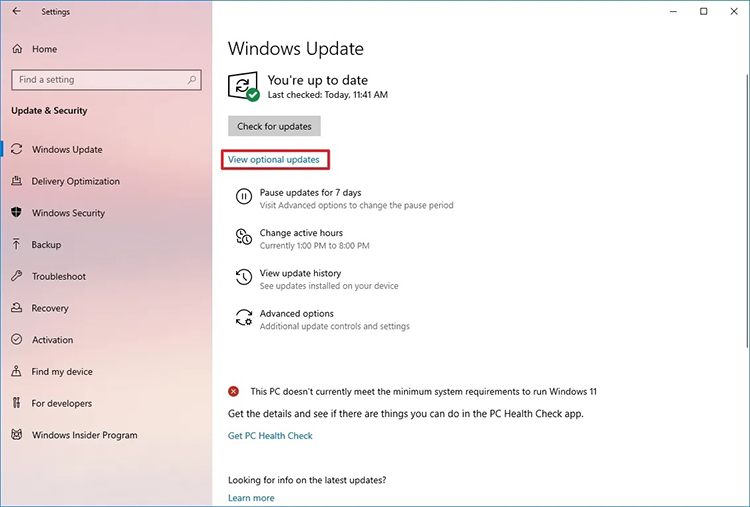
Step 3. Select the ASUS driver you want to update and click “Download and install.” Restart your PC if prompted.
Pros:
Cons:
Limited selection of ASUS drivers
No optimized ASUS update drivers
No bulk driver update feature
Which ASUS Driver Update Method is Best?
Of the 5 methods introduced above, which one suits you the best? To help you clarify things, we’ve rounded up a comparison table as follows:
|
Driver Booster |
MyASUS |
Device Manager |
Motherboard Tool |
Windows Update |
Ease of use |
Excellent |
Medium |
Medium |
Medium |
Good |
Driver coverage |
Highest |
Good |
Limited |
Model-specific |
Limited |
Update speed |
Fastest |
Medium |
Slow |
Medium |
Medium |
Reliability |
High |
High |
Medium |
High |
Medium |
Best for beginners |
Yes |
Yes |
No |
No |
Yes |
Best for advanced users |
Yes |
Yes |
Yes |
Yes |
No |
Generally, for most users, Device Manager and Driver Booster are the most practical options for an ASUS driver update. While Device Manager is convenient for basic updates, Driver Booster offers the most complete solution with automatic and one-click updates. For advanced users, MyASUS or the motherboard support page can provide more precise and model-specific driver control.
Final Words
This guide is the most comprehensive guide, which provides all the methods for ASUS driver update. Now you should know how to keep your drivers up to date to prevent system crashes and improve overall stability. As you can see, the best and simplest solution is IObit Driver Booster. It can quickly scan your system, back up existing drivers, and update all outdated drivers in just minutes. Just get it and enjoy a more reliable ASUS experience from now on!