How many applications are installed on your Windows PC? I bet a lot. However, you might find that different programs require updates at different times, and you have to manually check them one by one. And honestly, this can be tedious and tiring.
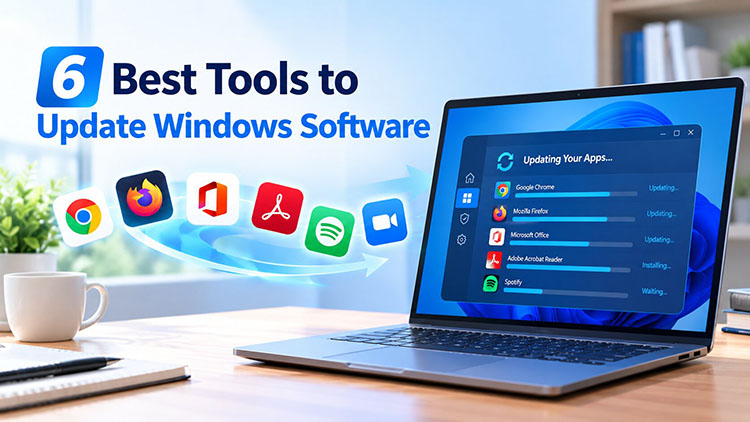 So, is there an easier way to check multiple applications at once? The answer is positive. In this guide, we will introduce 6 practical tools that can help you find outdated apps and update Windows software more efficiently. Just read on to learn more!
Why Should You Update Software on Windows 10/11?
Regular updates can help protect your PC and provide a smoother overall experience. Here are the main reasons to keep your software updated.
Fix Security Vulnerabilities: Updates often address security weaknesses in outdated applications, which reduces potential risks to your PC and data.
Improve Compatibility: New versions can work better with the latest Windows updates and other applications for enhanced compatibility.
Get Bug Fixes and New Features: Updates can resolve known bugs, improve stability, and add useful features. The Microsoft Windows 10 software update can also bring such benefits.
So how to update Windows software to enjoy these benefits? There are multiple methods. Just check out the next part.
How Do I Update My Software?
The Windows 10 update software free download feature is no longer available. Today, there are three common methods to update Windows apps, and they are:
Update from within the software: Many applications include a built-in “Check for Updates” option. You can often find them via the Help, About, or Settings menu.
Download the latest version from the official website: This is a straightforward option if you only need to update one specific application.
Use a dedicated software updater: If you have many applications installed, a software updater can scan multiple programs and show available updates in one place.
Sometimes, the first two methods can be time-consuming when you need to update Windows software in batches. This is where a third-party PC program updater can help, which makes the entire process much easier.
1. Advanced SystemCare Software Updater - Update Apps and Maintain Your PC
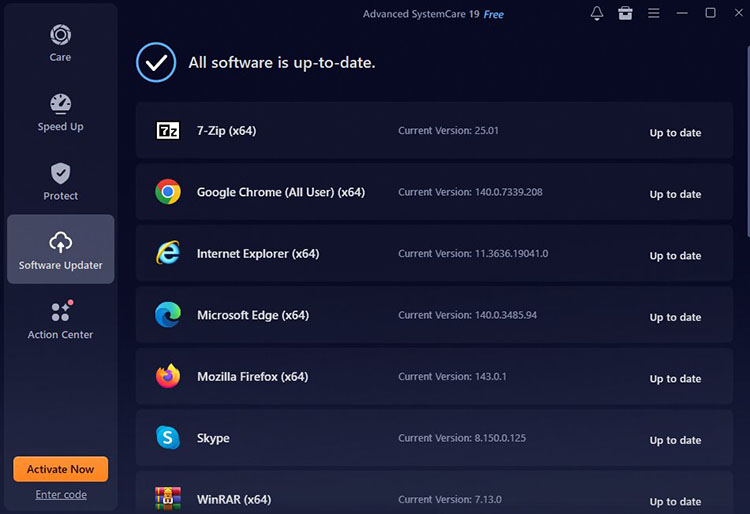
Speaking of the Windows software updater, Advanced SystemCare is a comprehensive Windows optimization tool that can help you clean, speed up, protect, and maintain your PC effortlessly. It comes with a handy software updater feature, which scans your PC for outdated apps and allows you to update them in one click. Whether you want to update Windows software or maintain your PC, this PC optimizer is the best tool that comes in handy.
Key Features:
Scan for Outdated Applications: It scans and identifies supported programs with newer versions available. You can check which applications may need attention and update software on Windows 10/11 easily.
Centralized Update Management: There is no need to check each application individually. The software displays available updates in one place for hassle-free management.
Simplified Multi-App Updates: The software simplifies the updating process. You can manage updates for multiple supported applications in batches, which saves you much time and effort.
Integrated PC Maintenance: It combines software updating with other PC maintenance features, for instance, hard disk cleaner, system optimization, etc. It lets you manage app updates and routine PC care in one tool.
Security & Privacy Protection: The software masks your browser fingerprints, clears digital traces, and blocks suspicious processes for added security. Its protection also includes defending against phishing, malicious content, and unauthorized access.
Overall, Advanced SystemCare Software Updater is ideal for managing software updates, system optimization, and privacy protection on a Windows PC. It targets everyday Windows 10 and 11 users, non-technical home users, and busy PC owners who look for a convenient Windows update software for Windows 10/11.
Advanced SystemCare Free
- Clean: 420 billion traces removed & 85 EB junk files cleaned
- Protect: 80 million unauthorized access blocked & 20 million bugs fixed
- Speed Up: 6 million hours of startup time saved & Turbo boost
- Optimize: Auto clean and auto care your PC with AI mode

Also Read: How to boost PC performance with the best RAM optimizer Windows 11.
2. IObit Software Updater - Update Multiple Windows Apps at Once
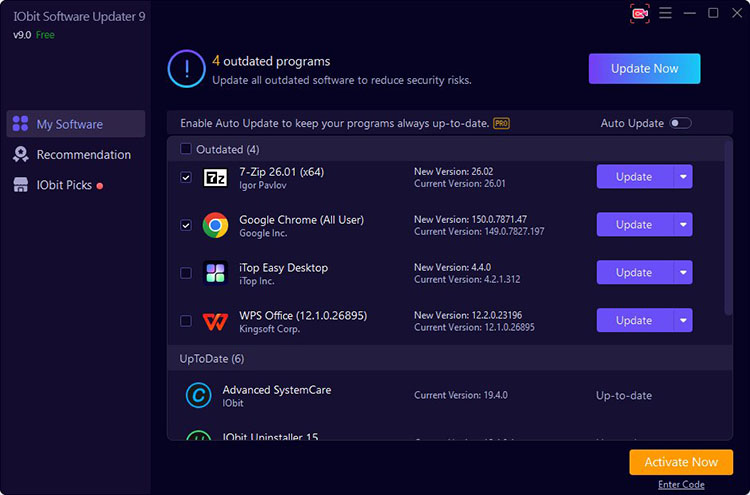
IObit Software Updater is a lightweight tool designed to help you keep Windows applications up to date. It scans your PC for outdated programs and lets you manage multiple updates via one simple interface.
 Key Features:
Outdated Software Detection: It scans and identifies supported programs with newer versions available.
Centralized Update Management: Shows available updates in one place for clean review and management.
One-Click Updates: You can update Windows software with minimal effort instead of visiting developer websites.
1,100+ Supported Applications: Its database covers more than 1,100 popular programs, providing broad coverage for everyday Windows software.
Batch Updates: You can update multiple apps in batches, which is rather useful when several programs are outdated.
Scheduled Updates: The software lets you schedule updates and offers automatic updating options to help reduce manual work.
Best for: Users who primarily need a dedicated, straightforward solution for keeping a wide range of Windows applications up to date.
3. Patch My PC Home Updater - Best for Bulk App Updates
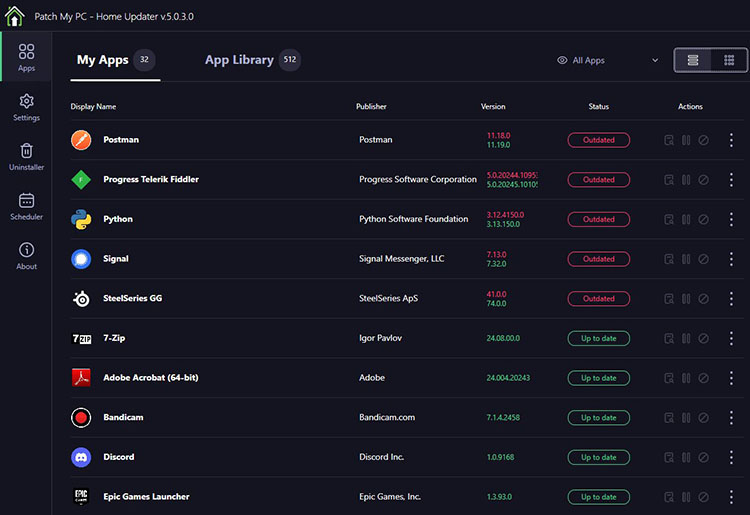
Patch My PC Home Updater is a free tool focused on bulk software updates and installations. It scans installed applications, identifies outdated programs, and lets you update multiple apps easily.
Key Features:
Bulk Updates: Update multiple supported applications at once.
Fast Scan Times: Complete full system application scans in under one second.
500+ Supported Programs: Its catalog covers more than 500 applications for updates.
Silent Updates: Installs and updates software silently in the background.
Scheduled Updates: Windows Task Scheduler can be used to automate update checks.
Bulk Uninstall: Remove multiple unwanted applications efficiently.
Best for: Home users who want a free and practical way to manage software updates without the complexity of a full PC optimization suite.
4. UCheck - Best for Simple Software Update Management
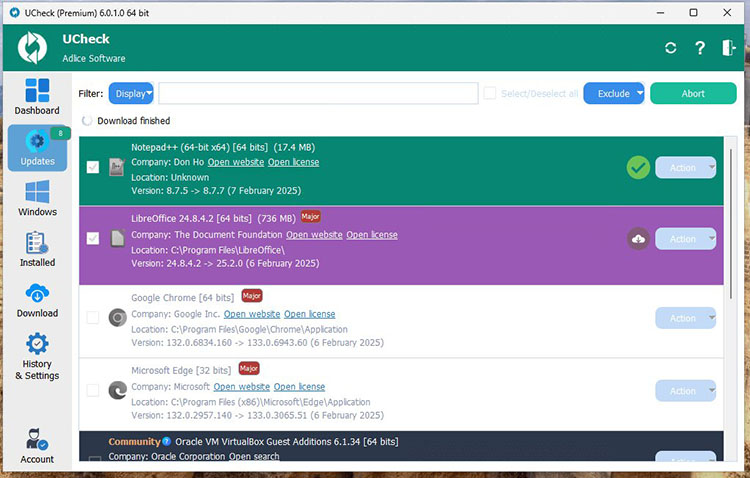
UCheck is another lightweight software updater that focuses on scanning for outdated applications and managing updates. With its portable option, it can run without traditional installation.
Key Features:
Software Scanning: Find supported applications with newer versions available.
Batch Updates: Let you update multiple applications together.
Portable App Support: Can detect and manage some portable programs.
Software Library: Browse and install programs from a curated library
Uninstall & Repair: List all installed programs so you can uninstall or repair them from one place.
Best for: Users who look for a lightweight and straightforward software updater that keeps the update process simple and easy to manage.
5. UniGetUI - Best for Managing Apps from Multiple Package Managers
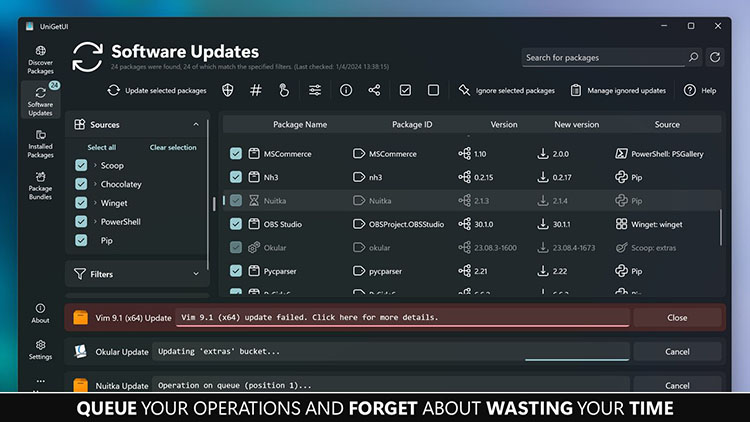
UniGetUI is a free, open-source graphical interface that brings several package managers into one dashboard. It helps PC users update Windows software, install new applications, and manage programs from different sources.
 Key Features:
Multiple Package Managers: Support WinGet, Chocolatey, Scoop, pip, npm, and other package managers.
Visual Software Discovery: Search and browse available applications through a graphical interface.
Bulk Updates: Select multiple programs to install, update, or uninstall together.
Automation: Support update notifications, automatic updates, and scheduled maintenance.
Version Control: You may ignore specific updates or pin package versions when needed.
Best for: Experienced Windows users who want greater flexibility and control over software management through multiple package managers.
6. Official Software Updaters - Best for Updating One Specific App
If you are looking for a Microsoft Windows 10 software update, for instance, Chrome/Edge/Firefox update, Discord, etc., its official updater or built-in update is often the simplest option. Many programs also provide an installer for the latest version, and you can find it via the official download page. Just note that when searching for these Windows 10 update software downloads, always use a trusted official source.
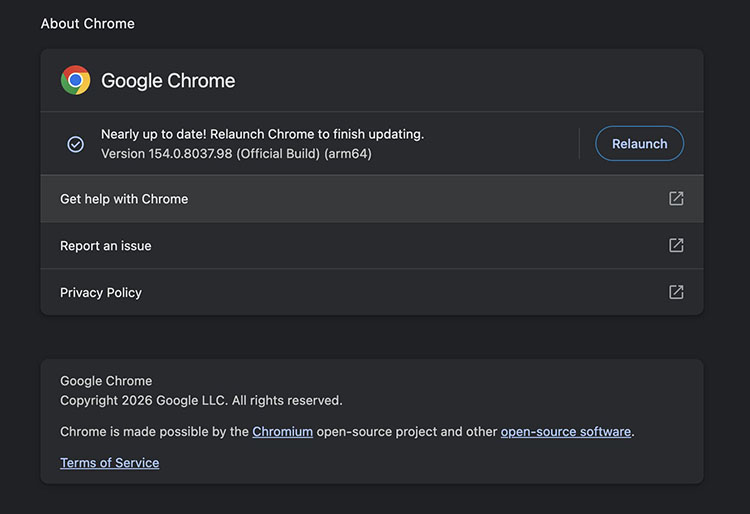
The only downside is that this method is inconvenient when you have dozens of applications installed. In that case, the tools mentioned above are much better choices.
Final Words
It’s important to keep software updated to the latest version, which helps improve compatibility and overall stability. This guide has covered 6 practical tools to update Windows software. For those who look for a simple way to keep apps updated, try Advanced SystemCare or IObit Software Updater. Both are user-friendly options for beginners and experienced users. Get the Windows update software free download and experience a more convenient way to maintain your Windows PC from now on!