Are you fed up with so-called free PC cleaners - where scanning is free, but the actual cleaning features require payment to unlock? Now, ditch these misleading tools. Here are 6 truly free PC cleaner software for Windows 11 and 10 to help you clean up your sluggish PC without spending a penny. This full guide lists their features, limits, and quick steps to help you pick one for daily PC cleanup.
What Is Free PC Cleaner Software & What It Can Do
A PC cleaner free software is a Windows utility that scans your system and deletes unwanted files without hidden paywalls. It hunts down junk, cached data, and program leftovers that gradually take up valuable system storage. What PC cleaner free can actually do for you is as follows:
Remove system rubbish: Clear Windows update cache, junk files, and leftover install files.
Wipe browser traces: Erase useless logs and browser residual data.
Recover storage space: Free up disk space on Windows.
Boost daily performance: Give your PC a quick tidy-up for smoother daily use.
What Makes a Good Free PC Cleaner Software
Not all free software PC cleaner is built equally. A quality tool follows these core standards to deliver reliable, risk-free cleanup.
No hidden paywalls: Fully functional core cleanup at no cost.
System safety: Protect critical Windows files during cleanup.
Targeted cleanup tools: Practical modules for different types of PC clutter.
Clean installation: Lightweight and free of bundled third-party software.
Preview before cleanup: Review and select items to delete manually.
After evaluating many free PC cleaner software, we selected six reliable tools that fit these criteria. Read the full reviews of each option.
Free PC Cleaner Software: 6 Trusted Tools Full Review & Quick Steps
No single PC cleaner free software works perfectly for every Windows user. Different users have different cleanup needs and preferences. We have tested six popular Windows cleaners, with detailed breakdowns of their free features, pros, cons, and operation guides to help you pick the best fit.
1. Advanced SystemCare - Best PC Optimizer & Cleaner Free for Windows
Advanced SystemCare, developed by IObit, is a popular all-in-one free cleaning and performance optimization tool built specifically for Windows PCs. Released over 20 years ago, this software has gathered over 200 million users across 200+ countries and regions worldwide.
Advanced SystemCare Free
- Clean: 420 billion traces removed & 85 EB junk files cleaned
- Protect: 80 million unauthorized access blocked & 20 million bugs fixed
- Speed Up: 6 million hours of startup time saved & Turbo boost
- Optimize: Auto clean and auto care your PC with AI mode

This best disk cleaner software clears junk files, program leftovers, and privacy traces to free up space on your hard drive. Unlike many free PC cleaners, it has an AI scan mode. This customizes automatic scans based on your PC’s real condition and usage habits instead of using a generic check. Of course, it allows you to manually tick the categories and areas you want to check.
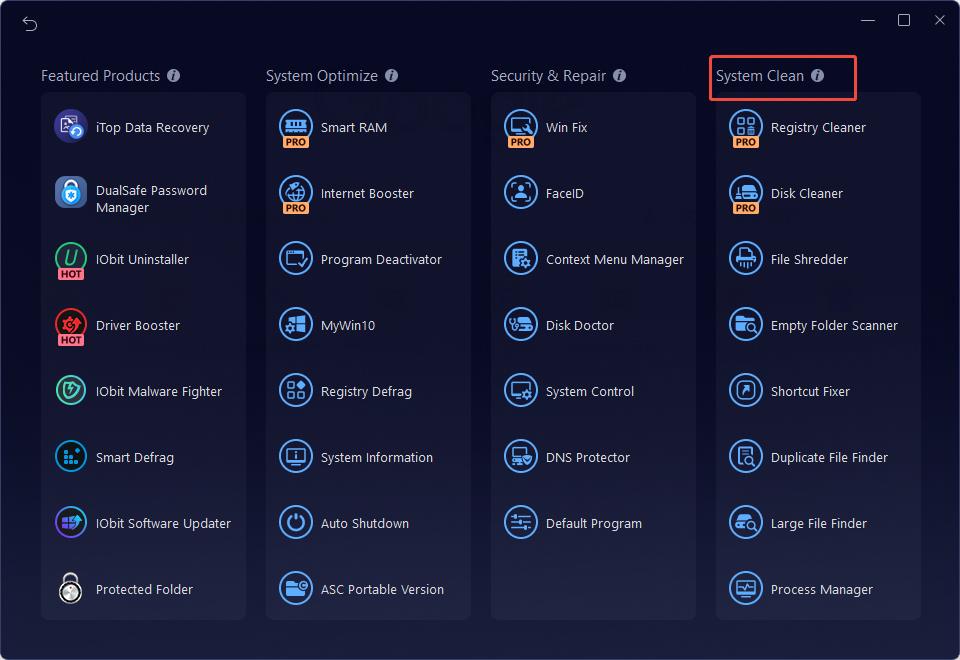
Besides this, it comes with a built-in Toolbox, which provides more than 30 practical system utilities for deeper PC maintenance, including system cleanup.
The free edition of this software keeps all core cleanup features unlocked, with no paywall blocking essential cleaning functions.
Free features:
Multi-category junk file cleanup
Browser & app privacy trace cleanup
Broken shortcut cleanup
Software residual cleanup
One-click RAM release
File shredder
Empty folder remove
Duplicate/large file finder
Pros
Simple one-click scan workflow
Rich free maintenance utilities
AI-powered system scan
Cons
Upgrade pop-ups (non-blocking; just close them)
Quick steps:
Overall, Advanced SystemCare has full free cleanup features. What are you waiting for? Follow the steps below to clean your PC.
Step 1. Click the following button to download Advanced SystemCare to your computer.
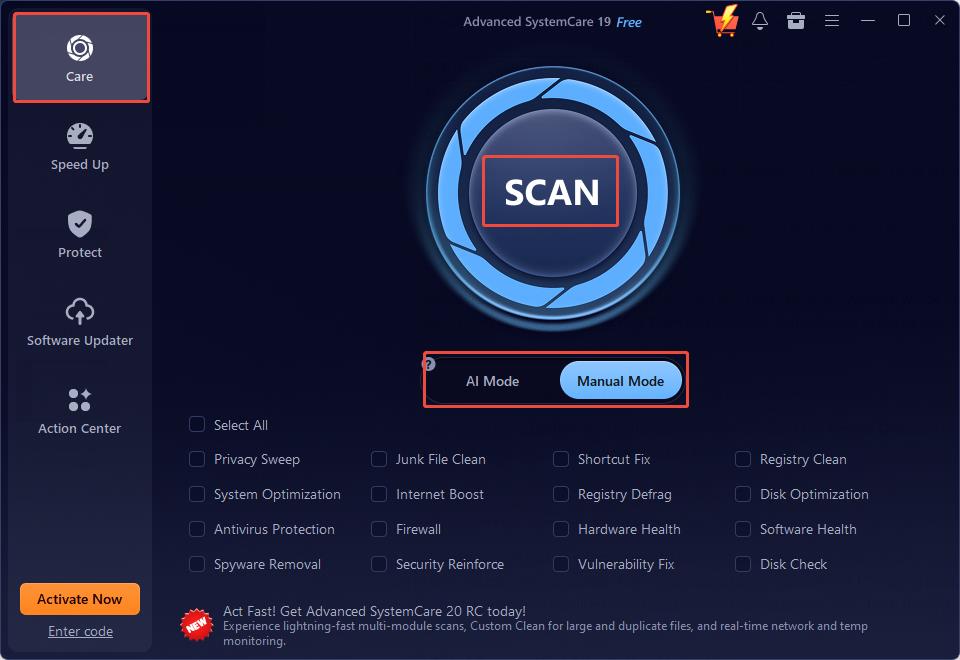
Step 2. Launch Advanced SystemCare to enter the Care tab. In the Manual Mode section, select the file you want to clean and click Scan. Alternatively, switch to the AI Mode and click Scan.
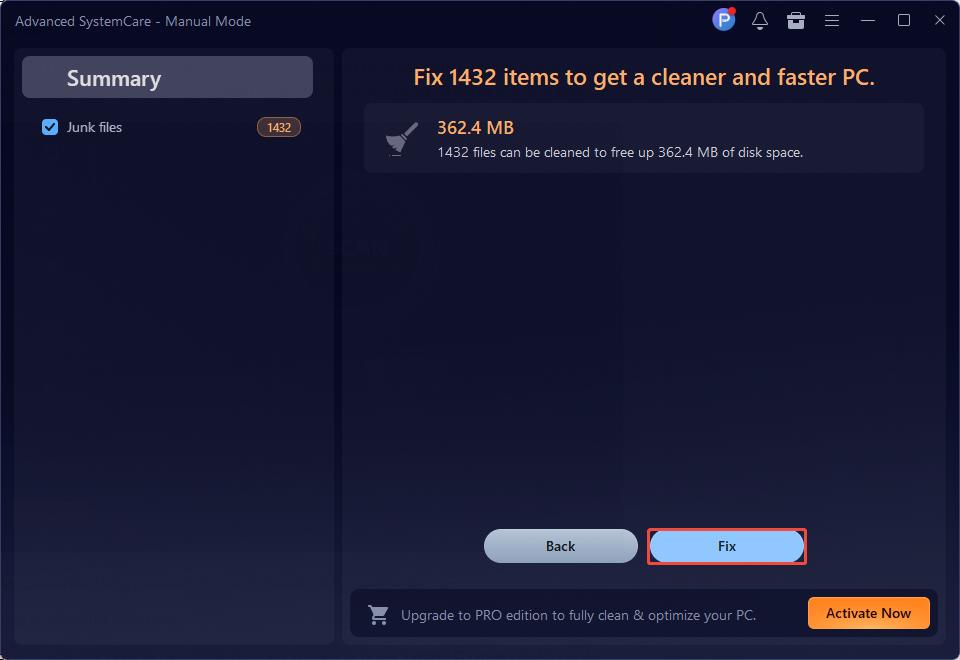
Step 3. When the scan ends, it displays all cleanable items. Click Fix to remove them at once.
When you need to shred files or clean empty folders, duplicate files, and large files, click the Toolbox icon in the top-right corner. Then, go to the System Cleanup tab, locate the tool you need, and click Download to run the cleanup.
When you have system cleaning needs, boosting performance is often another goal to make Windows run more smoothly. Advanced SystemCare is more than a PC cleaner; it is a full PC optimizer with features like Turbo Boost, Startup optimizer, and Real-Time TuneUp to boost PC performance. Download it to give your PC a full performance upgrade.
2. CCleaner - Hard Drive & Cloud Drive Clean
CCleaner is a long-standing Windows cleanup utility valued for its custom cleaning options. It lets you pick exactly what to erase across system files, third-party apps, and browser traces, helping reclaim storage.
Free features:
Pros
Highly customizable cleanup targets
AI-powered system scan
Cons
Frequent upsell prompts
Registry cleaner carries risks for new users
Quick steps:
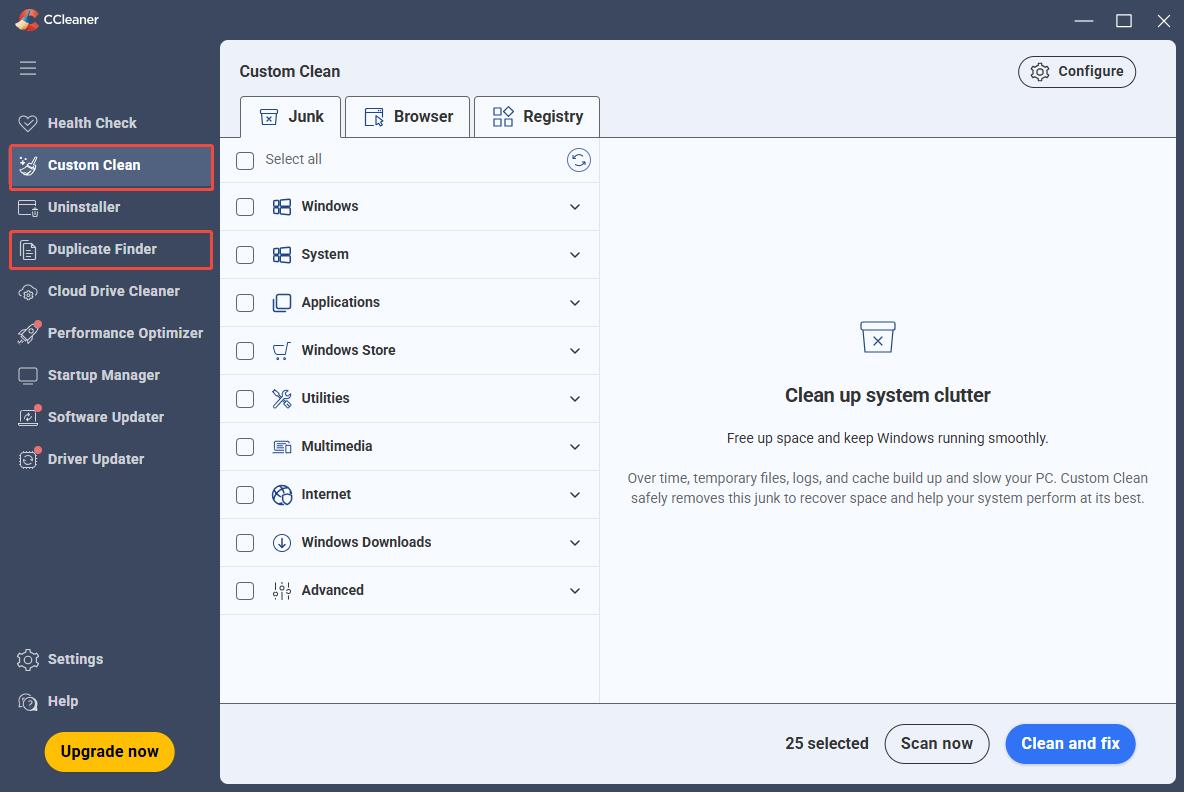
Step 1. Open CCleaner, then switch to the Custom Clean tab to clean junk, browser traces, and registry.
Step 2. Go to the Duplicate Finder to scan and clean duplicate files.
3. Wise Care 365 - All-in-One Windows PC Cleaner
Wise Care 365 Free is an all-in-one Windows cleanup and optimization suite for basic PC maintenance. It bundles junk file removal, registry cleanup, and privacy trace erasure into a simple one-click checkup workflow.
Free features:
Pros
Offers free advanced cleaner
Clean interface
Cons
Privacy wiping requires an upgrade
Big file cleanup requires an upgrade
Quick steps:
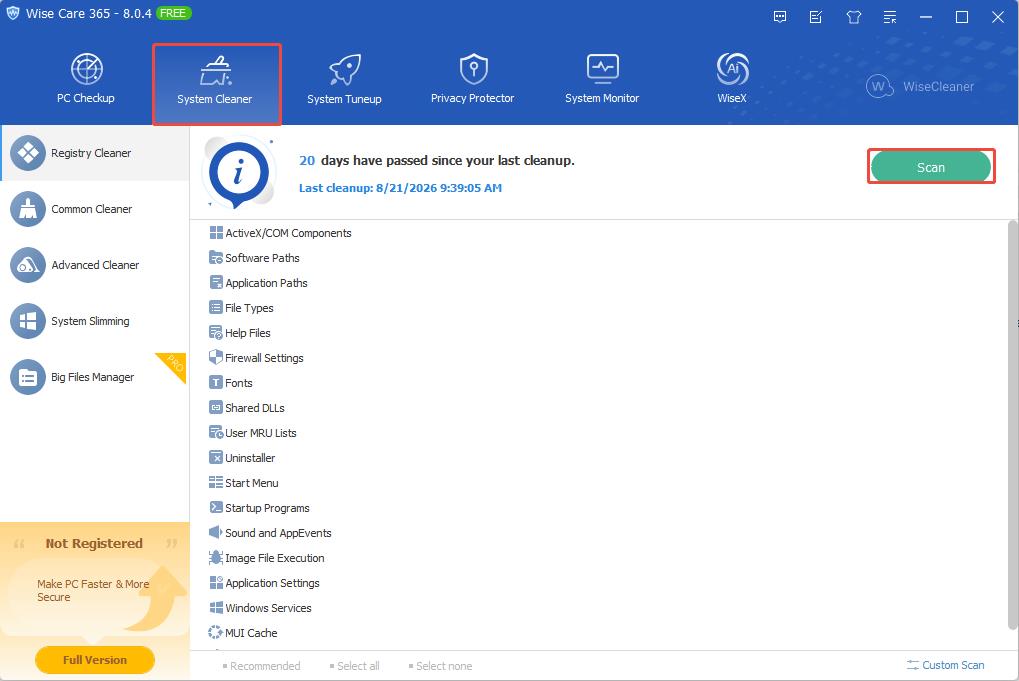
Launch Wise Care 365, then switch to the System Cleaner tab, choose the module you want to clean, then click Scan.
4. Glary Utilities - All-in-one Utility for PC Clean
Glary Utilities is an all-in-one Windows maintenance toolkit packed with over 20 system utilities. It supports one-click PC maintenance, registry repair, junk cleanup, privacy trace removal, and startup optimization for free.
Free features:
Pros
Registry cleanup with auto backup
Simple one-click check
Cons
Cluttered interface for new users
Limited junk file categories
Quick steps:
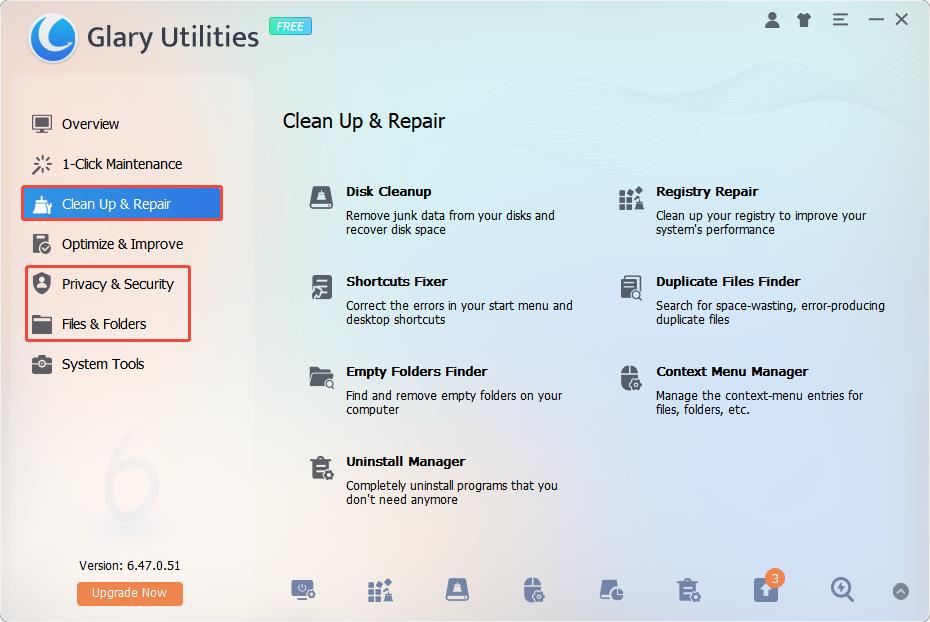
Open Glary Utilities, and switch to Clean Up & Repair, Privacy & Security, or File & Folders to perform cleanup.
5. Avast One - Security, Privacy, Cleanup
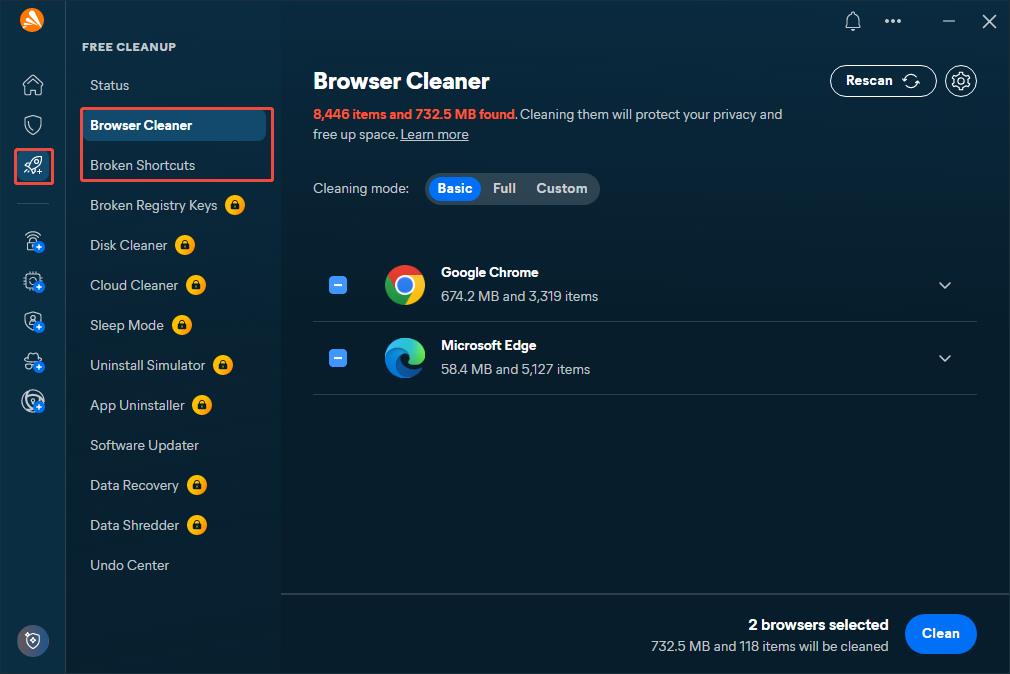
Avast One is an all-in-one security suite combining antivirus protection, privacy tools, and basic PC cleanup. Its free edition offers malware scanning, browser trace cleaning, and limited VPN access for Windows users.
Free features:
Smart scan
Browser cleanup
Broken shortcut cleanup
Pros
Strong real-time malware and anti-scam protection
Cons
Unintuitive interface
Most features locked behind paid edition
Quick steps:
Open Avast One, go to the Free Cleanup section, click Browser Cleaner or Broken Shortcuts to clean the unwanted files.
6. Microsoft PC Manager - Official Windows Cleaner
Microsoft PC Manager is a permanently free official Windows cleaner with zero upsells, no paywalls, and no bundled third-party apps. It integrates seamlessly with Windows Security for reliable PC maintenance.
Free features:
Pros
Official Microsoft tool, completely free with no paid tiers
No ads or pop-up upgrade prompts
Cons
No registry cleanup
Fewer custom cleanup options
Works only on Windows 10 or later Windows systems
Quick steps:
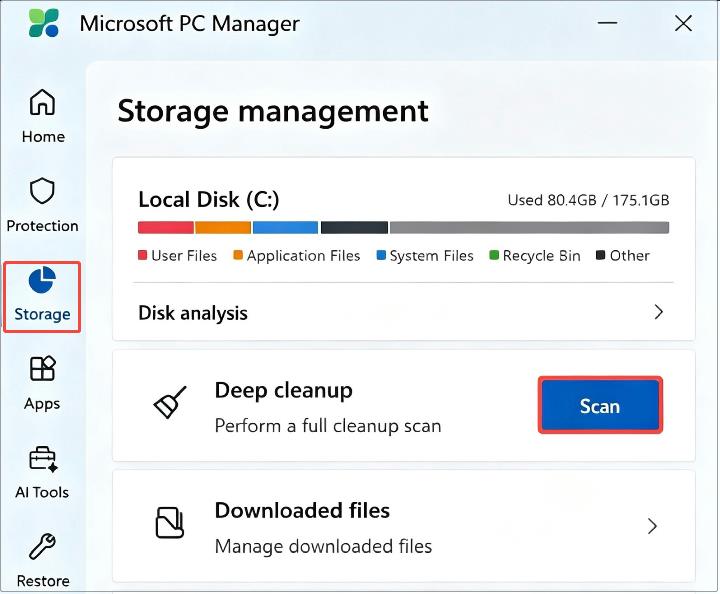
Step 1. Open Microsoft PC Manager, go to the Storage tab, and click Scan in the Deep cleanup module.
Step 2. Enter Downloaded files, Large files, Duplicate files, or Storage sense to perform the corresponding cleanup.
FAQs about Free PC Cleaner Software
1. Do I need third-party software to clean my Windows PC?
Windows provides basic cleanup options, yet dedicated PC cleaner free software delivers more complete junk file removal and privacy clean features.
2. Is there a totally free cleaning PC?
Yes. Microsoft PC Manager is completely free with no paywalled features, while Advanced SystemCare is freemium, but the vast majority of its cleaning functions are free and enough for regular use.
3. How often should I run a PC cleanup?
Once a month works for casual users. If you frequently install software, games or download files, run a cleanup every 2 weeks.
4. Is there a PC cleaner license for Windows 11 free?
Yes. Advanced SystemCare offers a free license compatible with Windows 11. Its core cleaning tools stay free and sufficient for daily use to deep clean and speed up your system.
The Bottom Line
The free cleaner for PC can not only free up disk space, but also protect your privacy and speed up Windows. This post lists 6 free PC cleaner software for Windows cleanup. Pick the most suitable one for you based on the above review to free up space and speed up your PC.