- Support Center
- Multiple Languages
- Language
- Help Us Translate
Expert in
PC Health Solution

All-in-one PC health solution: clean, optimize and secure

Comprehensive PC cleaning, optimization and protection

Keep drivers always up-to-date

More stable performance with less system crashes

Protect millions of computers against malware

Top computer security with full-round protection

Protect against viruses & boost PC performance
Clean: 420 billion traces removed & 85 EB junk files cleaned
Protect: 80 million unauthorized access blocked & 20 million bugs fixed
Speed Up: 6 million hours of startup time saved & Turbo boost
Optimize: Auto clean and auto care your PC with AI mode

PC stutters while gaming, watching videos, or using Windows? Check the quick fixes for overheating, driver issues, high CPU usage, RAM bottlenecks.



Internet Speed Test Tool Checks PC Stuttering First
Hardware Bottlenecks Could be The Reasons for Sudden PC Stutters
Clear Cache to Solve PC Stuttering While Watching Videos
Outdated Drivers Causes PC Stuttering on High End PC
If you feel your computer is not as smooth as usual, saying the gameplay is stuttering, the streaming is choppy, and the switching from apps takes longer. So ‘Why is my PC stuttering?’ answers can vary. Many people may blame their PC for being too old, but this is actually not the key problem. You can do both basic & advanced PC optimization to solve PC stuttering. And here are several key approaches to address your PC stutters:
Optimize system processes
Turning off startup programs
Closing background apps
Clean system junk
Clean C disk usage
Outdated drivers inspection
Test if your hardware needs an upgrade:
CPU bottleneck
RAM bottleneck
Battery bottleneck
GPU bottleneck
Overheating
This blog sails you through the common issues that drag down your PC, and offers free solutions for you to optimize your PC right away. Let’s dive in.
The first thing we need to confirm is whether your Internet speed is capped or not. IObit’s online speed test tool gives you a quick analysis right away. Hit the button, and you can see the mbs of upload speed. If you are downloading something, this online tool also monitors and shows you the download speed.
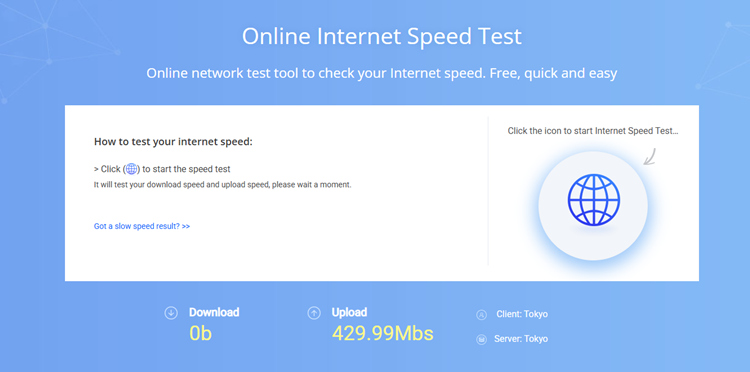
You can now compare the speed with what your Internet service provider claims to offer (most of the time the bandwidth is compromised). This tool is also very handy to test your VPN server’s speed.
When the Mbps is too low, your PC stutters. So what upload speed is considered normal? Check the table below:
| Upload speed | How it compares |
| 5–20 Mbps | Basic browsing, email, HD calls |
| 20–100 Mbps | Good for video calls and cloud backups |
| 100–300 Mbps | Excellent for most households |
| 429 Mbps | Outstanding for home use |
| 500 Mbps+ | Very high-end fiber / pro use |
If your internet speed is in a healthy range, then you can read on to do other inspections.
Many users see sudden PC stutters, and this evident freezing is caused by CPU/GPU/RAM(Storage) bottleneck. Once one of the three components in your PC hits 100% usage, your PC stutters. This type of problem is kinda hard to cope with. If you don’t plan to spend hundreds of bucks to upgrade your hardware, then here are some PC optimization tricks that break the bottlenecks.
Limited RAM storage could be the most possible reason that triggers your PC stuttering. You can check if your RAM is 8GB; if so, your PC cannot run large games or resource-intensive programs like video editing. This weak point drags down your CPU and GPU and makes your computer stutter.
To solve this problem, basically two breakthroughs you can consider:
Upgrade your 8GB RAM to 16GB, and the stutters disappear immediately.
Configure the Page File (Virtual Memory), enlarge them to 16GB.
Move the Page File from the C drive to the SSD.
Or you can use a free RAM clean tool to reduce system strain:
Auto-clean RAM temporary files with IObit Advanced SystemCare
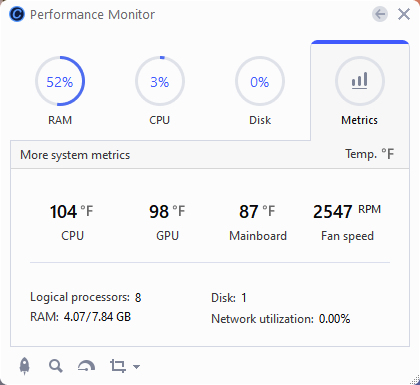
Monitor your RAM/CPU usage in real time
Show you important system metrics - temperature and fan speed
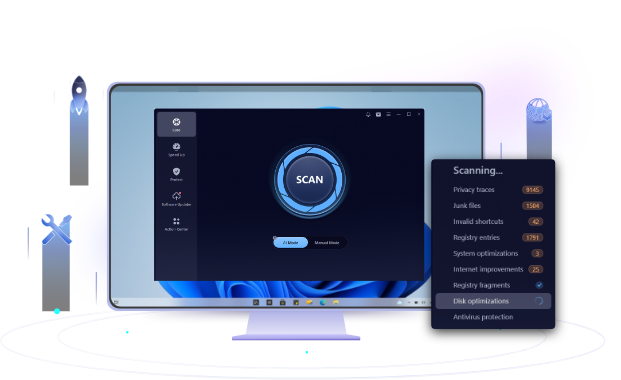
Scan and delete junk to slim down your system
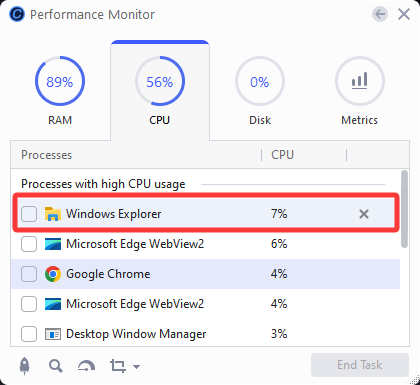
End system-resource-intensive processes instantly
Many game players know the importance of GPU, but never notice CPU is the one that does the arrangements, calculations, and schedules the frames. If your CPU is too old, then it frequently reaches 90–100%, it’s hard to multitask, and any background programs like antivirus scans or app updates can make your PC stutter all of a sudden. How to solve the CPU bottleneck?
Upgrade your CPU
Disable all background programs
Update CPU-related drivers: Chipset Driver, Intel ME / AMD PSP, Motherboard BIOS
Also don’t forget to use IObit CPU and RAM monitor to clear resource-intensive processes.
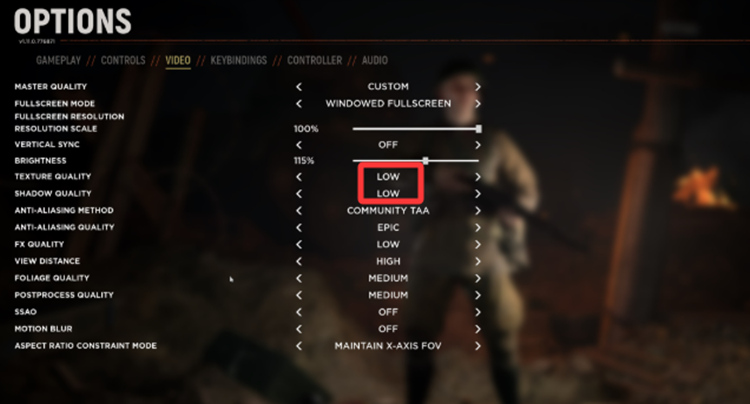
GPU bottleneck means your GPU already hits 95%-100%, and it's an arduous task for your GPU to render shadows, lights, and textures. And the FPS drops are evident. So how to optimize GPU settings to stop PC stutters? You can consider lowering your in-game settings (for gamers). For example:
Lower texture quality
Reduce shadow quality
Disable or lower ray tracing
If you don’t know what ray tracing is or what shadow quality is, it’s okay; just go to in-game settings and set up every option as medium or low to avoid game stutters.
When your PC stutters frequently, it is basically a nightmare to play games or watch streaming programs. The reasons behind this are hardware overheating, background Windows auto updates, and Antivirus auto scans. Fret not; here are some quick solutions to address the problems accordingly.
Overheating
Buying a new cooler for your PC can drastically solve the overheating problem, reducing PC stuttering. And if you don’t want to buy a cooler, opening up the air conditioner in your room helps to avoid thermal throttling and an overwhelmed CPU and RAM.
Windows Update
Windows Update uses CPU to verify, decompress, and install update files, leaving fewer resources for other applications. Your mouse can move in stutters, and when you open up a program, it takes longer to load. How to stop Windows from auto-updating when the system is actually working? Go to Settings → Windows Update → Advanced options → Active hours. Thus, Windows knows when your PC is dawdling.
Antivirus scans
Following the same philosophy, Antivirus scan causes choppy frames too. You can also schedule the antivirus's work.
Playing videos online can take up a huge portion of Physical Memory. That’s the reason why some users feel their YouTube stutters when playing games on another screen in Windows 11. When two major processes compete for system resources, stutters appear.
Check if you open too many background processes or not:
Music players
Game launchers
Live wallpapers
Video recorders
You can open Task Manager and close them to ensure smooth video playback.
Outdated Graphics Drivers
Old or corrupted display drivers can cause dropped frames and playback stuttering. If your PC is old, then the video driver is definitely not catching up. You can download a free driver updater (Like Snappy Driver Installer) to update all the drivers in one click.
Browser Cache or Extensions
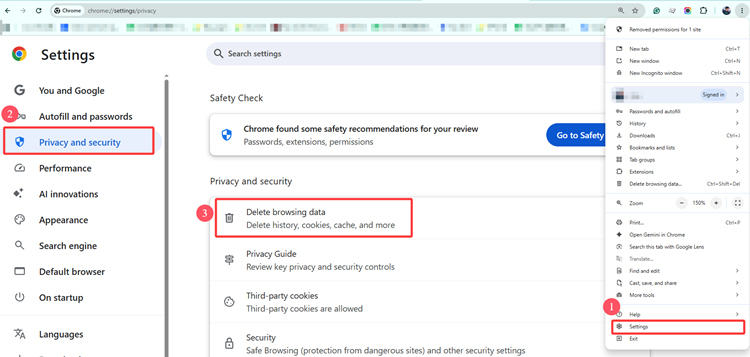
Corrupted cache or problematic extensions can interfere with online video streaming. Follow the guidance in the image to clear the browser cache.
PC stuttering on high-end PCs or laptops is irrational, Some details can be the bottlenecks. For example:
An Inefficient Cooling System – Overheating can trigger CPU or GPU thermal throttling, causing FPS drops and stuttering.
Insufficient or Slow RAM – Limited memory or low-bandwidth RAM forces the system to page data to disk, reducing performance.
Outdated or Corrupted Drivers – Old graphics, chipset, or storage drivers can cause compatibility issues, instability, and frame stutters.
GPU Not Properly Seated in the PCIe Slot – A loose graphics card may cause unstable performance, display issues, or reduced PCIe bandwidth.
Storage Bottlenecks – A nearly full or slow SSD/HDD can delay game asset loading and cause hitching.
Incorrect Power Settings – Power-saving modes may prevent the CPU and GPU from reaching their full performance.
If your PC is stuttering for no reasons, and you are not a computer expert, then you can refer to this blog’s instructions to do simple inspections and fix your PC stuttering. 'Why is my PC stuttering?' reasons can be multiple, it is advised to download a PC optimization software to help you clean system, make it smooth again.
 People Also Ask
PC bottleneck means some old components drag down your computer's performance. GPU, CPU, and PSU bottlenecks are common. This blog tells you what bottlenecks in PC are and how to fix them.
What is a device driver? A device driver is a middle program that lets your OS communicate with hardware. Learn more about the device drivers in computer.
How should I know if I can shift to Windows 11 safe and sound, and can my old hardware and system make it through the transition? WIndows Secure Boot and PC Health Checker help you know the answers.