

- Support Center
- Multiple Languages
- Language
- Help Us Translate
Expert in
PC Health Solution

All-in-one PC health solution: clean, optimize and secure

Comprehensive PC cleaning, optimization and protection

Keep drivers always up-to-date

More stable performance with less system crashes

Protect millions of computers against malware

Top computer security with full-round protection

Protect against viruses & boost PC performance
Complete forced uninstallation for stubborn programs.
Uninstall a batch of programs at once.
Scan and remove leftover files, folders, and registry entries.
Support the management of Universal Windows Platform apps.

Ubisoft Connect not working, opening, or launching on PC? Try 8 fixes, from clearing cache and checking service status to updating and reinstalling the app.



Restart Ubisoft Connect and your PC to clear temporary launcher issues.
Run Ubisoft Connect as an administrator and check for software conflicts.
Clear the Ubisoft Connect cache if the launcher is stuck or not opening.
Check your internet connection, firewall, and Ubisoft service status.
Reinstall Ubisoft Connect if corrupted installation files are preventing it from launching.
If Ubisoft Connect is not working, not opening, or not launching on your PC, you are not alone. The launcher may fail to open, get stuck on “Initializing,” crash immediately, or remain offline even when your internet connection works normally.Common causes include corrupted cache files, outdated software, permission problems, network restrictions, and conflicts with background applications.
The good news is that you can usually fix the problem without reinstalling your games. Try the following solutions in order.
Before troubleshooting, identify how Ubisoft Connect is failing. The most common symptoms include:
Ubisoft Connect does not open after clicking its shortcut.
Ubisoft Connect is not launching but appears briefly in Task Manager.
Ubisoft Connect is not opening on PC and closes immediately.
The launcher is stuck on “Initializing” or a blank screen.
Ubisoft Connect cannot connect to its online services.
A Ubisoft game launches from Steam or Epic Games but Ubisoft Connect does not start.
The cause can range from temporary service problems to corrupted local files or conflicts with security software. If Ubisoft Connect does not open or launch at all, corrupted cache files, permission issues, or background software conflicts are more likely. If it opens but cannot connect, check your network, firewall, VPN, and Ubisoft service status first.
Completely close Ubisoft Connect before restarting it. Open Task Manager with Ctrl + Shift + Esc, find Ubisoft-related processes, and select End task. Then restart your PC and try opening the launcher again.
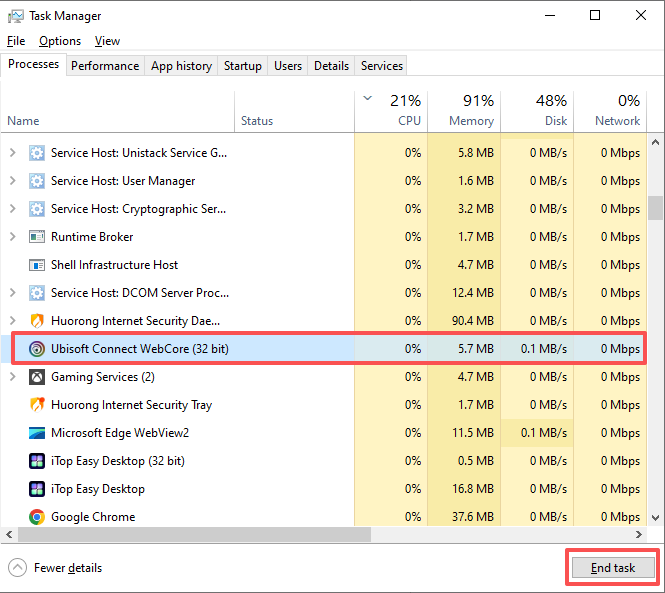
Permission issues can sometimes prevent the launcher from starting correctly. Right-click the Ubisoft Connect shortcut and select Run as administrator.
If this works, Windows permissions may have been preventing Ubisoft Connect from accessing required files or services.
A corrupted cache can cause startup, login, and connection problems. Close Ubisoft Connect completely, then open its installation folder. By default, the cache is usually located under: C:\Program Files (x86)\Ubisoft\Ubisoft Game Launcher\cache.
Rename the “cache” folder to “cache_backup” instead of deleting it immediately, then restart Ubisoft Connect. The launcher will create a fresh cache folder automatically. If Ubisoft Connect opens normally afterward, the old cache was likely causing the problem.
This is particularly useful when Ubisoft Connect opens but remains stuck during initialization.
If the launcher opens but cannot connect, temporarily check whether your firewall, antivirus, VPN, or other network tools are interfering with Ubisoft Connect.
Restart your router and, if possible, test another network. You should also make sure Ubisoft Connect is allowed through Windows Firewall.
If Ubisoft Connect opens but is not connecting, check the Ubisoft service status before changing firewall or network settings. A temporary Ubisoft outage or maintenance may mean the problem is not caused by your PC.
An outdated launcher or Windows environment can cause compatibility problems. To update Ubisoft Connect, download the latest version from Ubisoft's official download page and install it over your current version. Also install any available Windows updates.
If you see “Ubisoft Connect Download Manager not available,” downloading the latest installer directly from Ubisoft and reinstalling or updating the launcher may help.
If you're seeing a Windows compatibility message, our guide to “This App Can't Run on Your PC” may also help identify the underlying problem.
Overlays, antivirus utilities, VPNs, monitoring tools, and other background applications can interfere with game launchers. Close unnecessary applications and try Ubisoft Connect again.
If necessary, perform a clean boot to determine whether another program is causing the conflict. Ubisoft also recommends closing background applications when troubleshooting PC game problems.
If Ubisoft Connect is not opening on PC after trying the solutions above, the installation itself may be damaged. Uninstall Ubisoft Connect, restart your computer, download the latest installer, and perform a fresh installation.
For a more thorough removal, IObit Uninstaller can help remove leftover files associated with an uninstalled program before reinstalling it.
If Ubisoft Connect opens normally but a specific game will not start, the problem may be with the game installation rather than the launcher. Use the game's built-in file verification or repair option where available. Ubisoft recommends file verification as part of PC troubleshooting.
When Ubisoft Connect not working prevents you from playing, start with simple solutions such as restarting the launcher, running it as administrator, and clearing its cache. If Ubisoft Connect is not launching after that, check your network and security software, update the launcher, and reinstall it if necessary.
In most cases, these steps can resolve Ubisoft Connect not opening on PC without requiring you to reinstall your games.
 People Also Ask
Check what the Microsoft Program Install and Uninstall Troubleshooter is, where to download it, and how to use it.
Check how to uninstall Claude Code and details both the manual terminal commands and a free uninstaller tool to cleanly remove it from your system.
Free up disk space by safe Windows Installer folder cleanup. This guide shows how to use Settings, Disk Cleanup, etc., to remove unwanted installer files.
Want to remove the update on iPhone? Check the different scenarios and specific deletion steps on how to uninstall an iPhone update.
How to delete hidden apps that are not listed in Control Panel? Follow the ways to uninstall hidden programs in Windows for a safer and cleaner system.
Need to uninstall NPM package safely? Learn how to uninstall NPM package locally and globally, fix NPM uninstall not working issues step by step.