- Support Center
- Multiple Languages
- Language
- Help Us Translate
Expert in
PC Health Solution

All-in-one PC health solution: clean, optimize and secure

Comprehensive PC cleaning, optimization and protection

Keep drivers always up-to-date

More stable performance with less system crashes

Protect millions of computers against malware

Top computer security with full-round protection

Protect against viruses & boost PC performance
Complete forced uninstallation for stubborn programs.
Uninstall a batch of programs at once.
Scan and remove leftover files, folders, and registry entries.
Support the management of Universal Windows Platform apps.

Want to remove the update on iPhone? Check the different scenarios and specific deletion steps on how to uninstall an iPhone update.


Two Scenarios Regarding Whether iPhone Update Can Be Deleted
When Is Downgrading Possible?
How Can I Check If I Can Downgrade?
Can Third-Party Tools Downgrade an iPhone?
Why Do Some Websites Claim Downgrades Always Work?
Simply Don't Want Automatic Updates Anymore
How to Delete iPhone App Data
How to Delete iPhone Documents and Data
PC Support for Smooth iOS Update Downgrade
Many users search for how to uninstall iPhone update after noticing that an iOS update has been downloaded automatically. And some users also want to remove the update because it takes up too much space, or they don't like the upgraded version and want to downgrade.
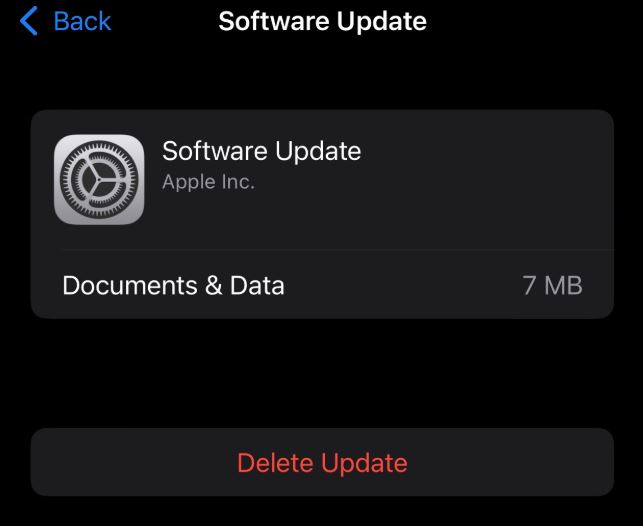
Then, can you remove the update on the iPhone? Can you downgrade an iPhone update? There are two scenarios:
If only the system update file has been downloaded to your phone but not yet installed, you can delete it:
iOS 16/17/18: To delete a downloaded iOS update:
Open Settings.
Go to General > iPhone Storage.
Locate the iOS update file. (e.g., iOS 18.x)
Tap it and select Delete Update.
This only removes the installation package. Your current iOS version will remain unchanged, and this can free up several GB of space.
Generally: You cannot freely downgrade.
Once a new iOS version has been installed, downgrading becomes much more difficult.
Apple controls which iOS versions can be installed through a signing system. When Apple stops signing an older version, users can no longer officially install it, even if they have the firmware file.
In most cases, iPhone users cannot freely return to any previous iOS version they choose.
A downgrade may be possible if:
Apple is still signing the previous iOS version.
The downgrade is performed shortly after a newer version is released.
The correct firmware file is available for the device.
When these conditions are met, users can downgrade through a computer using Finder on Mac or iTunes on Windows.
However, Apple typically stops signing older versions within days or weeks after a new release, making the downgrade window relatively short.
You can go to: IPSW.me
After selecting your iPhone model:
Green ✔️ = Apple is still signing iPhones; downgrading is possible.
Red ❌ = Signing has stopped; downgrading is not possible.
Many tools advertise one-click iOS downgrades, including 3uTools, ReiBoot, Fixppo, and similar utilities.
These tools can simplify tasks such as:
Downloading firmware files
Entering recovery mode
Flashing the device
Managing backups
However, they cannot bypass Apple's signing verification.
This means:
If Apple is still signing the target version, third-party tools may help perform the downgrade more easily.
If Apple has stopped signing the version, these tools generally cannot install it.
In other words, the limitation comes from Apple's servers rather than the software being used.
Many downgrade guides leave out important details.
In some cases:
The target version was still being signed by Apple.
The downgrade involved a beta release.
The device was an older model affected by specific hardware vulnerabilities.
These situations are exceptions rather than the rule. For most modern iPhones, downgrading remains restricted by Apple's signing policy.
You can turn off automatic updates:
Settings > General > Software Update > Automatic Updates > Off:
Turn off Download iOS Update
Turn off Install iOS Update
This way, newer versions of the system won't be downloaded automatically in the future.
If you need a lot of space because of an iOS upgrade, and your iPhone doesn't have enough space, you can try deleting some infrequently used or unimportant documents or app data to get more space.
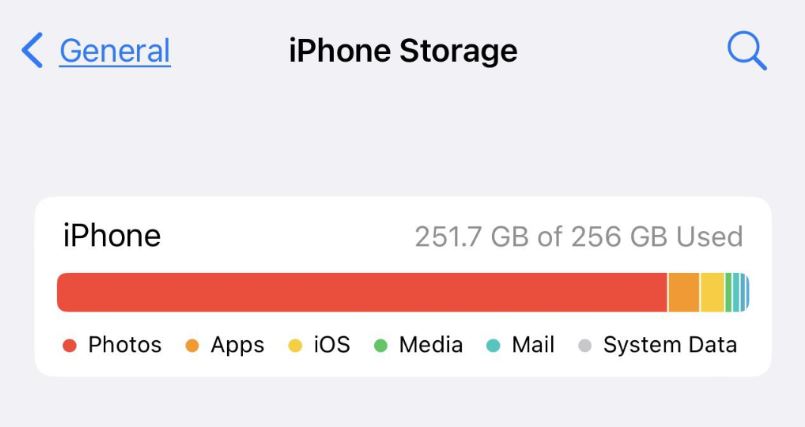
Besides system updates, app data is another common cause of storage issues. Users often search for how to delete iPhone app data when apps consume large amounts of space.
To delete app data:
Open Settings > General > iPhone Storage.
Select the app you want to manage.
Choose Offload App to remove the app while keeping its data.
Choose Delete App to remove both the app and its associated data.
For some apps, you can also clear cached files directly within the app's settings.
How to Delete iPhone Documents and Data
If you're looking for how to delete iPhone documents and data, start by checking which apps use the most storage.
Common storage-heavy items include:
Downloaded videos and movies
Offline music files
Messages and attachments
Social media caches
Browser data
To remove documents and data:
Go to Settings > General > iPhone Storage.
Review storage usage by app.
Delete unnecessary downloads, attachments, or cached content.
Reinstall apps that do not offer a built-in cache-clearing option.
Regularly removing unused files and app data can help recover significant storage space without affecting your iPhone's performance.
For Windows users, an iOS downgrade requires PC-assisted iOS downgrade via iTunes on Windows computers under strict Apple official signing limits. However, redundant and corrupted Apple update files on PCs often trigger connection failures and interrupt the iPhone downgrade process. This makes a professional cleanup tool necessary for completing iPhone update uninstallation, such as IObit Uninstaller.

As a mature cleanup tool for Windows programs and system updates, IObit Uninstaller features Force Uninstall and deep leftover scanning functions. It specializes in thoroughly deleting stubborn Apple Software Update clients, residual folders, and hidden registry traces that the system’s built-in uninstaller cannot remove. By cleaning up all Apple-related update leftovers, it eliminates PC-side errors, helping users smoothly finish iPhone update, downgrade, and uninstall operations.
 People Also Ask
How to improve Steam download speed? Check how to make Steam download faster in 12 ways: Check Internet Connection, Switch Steam Download Server Region…
Stuck with the “This app can’t run on your PC” error? Learn quick fixes, compatibility settings, and advanced ways to make programs run smoothly on Windows.
What is AMD auto-detect and install Tool? How to fix AMD auto detect and install not found? See here.
Why is Warzone so laggy on PC? How do you fix lag and stuttering in Warzone? Find out main reasons and get available fixes that help improve gaming performance.
Free up disk space by safe Windows Installer folder cleanup. This guide shows how to use Settings, Disk Cleanup, etc., to remove unwanted installer files.
Why is Windows Defender not turning off? How to remove and uninstall Windows Defender on Windows 11? Can I disable Windows Defender permanently?