- Support Center
- Multiple Languages
- Language
- Help Us Translate
Expert in
PC Health Solution

All-in-one PC health solution: clean, optimize and secure

Comprehensive PC cleaning, optimization and protection

Keep drivers always up-to-date

More stable performance with less system crashes

Protect millions of computers against malware

Top computer security with full-round protection

Protect against viruses & boost PC performance
Complete forced uninstallation for stubborn programs.
Uninstall a batch of programs at once.
Scan and remove leftover files, folders, and registry entries.
Support the management of Universal Windows Platform apps.

Stuck with the “This app can’t run on your PC” error? Learn quick fixes, compatibility settings, and advanced ways to make programs run smoothly on Windows.



Check if You're Using the 32-bit, 64-bit, or ARM64 Version
Update Your Windows 10 Operating System
Find Which App is Triggering the Error
Run the App as Administrator
Enable Compatibility Mode (Windows 7/8)
Create a New Administrator Account
Temporarily Disable Windows Defender SmartScreen
Turn on Developer Mode in Windows Settings
Run SFC /scannow to Repair System Files
Re-download the Application
It’s frustrating when Windows displays the blunt message “This app can’t run on your PC,” especially when the cause isn’t clear. The good news is that, in most cases, it comes down to a compatibility or permission issue—and you can resolve it quickly by following the guide below.
Here are the most common reasons:
Architecture mismatch: The app doesn’t match your PC (e.g., ARM app on x64, or 64-bit app on 32-bit Windows).
Unsupported Windows version: Older or specialized apps may not run on Windows 10/11.
Blocked by Windows security (SmartScreen/Defender): Windows may stop unsigned, unrecognized, or untrusted apps from running.
Corrupted or incomplete file: A damaged download can prevent Windows from executing the app.
Insufficient user permissions: The app may require administrator rights or specific system access.
S Mode restrictions (Windows 10/11 S Mode): Only Microsoft Store apps are allowed, blocking traditional .exe files.
Now that you understand the possible causes, the next step is to identify the root of the problem so you can apply a more targeted fix.
Check if You're Using the 32-bit, 64-bit, or ARM64 Version
Not all apps are compatible with every system type. For example, a 64-bit application won’t run on a 32-bit version of Windows. Always match the app’s architecture to your system.
How to find your system type:
Press Windows key + I to open Settings.
Go to System > About.
Under Device specifications, look at System type.
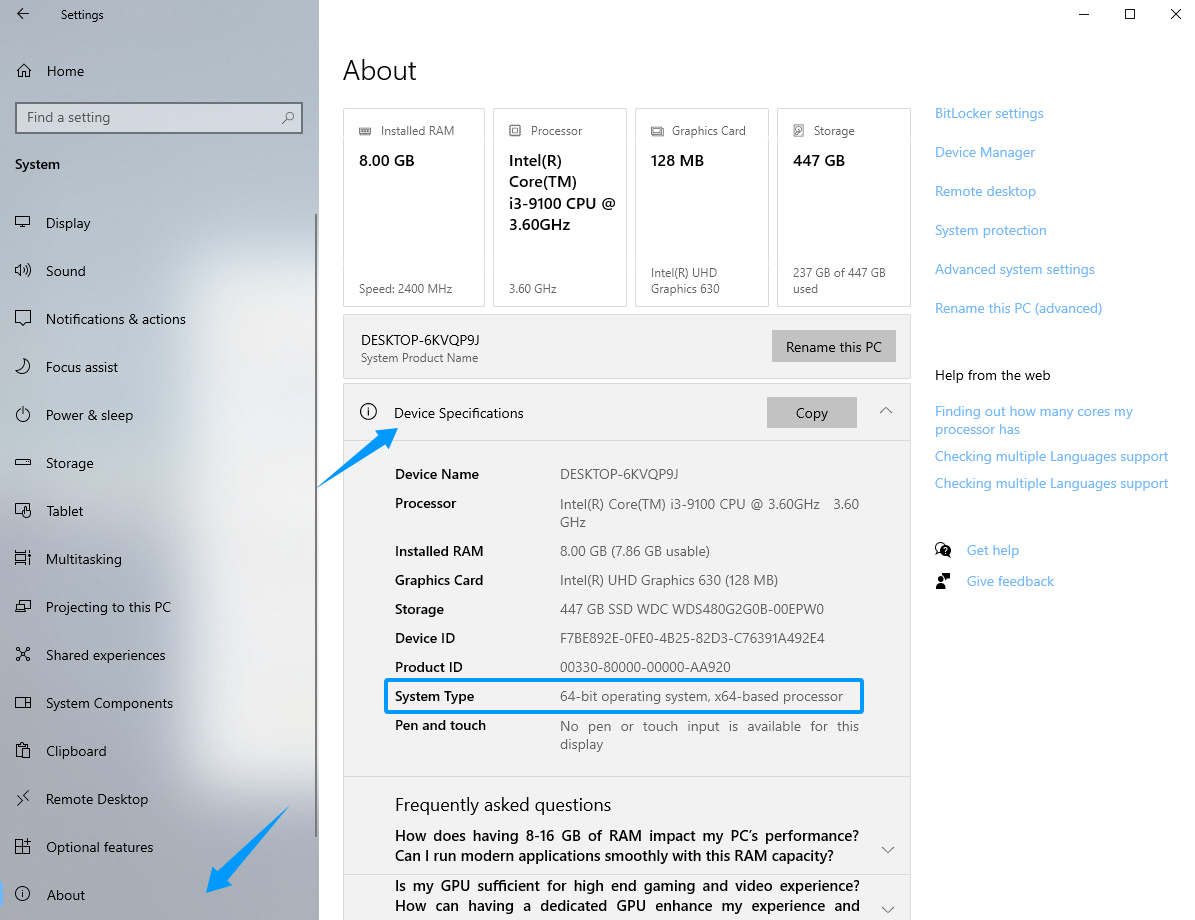 Now compare it with the app version:
x64 apps → a standard Intel or AMD PC, run 32-bit and most 64-bit apps.
ARM64 apps → required for ARM devices (like some Snapdragon laptops).
Update Your Windows 10 Operating System
An outdated system can lead to compatibility issues, so make sure your OS is up to date.
Press Windows + I to open Settings.
Go to Windows Updates > Click Check for Updates.
Find Which App is Triggering the Error
If the error appears randomly and you’re unsure which app is responsible, here’s how to find out:
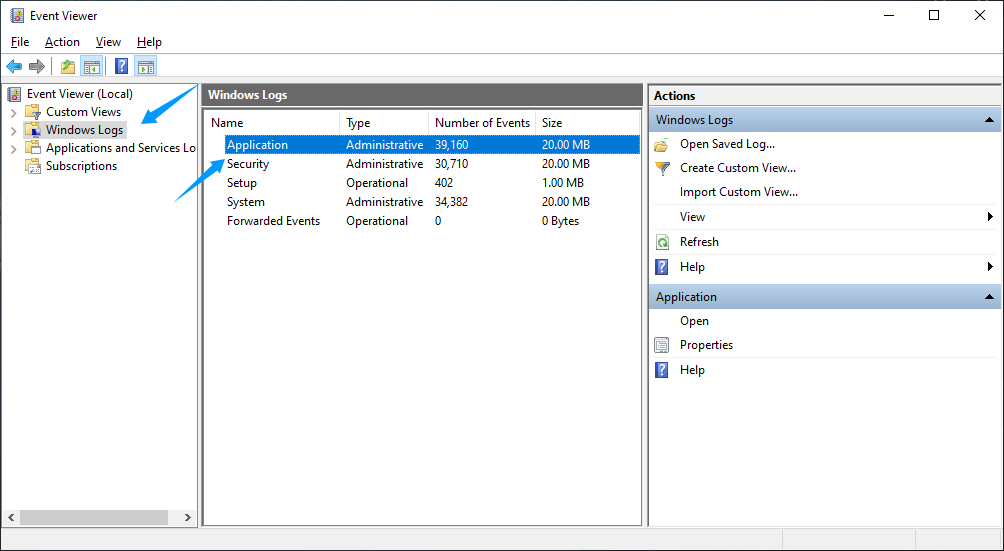
Press Win + X > Event Viewer.
Go to Windows Logs > Application
Look for an error entry with a red "Error" icon at the timestamp.
Click on the event and check the details to find the .exe file name.
If you’re looking for a quick solution, start with these proven methods for this app can't run on your PC fixes:
Run the App as Administrator
Right-click the app, select Properties > Compatibility tab > check "Run this program as an administrator" > OK. This instantly cures many permission-related blocks.
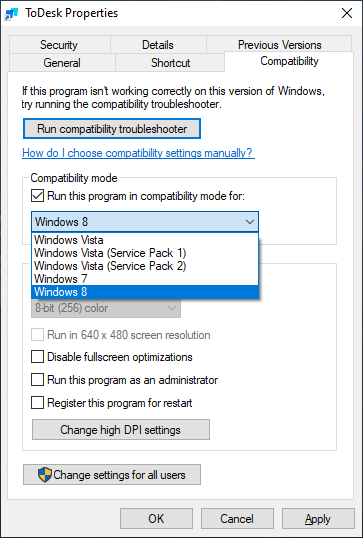
Enable Compatibility Mode (Windows 7/8)
Right-click the app, select Properties > Compatibility tab > check "Run this program in compatibility mode for" > select an older OS like Windows 8 or Windows 7 > OK.
Create a New Administrator Account
A new user profile can bypass issues caused by corrupted settings or incorrect permissions that may prevent apps from running properly.
Press Windows + I to open Settings.
Go to Accounts > click Family & other users > Add account (or Add someone else to this PC)
Click "I don’t have this person’s sign-in information" this link.
Then click Add a user without a Microsoft account (for a local account).
Enter a username and password, then click Next.
Temporarily Disable Windows Defender SmartScreen
Open Windows Security from the Start menu.
Click App & browser control.
Under Smart App Control or Reputation-based (Win 10) protection, click the Reputation-based protection settings link.
Look for Check apps and files. Change the setting from Block to Warn (if available) or temporarily turn it off.
⚠️ Important:
Try launching the app again. If it works, SmartScreen was likely blocking it.
Disable this feature only temporarily, and re-enable it after installing the app.
Turn on Developer Mode in Windows Settings
Some apps (especially unsigned or side-loaded UWP/modern packages) require Developer Mode.
Press Windows key + I to open Settings.
Click System, then scroll down and select For developers (on Windows 10, it’s under Update & Security > For developers).
Turn on Developer Mode.
Click Yes to confirm the prompt.
No restart is needed; launch your app again.
If the issue "this app can't run on this PC" persists, try these deeper fixes.
Run SFC /scannow to Repair System Files
Corrupted system files can stop apps from launching, especially built-in Windows tools. Running the SFC scan can detect and repair these issues.
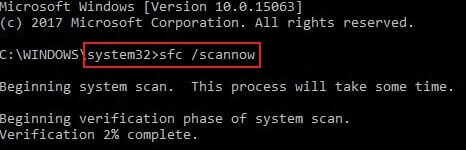
Type cmd in the search bar, right-click Command Prompt, and choose Run as administrator.
Enter the command sfc /scannow and press Enter.
Wait for the scan to finish, then restart your computer.
Re-download the Application (Corrupted File Fix)
If the installer is corrupted or incomplete, Windows may block it from running. To fix "this app cant run on your PC", first remove any partially installed version of the program—simply deleting its folder can leave behind registry entries and leftover files. For a cleaner uninstall, you can use a dedicated tool like IObit Uninstaller to remove residual data. Then delete the old installer and download a fresh copy from the official website.
 People Also Ask
Free up disk space by safe Windows Installer folder cleanup. This guide shows how to use Settings, Disk Cleanup, etc., to remove unwanted installer files.
How to improve Steam download speed? Check how to make Steam download faster in 12 ways: Check Internet Connection, Switch Steam Download Server Region…
Learn how to remove Chrome extensions installed by administrator and regain full control of your browser. Discover easy ways to remove extensions safely.