- Support Center
- Multiple Languages
- Language
- Help Us Translate
Expert in
PC Health Solution

All-in-one PC health solution: clean, optimize and secure

Comprehensive PC cleaning, optimization and protection

Keep drivers always up-to-date

More stable performance with less system crashes

Protect millions of computers against malware

Top computer security with full-round protection

Protect against viruses & boost PC performance
Complete forced uninstallation for stubborn programs.
Uninstall a batch of programs at once.
Scan and remove leftover files, folders, and registry entries.
Support the management of Universal Windows Platform apps.

How to delete hidden apps that are not listed in Control Panel? Follow the ways to uninstall hidden programs in Windows for a safer and cleaner system.



Uninstall Hidden Apps from AppsFolder
Delete Hidden Apps from Program Folder
Remove Hidden Apps with PowerShell
Delete Hidden Apps with Command Prompt
Uninstall Hidden Apps with Registry Entry
Delete Hidden Apps Using 3-rd Party Uninstaller [Perfect for Beginners]
Control Panel acts as a centralized hub for software removal in Windows. But occasionally, some applications seem to vanish from the list, which are often partially installed or bundled with other software, preventing Windows from recognized them as installed programs. As a result, you can't locate and delete hidden apps using Control Panel.
How to uninstall hidden apps on PC? There are several effective ways that help you completely remove programs not shown up in Control Panel to keep your computer cleaner, faster and safer.
Windows includes a command that opens the Applications folder showing all programs installed on your PC, from standard desktop software to Microsoft Store/UWP apps. In the folder, you can find and uninstall hidden apps easily.
1. Press Windows Key + R
2. Enter shell:AppsFolder and enter.
3. Right-click an app and click Uninstall.
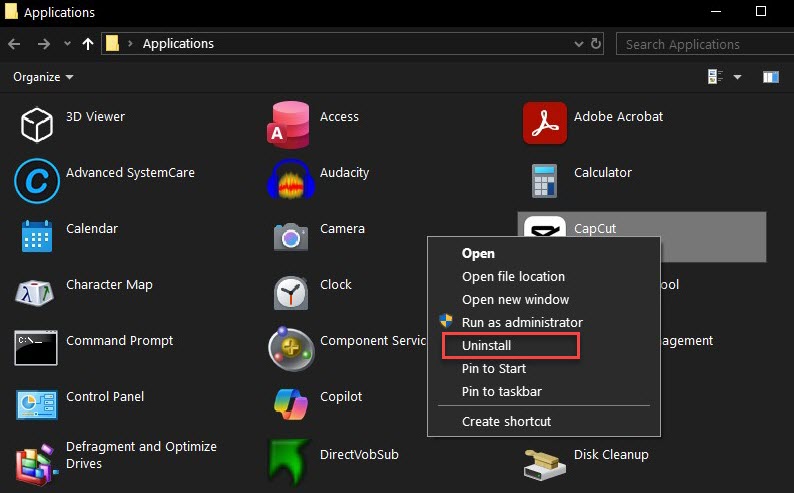
Best for: All installed applications.
Commonly, a standalone program folder will be created after you download an application. It includes an uninstaller that helps you remove hidden app manually.
1. Find the program folder where the application is installed.
The default folder locations are
C:\Program File
C:\Program Files (x86)
C:\Users\Username\AppData
But if you have customized the location during installation, right-click shortcut of the application and select "Open file location".
2. Look for a file named uninstall.exe or unins000.exe.
3. Double-click the file and follow the on-screen instructions to delete the hidden app.
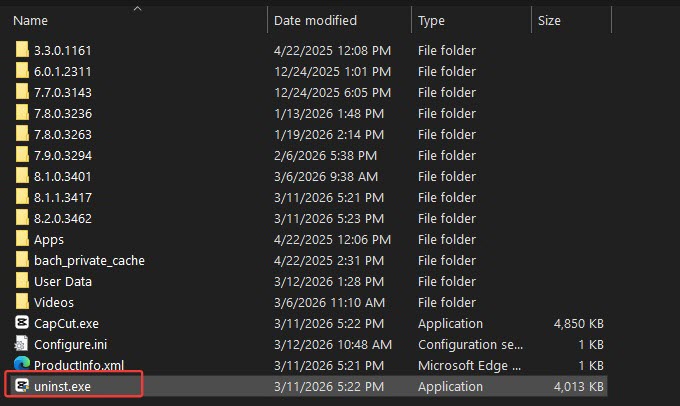
Best for: Portable apps and manually installed software.
Some pre-installed Windows apps or Microsoft Store apps are not shown up in normal uninstall list. PowerShell can act as an alternative solution to remove those hidden apps.
1. Search Windows PowerShell. Right-click it and select Run as administrator.
2. View installed apps:
Get-AppxPackage | Select Name
3. Remove an app:
Get-AppxPackage *appname* | Remove-AppxPackage
Best for: Built-in Windows apps and Store applications.
If you know the exact name of the program but can't find its files, you can use command prompt to force uninstall it.
1. Search Command Prompt. Right-click it and select Run as administrator.
2. Input wmic and press Enter.
3. Show the installed programs:
product get name
4. Remove a specific app:
product where name="EXACT NAME OF APP"
5. Type Y to confirm the removal.
Best for: Problematic installations.
If the app is completely hidden from all menus, its installation data is likely buried deep within the Windows Registry. You can find and delete hidden apps with Registry Entry.
1. Search Registry Editor and open it.
2. Navigate to:
Computer\HKEY_LOCAL_MACHINE\SOFTWARE\Microsoft\Windows\CurrentVersion\Uninstall
3. Expand Uninstall and select the program you want to delete.
4. Double click UninstallString in the right panel and copy the Value data.
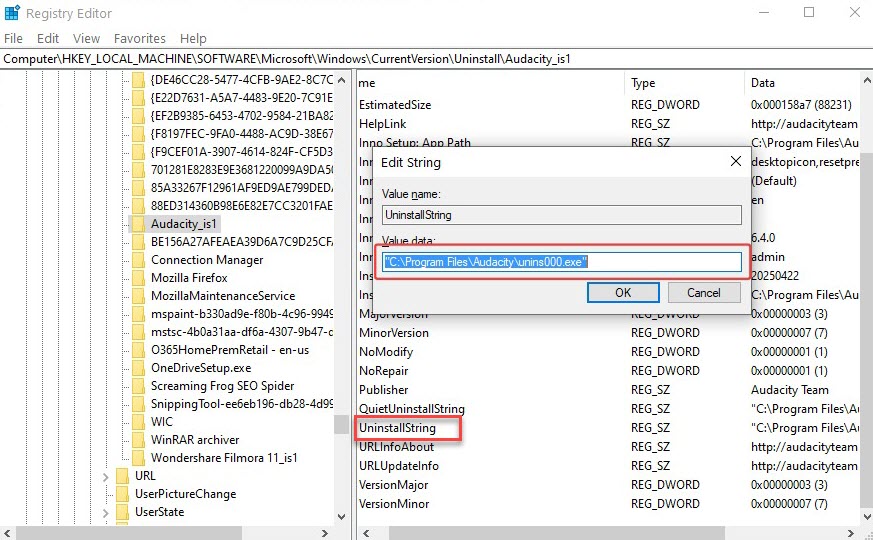
5. Press Windows Key + R. Paste the copied value data. Click OK.
6. If you can't find UninstallString, right-click the program and select Delete.
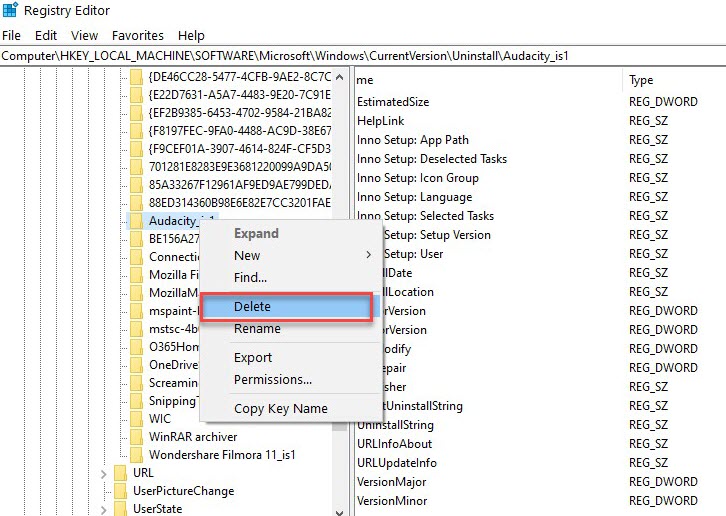
Best for: Complete and advanced uninstallation.
Notice: It probably cause system problems if modifying Registry incorrectly. If you are not a tech-skilled user, please be caution to use this method.
When native Windows tools can't work, a professional third-party uninstaller, like IObit Uninstaller, can fully resolve the issue. It can intelligently scan your hard drive to discover hidden programs and forcefully delete the application without any leftovers.
1. Download and install IObit Installer.

2. Click All Programs to view all installed programs. Otherwise, navigate to BundleWare or Logged Programs to find out certain hidden apps.
3. Select one program and click Uninstall. You can also select multiple apps and uninstall simultaneously.
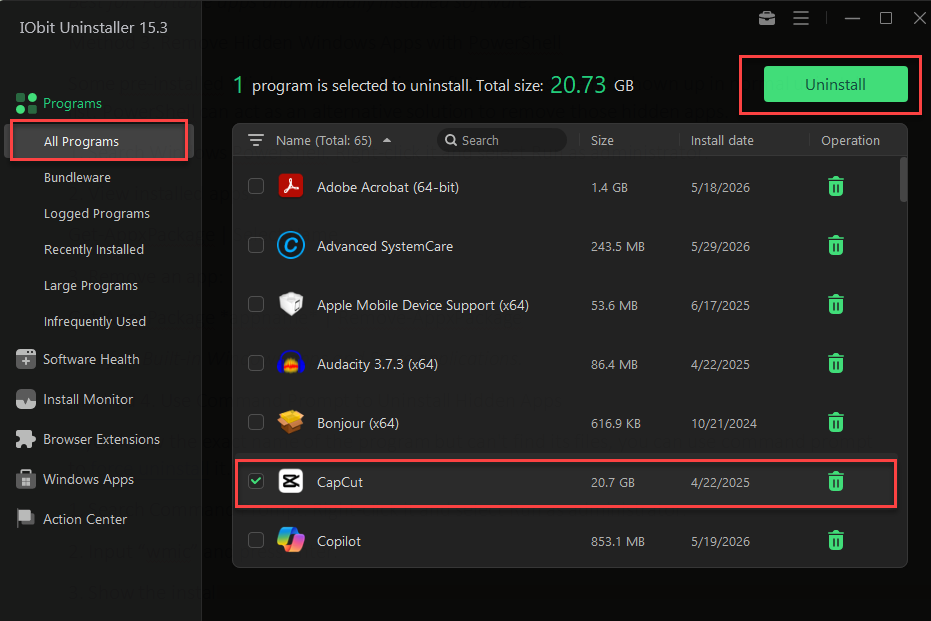
Best for: Hidden, stubborn, corrupted apps and complete uninstallation.
Tips:
1. IObit Uninstaller also empowers you to uninstall browser extensions and Windows Apps in a single click.
2. If you want to perform a complete cleanup, go to Software Health > scan leftovers and redundant files > Fix.
Conclusion
Many programs can be removed through Control or Windows Settings, while it requires additional methods or specialized uninstaller tools to delete hidden apps. Compared with the built-in features in Windows, IObit Uninstaller delivers a simpler and quicker solution to completely remove hidden or problematic programs from Windows, no leftovers and redundant data. If you are beginners and try to uninstall unwanted programs for a cleaner PC/laptop, IObit Uninstaller is a recommendable choice.
 People Also Ask
Check how to uninstall Claude Code and details both the manual terminal commands and a free uninstaller tool to cleanly remove it from your system.
Learn how to uninstall Magnifier in Windows 11 and stop it from automatically opening. Discover easy methods to disable Magnifier or remove it.
Is it okay to uninstall Copilot? This article provides a full guide on how to uninstall Copilot from Windows 10 without affecting your system.