- Support Center
- Multiple Languages
- Language
- Help Us Translate
Expert in
PC Health Solution

All-in-one PC health solution: clean, optimize and secure

Comprehensive PC cleaning, optimization and protection

Keep drivers always up-to-date

More stable performance with less system crashes

Protect millions of computers against malware

Top computer security with full-round protection

Protect against viruses & boost PC performance
Complete forced uninstallation for stubborn programs.
Uninstall a batch of programs at once.
Scan and remove leftover files, folders, and registry entries.
Support the management of Universal Windows Platform apps.

What is the Microsoft programs install and uninstall troubleshooter? How to use it? Check all that you need to know about the Microsoft uninstall troubleshooter.



What Is the Microsoft Install and Uninstall Troubleshooter
Where to Download the Microsoft Uninstall Troubleshooter
How to Use This Program Troubleshooter
Any Alternative Fix to Microsoft Uninstall Troubleshooter
The Microsoft Programs Install and Uninstall Troubleshooter, which fixes issues that stop apps from being added or removed, is a good tool to rely on when your installing/uninstalling goes wrong. What is it? How does it work? Where to get it? Any other alternatives if it doesn't work? Check everything that you need to know about this Microsoft uninstall troubleshooter here.
Previously, the Microsoft Programs Install Uninstall Troubleshooter was probably known as the Windows Fix It tool. Back then, it was hosted on Microsoft’s Fix It Center feature.
This troubleshooter addresses installation and uninstallation problems by scanning your installation data and fixing corrupted registry keys and related files.
Where can you get the program install and uninstall troubleshooter download file?
Directly head over to the official Microsoft Support site > click the Windows 10 tab on the site, scroll down, and you will find the Download Troubleshooter button > click to download it. The diagcab file package is called: “MicrosoftProgram_Install_and_Uninstall.meta.diagcab”.
Check the steps below to use this feature.
Step 1. Download the program install and uninstall troubleshooting tool from the official Microsoft Support site.
Step 2. Double-click the downloaded file to launch it > click Next and let it detect problems.
Step 3. Choose where you are having trouble: installing or uninstalling > choose the exact program that you want to install/uninstall > click Next, and let it process for you.
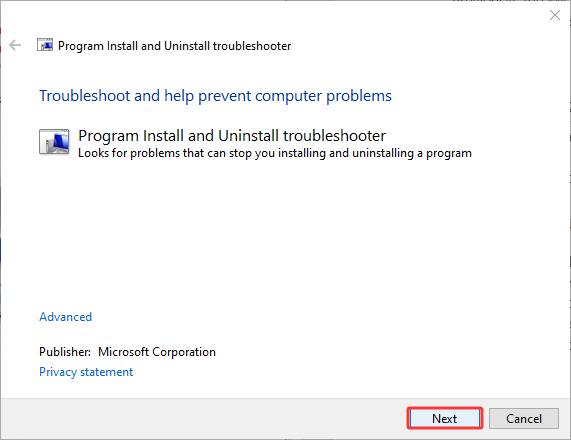
It fixes the corrupted registry keys and any related content. Corrupted or incomplete files can sometimes cause severe problems; apart from uninstalling/installing issues, you might also meet the “This app can’t run on your PC” error.
If the Microsoft troubleshooter does not work for you, try alternative fixes.
Repair the app: Go to Windows Settings > Apps > Installed apps > find the exact app that malfunctions > Advanced options > click Repair/Reset.
Uninstall from Control Panel: Control Panel > Programs > Uninstall a program > select the app you want to uninstall > Uninstall.
Force Uninstall with a professional uninstaller: turn to a professional and reliable app uninstaller that comes with a force uninstaller or uninstallation troubleshooting features.
Among the uninstalling tools, you might also look at IObit Uninstaller, which features easy and efficient app uninstallation. With this app, you can force remove stubborn programs without any hassle. Plus, it scans your apps for uninstallation issues, uninstallation leftovers, redundant files, etc.

Check how you can fix uninstallation issues with IObit Uninstaller.
Step 1. Download IObit Uninstaller safely.
Step 2. Launch this tool.
If you can locate the app that has uninstalling issues, click Tools> Force Uninstall > click Browse to locate the file location > Uninstall.
If not, navigate to Software Health > select Programs with Uninstall Issues and other options as you need > Scan Now.
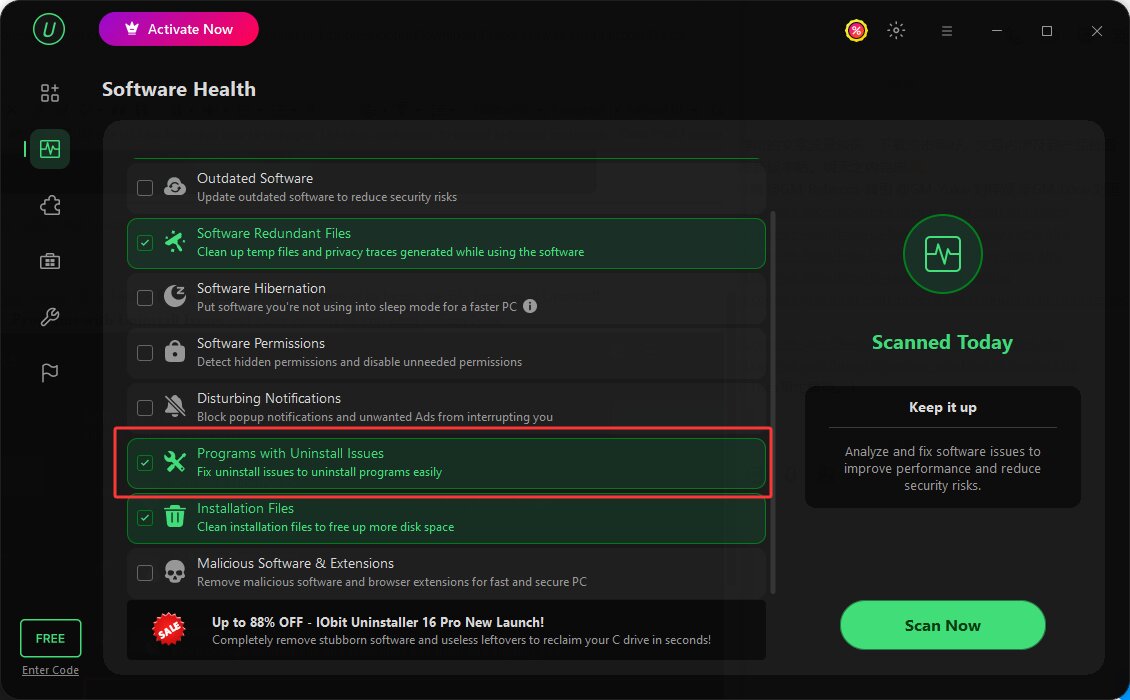
Step 3. Let it scan your devices and fix the uninstalling issues automatically.
This is how you remove a stubborn app and all redundant files, e.g., the registry keys left when uninstalling Claude Code or any other apps.
 People Also Ask
Free up disk space by safe Windows Installer folder cleanup. This guide shows how to use Settings, Disk Cleanup, etc., to remove unwanted installer files.
Want to remove the update on iPhone? Check the different scenarios and specific deletion steps on how to uninstall an iPhone update.
How to delete hidden apps that are not listed in Control Panel? Follow the ways to uninstall hidden programs in Windows for a safer and cleaner system.
Want to know why you can’t uninstall Rainbow Six Siege? Check this blog for the full answer and complete fixes to get R6 uninstalled successfully.
Can’t uninstall Adobe Creative Cloud, why? Can I force uninstall it? Get the answer here and find solutions.
Why is Windows Defender not turning off? How to remove and uninstall Windows Defender on Windows 11? Can I disable Windows Defender permanently?