- Support Center
- Multiple Languages
- Language
- Help Us Translate
Expert in
PC Health Solution

All-in-one PC health solution: clean, optimize and secure

Comprehensive PC cleaning, optimization and protection

Keep drivers always up-to-date

More stable performance with less system crashes

Protect millions of computers against malware

Top computer security with full-round protection

Protect against viruses & boost PC performance
Clean: 420 billion traces removed & 85 EB junk files cleaned
Protect: 80 million unauthorized access blocked & 20 million bugs fixed
Speed Up: 6 million hours of startup time saved & Turbo boost
Optimize: Auto clean and auto care your PC with AI mode

Learn how to locate and show AppData folder in Windows and safely delete unnecessary files.



Clean AppData Folder Automatically with Advanced SystemCare
Manually Locate Appdata Folder via File Explorer and Windows Run
View AppData Folder Hidden Files via Folder Options
Clean AppData Folder Unwanted Files
The AppData folder in Windows stores numerous cache and temporary files, as well as program settings. Many of these files are not automatically removed after updates or even after programs are uninstalled. As a result, the AppData folder can take up several gigabytes of storage space and place an unnecessary burden on your PC. Here is how to show AppData folder and how to locate and clean it in Windows, either automatically or manually.
Beginners often do not know “Where is AppData folder” and “How to locate AppData folder” or distinguish between files that can be safely removed and those that are essential for programs or Windows. Therefore, you might as well turn to an automatic cleanup solution that also ensures security: Advanced SystemCare.
Why Choose Advanced SystemCare?
Automatically detects unnecessary AppData files
Safely removes temporary files and cache data
Reduces the risk of accidental deletion
Saves time during system cleanup
Helps free up storage space
Improves PC performance
Ideal for Windows 11/10/8.1/8/7/Vista/XP
This Windows hard drive cleaner makes PC cleanup significantly easier by automatically finding and safely removing unnecessary AppData files
How to Automatically Find and Clean AppData Folder
Can't find AppData folder? Simply use the powerful junk file cleaner to locate it and clean it automatically. Check how this app helps clean AppData folders.
Step 1: Install Advanced SystemCare and launch the tool.
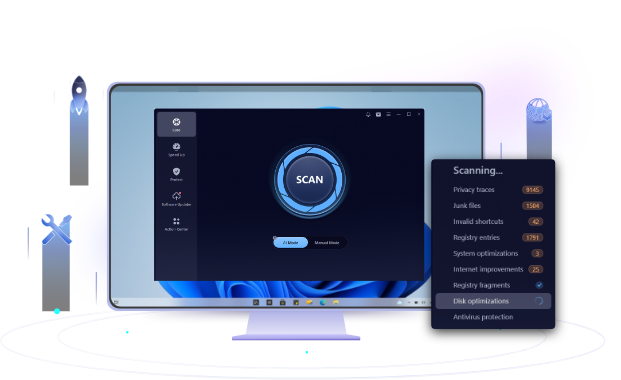
Step 2: Select Manual Mode > choose Junk File Clean and other optimization options you need. Or, you can also use the AI Mode and let the app handle everything for you.
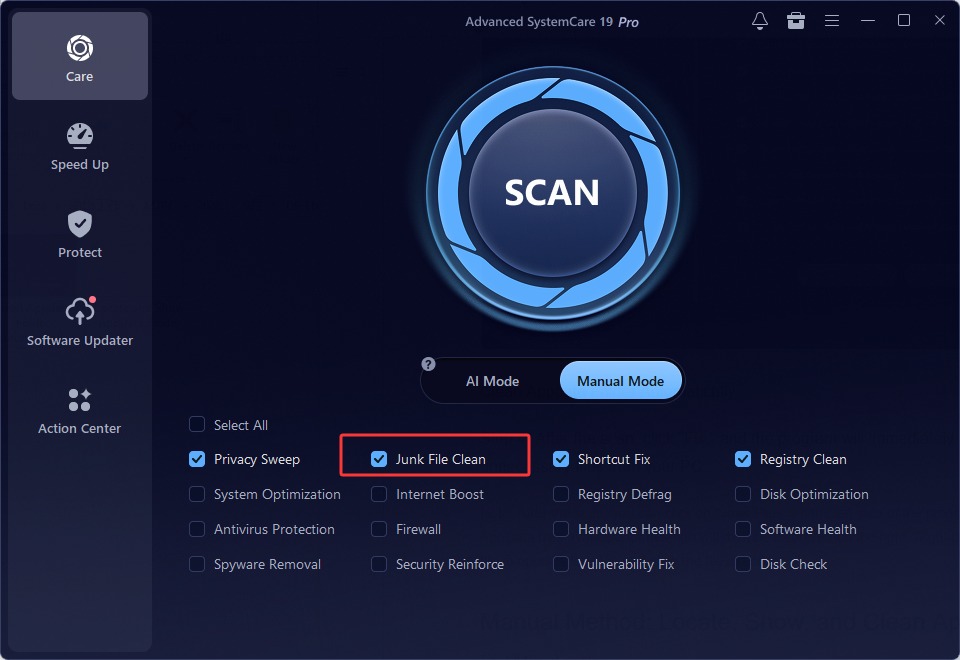
Step 3: Click SCAN; the tool will then automatically search the AppData folder and other storage areas for temporary files, cache files, program leftovers, browser data, and unnecessary junk files.
Step 4: After the scan, click "Fix," and the program will immediately and safely remove unnecessary files from your PC.
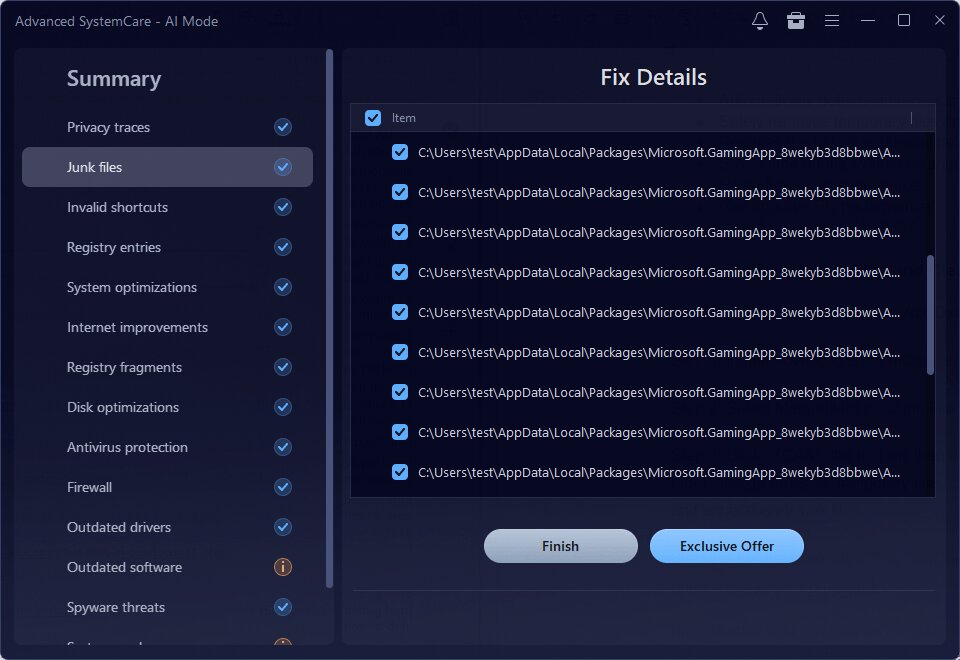 Apart from system cleaning, this versatile software also helps defrag hard disks, rearranging scattered file pieces and speeding up the system.
Note: After the scan, you can click on "Junk Files" on the left side of the program. The specific AppData files available for deletion will then be displayed on the right. Right-click on any AppData file to open its location and view the file directly.
If you prefer to manage the AppData folder yourself, you can also locate it manually, show Appdata folder hidden files, and clean up unnecessary content.
Where is AppData folder? Firstly, you can check the following path.
1. Open File Explorer using the keyboard shortcut [Windows] + [E].
2. Navigate to the path: C:\Users\YourUsername\AppData
3. Press [Enter].
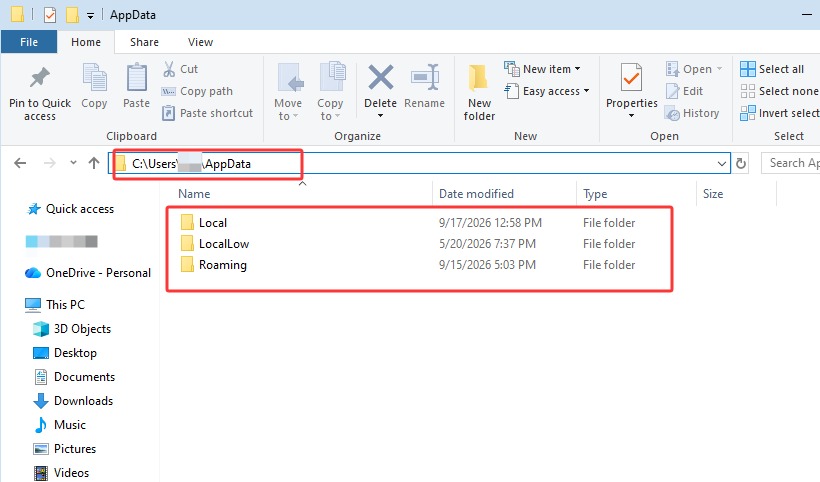
Or, you can directly locate AppData folder via the Windows Run feature:
Press Win+R > input “%appdata%” > Enter. It navigates you to the AppData Roaming folder.
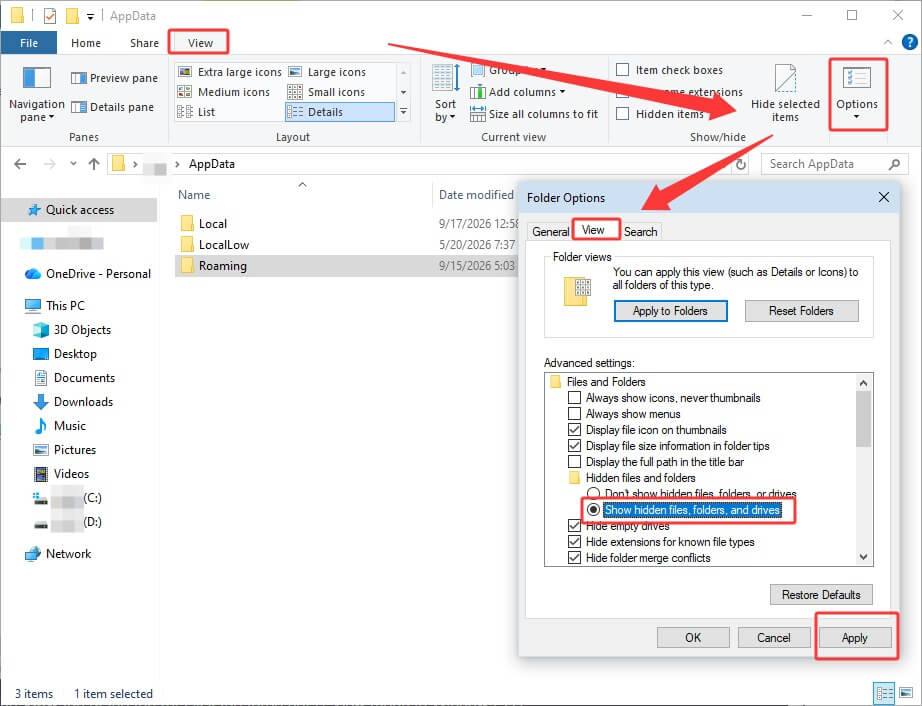
Since the AppData folder is hidden by default, you must first make the hidden files visible. Check how to see AppData folder hidden content on Windows 11 and 10.
Windows 11
1. Press [Windows] + [E].
2. Click the "View" tab at the top.
3. Select "Show" > enable "Hidden items".
Windows 10
1. Open File Explorer.
2. Click "View" at the top > "Options" > "Change folder and search options".
3. Switch to the "View" tab.
4. Select "Show hidden files, folders, and drives".
Windows 7 & 8
1. Press the [Windows] + [E] keys.
2. Click "Organize" (Windows 7) or "View" → Options (Windows 8).
3. Select the "View" tab and enable the option "Show hidden files, folders, and drives".
Randomly deleting files in the AppData folder can cause programs to stop launching, result in automatic logouts from accounts, lead to data loss, corrupted files and folders, or even cause more serious system issues. Therefore, it is primarily recommended to remove temporary files and unnecessary cache data.
Temporary files
Program cache files
Browser cache
Old log files
Unneeded update files
Leftover files from uninstalled software
Temporary download files
Note: The "Local" and "Temp" subfolders, in particular, often contain large amounts of unnecessary data that accumulate over time.
You now know how to show AppData folder and clean it on Windows 11, 10, 8, and 7. If a large number of unnecessary files accumulate over time, a tool like IObit Advanced SystemCare can help you identify and clean AppData folder unwanted items safely and more easily.
 People Also Ask
Learn what to do when the referenced account is currently locked and you may not be able to log in, avoid future lockouts, and protect your PC.
Learn everything about the Windows 12 release date, expected features, hardware requirements, pricing, and compatibility. Discover the latest rumors, the possible Windows 12 launch date, and how to prepare your PC.
Learn how to open Task Manager on Windows 10/11 using shortcuts and the specific command. A quick guide featuring various methods and solutions.
Why is Google Chrome using so much memory? Check the possible reasons and learn how to diagnose and fix Chrome uses too much RAM issue.
How to improve Steam download speed? Check how to make Steam download faster in 12 ways: Check Internet Connection, Switch Steam Download Server Region…
Startup Repair is not working. What to do when it shows Startup Repair couldn’t repair your PC?