- Support Center
- Multiple Languages
- Language
- Help Us Translate
Expert in
PC Health Solution

All-in-one PC health solution: clean, optimize and secure

Comprehensive PC cleaning, optimization and protection

Keep drivers always up-to-date

More stable performance with less system crashes

Protect millions of computers against malware

Top computer security with full-round protection

Protect against viruses & boost PC performance
Clean: 420 billion traces removed & 85 EB junk files cleaned
Protect: 80 million unauthorized access blocked & 20 million bugs fixed
Speed Up: 6 million hours of startup time saved & Turbo boost
Optimize: Auto clean and auto care your PC with AI mode

Why is Google Chrome using so much memory? Check the possible reasons and learn how to diagnose and fix Chrome uses too much RAM issue.



Too Many Tabs and Extensions
Pre-Loading & Pre-Rendering
Media Sites Eat Your RAM
How to Fix Chrome Uses Too Much RAM
Why does Chrome use so much RAM? Once Google Chrome is active, even with only a few tabs open, it eats almost all the memory, making other running apps slow and games laggy. It can be confusing and annoying, but luckily, there are reasons and corresponding fixes. Check the following possible causes first.
The primary culprit should be overloaded tabs. Google Chrome was designed with a multi-process architecture. It splits every tab, extension, and plug-in into its OS. These isolated processes are to ensure stability. In this case, if 1 tab crashes, others will stay active and well.
Chrome will actively pre-load and pre-render pages to reduce the loading time while you jump back and forth between the pages. It predicts the pages you might click next and allocates and caches the data in memory in advance. This is to improve the speed of loading and your browsing experience, but with the memory as the catch.
Media-heavy and heavy-collaborative sites will constantly process data even in the background. So, they can easily take up hundreds of MB each. To name them, you may look into streaming sites, like YouTube, Ad Blockers, designing tools, like Figma, Google Sheets, etc.
Above are the reasons why Chrome takes so much memory. To handle this, you need to first find out the culprit: go to Task Manager via right-click on the taskbar > under Processes, click Memory to sort descending > check if Google Chrome is the highest one to take up RAM.
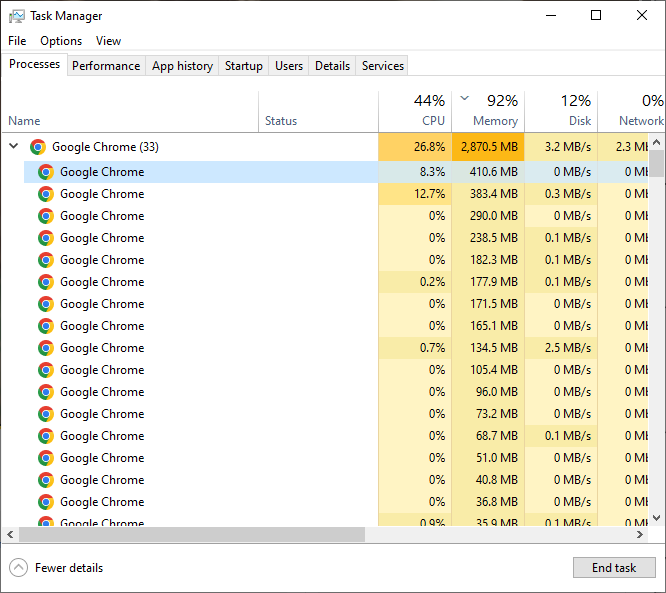
If so, follow these fixes to address it.
Close unused tabs. Proactively close those tabs not in use. Or, in Task Manager, unfold the Google Chrome process, and you will find exactly one process that eats the most memory. Choose it and click End Task, and you will find that a few Chrome tabs are shut down.* Please save all your in-progress work first before ending tasks!
Activate Memory Saver. Go to Chrome Settings > Performance > Memory > turn on Memory Saver > choose a level you prefer, e.g., Balanced. It frees up memory from inactive tabs, but it is limited in actual tests.
Remove unused extensions. Click Extensions on the toolbar > Manage extensions > find extensions no longer supported, you don’t use, etc. > Remove.
Use a professional RAM Optimizer. Utilize a PC optimizer with RAM cleaning features.
As long as you use Chrome, managing RAM usage will be a never-ending chore. Rather than manually managing tabs and extensions, use a PC optimizer like Advanced SystemCare to free up memory easily.

It comes with a Turbo Boost feature; you might choose the Work Mode and Game Mode to free up memory for specific needs. Plus, it helps clean your PC to free up disk space and improve speed for more processes. E.g., you can improve Steam downloading speed easily. Simply use this powerful maintenance program to free up RAM automatically and easily.
 People Also Ask
Startup Repair is not working. What to do when it shows Startup Repair couldn’t repair your PC?
How to defrag hard disk Windows 11/10? Check this step-by-step guide inside.
How to fix corrupted files in Windows 11 to enhance system stability? This guide covers the most effective methods to repair damaged files on your PC.