- Support Center
- Multiple Languages
- Language
- Help Us Translate
Expert in
PC Health Solution

All-in-one PC health solution: clean, optimize and secure

Comprehensive PC cleaning, optimization and protection

Keep drivers always up-to-date

More stable performance with less system crashes

Protect millions of computers against malware

Top computer security with full-round protection

Protect against viruses & boost PC performance
Clean: 420 billion traces removed & 85 EB junk files cleaned
Protect: 80 million unauthorized access blocked & 20 million bugs fixed
Speed Up: 6 million hours of startup time saved & Turbo boost
Optimize: Auto clean and auto care your PC with AI mode

Learn how to open Task Manager on Windows 10/11 using shortcuts and the specific command. A quick guide featuring various methods and solutions.



What Is Task Manager and Why Use It?
How to Open Task Manager on PC
Method 1: Access Task Manager via Ctrl + Shift + Esc Shortcut
Method 2: Open Task Manager from Windows Security Screen
Method 3: Run taskmgr Command
Method 4: Open Task Manager via Taskbar
Method 5: Win+X or Right-Click on Start Menu
Method 6: Create a Shortcut
Troubleshooting: If Task Manager Not Open
Has your computer ever slowed down or had a program stop responding, leading you to wonder, "How to open Task Manager on Windows 10 or 11 quickly?" You’ve come to the right place. Here, you’ll find all the shortcuts and commands to open Task Manager in Windows 10 and 11 so you can take control in seconds. I’ll walk you through it step-by-step with simple tricks to save you time.
Task Manager acts as the control center for active processes in Windows. From there, you can:
See which programs are consuming CPU, memory, disk, or network resources.
End applications that aren't responding.
View programs that launch at startup.
Monitor performance in real time.
When do you need it?
Has a program frozen? Is your PC running slowly for no apparent reason? Do you want to close a process that’s using 90% of your CPU? Then you need Task Manager right away—and knowing how to open it quickly can save you minutes (or spare you from having to force a restart).
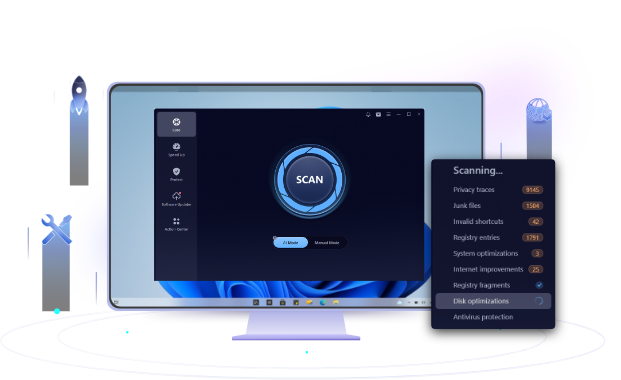
Without manually managing your apps, you might as well use Advanced SystemCare, the best PC optimization tool, to smartly manage your system resources. The Performance Monitor helps you check the RAM, CPU, Disk, and Metrics usage and release system resources easily in 1 click.
How to open Task Manager on PC? I’ll list the fastest and most reliable methods; pick the one you prefer and try it out a couple of times so it becomes second nature.
How to open Task Manager on Windows 11/10simply and straightforwardly? This is the most direct shortcut to open Task Manager: press Ctrl + Shift + Esc, and Task Manager appears instantly. Easy, right? It’s like popping the hood when you hear a strange noise.
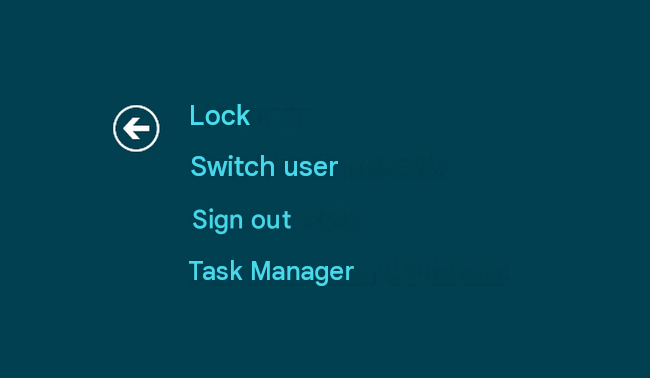
Press Ctrl + Alt + Del and select Task Manager from the screen that appears. It involves more steps than the previous method, but it’s very useful when you need other options (like switching users or locking your computer).
If you prefer to type a command, this is the standard command to access Task Manager:
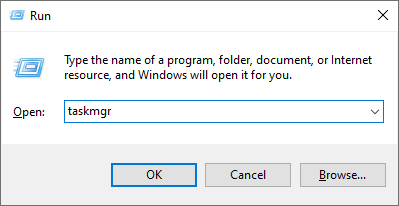
Open Task Manager in Run with the taskmgr Command
Press Win + R to open the Run dialog, type taskmgr, and press Enter. Task Manager will open instantly.
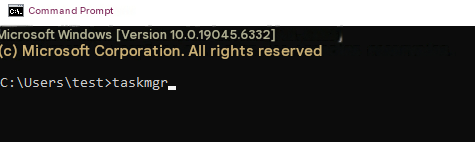
Open the console (CMD or PowerShell) and type taskmgr. It works the same way and is useful if you are already in the terminal.
Also Read: Startup Repair Couldn't Repair Your PC: What to Do Next >>
How to open Task Manager on Windows more easily? Right-click the taskbar (or an empty area of it) and select Task Manager. In Windows 11, it may appear in the Win+X menu or the Start context menu.
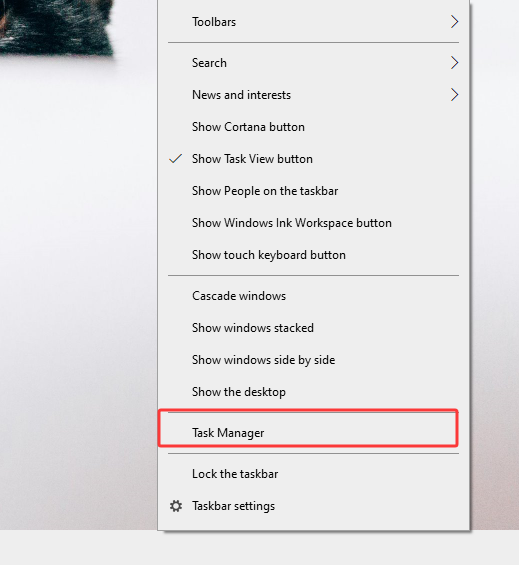
Press Win + X and select Task Manager (on versions where it appears). You can also type "Task Manager" into the Start menu search and open it from there.
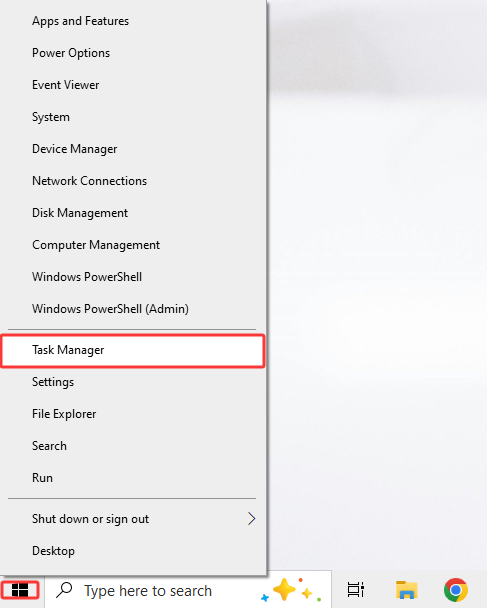
How to open Task Manager on pc via shortcuts? Check the steps.
Right-click on the desktop → New → Shortcut.
Enter C:\Windows\System32\taskmgr.exe as the location.
Enter C:\Windows\System32\taskmgr.exe as the location.
Right-click the shortcut → Properties → under “Shortcut key,” assign a combination like Ctrl + Alt + T.
This way, you can open it using your own key combination—like having an “emergency button” for when something goes wrong.
Sometimes it fails to open—or is disabled—so what can you do?
Group Policies or Registry Settings Blocking Task Manager
If Task Manager not opening, you might check if Task Manager is blocked by policies (e.g., corporate settings) or try changing the Registry:
Common Registry path: HKEY_CURRENT_USER\Software\Microsoft\Windows\CurrentVersion\Policies\System
Look for *DisableTaskMgr*. If it exists and has a value of 1, change it to 0 or delete it.
Warning: Editing the Registry can affect your system. Create a restore point first and proceed only if you are confident in what you are doing.
If your computer belongs to a company, the administrator may have intentionally disabled Task Manager. In that case, consult your IT department.
Also Read: How to Fix Corrupted Files in Windows 11 >>
Malware or Programs Disabling It
Some viruses disable system control tools. If you suspect this:
Run a scan with your antivirus software. Find a reliable one to help you; for instance, IObit Malware Fighter.
Use an additional scanner (e.g., reputable on-demand scanning tools).
Boot into Safe Mode and try launching *taskmgr* again.
Knowing how to open Task Manager on Windows 10/11—and having the command handy—gives you immediate control when your PC malfunctions. Practice a shortcut or two so that, when a critical moment arises, you can act without hesitation. Still having trouble? Check for policy-based blocks or malware, or seek technical assistance.
 People Also Ask
What is the Microsoft programs install and uninstall troubleshooter? How to use it? Check all that you need to know about the Microsoft uninstall troubleshooter.
Learn what to do when the referenced account is currently locked and you may not be able to log in, avoid future lockouts, and protect your PC.
Why is Google Chrome using so much memory? Check the possible reasons and learn how to diagnose and fix Chrome uses too much RAM issue.
Is your computer overheating? Learn how to check CPU temperature is the first step toward a healthier, faster PC. Also, learn how to cool your computer down.
How to improve Steam download speed? Check how to make Steam download faster in 12 ways: Check Internet Connection, Switch Steam Download Server Region…
How to defrag hard disk Windows 11/10? Check this step-by-step guide inside.