- Support Center
- Multiple Languages
- Language
- Help Us Translate
Expert in
PC Health Solution

All-in-one PC health solution: clean, optimize and secure

Comprehensive PC cleaning, optimization and protection

Keep drivers always up-to-date

More stable performance with less system crashes

Protect millions of computers against malware

Top computer security with full-round protection

Protect against viruses & boost PC performance
Complete forced uninstallation for stubborn programs.
Uninstall a batch of programs at once.
Scan and remove leftover files, folders, and registry entries.
Support the management of Universal Windows Platform apps.

Should I uninstall McAfee? Is it safe to do so? How to completely uninstall McAfee from my PC?



Should You Uninstall McAfee
Why Uninstall McAfee
How Do I Uninstall McAfee
What Happens If I Uninstall McAfee
Alternative to McAfee
Should I uninstall McAfee? If you are being annoyed by overflooded pop-ups, ads, or renewal warnings, or you are feeling that it is slowing down your PC, then this is definitely the very first question that may appear in your mind. If so, YES. Move on and check for details.
Is it okay to uninstall McAfee, and should you do so? It depends on your specific needs, preferences, budget, and more possible factors.
For users who don’t want to be bothered by frequent pop-up ads and campaign notifications, removing McAfee will be a good choice to stay away from annoying ads.
If you need the security features McAfee provided, then please think twice and make sure to find a proper alternative solution before uninstalling it.
Is McAfee really necessary? McAfee acts as a security guard for your PC to fight against viruses and threats. It does have its own edges and functions. But if you are meeting problems it brings, they can be the reasons why you want to uninstall it.
System impact: It is memory-demanding, consuming high CPU and RAM while scanning your system in the background.
Invasive alerts: constant pop-ups, subscription renewal notices, and campaign messages exaggerate and bring anxiety, scaring you to renew.
Unnecessary: for light users, the built-in system security is enough for protection, making third-party apps unnecessary.
How do I uninstall McAfee? Check the steps below.
Step 1. To uninstall an app, go to Control Panel by searching in the search box.
Step 2. Head over to Programs > Uninstall a program.
Step 3. Find or search for McAfee > right-click on it > Uninstall.
Step 4. Clean the redundant and leftover files and registry keys through the following folders:
The folder where McAfee was installed.
C:\Program Files\McAfee
C:\ProgramData\McAfee
C:\Users\[Username]\AppData\Local\McAfee
C:\Program Files (x86)\McAfee
To skip this complex process and save time and labor, you might as well rely on a professional app uninstaller, which cleans and uninstalls apps along with their related residual program data and registry entries, and it deletes hidden folders, as well.
IObit Uninstaller will be your firm helper; it helps completely uninstall third-party apps, Windows apps, and even browser extensions in 1 click, wiping leftovers easily.

With this easy-to-use program uninstaller, you only need to:
Step 1. Choose or search McAfee and other apps you don’t want > Uninstall.
Step 2. Toggle “Automatically remove residual files” > Uninstall.
Step 3. Wait for it to process your apps and residual files.
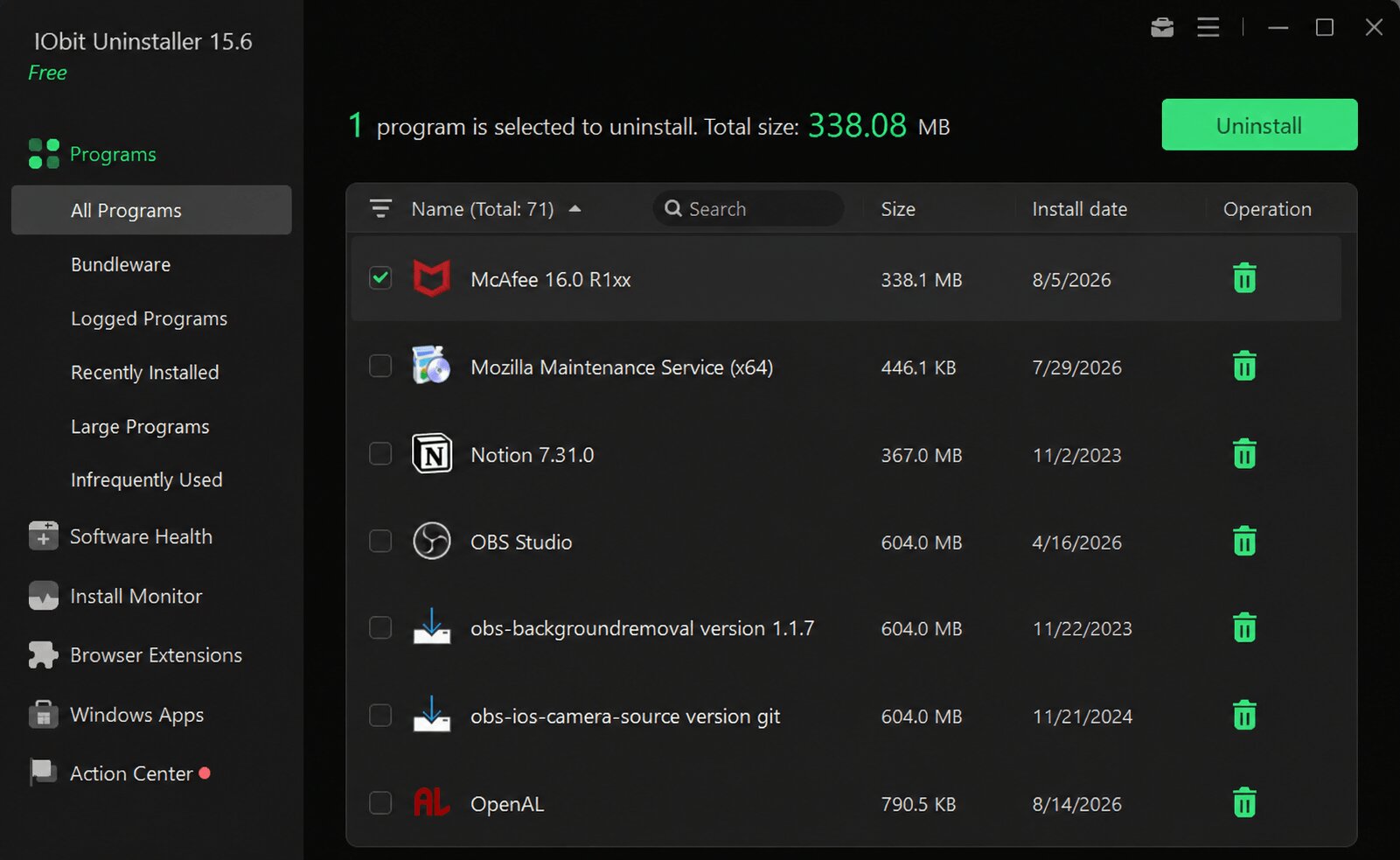
After uninstalling McAfee, you will see these changes on your system:
The built-in Windows Defender will automatically activate its real-time threat protection.
Pop-up ads and renewal alerts will no longer appear.
System boot time will probably be reduced. Your computer may run faster.
So, if you are wondering “Should I uninstall McAfee if I have Windows Defender?”, you can consider uninstalling McAfee, since the Windows built-in protection is enough for common PC use.
* Remember to stop your subscription after uninstalling; otherwise, it will continue to charge you in the next subscription phase.
Also Read: How to Remove Windows Defender >>
If you indeed need a security solution, in the first place, Windows Defender should be enough for common threat protection.
Go to Windows Settings > Update & security > Windows Security > check if your Virus & threat protection, Account protection, Firewall, and more safety measures are active.
If you need a more advanced solution to protect you from viruses, malware, identity theft, and more malicious third parties, consider choosing those anti-malware apps that have low system impact and more proper pop-up notifications. Check and try IObit Malware Fighter, an eligible antivirus program, which is low-resource-demanding, scans disks thoroughly, and helps prevent threats easily.
 People Also Ask
Check how to uninstall Claude Code and details both the manual terminal commands and a free uninstaller tool to cleanly remove it from your system.
What is the Microsoft programs install and uninstall troubleshooter? How to use it? Check all that you need to know about the Microsoft uninstall troubleshooter.
Free up disk space by safe Windows Installer folder cleanup. This guide shows how to use Settings, Disk Cleanup, etc., to remove unwanted installer files.
Stuck with the “This app can’t run on your PC” error? Learn quick fixes, compatibility settings, and advanced ways to make programs run smoothly on Windows.
Want to know why you can’t uninstall Rainbow Six Siege? Check this blog for the full answer and complete fixes to get R6 uninstalled successfully.
Can’t uninstall Adobe Creative Cloud, why? Can I force uninstall it? Get the answer here and find solutions.