- Support Center
- Multiple Languages
- Language
- Help Us Translate
Expert in
PC Health Solution

All-in-one PC health solution: clean, optimize and secure

Comprehensive PC cleaning, optimization and protection

Keep drivers always up-to-date

More stable performance with less system crashes

Protect millions of computers against malware

Top computer security with full-round protection

Protect against viruses & boost PC performance
Complete forced uninstallation for stubborn programs.
Uninstall a batch of programs at once.
Scan and remove leftover files, folders, and registry entries.
Support the management of Universal Windows Platform apps.

Learn how to uninstall updates on Android apps, roll back system updates, and stop automatic updates with these simple, practical steps.



Generally, Android do not provide a way to roll back a system upgrade.
It is available to uninstall Android apps updates.
If uninstall updates is unavailable, install the latest patch.
How to stop Android system updates.
How to prevent Android apps from updating automatically.
Keep your Android apps clean and manageable.
Android updates usually improve security, performance, and compatibility, but sometimes an update can cause app crashes, battery drain, interface changes, or other unexpected problems. Learn how to uninstall updates on Android, whether you want to remove a system update or roll back an updated app.
In most cases, Android does not provide a universal option to uninstall a major system update. Whether you can roll back an update depends on your phone manufacturer, Android version, and whether the device supports an official rollback.
Before trying anything, back up important photos, contacts, messages, and files. A system rollback may erase your data or require a factory reset.
If the problem started after a specific app update, you may be able to learn how to uninstall app updates on Android by the following steps.
1. Open Settings on your Android phone.
2. Tap Apps or Apps & notifications.
3. Select the app that started causing problems.
4. Tap the three-dot menu in the upper-right corner.
5. If available, select Uninstall updates.
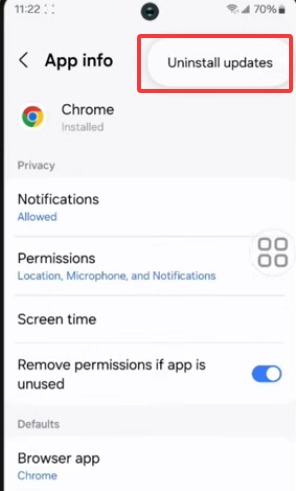
6. Confirm the action and restart the app.
This option is most commonly available for preinstalled system apps, such as Google-related services or other apps supplied with your phone. For apps downloaded from Google Play, you may need to uninstall and reinstall the app instead. For example, uninstall Claude Code.
If your phone does not show an uninstall option, do not attempt to delete system files manually. You can instead check whether the manufacturer provides an official recovery or rollback method. Another simple option is to install the latest version available, as a newer patch may fix problems introduced by the previous update.
You can also clear an app's cache, disable problematic features, or restore the app's settings before considering more advanced solutions.
Also Read: How to Uninstall iPhone Update and Delete Documents and App Data >>
If you want to prevent a system update from installing automatically, you can usually manage automatic update settings from your phone's Settings menu. The exact options vary by manufacturer and Android version.
Try these steps:
1. Open Settings and look for Software Update, System Update, or a similar option.
2. Tap the update settings or the three-dot menu.
3. Turn off options such as Auto-download over Wi-Fi or Automatic system updates, if available.
4. Check the update screen periodically so you can decide manually when to install a new version.
Some Android phones may still download or notify you about updates even after automatic downloading is disabled. In that case, avoid installing the pending update until you have checked whether it fixes the problem you are experiencing.
Tip: Keeping your phone permanently outdated is not recommended because system updates often include important security fixes. If an update is causing problems, it is generally better to wait for a corrective patch than to disable updates indefinitely.
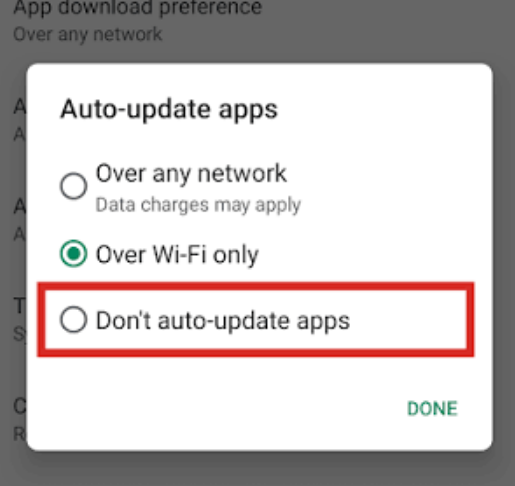
If you successfully rolled back an app and do not want the same update installed again, open Google Play Store, find the app, tap the three-dot menu, and choose Don’t auto-update apps. This lets you manually decide when to install future updates.
If outdated or unwanted Windows programs are also creating problems on your PC, IObit Uninstaller can help remove applications and leftover files more thoroughly. It is especially useful when a normal Windows uninstall leaves behind unnecessary components. This makes Windows installer folder cleanup easier than ever.
 People Also Ask
What is the Microsoft programs install and uninstall troubleshooter? How to use it? Check all that you need to know about the Microsoft uninstall troubleshooter.
Ubisoft Connect not working, opening, or launching on PC? Try 8 fixes, from clearing cache and checking service status to updating and reinstalling the app.
Stuck with the “This app can’t run on your PC” error? Learn quick fixes, compatibility settings, and advanced ways to make programs run smoothly on Windows.
How to delete hidden apps that are not listed in Control Panel? Follow the ways to uninstall hidden programs in Windows for a safer and cleaner system.
Learn how to uninstall Magnifier in Windows 11 and stop it from automatically opening. Discover easy methods to disable Magnifier or remove it.
Why is Windows Defender not turning off? How to remove and uninstall Windows Defender on Windows 11? Can I disable Windows Defender permanently?