- Support Center
- Multiple Languages
- Language
- Help Us Translate
Expert in
PC Health Solution

All-in-one PC health solution: clean, optimize and secure

Comprehensive PC cleaning, optimization and protection

Keep drivers always up-to-date

More stable performance with less system crashes

Protect millions of computers against malware

Top computer security with full-round protection

Protect against viruses & boost PC performance
Automatically scan and update drivers.
Update game ready drivers for peak gaming performance.
Identify and fix various common of hardware issues.
Boost 30% of system performance for fast & smooth running.

Learn how to restore the taskbar to the bottom of the screen in Windows 10. Fix a missing, moved, frozen, or unresponsive taskbar with easy steps.



A moved Windows 10 taskbar can usually be restored to the bottom by changing its position in Taskbar settings.
If the taskbar at bottom of screen disappeared, auto-hide, Windows Explorer errors, display settings, or graphics driver problems are the most common causes.
Restarting Windows Explorer is one of the quickest fixes when the taskbar is frozen, missing, or unresponsive.
Outdated or corrupted graphics drivers can affect Windows display behavior, so updating them with Driver Booster can help resolve driver-related taskbar issues.
Most taskbar problems can be fixed without reinstalling Windows, making basic settings and system troubleshooting the best place to start.
The Windows taskbar is an essential part of the desktop, giving you quick access to the Start menu, open apps, system notifications, and other frequently used features. By default, it appears at the bottom of the screen, but it may sometimes disappear, move to another side, or stop responding.
If you're wondering how to restore taskbar to bottom of screen, the solution depends on what caused the problem. Your taskbar may simply have been moved, automatically hidden, or affected by a Windows Explorer or display issue.
This guide explains how to restore the taskbar in Windows 10, whether it has moved, disappeared, or become frozen.
If your taskbar has moved to the top, left, or right side of the desktop, you can easily return it to its default position.
Here's how to restore taskbar Windows 10 to the bottom of the screen:
Right-click an empty area of the taskbar.
Check whether Lock the taskbar is enabled. If it is, click it to unlock the taskbar.
Right-click the taskbar again and select Taskbar settings.
Scroll down to Taskbar location on screen.
Select Bottom from the drop-down menu.
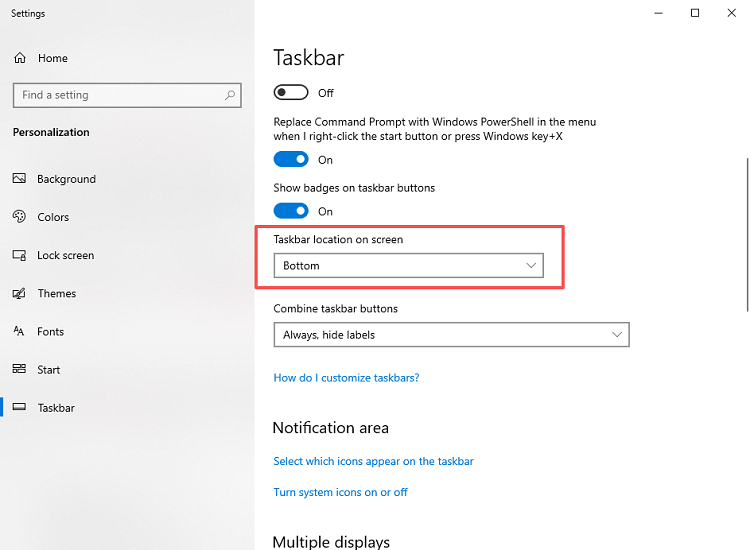 The taskbar should immediately return to the bottom of your desktop.
If you are asking, "how do I restore taskbar to bottom of screen after accidentally moving it?", this is usually the quickest solution.
If the taskbar at bottom of screen disappeared, it does not necessarily mean that Windows is damaged. In many cases, the taskbar is simply hidden automatically or Windows Explorer has stopped working properly.
First, check whether auto-hide is enabled:
Press Windows + I to open Settings.
Select Personalization.
Click Taskbar in the left-hand menu.
Find Automatically hide the taskbar in desktop mode.
Turn the option Off.
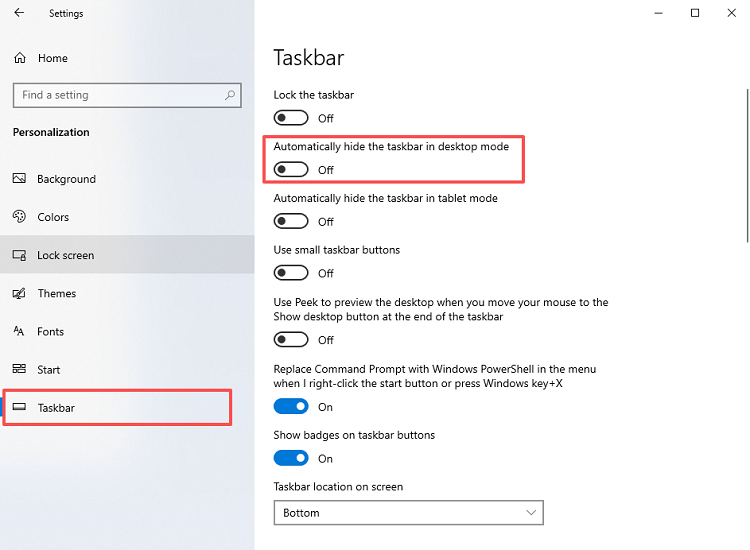
If the taskbar still does not appear, try the following solutions:
Solution 1. Check whether the taskbar is set to auto-hide
Solution 2. Restart Windows Explorer
Solution 3. Reset the graphics driver
Solution 4. Reinstall or update the graphics driver. If the display driver is missing, outdated, or corrupted, updating it may help restore normal Windows display behavior. You can also use Driver Booster to scan for outdated or missing drivers and update them more easily.
Solution 5. Disable Tablet Mode
Solution 6. Check your screen resolution
Solution 7. Check multiple-display settings
Solution 8. Exit full-screen mode
These methods can help when the taskbar disappears completely or only becomes visible when you move your mouse to the bottom of the screen.
Sometimes the taskbar is still visible but stops responding. You may be unable to click the Start menu, open pinned apps, or interact with system tray icons.
If you're trying to figure out how to restore taskbar to bottom of screen when the taskbar is frozen rather than missing, restarting Windows Explorer is a good place to start.
Press Ctrl + Shift + Esc to open Task Manager. If the shortcut doesn't work, there are several other ways to open Task Manager in Windows 10.
Find Windows Explorer under the Processes tab.
Right-click Windows Explorer.
Select Restart.
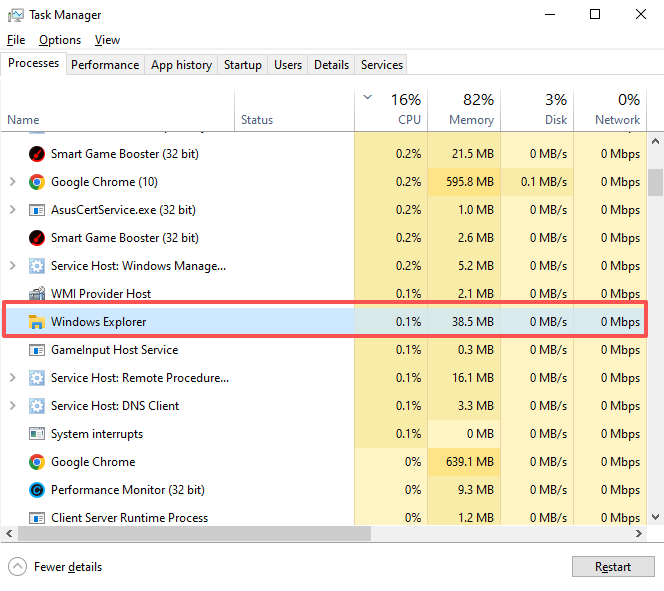
The desktop and taskbar may disappear briefly before Windows Explorer reloads.
If restarting Windows Explorer does not solve the problem, try these additional solutions:
Solution 1. Fix a stuck Windows taskbar with Advanced SystemCare
Solution 2. Check your mouse or touchpad
Solution 3. Restart your PC. If Windows fails to load normally after restarting and your PC is stuck on the boot screen, troubleshoot the startup issue first.
Solution 4. Restart Windows Explorer through Task Manager
Solution 5. Run an SFC scan
Solution 6. Uninstall recently installed Windows apps
Solution 7. Scan your PC for malware
Solution 8. Optimize a slow or unresponsive PC
Solution 9. Create a new Microsoft user account
Solution 10. Enable the User Manager service
If the issue is caused by corrupted system files, background programs, or Windows performance problems, one of these methods should help restore normal taskbar functionality.
Knowing how to restore the taskbar to the bottom of the screen can help you quickly fix several common Windows 10 problems. If the taskbar has simply moved, changing its location in Taskbar settings is usually enough. If it has disappeared or stopped responding, checking auto-hide settings, restarting Windows Explorer, and troubleshooting display or system issues can help.
Try the solution that matches your situation first. In most cases, you can restore the Windows 10 taskbar without reinstalling Windows or making major system changes.
 People Also Ask
Learn how to type the at sign (@) on any keyboard, including Windows and Mac. Find shortcuts for US, UK, Spanish, and other common keyboard layouts.
Explore possible methods of how to update BIOS on Windows 11. Learn all essentials for BIOS update on PCs and laptops.
From downloading to Safe Mode booting and clean restart – follow these 6 easy steps on how to use DDU and resolve persistent display driver problems.