

- Support Center
- Multiple Languages
- Language
- Help Us Translate
Expert in
PC Health Solution

All-in-one PC health solution: clean, optimize and secure

Comprehensive PC cleaning, optimization and protection

Keep drivers always up-to-date

More stable performance with less system crashes

Protect millions of computers against malware

Top computer security with full-round protection

Protect against viruses & boost PC performance
Automatically scan and update drivers.
Update game ready drivers for peak gaming performance.
Identify and fix various common of hardware issues.
Boost 30% of system performance for fast & smooth running.

Learn how to type the at sign (@) on any keyboard, including Windows and Mac. Find shortcuts for US, UK, Spanish, and other common keyboard layouts.



Type the @ symbol using Shift + 2, Alt Gr + 2, Alt Gr + Q, or other shortcuts depending on your keyboard layout.
Find the fastest solutions when you can't type @ on a laptop or computer.
Troubleshoot Alt Gr issues caused by incorrect keyboard settings, outdated drivers, or keyboard problems.
Wondering how to type the at sign (@) on a keyboard? The shortcut depends on your keyboard layout. On a US English keyboard, press Shift + 2; Spanish keyboards commonly use Alt Gr + 2 or Alt Gr + Q depending on the layout, while Mac keyboards use the corresponding Option or Shift shortcut.
The @ character is also known as the at sign, at symbol, or sometimes the at-the-rate symbol. In this guide, you'll learn how to type @ on a laptop or computer and what to do if the usual keyboard shortcut doesn't work.
In this guide, you will learn how to type the at sign (@) on a laptop and computer, what to do if Alt Gr + Q doesn't work, and what the alternative methods are for typing this symbol on Windows and Mac.
How do I type the at symbol (@) on a keyboard? The shortcut depends on your keyboard language and layout. Here are the most common combinations:
Press Alt Gr (to the right of the space bar).
While holding down Alt Gr, press the Q key.
Release both keys and the @ sign will appear on the screen.
If Alt Gr is not responding, these methods will help you type the @ sign on a laptop or computer, depending on the keyboard type.
| System / Language | Keyboard subtype | Combination for @ |
Additional not es |
| Spanish | Spain |
Alt Gr + 2 | Standard combination on Sp anish keyboards |
| Spanish | Latin America | Alt Gr + Q | This may vary depending on the manufacturer or regional settings. |
| Spanish | Mac – Spain | Option + 2 | The Option key on a Mac is equivalent to Alt on Windows |
| Spanish | Mac – Latin America | Option + Q | The Option key on a Mac is equivalent to Alt on Windows |
| English | USA | Shift + 2 | Standard method on keyboards without an Alt Gr key |
| English | United Kingdom | Shift + ' | The at symbol (@) is located on the apostrophe key. |
| English | Mac (USA) | Shift + 2 | Just like in Windows with English distribution |
| English | Mac (United Kingdom) | Shift + ' | It coincides with the distribution of the United Kingdom |
| Other languages | Italiano |
Alt Gr + Q | Similar to the Spanish keyboard layout |
| Other languages | French (AZERTY) | Alt Gr + à | In some models, it may vary slightly. |
| Alternative methods (Windows) | ASCII code | Alt + 64 | Requires using the numeric keypad with Num Lock enabled |
| Alternative methods (Windows) | Sin tecla Alt Gr |
Ctrl + Alt + Q or Ctrl + Alt + 2 | It functions as the equivalent of Alt Gr on many systems |
If you can't type the @ symbol on your keyboard, the fastest way is to use the copy and paste method. Just copy the @ symbol and paste it where you need it using Ctrl + V on Windows or ⌘ + V on Mac.
It's a simple solution and works on any device, whether it's a computer, laptop, or mobile phone.
Typing the at sign on a laptop depends primarily on the keyboard language, not the laptop brand. In most cases, these are the most common combinations:
Spanish keyboard: Alt Gr + Q or Alt Gr + 2
English (US) keyboard: Shift + 2
Mac with Spanish keyboard: Option (Alt) + Q
Alternative method in Windows: Alt + 64 (using the numeric keypad)
Below, we show you how to type the at sign on a keyboard on laptops of different brands.
How to type the @ sign on an HP laptop
On an HP laptop, the method depends on the keyboard language:
Spanish: Alt Gr + Q or Alt Gr + 2
English: Shift + 2
Alternative: Ctrl + Alt + Q (equivalent to Alt Gr on some systems)
How to type the @ sign on a Lenovo laptop
For a Lenovo laptop, the most common combinations are:
Spanish: Alt Gr + 2 or Alt Gr + Q
English: Shift + 2
Alternative method: Alt + 64 if you have a numeric keypad
How to type the @ sign on an Asus laptop
On an Asus laptop, you can type the at symbol using:
Spanish keyboard: Alt Gr + 2 or Alt Gr + Q
English keyboard: Shift + 2
How to type the @ sign on an Acer laptop
If you use an Acer laptop, try the following options:
Spanish: Alt Gr + 2 or Alt Gr + Q
English: Shift + 2
Alternative on Windows: Alt + 64
How to type the @ sign on a Dell laptop
On a Dell laptop, the combinations are similar to those of other brands:
Spanish: Alt Gr + Q or Alt Gr + 2
English: Shift + 2
Alternative: Alt + 64 with numeric keypad
How to type the @ sign on a Huawei laptop
To type @ on a Huawei laptop, you can use:
Spanish: Alt Gr + Q or Alt Gr + 2
English: Shift + 2
Alternative method: Alt + 64
How to type the @ sign on an Apple laptop (Mac)
On Apple laptops (MacBook), the combination depends on the keyboard language:
Spanish keyboard: Option (⌥) + Q
English (US) keyboard: Shift + 2
English keyboard (UK): Shift +'
☛Tips: If none of these combinations work, check the keyboard language in the operating system settings, as an incorrect layout is one of the most common causes of the problem.
If you notice that Alt Gr + Q isn't working when you try to type the @ symbol, it's likely due to a system setting or a specific technical issue. Below are the most common causes and their solutions.
The most common reason Alt Gr + Q doesn't work is that the keyboard language doesn't match the physical layout. For example, if the system is set to English, the at symbol (@) is typed with Shift + 2 instead of Alt Gr + Q.
Solution: Check the language settings
On Windows: Go to Settings > Time & Language > Language & Region.
Make sure your keyboard language is set to Spanish (Spain) or the language corresponding to your distribution.
Remove unnecessary languages to avoid accidental changes.
Even if your system is in Spanish, some laptops use international distributions where the at symbol (@) is typed with Alt Gr + 2. This can lead you to think that Alt Gr + Q doesn't work, when in reality the correct combination is different.
Solution: Try alternative combinations
Alt Gr + 2
Ctrl + Alt + Q (equivalent to Alt Gr on many systems)
Shift + 2 if the keyboard is set to English
If the Alt Gr key is disabled or malfunctioning, the Alt Gr + Q combination will not work.
Solution: Check the keyboard status
Try other combinations like Alt Gr + E to type the € symbol.
If those don't work either, try using Ctrl + Alt + Q as a substitute.
Restart your computer to rule out temporary failures.
☛Tips: You can use our Keyboard Test to check if the Alt Gr key is working correctly.
Some applications may assign specific functions to the Alt Gr key, causing Alt Gr + Q to not work at certain times.
Solution: Close programs that use custom keyboard shortcuts. Or try the combination in different applications, such as Notepad, to rule out conflicts.
Outdated drivers may prevent certain key combinations from working correctly.
How to update keyboard drivers
Updating your keyboard drivers can resolve issues with Alt Gr and other keys. A recommended tool to simplify this process is Driver Booster. This program scans your system, detects outdated drivers, and updates them automatically. Follow these steps:
Download and install Driver Booster from its official website.

Open the application and click Scan to search for outdated drivers.
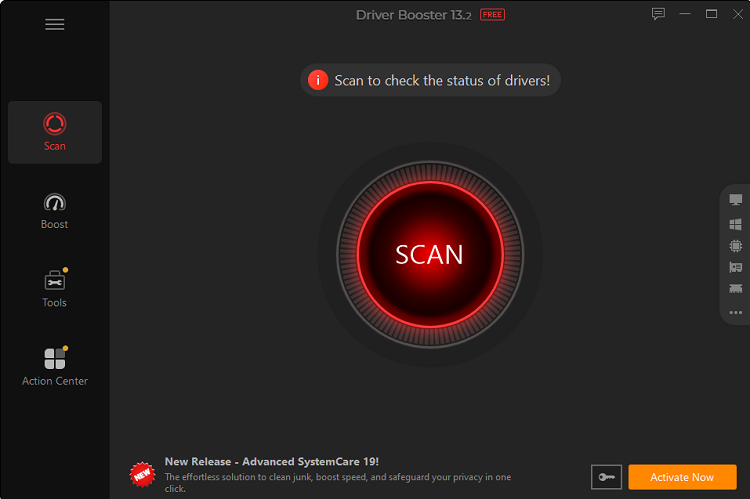
If problems are detected with the keyboard driver, select Update next to the affected device.
Restart your computer to apply the changes.
Driver Booster is especially useful because it automates the update process and reduces the risk of manual errors.
If after trying all the above solutions Alt Gr Q does not work, there may be a physical problem with the Alt Gr or Q key.
Solution: Connect an external keyboard to see if the problem persists. Or use alternative methods such as Alt + 64 (with numeric keypad) or the @ copy and paste method.
The Alt Gr (Alt Graphics) key is an extended version of the Alt key found on many international keyboards, especially Spanish ones. Its main function is to allow access to special characters, such as the @ symbol, essential for typing the at sign (@) on the keyboard.
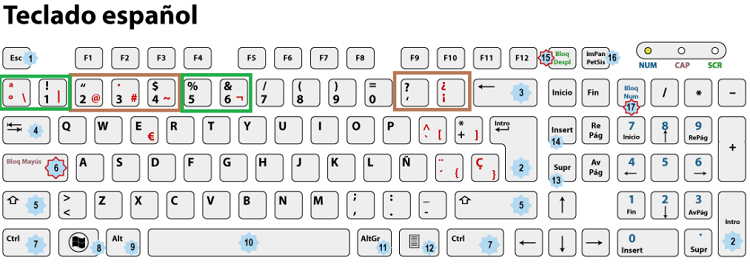
| Key | Main function | Example |
| Alt | It is used for keyboard shortcuts and quick access. | Alt + Tab to switch windows |
| Alt Gr | It allows you to write special characters that are not visible. | Alt Gr + Q for @ |
Note: On many Windows computers, Ctrl + Alt can be used as a substitute for Alt Gr if that key is not working.Other symbols that are typed with Alt Gr
| Symbol | Common combination | Regular use |
| @ | Alt Gr + Q | Emails and social media |
| € | Alt Gr + E | Prices in euros |
| # | Alt Gr + 3 | Hashtags and programming |
| [ ] | Alt Gr + 8 / Alt Gr + 9 | Programming and technical texts |
| { } | Alt Gr + 7 / Alt Gr + 0 | Code development and configuration |
| \ | Alt Gr + º (may vary) | File paths and scheduling |
The location of the @ symbol depends on the language and keyboard layout. Each country arranges the keys differently to suit its language. For example, on a Spanish keyboard, the @ symbol is usually typed with Alt Gr + Q or Alt Gr + 2, while on an English (US) keyboard, Shift + 2 is used. If the @ symbol appears on a different key, the system configuration likely doesn't match the physical keyboard. Checking this configuration is key to typing the @ symbol correctly.
Yes, it's possible to change the key combination for typing the at symbol (@) by modifying the keyboard layout in your operating system. Selecting a different language also changes the location of the @ symbol, which can resolve issues related to typing the at symbol on a laptop or computer. On Windows, you can do this by going to Settings > Time & Language > Language & Region, where you can add or select your preferred keyboard layout. On a Mac, simply go to System Settings > Keyboard > Input Sources and choose the corresponding layout. While there are third-party tools that allow you to customize keyboard shortcuts, for most users, simply adjusting the keyboard language is enough to solve the problem of typing the at symbol.
If you still can't type the at symbol (@) after trying all the previous options, there are several practical solutions that can help you identify and resolve the problem. You can use an online virtual keyboard to check if the keys are working correctly or connect an external keyboard to rule out a possible physical failure in your laptop. It's also advisable to update your keyboard drivers from the Device Manager in Windows, as this can fix malfunctions. As a quick and universal solution, you can always copy and paste the @ symbol into emails, social media posts, or forms. Finally, restarting your system can help eliminate temporary errors that prevent you from typing the at symbol, ensuring you can continue using this essential symbol on your computer
Now you know how to type the at sign (@) on your computer or laptop, regardless of your keyboard type or operating system. The most common keyboard shortcuts, such as Alt Gr + Q, Alt Gr + 2, or Shift + 2, will allow you to easily type the @ symbol. If you experience any problems, follow the troubleshooting steps to restore its functionality and continue typing without complications.
 People Also Ask
PC stuck on boot screen? Learn how to fix pc stuck on boot screen with proven methods like Safe Mode, SFC scan, and driver updates.
Yes. You can try 3 ways on how to uninstall the Realtek audio driver and reinstall it to solve the problem that PC sound is not working generally.
How to install device drivers? Easy guide for both PC and desktop users to check for driver updates and download new drivers for free.