

- Support Center
- Multiple Languages
- Language
- Help Us Translate
Expert in
PC Health Solution

All-in-one PC health solution: clean, optimize and secure

Comprehensive PC cleaning, optimization and protection

Keep drivers always up-to-date

More stable performance with less system crashes

Protect millions of computers against malware

Top computer security with full-round protection

Protect against viruses & boost PC performance
Automatically scan and update drivers.
Update game ready drivers for peak gaming performance.
Identify and fix various common of hardware issues.
Boost 30% of system performance for fast & smooth running.

Why is Warzone so laggy on PC? How do you fix lag and stuttering in Warzone? Find out main reasons and get available fixes that help improve gaming performance.



Common Symptoms of Warzone Lag
Main Causes of Warzone Lag on PC
Easy Fixes of Warzone Lag on PC
"Why is my Warzone so laggy?"
Community reports indicate widespread lag issues in Call of Duty: Warzone following the recent seasonal updates. There are many things that result in Warzone lag, from network issues, server congestion to hardware limitations. It is important to understand common symptoms and causes of "Warzone is lagging so bad" and get fixes to create a smoother gaming experience.
Lag not only refers to slow connection, but manifests in several ways.
Stuttering - Long loading times, game freezes, choppy audios and visuals.
FPS Drops - Sudden drops lead to screen hitching where the game feels like a slideshow.
High Ping - Typically over 100ms, noticeable delayed input and response while moving.
Packet Loss - Rubber banding, delayed hit registration, frozen or skipping action.
1. Heavy Server Traffic
Warzone servers may get congested when millions of players drop into Verdansk or Rebirth Island simultaneously, especially during peak hours or new seasons launches.
2. Slow Internet Connection
Players require a reliable, consistent and low-latency connection for a good gaming experience in Warzone. The poor internet connections might produce stutters in online matches.
3. Background Apps
Apps that run in background, like browsers, recording software, chat apps, automatic updater, can eat up your RAM and bandwidth while gaming.
4. Outdated Drivers
Old graphic drivers can cause performance and compatibility issues. You probably encounter lag and stuttering in new Warzone if drivers are outdated.
5. Hardware Bottlenecks
Your PC components (CPU, GPU or RAM), that can’t keep up with handing Warzon’s demanding graphics and large maps, can reduce frame rates and cause constant stuttering.
6. Other Possible Reasons
Outdated game version, corrupted or missing game files, high graphic settings, low disk space and ISP throttling can affect gaming performance as well.
Here are several troubleshooting tips you can try to reduce lag or stuttering in Warzone.
1. Get Better Internet Connection
Check whether your network is fast enough for playing Warzone and follow the suggestions to optimize performance.
Use a wired connection instead of Wi-Fi to reduce ping spikes and improve stability.
Restart your router to clear out temporary memory/glitches and fix slow connection.
Switch to a less populated server and avoid playing at peak hours. Otherwise, upgrade your internet plan with higher bandwidth.
2. Close Background Apps
End unnecessary tasks or processes before launching Warzone. Release more resources for gaming.
Search Task Manager > Processes > Select an app or process that you don’t need to run > End task.
3. Update GPU Drivers
Keep your graphic cards drivers up to date for optimal gaming performance.
Search Device Manager > expand Display adapters > right-click your GPU > Update driver.
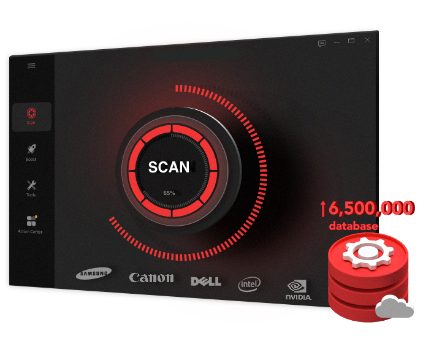
You can also use a third-party tool, for example Driver Booster, to update your drivers automatically.
4. Adjust In-Gaming Settings
Lower graphic settings for shadows and effects.
Turn off on-demand texture streaming.
Keep render resolution at 100.
Ensure VRAM usage below 80%.
5. Upgrade Hardware
Use a bottleneck calculator to detect which component limits the performance for gaming. Upgrade the hardware to ensure your PC can meet recommended requirements.
6. Verify Game Files and Reinstall Shaders
Use the game launcher’s verify feature to fix corrupted files.
On Steam: Right-click Warzone > Properties > Installed Files > check "Verify integrity of game files".
If the lag caused by broken shaders, please reinstall it.
Launch Warzone > Graphics > Display > Restart Shaders Pre-loading.
7. Other Quick Fixes
There are some other ways to reduce Warzone lag, including:
Reboot your computer.
Free up disk space.
Update or reinstall Warzone.
Turn on NVIDIA DLSS/AMD SSR to boost frame rates.
Feel bothered to get the actual reason of "Why is my Warzone so laggy" and fix the issue manually? Using a reliable game booster can efficiently optimize game performance and fix lag, stuttering and FPS drops.
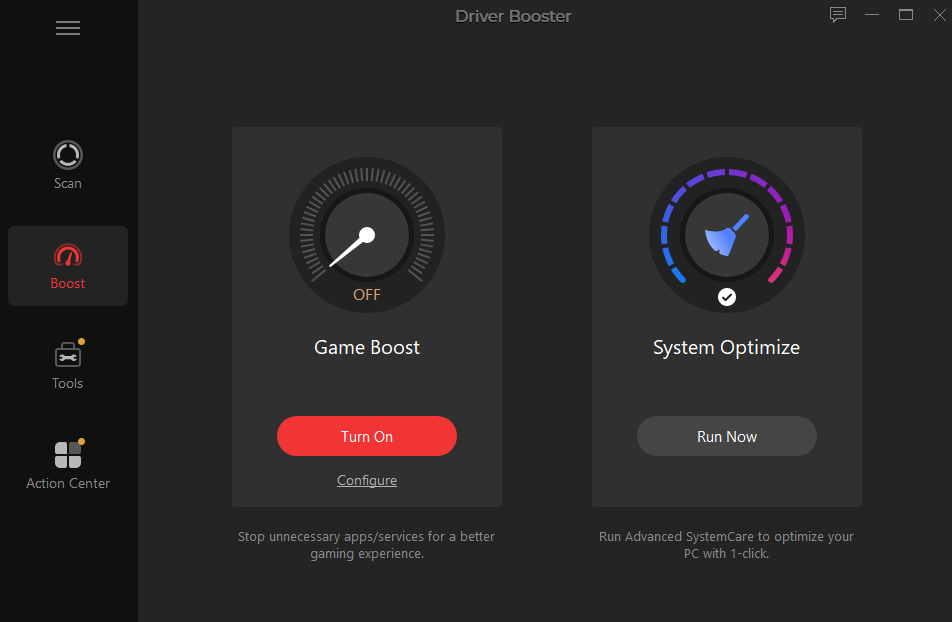
Driver Booster builds in a Game Boost feature that help stop unwanted apps/service to enhance experience in 1 click. Primarily developed as a driver updater, it also allows you to update GPU drivers to stabilize gaming performance and network drivers for a consistent internet connection conveniently.
To boost your game, simply launch Driver Booster > Boost > Turn on Game Boost.
If you need to update drivers, launch Driver Booster > Scan > Select Display/Network adapters > Update. You can also select multiple drivers and click Update Now for batch update.
Final Thoughts
Why is Warzone so laggy? It is always a frustrating problem that ruins the game. It can greatly reduce stuttering and improve FPS if you identify the causes and apply the right fixes. Whether you need to update drivers regularly and optimize performance, Driver Booster offers an easy and intelligent solution to fix Warzon lag. Stable internet connection, optimal in-game settings can also keep Call of Duty: Warzone running smoothly.
 People Also Ask
Why is my PC so slow all of a sudden? Explore common reasons of a laggy PC and possible solutions to speed it up.
Want to know why you can’t uninstall Rainbow Six Siege? Check this blog for the full answer and complete fixes to get R6 uninstalled successfully.
Struggling with “why won't my GeForce driver update”? Learn why you can’t update NVIDIA driver and discover fixes for GeForce driver installation errors.