- Support Center
- Multiple Languages
- Language
- Help Us Translate
Expert in
PC Health Solution

All-in-one PC health solution: clean, optimize and secure

Comprehensive PC cleaning, optimization and protection

Keep drivers always up-to-date

More stable performance with less system crashes

Protect millions of computers against malware

Top computer security with full-round protection

Protect against viruses & boost PC performance
Clean: 420 billion traces removed & 85 EB junk files cleaned
Protect: 80 million unauthorized access blocked & 20 million bugs fixed
Speed Up: 6 million hours of startup time saved & Turbo boost
Optimize: Auto clean and auto care your PC with AI mode

How to install Microsoft Store or reinstall safely? This article will guide you through the safest and fastest way to install the Microsoft Store.



What is Microsoft Store?
Prerequisites to Download and Install Microsoft Store
Install Microsoft Store via PowerShell
Update Windows System to Reinstall Microsoft Store
Reset the Microsoft Store
Troubleshooting common Microsoft Store issues
Is There A Direct Link to Download Microsoft Store?
FAQs About Microsoft Store Installation
How to install Microsoft Store for free on Windows 11/10 easily? Microsoft Store allows you to download and install official apps, manage updates, and ensure a level of security that meets Microsoft's standards. However, the app may sometimes be missing, corrupted, or inaccessible. In such cases, knowing how to reinstall Microsoft Store or install is essential.
Microsoft Store is an online platform developed by Microsoft that offers a vast selection of apps, games, music, movies, and other digital content for Windows users. It is a comprehensive tool that allows users to easily find and download safe, reliable apps for their Windows 11/10 devices.
If the app is missing or damaged, you can download the Microsoft Store for Windows 11/10 for free and reinstall it in just a few steps.
Before downloading the Microsoft Store, ensure you meet the following requirements:
A genuine version of Windows 10 is installed on your computer.
A stable Internet connection is required to download the Microsoft Store and associated files.
>> Why Is My Internet Not Working? Top Reasons and How to Fix Them
Check that you have sufficient free storage space on your hard drive.
>> 100 Percent Disk Usage Windows 11. Why? Reasons & How to Fix It
If the Microsoft Store is missing or fails to open, the most reliable method is to re-register it using PowerShell. To enable it via PowerShell, follow these steps:
1. Right-click the Windows Start menu and select Windows PowerShell (Admin).
2. In the PowerShell window, copy and paste the following command:
Get-AppxPackage -AllUsers Microsoft.WindowsStore | Foreach {Add-AppxPackage -DisableDevelopmentMode -Register "(_.InstallLocation)\AppXManifest.xml"}
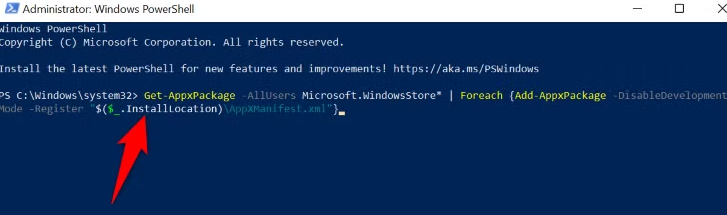
3. Press Enter and wait for the process to complete. Restart your computer to apply the changes.
If you are using an older version of Windows 10, the Microsoft Store might not be available. To update your operating system, follow these steps:
1. Click the Start menu and select Settings. Select the Update & Security section.
2. Click Windows Update in the left-hand pane.
3. Click the Check for updates button and wait for Windows to search for and install available updates.
4. Restart your computer once the updates are finished.
An up-to-date system ensures full compatibility with the Windows 10 Microsoft Store.
If the Store is present but unstable, a reset is often all that is needed.
1. Click the Start menu and select Settings. Go to the Apps section.
2. In the list of apps, find and select Microsoft Store, then click Advanced options.
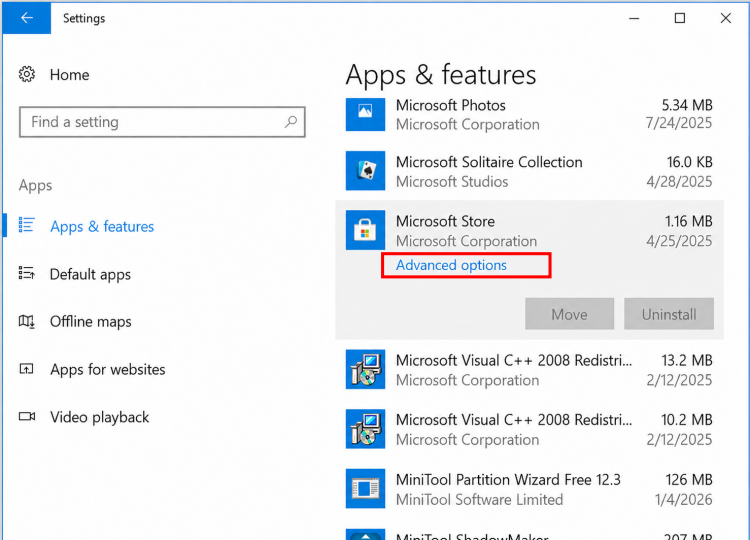
3. Scroll down and click the Reset button.
4. Confirm the action, then wait for the app to reset.
This action clears the local cache without affecting installed apps.
Issue: Microsoft Store won't open
Check internet connection
Check Windows date and time
Install the latest updates
Issue: Unable to download
Sign out of and back into your Microsoft account
Reset the Store
Check available disk space
Issue: Store missing after Windows reinstallation
Use PowerShell to install Microsoft Store
Check that Windows Update services are running
There is no official standalone link to download the Microsoft Store for PC. Any method of downloading the Microsoft Store other than via Windows or PowerShell should be avoided for security reasons. Reinstalling via PowerShell remains the official method recommended by Microsoft.
Can the Microsoft Store be installed on Windows 7 or 8?
No, the Microsoft Store is only available starting with Windows 10. It is not compatible with earlier versions of the operating system.
How can I download apps from the Microsoft Store?
Once the Microsoft Store is installed, search for the desired app, click "Get," and follow the on-screen instructions.
Is the Microsoft Store secure?
Yes, the Microsoft Store is a secure and reliable platform for downloading apps and digital content. However, it is recommended to check user reviews and ratings before installing anything.
Do I need a Microsoft account to use the Store?
Yes, a Microsoft account is required to download apps and make purchases on the platform. Creating an account is free on the official Microsoft website.
Can the Microsoft Store be used offline?
No. An Internet connection is required to download the Microsoft Store and for updates.
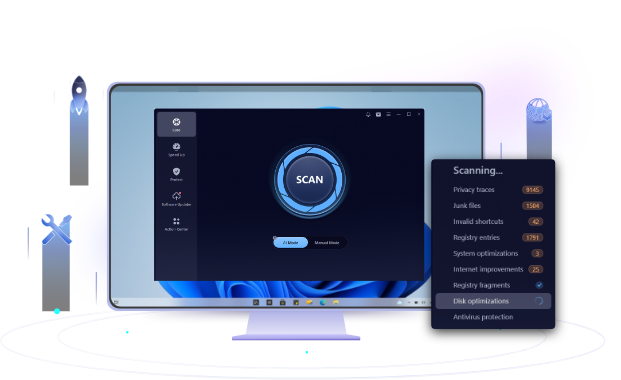
After knowing how to install Microsoft Store, keeping your Windows PC optimized can help ensure a smoother experience when running and managing apps. Advanced SystemCare offers tools to clean junk files, manage startup programs, and optimize system performance, making it easier to maintain a clean and responsive PC.
 People Also Ask
Free up disk space by safe Windows Installer folder cleanup. This guide shows how to use Settings, Disk Cleanup, etc., to remove unwanted installer files.
Stuck with the “This app can’t run on your PC” error? Learn quick fixes, compatibility settings, and advanced ways to make programs run smoothly on Windows.
Discover Tiny10, a lightweight version of Windows 10 built for low-spec devices. Learn its features, benefits, requirements, and limitations.
Learn how to uninstall updates on Android apps, roll back system updates, and stop automatic updates with these simple, practical steps.
How to improve Steam download speed? Check how to make Steam download faster in 12 ways: Check Internet Connection, Switch Steam Download Server Region…
How to defrag hard disk Windows 11/10? Check this step-by-step guide inside.