

- Support Center
- Multiple Languages
- Language
- Help Us Translate
Expert in
PC Health Solution

All-in-one PC health solution: clean, optimize and secure

Comprehensive PC cleaning, optimization and protection

Keep drivers always up-to-date

More stable performance with less system crashes

Protect millions of computers against malware

Top computer security with full-round protection

Protect against viruses & boost PC performance
Clean: 420 billion traces removed & 85 EB junk files cleaned
Protect: 80 million unauthorized access blocked & 20 million bugs fixed
Speed Up: 6 million hours of startup time saved & Turbo boost
Optimize: Auto clean and auto care your PC with AI mode

Does clearing cache delete passwords? Discover what browsing data gets erased after clearing cache & cookies and why saved passwords remain intact.



What is browser cache and what it stores
What happens if you clear browser cache & cookies
Why doesn’t clearing cache and cookies delete passwords
Where are your passwords actually stored
How to clear cache without deleting saved passwords
Does clearing cache remove autofill data, bookmarks or history
Many users avoid clearing browser cache for fear of deleting saved passwords. Does clearing cache delete passwords? Will clearing browser cache delete passwords? The short answer is No.
Read on to learn what cache is, what it stores, how cache and cookies work, why it does not delete passwords, and where your passwords live.
Browser cache is a temporary storage area used by web browsers to save website resources locally on your device. By storing frequently used files, the browser can speed up page loads and reduce re-downloaded data.
The browser cache typically stores:
Images and graphics
CSS stylesheets
JavaScript files
Fonts
Website layouts and design elements
Certain multimedia resources
After clearing your browser cache, stored temporary files such as images, scripts, and website resources are removed. Websites may load slightly slower during your next visit because the browser needs to download these files again.
Clearing cookies signs you out of websites. It removes active session data, custom site preferences, language and theme settings, saved shopping cart items, and tracking identifiers. When you revisit these sites, you will need to log in again and reset your preferred settings.
Does clearing browser cache delete passwords? No, clearing both cache and cookies will not delete your saved passwords.
Cache stores temporary web assets, and cookies hold your active site session and preferences. Neither of them stores encrypted login credentials. Saved passwords are kept in the browser’s dedicated password storage, a completely separate location.
Clearing this pair only signs you out of websites and removes temporary site data. Your saved passwords remain available.
Many users confuse cache and cookies with password storage. Your saved passwords are kept in separate encrypted storage areas, depending on your browser and operating system:
Chrome and Edge: Built-in password manager
Firefox: Native password manager
Safari: iCloud Keychain and macOS Keychain Access
Operating systems: Windows Credential Manager or macOS Keychain for system-level credential storage
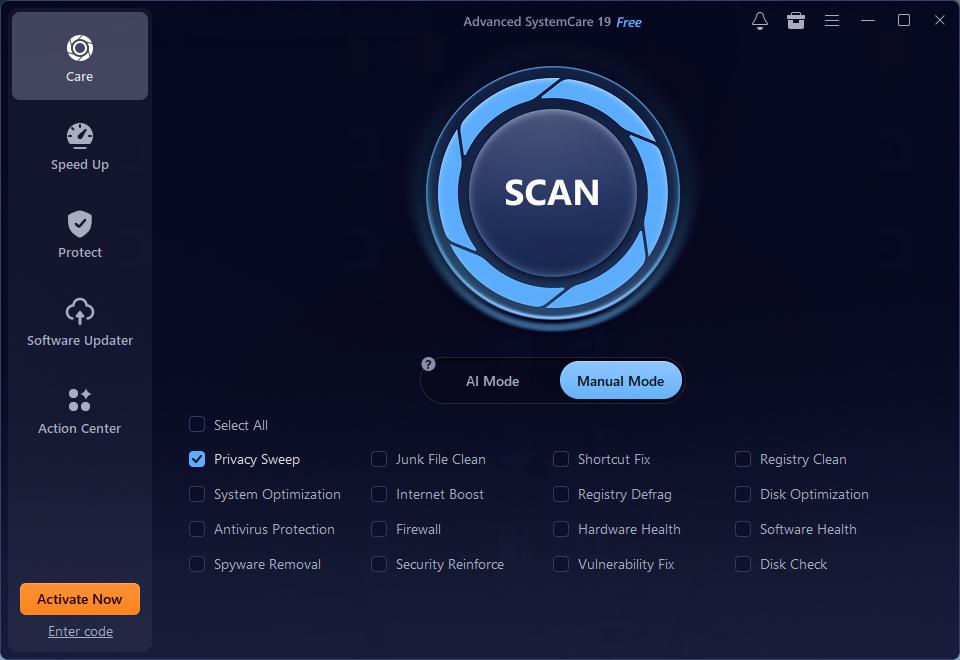
You don’t need to manually tick browser settings one by one. Try IObit Advanced SystemCare for a faster, safer cleanup. It removes browser cache across Chrome, Edge and Firefox in a single scan without deleting your saved passwords.

Download this cache cleaner to your PC and launch it. The following image is the main interface that allows you to scan all caches. Then follow the on-screen instructions to clear unwanted caches.
Will clearing cache delete saved passwords? Now you have your answer. Besides passwords, many users also wonder about autofill, bookmarks and history. No, clearing cache only deletes temporary web assets. Autofill data, bookmarks and history are stored separately and stay untouched. You need to manually select these items to remove them.
The Bottom Line
Does clearing cache delete passwords Chrome and other browsers? Now you know the answer from this article. Cache and cookies hold temporary web data only. Saved passwords are stored separately in the browser’s encrypted password manager. And this article also covers many related details, and we hope it helps you.
 People Also Ask
How to speed up Steam downloads? Check why Steam download speed slow & how to make Steam download faster: Disable download throttling, switch download server.
Check how to uninstall Claude Code and details both the manual terminal commands and a free uninstaller tool to cleanly remove it from your system.
Free up disk space by safe Windows Installer folder cleanup. This guide shows how to use Settings, Disk Cleanup, etc., to remove unwanted installer files.
Stuck with the “This app can’t run on your PC” error? Learn quick fixes, compatibility settings, and advanced ways to make programs run smoothly on Windows.
Startup Repair is not working. What to do when it shows Startup Repair couldn’t repair your PC?
How to fix corrupted files in Windows 11 to enhance system stability? This guide covers the most effective methods to repair damaged files on your PC.