A Windows taskbar disappeared issue can make your PC almost unusable, preventing access to the Start menu, opening applications, and receiving system notifications. This problem commonly occurs after a Windows update, an Explorer.exe crash, or a graphics-related conflict. If a Windows 11 taskbar disappeared error or a missing Windows taskbar is disrupting your workflow, the following solutions can help you quickly restore the taskbar and get Windows back to normal.
Why Has My Windows Taskbar Disappeared?
Why is my taskbar not showing? This Windows taskbar disappeared issue is a common problem on both Windows 10 and Windows 11. Several factors can cause the taskbar to go missing:
Taskbar Auto-Hide Is Enabled: When the auto-hide feature is turned on, the taskbar automatically hides to maximize screen space. In some cases, it may fail to reappear when needed, making it seem as though the taskbar has disappeared. Adjusting the taskbar settings or disabling auto-hide can often fix the issue.
Windows Explorer Has Crashed: A crash of Windows Explorer (Explorer.exe) can cause the taskbar to disappear along with other desktop elements. Restarting Windows Explorer or repairing corrupted system files can usually restore the missing taskbar.
Incorrect Screen Resolution Settings: Improper display resolution settings may cause the taskbar to appear off-screen or become inaccessible. Checking and adjusting your screen resolution can help bring the taskbar back.
Full-Screen Mode Is Active: Many applications and games automatically hide the taskbar when running in full-screen mode to provide a distraction-free experience. If the taskbar does not return after exiting full-screen mode, try leaving full-screen view or using keyboard shortcuts to restore it.
[9 Ways] How to Fix a Windows Taskbar Disappeared in Windows 10/11
Many essential tasks on Windows 10 and Windows 11 rely on the taskbar. If your Windows taskbar has disappeared or keeps going missing, try the following solutions to restore it.
Fix 1: Check Your Taskbar Display Settings
Move your mouse cursor to the bottom of the screen (or the top, left, or right edge, depending on your settings). Does the taskbar reappear? If so, it may be hidden by the Auto-hide feature. Setting the taskbar to remain visible can resolve the issue.
Follow these steps:
Right-click the taskbar.
Select Taskbar settings.
Turn off Automatically hide the taskbar in desktop mode.
If you use multiple monitors, review your multi-display taskbar settings as well.
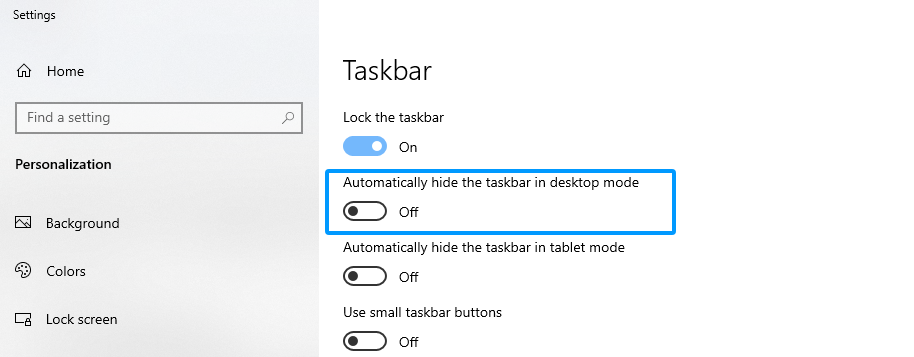
Incorrect taskbar settings can make it appear as though the Windows taskbar disappeared, when it is actually just hidden from view.
Fix 2: Restart Windows Explorer
Windows Explorer (Explorer.exe) manages the taskbar, desktop, and Start menu. If this process crashes, a missing Windows taskbar may no longer be displayed.
Follow these steps to restart Windows Explorer and restore the taskbar disappeared on Windows:
Press Ctrl + Shift + Esc to open Task Manager.
Locate Windows Explorer in the list of running processes.
Right-click Windows Explorer and select Restart.
If the process is not listed, click File > Run new task, type explorer.exe, and then click OK.
Wait a few seconds while the Windows interface reloads.
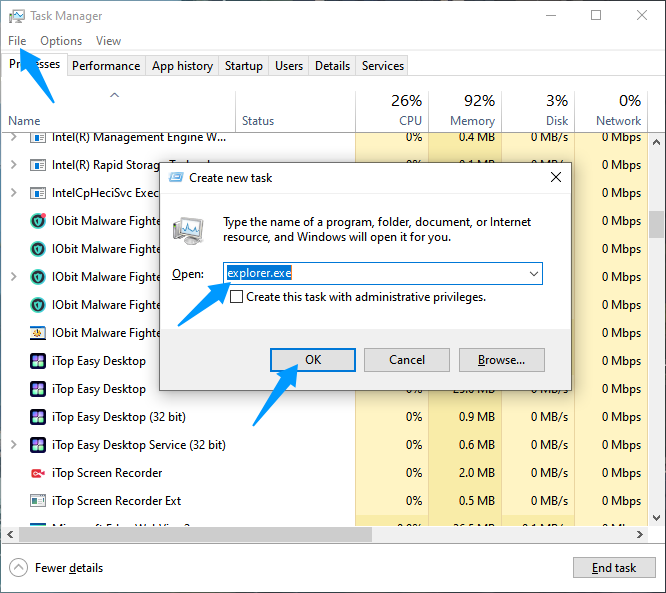
This method can often fix a taskbar disappeared Windows problem instantly, especially when the Windows 11 taskbar disappears after an Explorer.exe crash.
Fix 3: Reset the Graphics Driver to Restore a Missing Windows Taskbar
A graphics driver issue or display-related conflict can sometimes cause the taskbar to disappear in Windows 10 and Windows 11. In many cases, resetting the graphics driver can quickly restore the missing taskbar.
To restart the graphics subsystem, press Ctrl + Shift + Win + B simultaneously.
You will hear a short beep, and the screen may briefly go black before refreshing automatically. Once the display reloads, the missing Windows taskbar may reappear.
This is a safe troubleshooting method, even while gaming or using resource-intensive applications. The shortcut only restarts the graphics subsystem, meaning your running programs remain open and do not need to be restarted.
Fix 4: Update the Graphics Driver to Restore a Missing Windows Taskbar
If the Windows taskbar not showing issue persists after resetting the graphics driver, reinstalling or updating the driver may help resolve the problem. Corrupted, outdated, or incompatible graphics drivers can prevent the taskbar from displaying properly in Windows 10 and Windows 11. For an easier driver update process, you can use Driver Booster, a tool designed to scan, update, and install drivers automatically.
1. Download and install Driver Booster.
2. Launch the program and click Scan to check for outdated, missing, or faulty drivers.
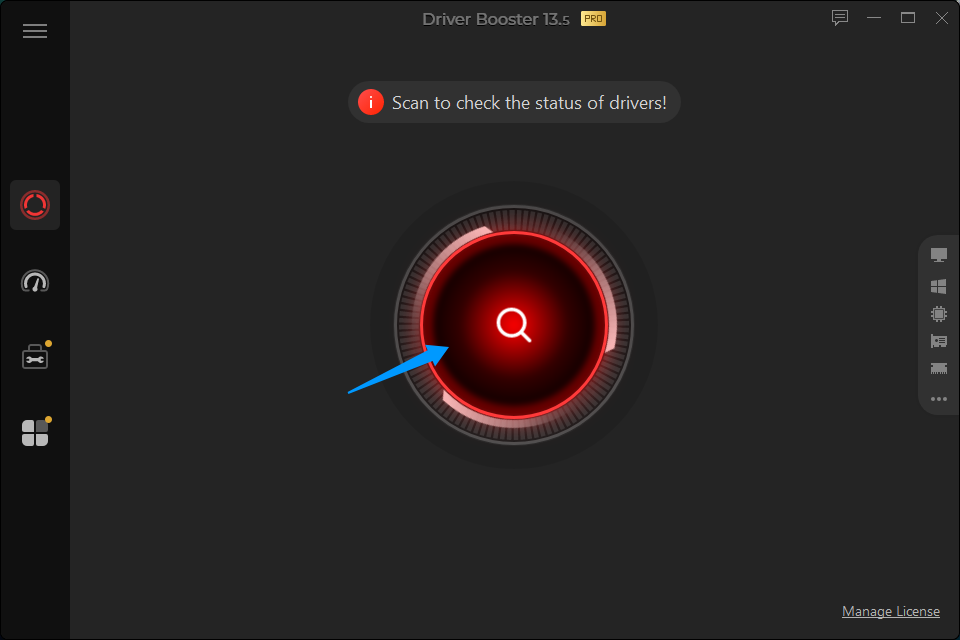
3. After the scan is complete, locate the graphics driver and click Update next to it.
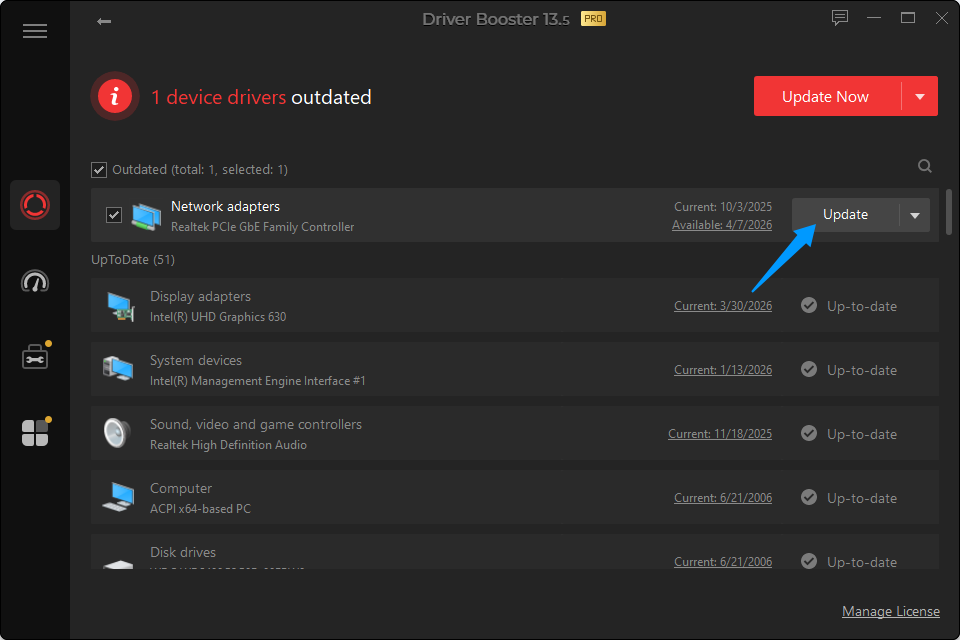 4. Wait for the installation to finish, then restart your computer if prompted.
You may like: Complete Guide to Updating Your Drivers on PC >>
Fix 5: Disable Tablet Mode
On some hybrid and convertible devices, Tablet Mode or touch-optimized settings can automatically hide certain interface elements, making it appear that the taskbar is missing in Windows 10 or 11.
To disable Tablet Mode settings:
Open Settings > System.
Select Tablet.
Turn off any automatic behaviors related to tablet or touch mode.
Sign out of Windows or restart your computer to apply the changes.
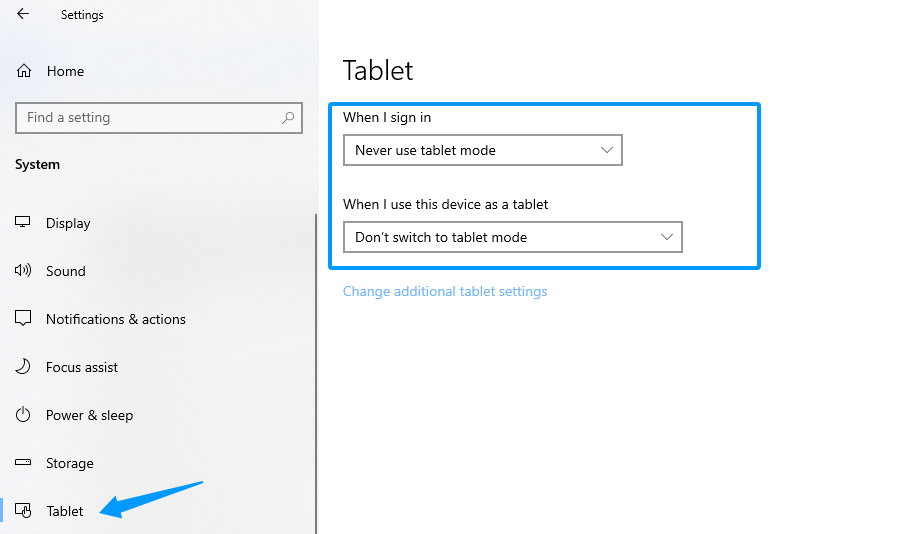
This solution is particularly effective for convertible laptops and 2-in-1 devices, where a missing taskbar may be caused by touch-oriented display settings.
Fix 6: Check Your Screen Resolution to Restore a Missing Taskbar
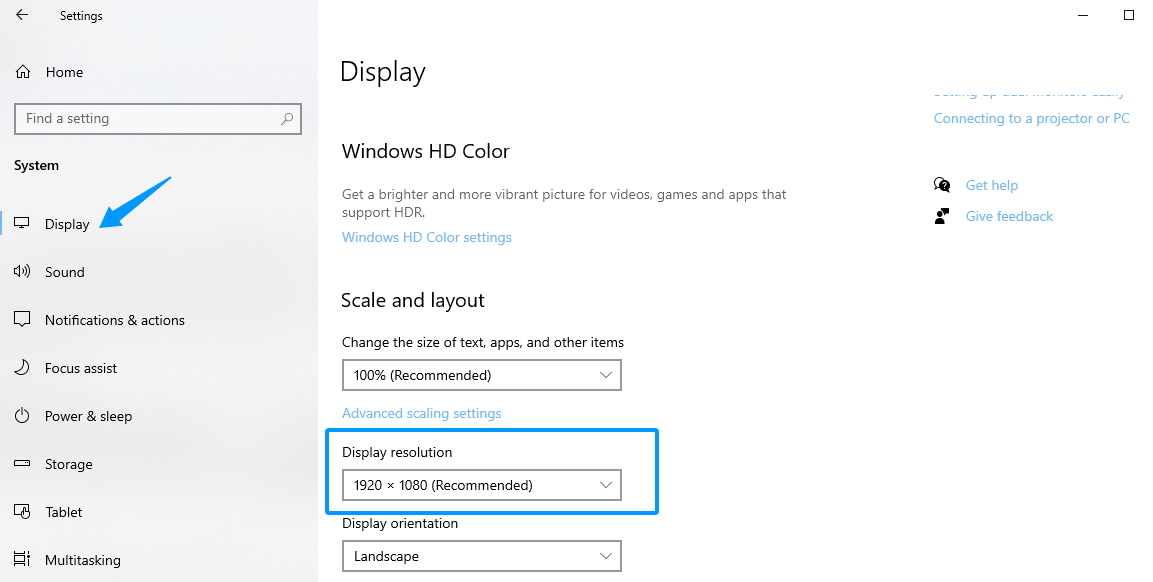
If the PC screen resolution setting is incorrect, the taskbar might appear cut off, look distorted, or disappear entirely. Adjusting the resolution to the correct setting will resolve this issue.
Follow these steps:
Right-click an empty area of the desktop.
Select Display settings.
In the window that opens, set the Display resolution to the recommended resolution. The resolution used in this example is 1920 x 1080.
Fix 7: Check Second Monitor Display Settings to Restore a Missing Taskbar
Sometimes, a Windows 10 computer connected to an external monitor, projector, or TV fails to display the image correctly, and the taskbar disappears. In this case, you can resolve the issue by setting the display mode to "PC screen only."
The process is simple: press the Windows key and P (Win + P) simultaneously, and the display options will appear on the right side of the screen. Then, select "PC screen only," and you're all set.
Fix 8: Exit Full-Screen Mode to Make the Taskbar Visible Again
You can make the most of your netbook's small screen or your HDTV by browsing web pages in full-screen mode. However, when a web page is displayed in full-screen mode, the taskbar is hidden and appears to have vanished. You can make the taskbar visible again by exiting full-screen mode.
Google Chrome, Firefox, and Microsoft Edge are popular browsers, and you can toggle full-screen mode on and off by pressing F11.
Fix 9: Restart Essential Windows Services
Several Windows services are responsible for managing the user interface and Windows shell. If one of these services stops working properly, the taskbar may stop showing up, or other desktop elements may fail to load.
To restart essential Windows services:
Press Windows + R to open the Run dialog.
Type services.msc and press Enter.
-
Check the following services:
· Task Infrastructure Service
· Connected User Experiences and Telemetry
· Windows Explorer (if available)
Restart any service that is not running correctly.
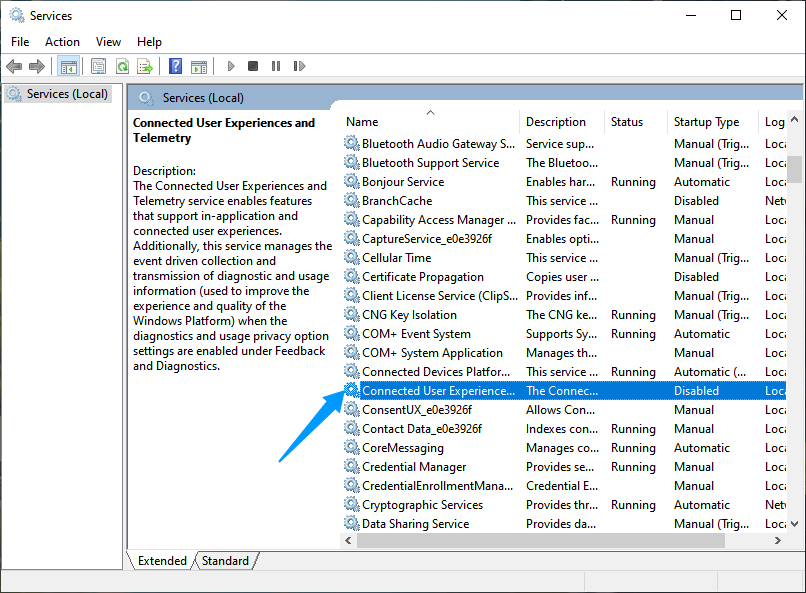 This method can help fix an incomplete or improperly loaded Windows interface.
How to Prevent the Windows Taskbar from Disappearing Again?
To reduce the chances of encountering a missing Windows taskbar in the future, follow these best practices:
Keep Windows updated with the latest patches and security fixes.
Avoid using unstable taskbar or desktop customization software.
Regularly update your graphics drivers, better with an automatic driver updater.
Create system restore points before making major system changes.
Check and repair system files after a serious crash or unexpected shutdown.
Performing regular system maintenance can significantly reduce the risk of interface issues and help prevent the taskbar from disappearing unexpectedly.
Conclusion
An Explorer.exe crash often causes the Windows taskbar disappeared, graphics driver issues, incorrect display settings, or a problematic Windows update. Fortunately, in most cases, you can quickly restore the taskbar using the troubleshooting methods outlined above—without needing to reinstall Windows.
If the Windows 11 taskbar keeps disappearing or the issue occurs repeatedly, it is a good idea to inspect your graphics drivers and system files for underlying problems. Taking proactive maintenance steps can help ensure a stable Windows experience and prevent future display-related issues.
Driver Booster Free
- Automatically scan and update drivers.
- Update game ready drivers for peak gaming performance.
- Identify and fix various common of hardware issues.
- Boost 30% of system performance for fast & smooth running.