Windows Explorer, or File Explorer, is arguably the most frequently used tool on your computer. So, when it enters a relentless cycle of crashing, freezing, or closing unexpectedly, it completely breaks your workflow. You have to search for how to fix Windows Explorer keeps crashing.
The crashes may happen when you right-click a file, open a specific folder, or simply launch Windows Explorer. There are several common reasons like buggy system updates, corrupted caches, or more. Read the article to find the top reasons and actionable methods to fix Windows Explorer keep crashing.
Common Symptoms of Windows Explorer Crashing
File Explorer crashes immediately when you open it.
File Explorer freezes or closes when you right-click a file or folder.
File Explorer displays the error message “Windows Explorer has stopped working”.
What Causes Windows Explorer Keeps Crashing?
Learn potential reasons that cause Windows Explorer keep crashing and check the solutions in the next part.
Corrupted File Explorer Cache
Windows Explorer cache corruption happens due to overload, misconfigured, or interrupted mid-write index files or thumbnail database. The resulting issues can range from slow folder loading speeds to more severe problems, such as Windows Explorer flickering or freezing.
Outdated or Corrupted Graphics Drivers
Windows Explorer relies on hardware acceleration from the GPU for good interface and performance. When GPU graphics drivers are outdated, corrupted, it will cause File Explorer crashing or freezing.
Corrupted System Files
Windows Explorer is not a standalone app. Instead, it needs hundreds of shared Windows core libraries, API framework, runtime environment, and system registry configurations to make it function as normal. It works wrongly due to missing or damaged system files.
Third-Party Extension Bug
Shell Extensions are third-party software plug-ins that can be directly added into the Windows File Explorer interface for more custom features, menu options or visual elements. Any bug in a Shell Extension (poorly written or corrupted) can lead to freeze, lag, or even crash in Windows Explorer.
Faulty File Preview Handlers
File Preview Handlers are specialized Shell Extensions for displaying files in the Preview Pane without fully opening the application. When it is faulty or corrupted, Windows freezes, lags, or crashes by clicking on a file in Explorer.
How to Fix Windows Explorer Keep Crashing? 9 Ways
Restart File Explorer
When File Explorer freezes or stops responding, the fast and easy way to fix it is to restart File Explorer.
Press Ctrl + Shift + Esc to openTask Manager.
Find Windows Explorer and right-click it.
Choose Restart to restart Windows Explorer instantly.
If your screen turns blank on Windows, open Task Manager, click on File > Run New Task > type explorer.exe into the box and press Enter.
Clear File Explorer History
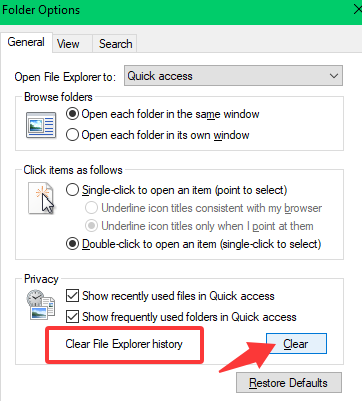
If you found a non-responsive white screen or a spinning cursor when opening File Explorer, clearing File Explorer history is a solution.
Step 1. Press Windows + E to open File Explorer.
Step 2: For Windows 10: Click the View at the top and click on Options.
For Windows 11: Click the tree dots at the top right and select Options.
Step 3. Click the Clear button to clear File Explorer history.
Clear Thumbnail & File Cache
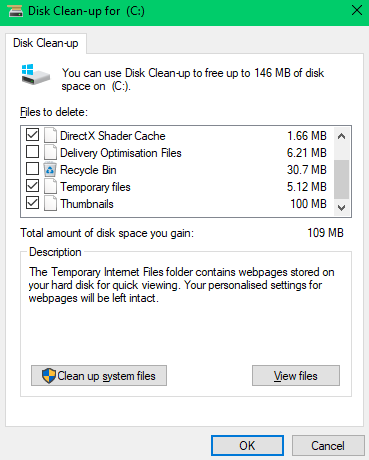
When opening folders with large media files and getting Windows Explorer crashed, clear the thumbnail and file cache to stop crashing caused by corrupted cache files.
Search Disk Cleanup in the search bar at the bottom and open it.
Select the drive (C:) and click OK.
Choose files (Temporary Files, Thumbnails) to delete.
Remove Right-Click Shell Extensions
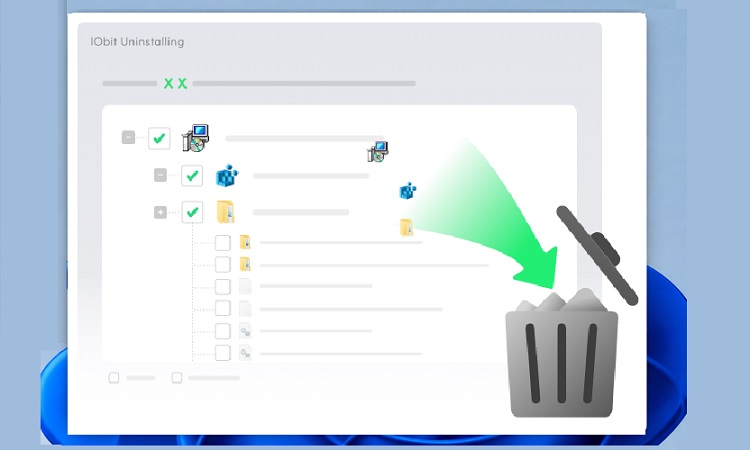
If the issue with the right-click menu was caused by a recently downloaded third-party application, you can use IObit Uninstaller - a professional, free uninstallation tool. It not only allows you to uninstall multiple programs with a single click but also handles related issues, such as removing specific programs from the context menu.
IObit Uninstaller Free
- Complete forced uninstallation for stubborn programs.
- Uninstall a batch of programs at once.
- Scan and remove leftover files, folders, and registry entries.
- Support the management of Universal Windows Platform apps.

How to remove Shell Extensions from the context menu?
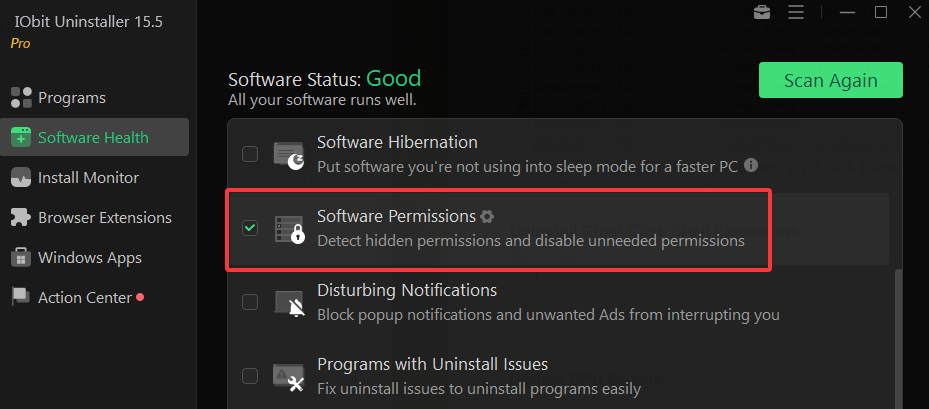
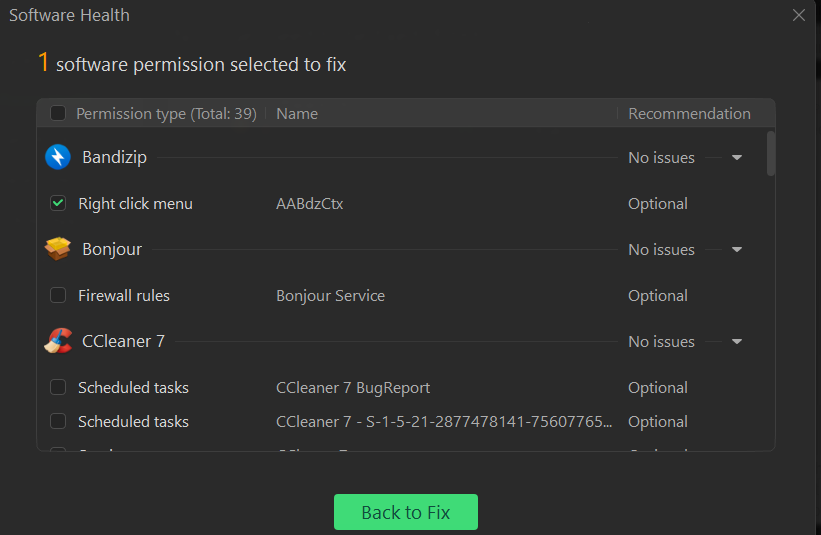
(If the shell extension still exists, open Task Manager, choose Windows Explorer, and click Restart.)
Key features of IObit Uninstaller:
Uninstall multiple apps with one click
Whether they are third-party applications or Windows apps, IObit Uninstaller allows you to remove them with a single click. It also detects and removes bundled software.
Browser Extension Uninstallation
In addition to third-party apps, you can manage browser extensions within the uninstaller and remove multiple extensions at once.
Software Health
Clean up temporary files and privacy traces left behind by applications, and remove malicious browser extensions. It also resolves uninstallation issues, making it easier to uninstall programs.
Disable buggy shell extensions
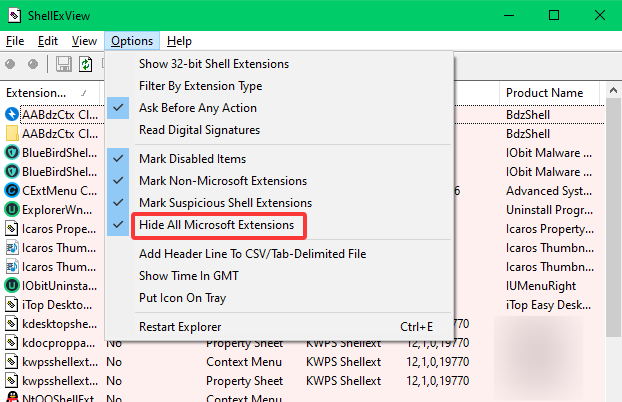
Windows doesn’t provide native apps or tools to disable or manage shell extensions. Choose to download ShellExView, a free shell extension manager for Windows to disable shell extensions.
Download ShellExView made by Nirsoft.
Run it, click Options on the top menu and check Hide All Microsoft Extensions.
Update GPU Drivers
Updating your GPU driver is also one way to resolve File Explorer persistent crashing. If you don't require high-performance computers and only update drivers occasionally, you can manually update GPU drivers using Device Manager.
For gamers and other users with high performance demands, Driver Booster is recommended. It automatically detects the latest versions of various drivers and updates them with a single click.
Driver Booster Free
- Automatically scan and update drivers.
- Update game ready drivers for peak gaming performance.
- Identify and fix various common of hardware issues.
- Boost 30% of system performance for fast & smooth running.

How to update GPU drivers with Driver Booster?
Download Driver Booster on your Windows system and launch it.
Click the Scan button to detect outdated drivers.
From the outdated driver list, choose GPU driver and click the Update button.
After finishing, restart your PC.
Disable Quick Access or Change Default Launch
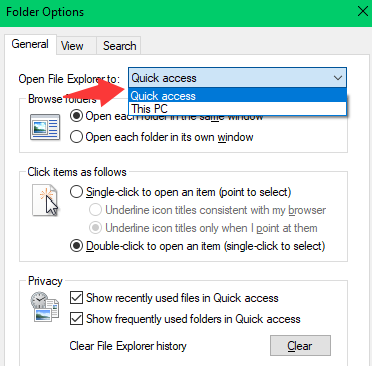
Quick Access is a shortcut that gives you an instant way to check your frequently and recently used folders. You may see a freezing or slow Windows Explorer when you open Quick Access. Disable it and change the default launch to “This PC”.
Press Windows + E keyboard to open File Explorer.
Click View and select options.
Next to Open File Explorer to, change the dropdown from Quick access to This PC.
Check Windows Error Logs
Windows error log will record the exact moment, cause and responsible module when File Explorer crashes. Check these logs to find the error code or faulting module.
How to check the logs in Event Viewer?
Press Windows + X and select Event Viewer.
Expand Windows Logs > Application.
Find the entry marked Error with Source: Application Error around the time when File Explorer is crashed.
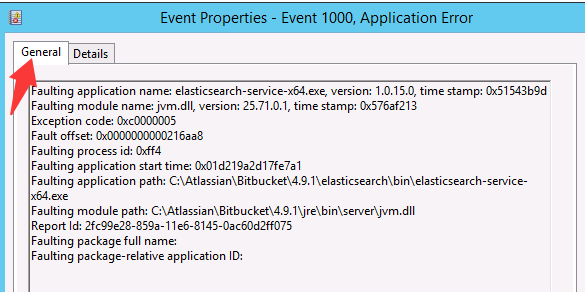
Click it and check the General tab for Faulting application name: explorer.exe and Faulting module name: [DLL Name].
According to the fault module name, fix it precisely.
Get likely root cause and fixes for different faulting module shown in log:
#1 ntdll.dll or kernelbase.dll
Root cause: Corrupted core system memory or deep OS hook issue
Fixes: Run SFC and DISM scan; run Windows Memory Diagnostic or MemTest86 to check RAM stability
#2 nvldumdx.dll / atikmdag.sys
Root cause: GPU driver crash
Fixes: Clean reinstall graphics drivers using Display Driver Uninstaller in Safe Mode; clear the Windows thumbnail cache via Disk Cleanup
#3 ContextMenuExt.dll
Root cause: Third-party apps’ right-click menu integration issue
Fixes: Use ShellExView or Autoruns to disable non-Microsoft shell extensions
#4 DropboxExt64.dll / OneDrive.dll
Root cause: Cloud storage sync integration shell extension issues
Fixes: Update Dropbox or OneDrive client to the latest version; unlink and re-link the account
Run System File Checker
Run System File Checker (SFC) to scan, find and repair missing or broken Windows system files.
Click the Start menu and type cmd into the search bar.
Right-click on Command Prompt and select Run as administrator.
-
Before running SFC, run the Deployment Image Servicing and Management (DISM) tool by entering the following content. This is to ensure that SFC has clean source files for repairs.
DISM.exe /Online /Cleanup-Image /RestoreHealth
Press Enter and wait for the process to finish.
-
In the same window, type the following:
sfc /scannow
Press Enter and wait for the process to be completed.
Understanding the outcomes:
“Windows Resource Protection did not find any integrity violations.”
It means no corrupted system files were detected.
"Windows Resource Protection found corrupt files and successfully repaired them."
It means the computer has found and automatically fixed corrupted files. Restart your computer.
"Windows Resource Protection found corrupt files but was unable to fix some of them."
It means some files cannot be repaired. Restart your PC and run SFC again.
Conclusion
Windows Explorer crashes can derail your productivity. In the vast majority of cases, the root cause is simply a corrupted thumbnail cache, an outdated graphics driver, or a buggy third-party context menu extension.
To fix Windows Explorer keep crashing, try the methods in the blog, from restarting Windows Explorer to removing Shell Extension from the context menu with IObit Uninstaller.