Have you ever encountered the frustrating problem of your keyboard stopping working? It's an annoying situation, especially when you need it for work or to communicate with loved ones. Fortunately, most “my keyboard does not work” or "my keyboard won't type" problems are solvable. This article will explain the various reasons why this can happen and provide steps to fix it.
Why isn't My Keyboard Typing Anymore?
Why is my keyboard not working? There are several possible reasons why your keyboard might stop working, and in this article, we'll explore them in detail. So, without further ado, let's dive into the different reasons why your keyboard might stop working.
Keyboard Hardware Problems
Before diving into complex solutions, let's start with the simplest problem to solve: an unplugged keyboard. It might seem obvious, but often a simple check of the connections can resolve the issue. Make sure the keyboard's USB cable is properly connected to your computer. Sometimes it can be accidentally unplugged or slightly loose, preventing the keyboard from working correctly.
If your keyboard is properly plugged in but still not working, there may be a connection problem. Wired connections can be fragile and wear out over time. Try plugging your keyboard into a different USB port to see if the problem persists. If that doesn't solve the problem, the cable itself may be damaged. In that case, consider replacing the cable or using a wireless keyboard if that's an option for you.
Sometimes the problem lies with the keyboard itself. If you've recently spilled liquid on your keyboard or notice that some keys are stuck, it's very likely that your keyboard is damaged. In this situation, you can try cleaning your keyboard carefully, following the manufacturer's instructions. However, if the problem persists, you will probably need to replace your keyboard with a new one. You can find them at major electronics stores or supermarkets at all price points (from €20 to over €300).
Keyboard Software Problems
Keyboard drivers are software programs that allow your keyboard to communicate with your computer. Sometimes, these drivers can become outdated or corrupted, causing the keyboard to malfunction. To resolve this issue, you can update your keyboard drivers.
Sometimes, software installed on your computer can conflict with your keyboard drivers, causing malfunctions. To resolve this, you may need to uninstall recently installed software or update your operating system. Try to recall if you've installed any new software recently and see if the keyboard malfunction started afterward.
Incorrect language settings can also cause keyboard problems. You may have accidentally changed the keyboard layout, or your computer may have selected the wrong language by default. To fix this, go to your operating system's language settings and make sure the keyboard layout and language are correct.
Emergency Measure When My Keyboard Stops Typing
How to fix my keyboard is not working? When your PC keyboard suddenly stops working while you are performing important or urgent work, you can solve the problem by enabling the "on-screen keyboard".
Click the "Start" button in the taskbar, then select Settings > Accessibility > Keyboard.
Then activate the On-Screen Keyboard toggle button.
Click the "Start" button in the taskbar, then select Settings > Accessibility options > Keyboard.
Then activate the toggle button under Use the on-screen keyboard.
How do I Fix "My Keyboard is Not Working" Problem?
Now that we have examined the various reasons why your keyboard may stop working, here are some solutions you can try to resolve this issue.
Solution 1. Check the Physical Connections
As mentioned earlier, make sure your keyboard is properly connected to your computer. Also check that the cable is not damaged. If you are using a wireless keyboard, make sure the batteries are charged and that the wireless connection is working correctly.
Turn off your computer and make sure it is unplugged for safety reasons.
Locate the keyboard cable and follow it to the computer's USB port, then gently unplug it from the USB port.
Take the time to carefully examine the condition of the cable and connectors. Check for any visible damage, excessive kinks, or accumulated dirt that could impede the connection.
Clean the cable and USB port connectors. Reconnect the keyboard cable to the computer's USB port. Ensure the connection is secure.
Turn on your computer and wait for it to boot up completely.
After following these steps, test the keyboard to see if it now works. If the keyboard problem persists, you will need to move on to the next solution to resolve the issue.
Solution 2. Check if the keyboard works on another computer
If you are using an external keyboard, try connecting it to another computer to determine if the problem is with the keyboard or the computer.
You May Need: [7 Fixes] How to Fix Audio Drivers on Windows 11: Quick & Easy Guide >>
Solution 3. Restart Your Computer
After verifying that the keyboard connection is intact, the next troubleshooting step to resolve the keyboard issue on your PC is to restart your computer. Restarting can help resolve minor software glitches and conflicts that might be causing the keyboard to malfunction. It's a simple yet effective solution that can often restore keyboard functionality without much effort. Please note that before restarting, it's essential to save any unsaved work and close all running applications to prevent data loss.
Restarting your computer can often resolve temporary software issues that might be affecting keyboard performance. If the keyboard still doesn't work after restarting, proceed to the next troubleshooting solution. This method also works for fixing “my keyboard is not working laptop”.
Solution 4. Check the keyboard drivers via Device Manager
If your keyboard still isn't working after checking the connection and restarting your computer, it's time to move on to the third troubleshooting step: checking your keyboard drivers. Drivers are essential software that allow your operating system to communicate with hardware, including your keyboard. Outdated, corrupted, or missing drivers can cause keyboard malfunctions. In this section, we'll explore how to check your keyboard drivers and update them if necessary.
It's important to note that the method for checking keyboard drivers may vary slightly depending on your version of Windows. The following steps are specific to Windows 10, but you can adapt them accordingly if you're using a different version of the operating system.
Open Device Manager: Right-click the Start button and select Device Manager from the context menu that appears.
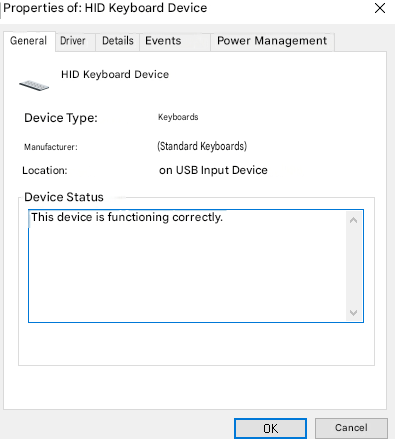
Right-click the listed keyboard driver and select Properties from the context menu. On the General tab, check if the message indicates that the driver is working correctly. If you see an error or conflict message, the keyboard driver is likely the problem.
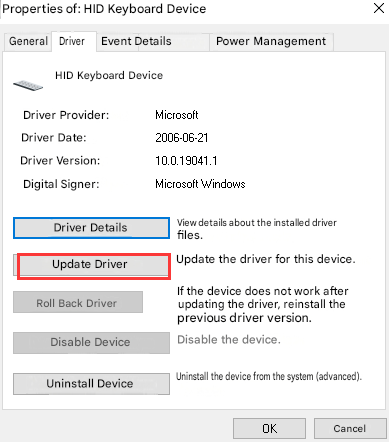
Follow the on-screen instructions to complete the update process. If you already have the updated driver, select the corresponding option and follow the instructions to install it.
Solution 5. Fix the keyboard problem with Driver Booster
Although Device Manager is convenient, it has disadvantages, such as difficulty finding the appropriate drivers, the risk of downloading incorrect drivers, and tedious manual updates.
If you want to solve the keyboard problem effectively, you would be better off using Driver Booster, a specialized software that offers a user-friendly experience, automatically detecting outdated, corrupted and missing drivers, downloading the latest secure versions, facilitating their installation and ensuring regular updates.
With Driver Booster, the best driver updater, you benefit from a reliable and efficient tool to keep your keyboard drivers up to date, thus ensuring optimal keyboard operation and resolving any operational problems encountered.
Driver Booster Free
- Automatically scan and update drivers.
- Update game ready drivers for peak gaming performance.
- Identify and fix various common of hardware issues.
- Boost 30% of system performance for fast & smooth running.

1. Launch Driver Booster. Click on Scan and the app will automatically scan your computer and find any outdated or missing drivers.
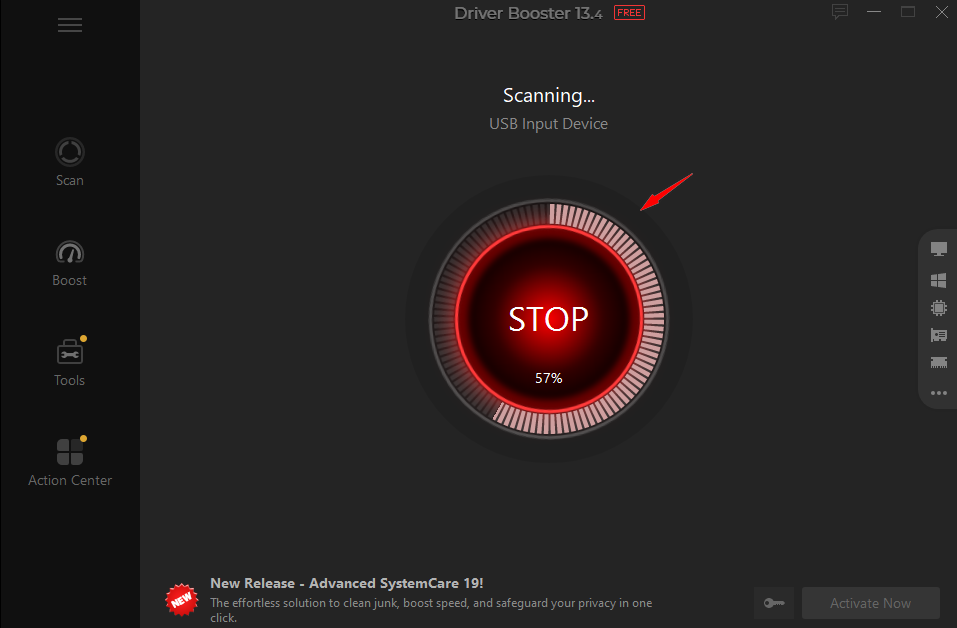
2. In the list of detected drivers, locate the drivers associated with the keyboard. Check the corresponding boxes to select the keyboard drivers to update.
3. Click the Update Now button to begin the process of updating the selected drivers. Driver Booster will download the latest driver versions and install them automatically.
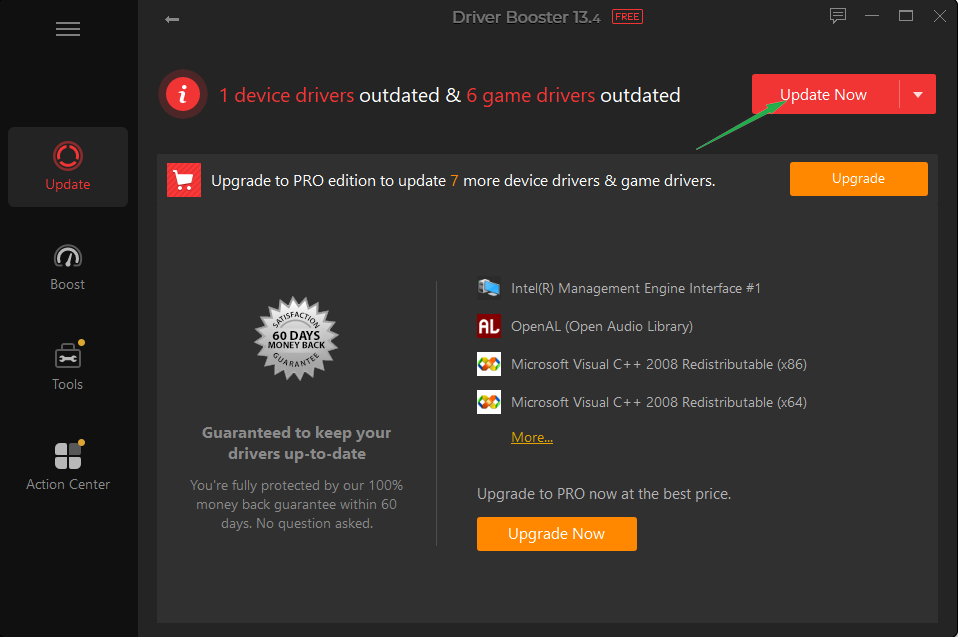
Update Driver Booster to Fix My Keyboard Does Not Work
4. Once the update is complete, restart your computer for the changes to take effect.
What if my keyboard is not working on my HP laptop? Driver Booster can also fix it efficiently.
You May Like: Lenovo Driver Update: Official Methods & Smart Tools for Seamless PC Performance >>
Solution 6. Fix the problem of some keyboard keys that only partially function
When the keyboard stops working, the following cases are also possible:
The keyboard only partially works
The keyboard is not responding to some keys
The keyboard cannot type
The Windows key on the keyboard is not working.
Here's how to check if my keyboard is not typing:
1. When the keyboard does not type numbers
In this case, it is often a question of desktop computers and computers equipped with external keyboards.
If you cannot enter numbers using your keyboard's numeric keypad, check if the "NumLock" function is enabled.
2. If the keyboard only types on certain keys
It may be necessary to clean the keyboard to remove dirt or dust that may be causing the keys to malfunction.
It's also possible that this key has a physical defect. In that case, you can replace it with a key you don't use often.
Conclusion
In summary, this article explored the various reasons why your keyboard might stop working and provided six solutions to fix the "my keyboard does not work" problem. If you've tried all the previous solutions and your keyboard still isn't working, it's time to consult a qualified computer technician. More complex hardware issues or physical damage often require professional expertise to resolve.
Driver Booster Free
- Automatically scan and update drivers.
- Update game ready drivers for peak gaming performance.
- Identify and fix various common of hardware issues.
- Boost 30% of system performance for fast & smooth running.