During our daily computer use, many factors can lead to the appearance of the Blue Screen of Death, but don't panic. Generally, the computer's Blue Screen displays a specific error code, such as the "Critical Process Died" stop code. Are you facing this problem? How do you resolve it? In this guide, we'll present clear and effective steps to fix Critical Process Died in Windows 10/11.
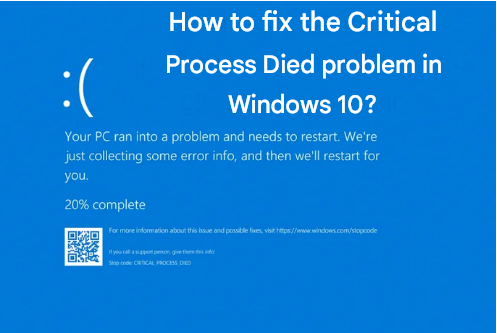
What is a Critical Process Died Error in Windows 10/11?
The Critical Process Died blue screen in Windows 10 and 11 usually occurs due to a problem with a critical operating system process. This can be caused by software conflicts, outdated drivers, corrupted system files, or hardware issues. Below, we'll explore step-by-step solutions to resolve this problem and restore your system to normal operation.
How to Fix Critical Process Died Error Windows 10/11? [13 Ways]
1. Restart Your Computer in Safe Mode
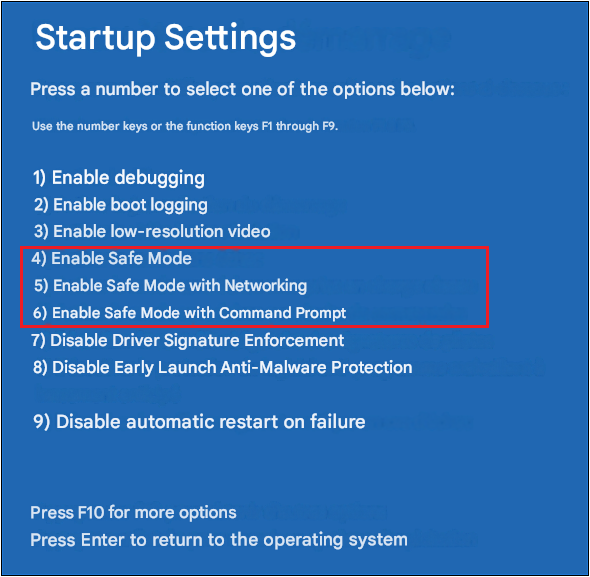
The first step to fix the Critical Process Died error is to restart your computer in Safe Mode. This will allow your system to start with a minimal set of drivers and processes, which can help identify whether the problem is related to third-party software or a driver.
Restart your computer. Before the Windows logo appears, hold down the Shift key and press F8, then click Restart.
In the Startup Options, select Troubleshoot > Advanced options > Startup Settings > Restart.
After restarting, press the 4 or F4 key to start in Safe Mode.
2. Update Drivers to Fix the critical_process_died Error
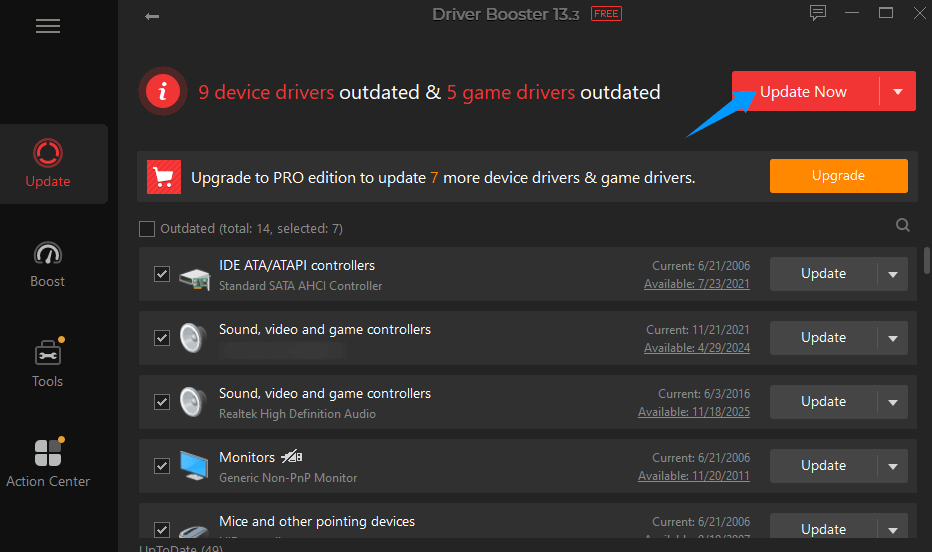
Outdated drivers can cause conflicts and lead to the Critical Process Died stop code. Use IObit Driver Booster to easily keep your drivers up to date.
Step 1. Download and install IObit Driver Booster.
Step 2. Open the application and click Scan to find outdated drivers.
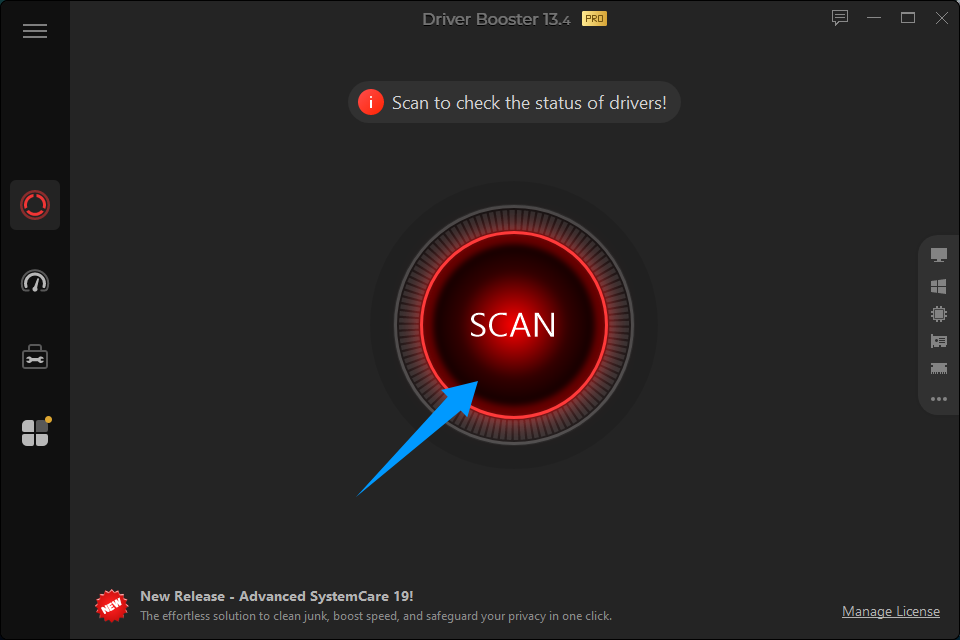
Step 3. Select the drivers you want to update and click Update Now.
 Also read: How to Update Drivers on PC >>
3. Run the System File Checker and Fix the Windows Critical Process Died
The System File Checker is a built-in Windows tool that can help repair corrupted system files.
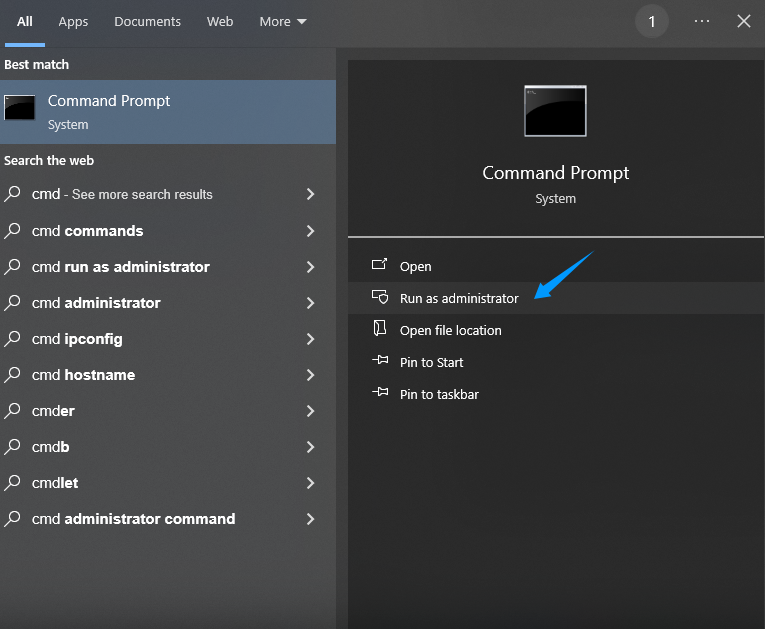
Step 1. Type cmd in the search box to open Command Prompt as an administrator.
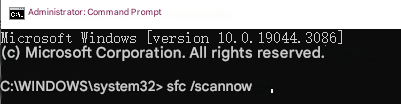
Step 2. Type the command sfc /scannow and press Enter.
Step 3. Wait for the process to complete and follow the instructions provided. If there are no corrupted system files, you will see a message stating, “Windows Resource Protection found no integrity violations.” If there are errors in the system files, this tool can automatically detect and repair them, displaying a message such as “Windows Resource Protection detected corrupted files and repaired them.”
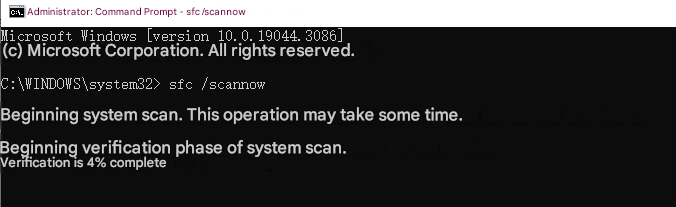
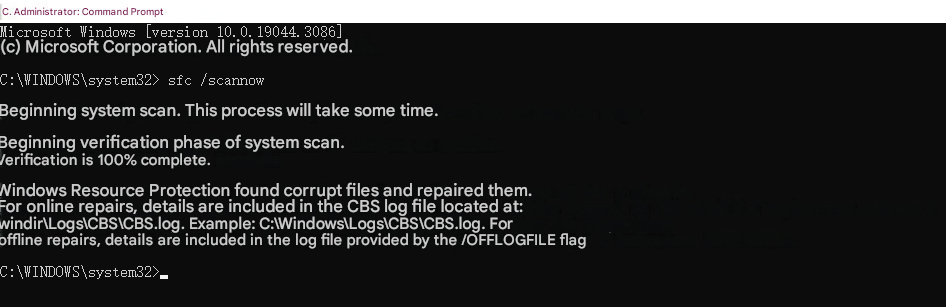
Step 4. Finally, restart your computer if this command prompt repaired a file.
4. Fix the Hard Drive to Troubleshoot the Critical Process Died Blue Screen
Hard drive errors can be another cause of the Critical Process Died error. Follow these steps to check and fix hard drive errors.
Step 1. Download and install IObit Advanced SystemCare on your computer.
Advanced SystemCare Free
- Clean: 420 billion traces removed & 85 EB junk files cleaned
- Protect: 80 million unauthorized access blocked & 20 million bugs fixed
- Speed Up: 6 million hours of startup time saved & Turbo boost
- Optimize: Auto clean and auto care your PC with AI mode

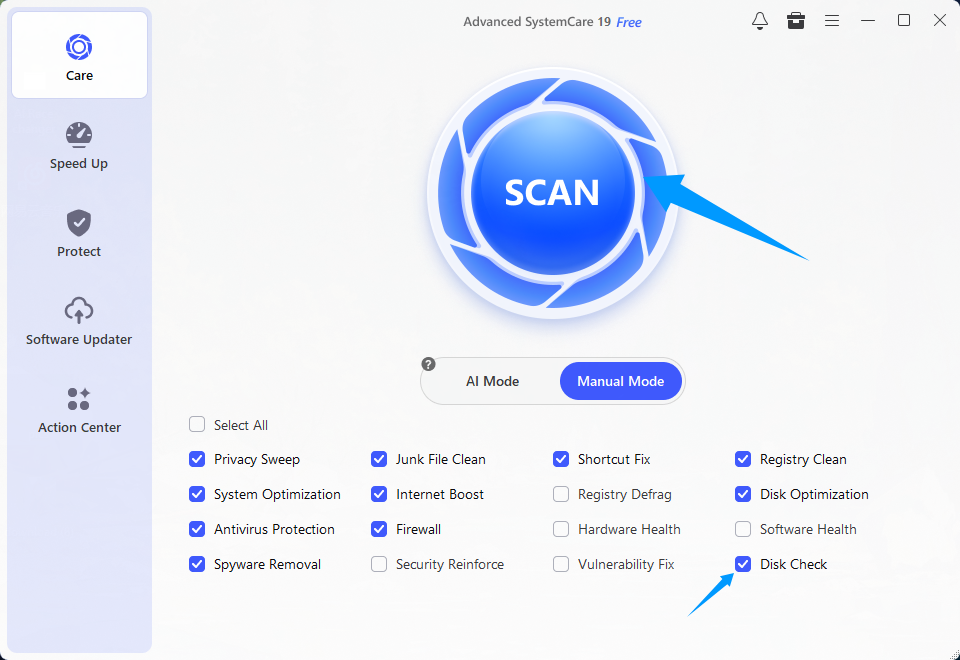
Step 2. Launch the software and go to the Care section, then select Manual Mode.
Step 3. Choose Disk Check and click the SCAN button. After a short time, the scan will complete. Click the Fix button to fix the hard drive errors.
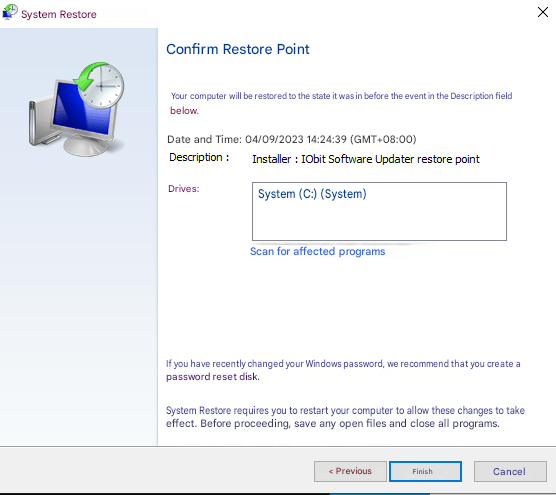
5. Restore Your System to Fix the Critical Process Died Error Windows 10/11
If the error started occurring recently, you can try restoring the system to a previous point in time.
Step 1. Type "system" in the search bar and select "Create a restore point."
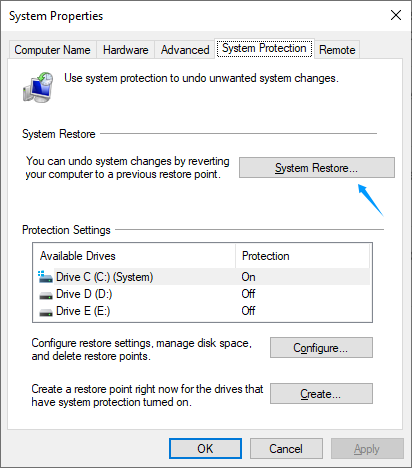
Step 2. On the System Protection tab, click "System Restore."
 Step 3. Choose the desired restore point and click "Next."
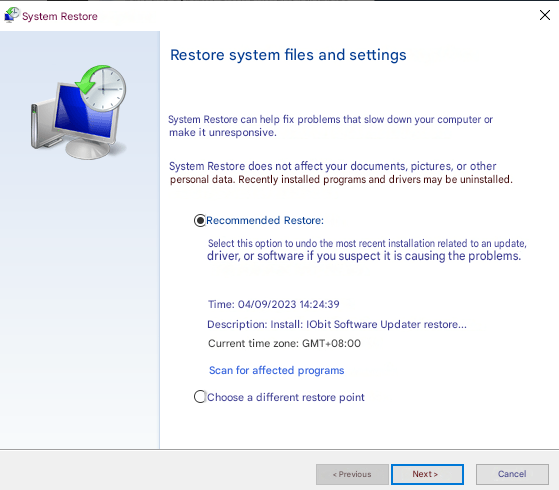
Step 4. Confirm your choice and click "Finish."
6. Scan for Viruses and Malware
A thorough scan for viruses and malware is essential to resolve the critical_process_died Windows error. IObit Malware Fighter will help keep your system secure.
IObit Malware Fighter Free
- Quick and deep system scanning throughout PC system.
- Smart defense against all malicious infestations.
- High-level security and privacy protection in real time.
- Leading anti-malware and anti-virus engines.

Step 1. Download and install IObit Malware Fighter.
Step 2. Run a full system scan to detect and remove threats.
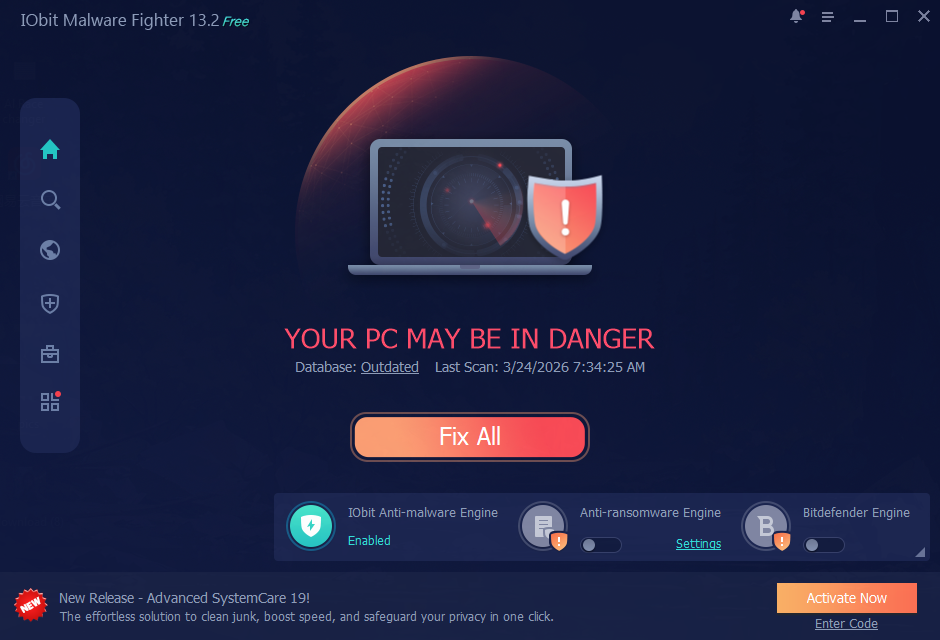 Step 3. Follow the instructions to remove any detected malware.
7. Troubleshooting Recent Software Issues
If you have recently installed new software or updates, they may be causing the critical_process_died error. Try uninstalling the software or rolling back the updates to see if the error is resolved.
8. Check Your CPU Temperature
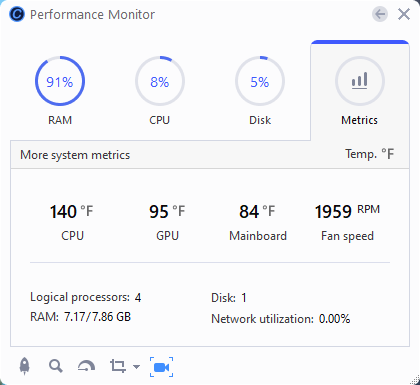
Overheating of the CPU can cause critical_process_died errors. Use CPU temperature monitoring software to check if your CPU is operating within safe ranges. We recommend Advanced SystemCare for monitoring CPU health.
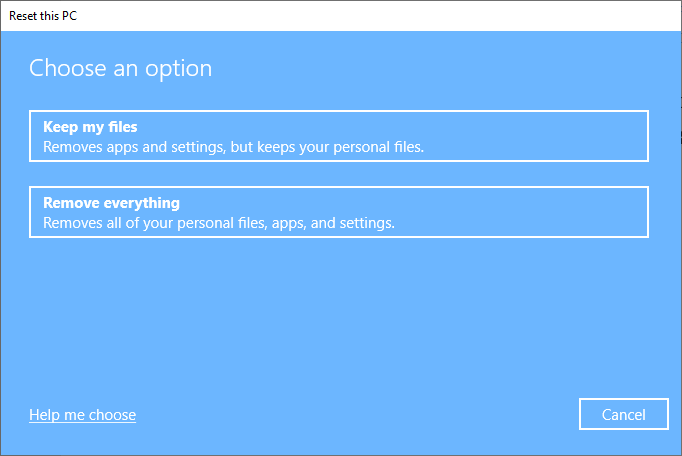
9. Reset Windows 10/11
If none of the above solutions work, consider resetting Windows 10 to its factory settings.
10. Check Your RAM
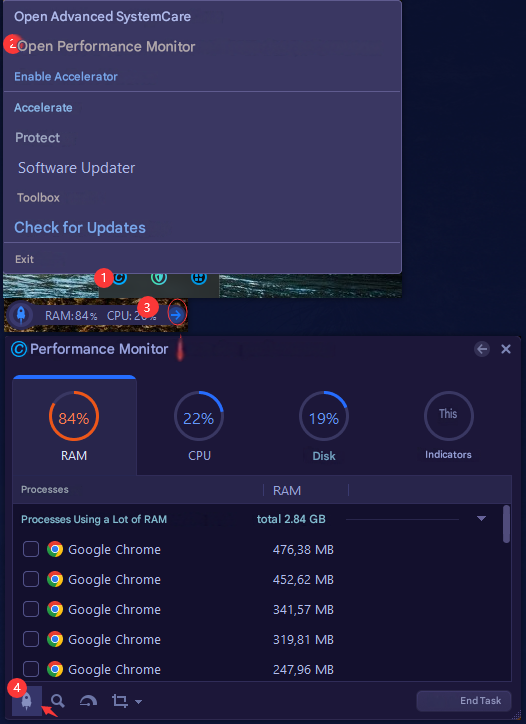
Problems with your RAM can cause critical errors. Use a Windows RAM optimizer to troubleshoot these issues. We recommend IObit Advanced SystemCare. To clean your computer's RAM, follow these steps:
Launch Advanced SystemCare, right-click to open the menu.
Select Open Performance Monitor.
Click the Speed Up icon to quickly clean the RAM.
11. Use the Troubleshooter
Make sure there are no hardware issues. If a component of your device isn’t working, running a troubleshooter might help you find and fix the problem. Use the Troubleshooter by following the steps below:
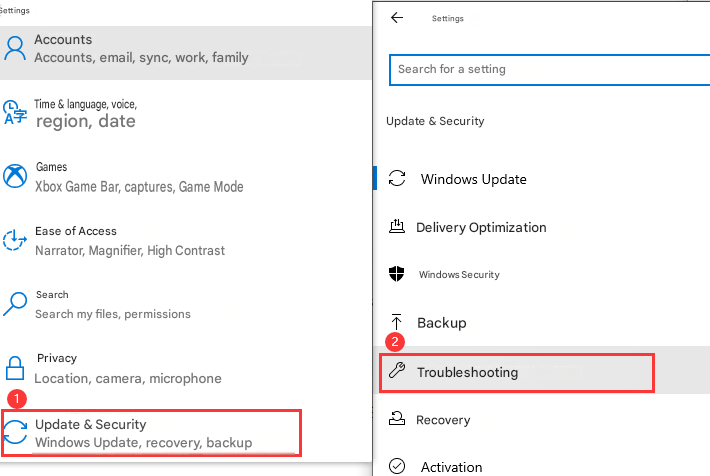
Step 1. Click the Start button to access Settings
Step 2. Click the Update & Security option; in the left pane of the window, locate and click the Troubleshoot option
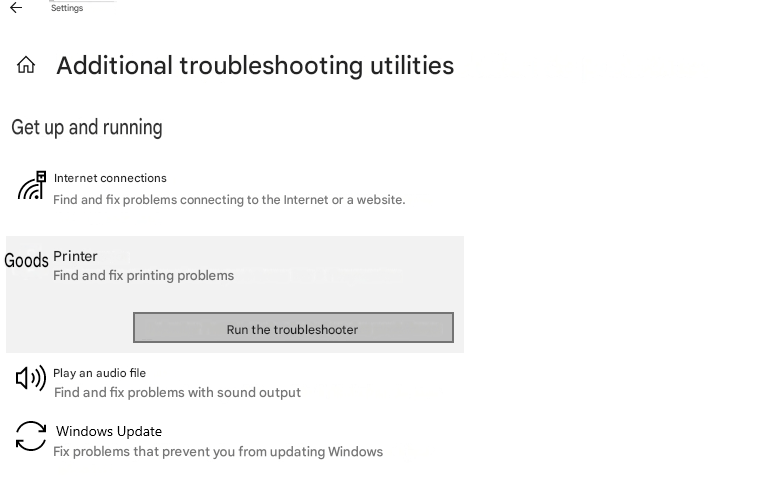
Step 3. Run the Troubleshooter to automatically fix the issues
12. Contact Windows Technical Support
If all troubleshooting attempts fail, you may need to contact Windows Technical Support for further assistance.
13. Prevention and Best Practices
To prevent future Critical Process Died errors, consider implementing the following practices:
Keep your operating system and software up to date.
Regularly back up your important data.
Use reliable antivirus software and ensure it is up to date.
Avoid installing software from untrusted sources.
FAQ about the Windows Critical Process Died Fix
1. What causes the Critical Process Died error in Windows 10/11?
The Critical Process Died error can be caused by outdated drivers, corrupted system files, software conflicts, or hardware issues.
2. Can I fix the Critical Process Died error myself?
Yes, in many cases, you can resolve the error by following the troubleshooting steps provided in this guide.
3. Is the Critical Process Died error dangerous?
While it can be frustrating, the error usually doesn't permanently damage your system. However, it's important to resolve it to maintain optimal performance.
4. How can I prevent similar errors from happening again?
Keeping your system up to date, performing regular backups, and using antivirus software are good practices to prevent future problems.
5. Should I contact technical support if I can't resolve the issue?
If you have exhausted all possible solutions and the error persists, contacting Windows technical support is a good option to obtain expert assistance.
Conclusion
Fixing the Critical Process Died error in Windows 10 may require patience and testing, but by following the steps and tips provided in this guide, you should be able to restore a stable and functional system.
Driver Booster Free
- Automatically scan and update drivers.
- Update game ready drivers for peak gaming performance.
- Identify and fix various common of hardware issues.
- Boost 30% of system performance for fast & smooth running.