



Kevin Hart
Kevin is an experienced editor focused on tech blog writing. Familiar with all kinds of PC software on the market. All the topics he chooses are aimed at bringing more benefits to users.
Expert in
PC Health Solution

All-in-one PC health solution: clean, optimize and secure

Comprehensive PC cleaning, optimization and protection

Keep drivers always up-to-date

More stable performance with less system crashes

Protect millions of computers against malware

Top computer security with full-round protection

Protect against viruses & boost PC performance
Automatically scan and update drivers.
Update game ready drivers for peak gaming performance.
Identify and fix various common of hardware issues.
Boost 30% of system performance for fast & smooth running.

The 4 solutions for how to update HP printer drivers here can help keep your printer stable. They will ensure it continues to deliver reliable service.

Kevin Hart


If you own an HP printer, this guide is worth bookmarking. Keeping your printer drivers up to date is essential for maintaining stable performance, fixing compatibility issues, and ensuring access to the latest features and security improvements.
You may be wondering: computers and smartphones usually notify us when a system update is available, but what about a printer? Since most printers don't have a traditional operating system interface, many users aren't sure how to update HP printer drivers or even whether an update is necessary.
Fortunately, updating your HP printer drivers is much easier than it sounds. Whether you're troubleshooting a problem or simply looking to keep your printer running smoothly, this guide will show you exactly how to update HP printer drivers step by step.
Before installing HP printer drivers, it is essential to complete a few preparation steps. Doing so can help prevent interruptions or installation failures that may affect your printer's performance.
For the best results, follow the preparation steps below in order.
Step 1. Identify Your Exact HP Printer Model
The first step is to determine the exact model of your HP printer. This information is crucial because it ensures that the correct driver package can be downloaded and installed.
In most cases, the printer model can be found on a label located on the front, top, or back of the device. The model name is typically a combination of letters and numbers.
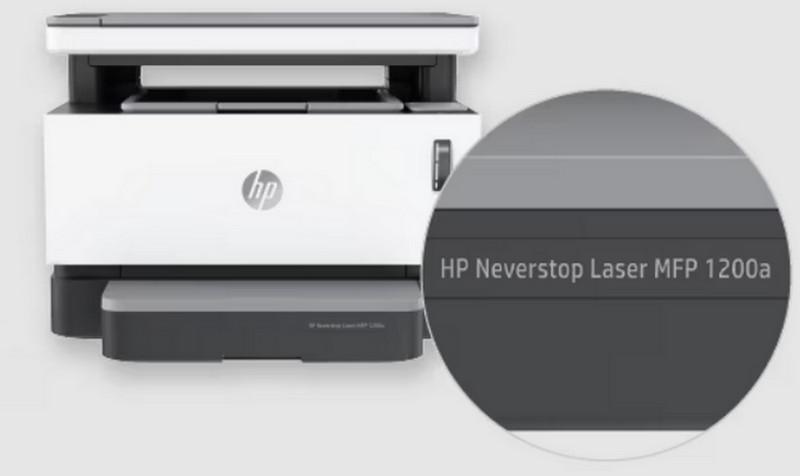
Some HP printer models may require a PIN during the update process. This PIN is often located inside the ink cartridge compartment. Before making any changes to the device, it is recommended to write down this number in case it is needed later.
Step 2. Check the Operating System Version
Next, identify the operating system installed on the computer connected to the printer, including whether it is a 32-bit or 64-bit version.
This step is important because printer drivers must match the operating system. Downloading an incompatible driver may lead to installation errors or prevent the driver from functioning properly.
Step 3. Make Sure All Hardware Requirements Are Ready
Before starting the update, ensure that the following conditions are met:
A Stable Internet Connection: Network interruptions can cause the update process to fail. Make sure the computer is connected to a reliable Wi-Fi or wired network with a strong signal.
A Stable Power Supply: Both the printer and the computer should remain powered on throughout the update process. If either device shuts down unexpectedly, the update may be interrupted and could potentially affect device performance.
Once the preparation is complete, it's time to start updating your printer drivers.
In this section, three different methods for how to download HP printer drivers and keep them updated are introduced. You can choose the one that best fits your preferences and situation.
If you search for how to update HP printer drivers, you'll quickly notice that the most commonly recommended method is using the official HP Smart app. This is indeed one of the easiest solutions provided by HP, as the application guides users through the entire process.
Here is how to update HP printer drivers via the HP Smart app.
Step 1. Launch the HP Smart app on the computer or mobile device connected to your printer.
Step 2. Select the printer you want to update.
Step 3. Click Advanced Settings. If this option is not visible, click View All to expand the available settings.
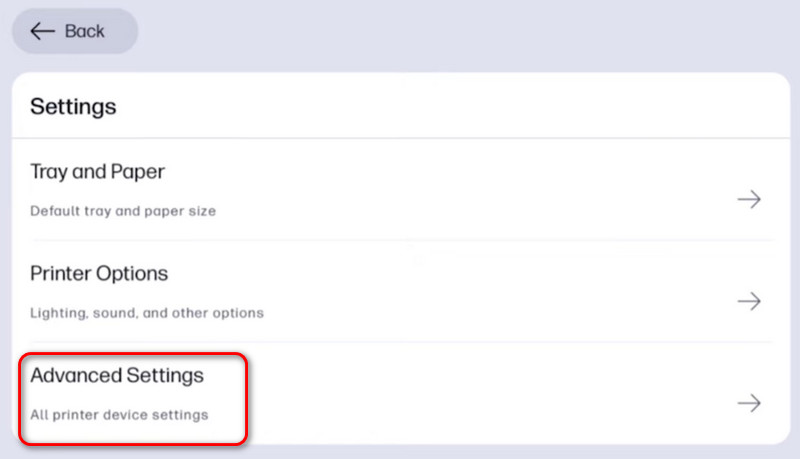
Step 4. When the new menu opens, select Printer Update.
Tip: During this process, the printer's PIN may be required to verify access.
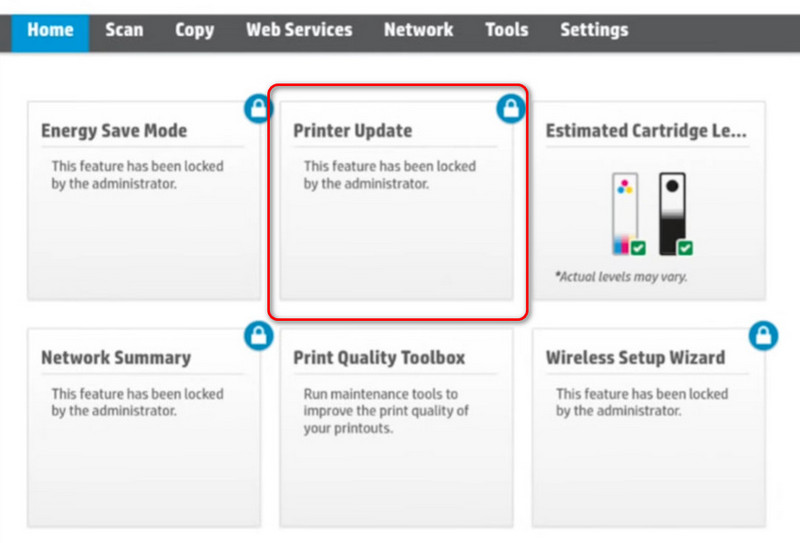
Step 5. In the new window, click Check for Updates.
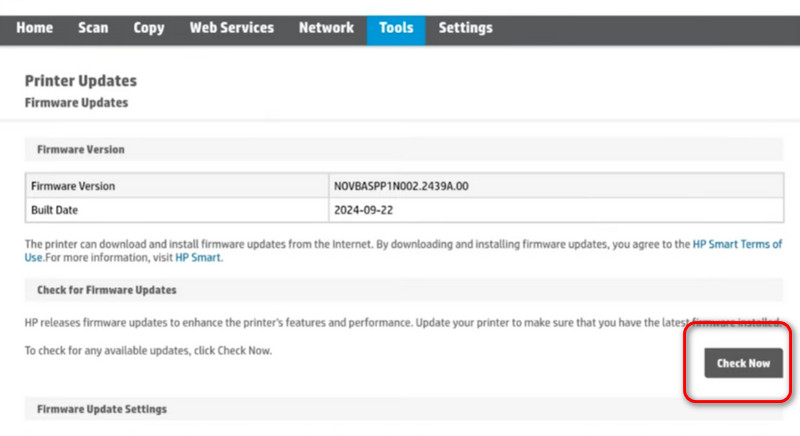
If a an Update button appear, click it to download and install the latest HP printer driver update.
For users looking for another solution to how to download HP printer drivers and install updates manually, the official HP website is an excellent alternative.
This method is especially useful if the HP Smart app cannot detect the printer or if no update option appears when following the previous method.
Here is how to update HP printer drivers via HP support website.
Step 1. Open a web browser on your computer and visit the official HP printer support and driver download website.
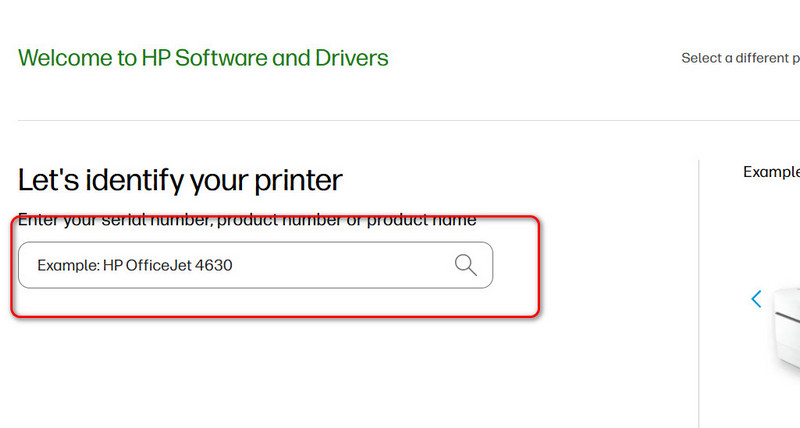
Step 2. Locate the search box and enter your printer model number to find the correct driver package. (Refer to the preparation section above if you need help identifying your printer model.)
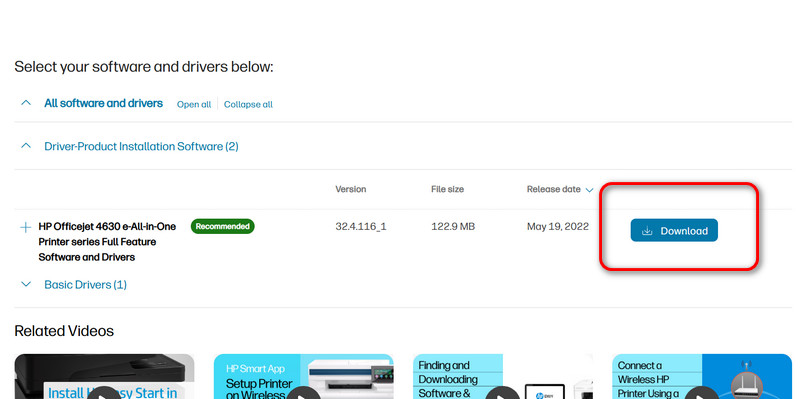
Step 3. HP will display the available driver packages for your printer. Find the version that matches your operating system and click the Download button next to it.
Step 4. Before proceeding with the installation, confirm that the printer is properly connected to the computer. In most cases, the connection will be established through a network. If the network connection is unavailable or unstable, try connecting the printer via a USB cable instead.
Step 5. Once the printer status indicates that it is ready and connected, run the downloaded installer and click Update (or follow the on-screen installation prompts) to complete the driver update process.
If you've ever looked into how to update Windows drivers, you've probably come across Device Manager. It is one of Windows' most versatile built-in tools for managing hardware and drivers—and yes, it can also be used to update HP printer drivers.
Here is how to update HP printer drivers via Windows Device Manager.
Step 1. Press Windows + R on your keyboard to open the Run dialog box. Type devmgmt.msc and press Enter to launch Device Manager.
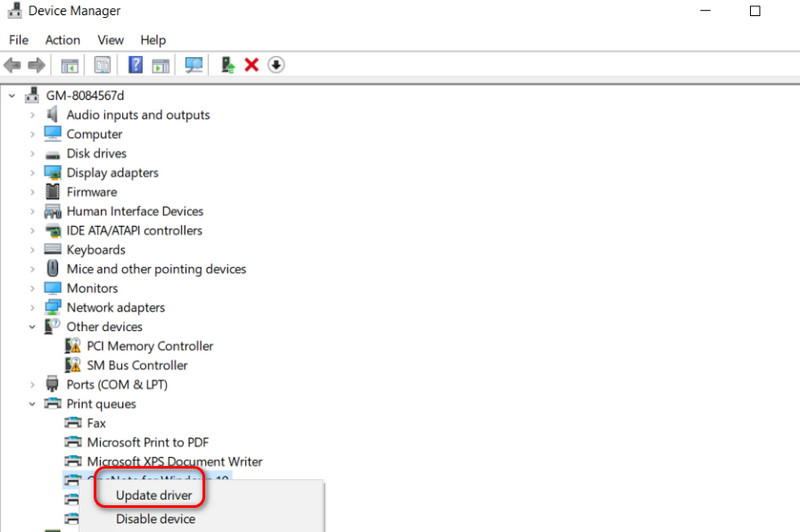
Step 2. In the Device Manager window, locate Print queues and expand the category. Then, right-click the HP printer you are currently using.
Step 3. Select Update driver from the context menu.
Step 4. Choose Search automatically for drivers. Windows will then search for and install the latest available driver version for your printer.
It's worth noting that Device Manager can be used for much more than printer updates. The same process can help update audio drivers, network drivers, graphics drivers, and even answer questions such as how to update NVIDIA drivers.
However, as you may have noticed, all three methods for how to update HP printer drivers involve multiple steps and navigating through several windows. For users who have never performed a driver update before, the process can sometimes feel confusing, and getting stuck at any stage is not uncommon.
To address this challenge, a newer and much simpler alternative is available. Continue reading to discover the easiest way to update HP printer drivers with minimal effort.
At this point, it's time to introduce one of the simplest solutions for how to update HP printer drivers: using an all-in-one driver scanning and update management tool such as Driver Booster.
To understand why this method is so convenient, it helps to know how Driver Booster works. The software performs a comprehensive scan of the system, identifies outdated drivers, and presents a list of available updates. Once approval is given, it downloads and installs the latest versions automatically. This eliminates much of the manual work involved in driver maintenance—there is no need to check each driver individually, search for compatible versions, or download updates one by one. In most cases, the entire process can be completed with just a few clicks.
Driver Booster is designed to do more than update drivers. It also includes tools for diagnosing and fixing common Windows issues, such as audio problems, device malfunctions, and even certain blue screen errors.
Here is how to use it to update drivers.
Step 1. Download and install Driver Booster on your computer.
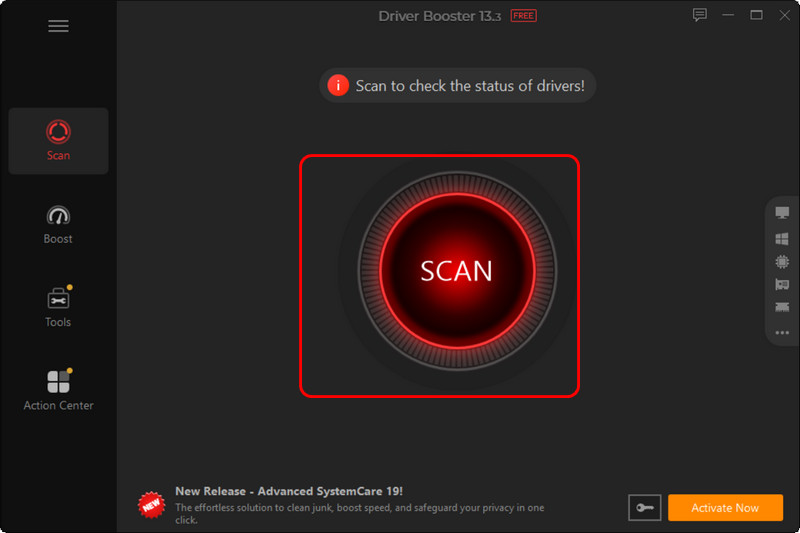
Step 2. Launch the program. A prominent Scan button will appear on the main interface. Click it to begin scanning the system for outdated drivers.
Step 3. Within a short time, Driver Booster will display all drivers that have available updates. Select the drivers you wish to update, or choose all available updates, then click Update Now to start the installation process.
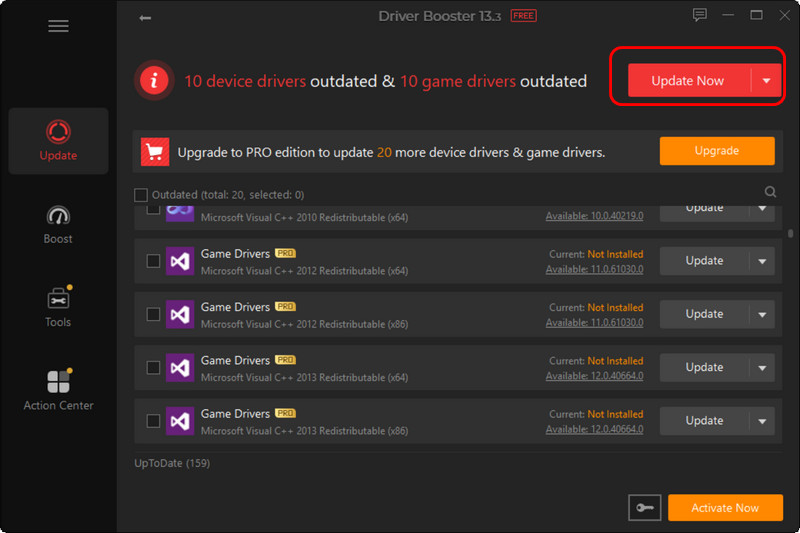
Once the update is complete, the system will be running the latest available driver versions, helping improve hardware compatibility, stability, and overall performance.
For how to update HP printer drivers, you can use several common methods, such as the official HP app, downloading drivers from the HP website, or updating through Windows Device Manager. But let's be honest—these steps can sometimes feel a bit confusing, and it's easy for new users to make mistakes along the way.
That's why a simpler option is often recommended: using Driver Booster to handle everything in one go. Instead of checking and updating drivers one by one, it automatically detects what's outdated and updates it for you.
Even better, it doesn't just stop at printer drivers—it can also fix other outdated system drivers and small errors at the same time. If you want a smoother, more hassle-free experience, this is definitely a tool worth trying.


Keep drivers always up-to-date.
Free Download