Tor Browser is a popular privacy-focused web browser that routes your internet traffic through the Tor network to enhance anonymity. However, you may decide to remove it if you no longer use it, want to free up storage, or encounter software conflicts. Simply deleting the Tor Browser folder isn't always enough, as shortcuts, registry entries, and leftover files may remain on your computer.
Wondering how to uninstall Tor Browser from Windows 11 completely? This guide covers several practical ways to uninstall Tor Browser from your device quickly and thoroughly.

Why Should You Completely Uninstall Tor Browser?
Before choosing an uninstall method, it's worth understanding why a complete removal is recommended. While Tor Browser is portable in many cases, it can still leave behind shortcuts, downloaded files, configuration folders, or registry entries depending on how it was installed. Clearing these remaining files frees up unnecessary data and keeps your Windows system cleaner and less cluttered. Following are some common reasons to uninstall Tor Browser.
Free up disk space.
Remove unused software.
Fix browser errors or corrupted files.
Reinstall the latest version from scratch.
Prevent leftover files from cluttering Windows.
Now let's look at the best ways for how to remove Tor Browser completely.
Method 1. How to Remove Tor Browser Manually
As we all know, Tor Browser works differently from most Windows applications. Even when you use Tor Browser’s Windows .exe installer, it generally does not register with Windows’ standard uninstall system, so it may not appear under Settings. Deleting its folder usually removes the application. So, you can remove Tor Browser manually by following these steps.
Step 1. Close Tor Browser completely.
Step 2. Open the folder where your Tor Browser is installed.
Step 3. Right-click the Tor Browser folder and choose Delete.
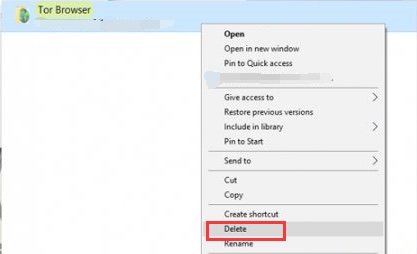
Step 4. Empty the Recycle Bin.
Step 5. Press Win + R, type %AppData%, and press Enter.
Step 6. Check for any Tor Browser-related folders and delete them if present.
Step 7. Remove any desktop or Start menu shortcuts associated with Tor Browser.
Tip: If you plan to reinstall Tor Browser later, consider backing up bookmarks or important configuration files before deleting the folder.
Method 2. How to Uninstall the Tor Browser Using IObit Uninstaller
If you want to uninstall Tor Browser completely without leaving behind residual files, IObit Uninstaller is the best choice. This professional uninstaller is designed not only to remove the Tor Browser itself but also to scan for leftover files, folders, registry entries, and Tor Browser-related data that Windows' default uninstaller may miss.
Steps to Uninstall Tor Browser with IObit Uninstaller:
Considering that regular uninstall methods might leave behind remnants that might hurt your computer or clutter your system, we recommend you force uninstall it to remove its remnants completely. Here are the steps.
Step 1. Download and launch IObit Uninstaller on your computer.
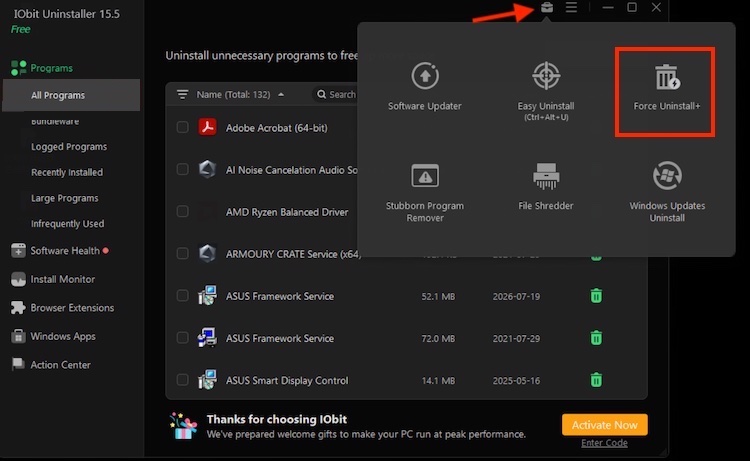
Step 2. Click the Toolbox icon in the upper right corner and then select Force Uninstall to continue.
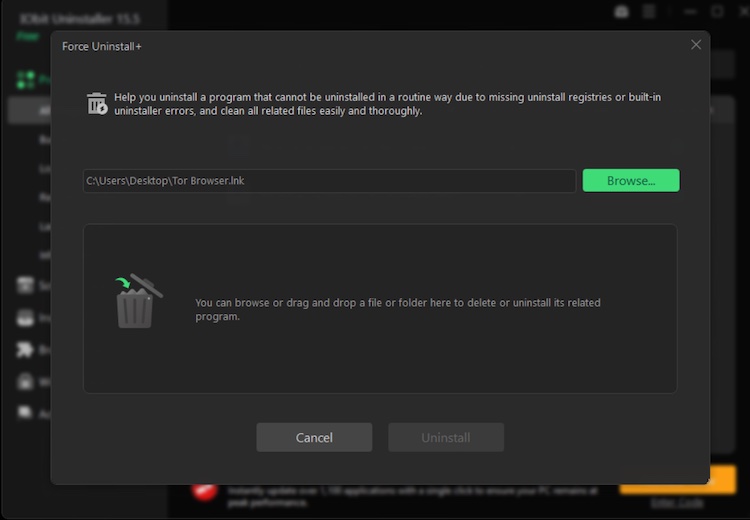
Step 3. Drag and drop your Tor Browser here or click Uninstall to remove Tor Browser and its leftover files and registry entries.
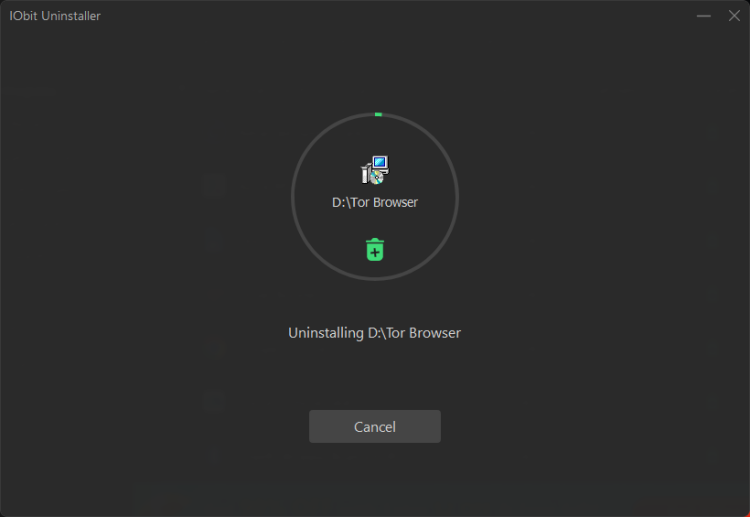
 Step 4. Wait for the uninstallation process to complete, then restart your PC.
 Key Features of IObit Uninstaller
One-Click Scan and Delete Unwanted Programs
Since Tor Browser may not be listed among standard Windows apps, IObit Uninstaller can help find its installation files and simplify the removal process.
Force Uninstall Stubborn or Damaged Programs
If Tor Browser won’t uninstall normally or related processes are still running, Force Uninstall helps remove stubborn program files and associated components. This also applies to force uninstall program Windows 11.
Automatic Leftover Cleanup to Free up More Space
After removing Tor Browser, scan for leftover files, registry entries, cached data, configuration files, and hidden folders to achieve a more thorough cleanup.
Secure File Shredder to Erase Unwanted Tor Browser Files
Permanently erase unwanted Tor Browser files and privacy-related data, making deleted information much harder to recover with standard data recovery tools.
Batch Uninstall and Bundled Software Cleanup
Remove multiple unwanted programs at once and clean up associated components, plug-ins, or bundled software for faster and more convenient PC maintenance. If needed, you can also uninstall other browsers. For example, uninstall Microsoft Edge.
Create a System Restore Point Before Uninstalling
Create a system restore point before making major changes, giving you an added recovery option if important system files or settings are accidentally affected.
IObit Uninstaller Free
- Complete forced uninstallation for stubborn programs.
- Uninstall a batch of programs at once.
- Scan and remove leftover files, folders, and registry entries.
- Support the management of Universal Windows Platform apps.

Method 3. Delete Leftover Tor Browser Files
Removing Tor Browser doesn’t always clear everything, as leftover files and folders can remain on your computer. These leftovers can include user data, cached files, shortcuts, and registry entries. Removing them helps free up disk space and ensures a cleaner system, especially if you plan to reinstall the browser later.
Step 1. Press Win + E to open File Explorer.
Step 2. Navigate to the following locations, if applicable:
Step 3. Search for folders named Tor Browser or Tor.
Step 4. Delete any related folders you find.
Step 5. Empty the Recycle Bin.
Step 6. Restart your computer to complete the cleanup.
Method 4. How to Remove Tor Browser Using Command Prompt
Since Tor Browser is largely self-contained on Windows, Command Prompt can remove it by deleting its installation folder. This is folder removal, not a conventional Windows uninstall. This method is useful if you can't delete the installation folder because of file permission issues or if you prefer using command-line tools.
Step 1. Close Tor Browser completely. If it is still running, open Task Manager with Ctrl + Shift + Esc and end Tor-related processes before continuing.
Step 2. Search Command Prompt from the Start menu and select Run as administrator.
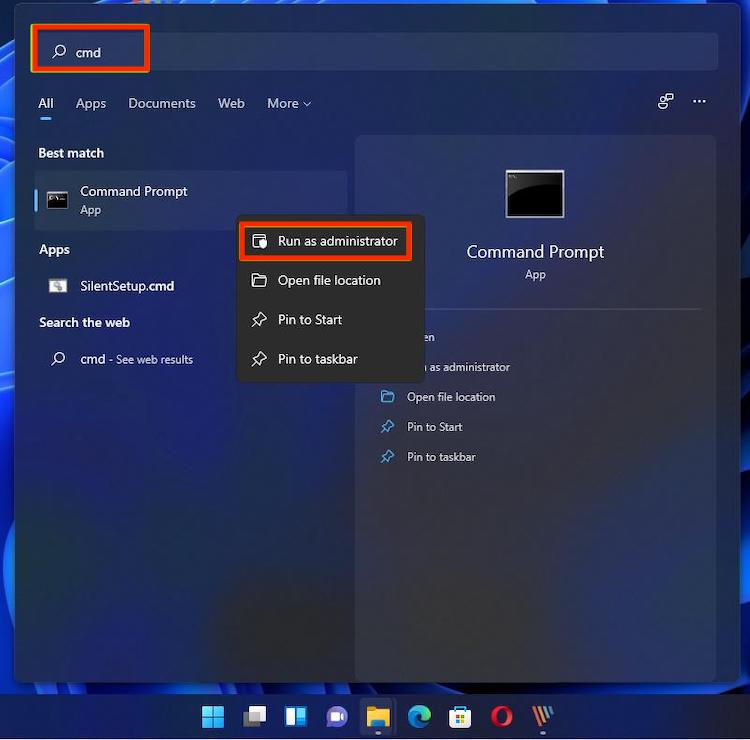
Step 3. First, find the exact Tor Browser folder in File Explorer. Then enter the following command, replacing the example path with the actual folder location:
rmdir /s "C:\path\to\Tor Browser"
Press Enter, then type Y if Windows asks for confirmation.
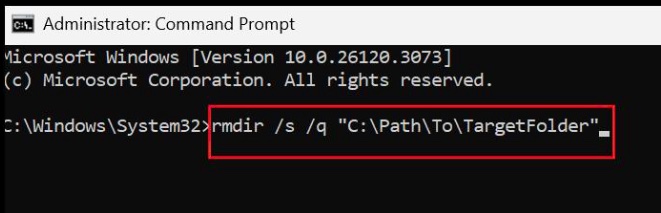
Step 4. Check File Explorer to verify that the folder has been removed.
Tip: Double-check the folder path before pressing Enter. rmdir /s deletes the specified directory tree rather than sending it to the Recycle Bin. Do not use it on a broad path such as C:\, C:\Users, or any system folder.
Method 5. Force Uninstall Tor Browser on Windows 11
If Tor Browser won't uninstall because it's corrupted, missing files, or displays an error message, you may need to force uninstall program. Because Tor Browser normally doesn’t register with Windows 11’s standard uninstall system, “force uninstall” usually means stop its running processes, then remove its installation folder manually.
Step 1. Press Ctrl + Shift + Esc to open Task Manager.
Step 2. Locate any Tor Browser or Firefox processes.
Step 3. Right-click each process and select End task.
Step 4. Try uninstalling Tor Browser again using IObit Uninstaller.
Step 5. If the uninstall still fails, restart Windows and repeat the process.
Tip: IObit Uninstaller's Force Uninstall feature can automatically remove stubborn applications and their leftovers when the standard Windows uninstaller fails.
Method 6. Reinstall Then Uninstall Tor Browser
If important uninstalled files are missing or damaged, reinstalling Tor Browser before removing it again can restore the necessary components. This method often fixes uninstall errors caused by incomplete installations.
Step 1. Download the latest version of Tor Browser from the official website.
Step 2. Install it in the same location as the existing copy.
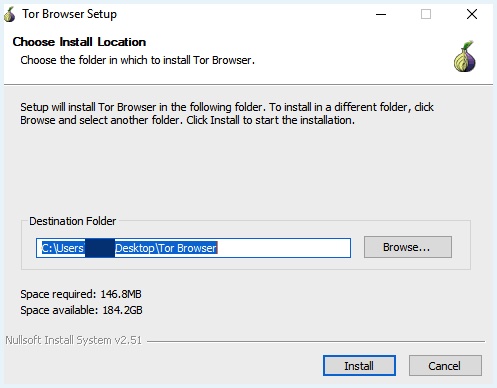
Step 3. Restart your computer.
Step 4. Uninstall Tor Browser using IObit Uninstaller.
Step 5. Remove any remaining files using the methods above.
Tip: This approach is especially effective when Windows reports that required uninstall files are missing.
Conclusion
Now you know how to uninstall Tor Browser using Windows' built-in tools and more advanced methods. Whether you use Windows Settings, manually remove leftover files, or choose the best uninstaller for Windows 11 - IObit Uninstaller for a complete cleanup, each method can help you safely remove Tor Browser. If you frequently uninstall software, IObit Uninstaller makes the process faster by removing stubborn programs and cleaning leftover files automatically.