Google Drive is one of the most popular cloud storage services, making it easy to sync files across multiple devices. However, there are plenty of reasons you may want to remove it. Perhaps you're switching to another cloud platform, troubleshooting sync issues, or simply looking to free up system resources.
How do I remove Google Drive? The good news is that uninstalling Google Drive doesn't delete the files stored in your Google account. It simply removes the desktop application and stops file synchronization. In this guide, you'll learn how to remove Google Drive from PC safely and completely, clean up leftover files, and solve common uninstall problems.

Remove Google Drive from PC: What to Do in Advanced?
Before you learn how to uninstall Google Drive for Desktop, it's worth taking a few minutes to prepare. This helps prevent sync conflicts and ensures you don't accidentally lose locally stored files.
Stop File Syncing
First, make sure all important files have finished syncing. Open Google Drive, click the Drive icon in the system tray, and confirm there are no files waiting to upload.
Disconnect Your Google Account
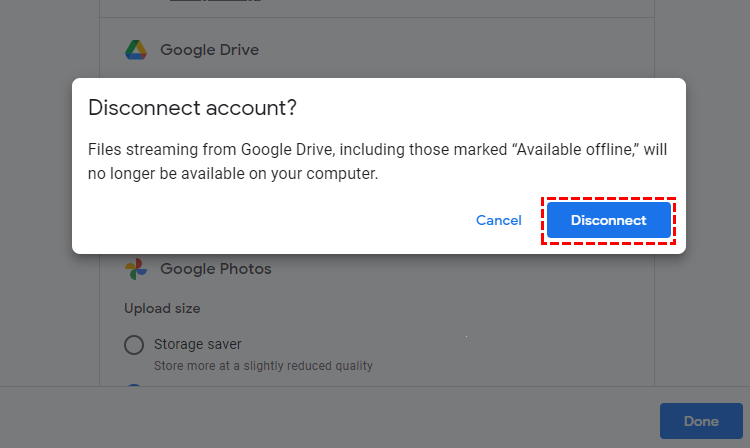
Disconnect your Google account before uninstalling. Open Preferences > Settings, then choose Disconnect account. This stops future synchronization but doesn't affect the files stored in Google Drive online.
Delete Files You Don’t Need
Finally, if you have offline copies of files that you no longer need, you can delete them after confirming they're safely stored in the cloud.
Taking these simple steps makes the removal process much smoother. You can now safely and easily remove Google Drive from PC by following the steps below.
The Fastest and Easiest Way to Remove Google Drive Completely
Windows' built-in uninstaller removes the main application, but it often leaves behind cache files, empty folders, registry entries, and startup items. Over time, these leftovers can clutter your system. If you'd like to remove Google Drive thoroughly without manually searching for residual files, IObit Uninstaller offers a much easier solution.
With a single click, it uninstalls Google Drive and automatically scans for leftover files, folders, registry entries, and temporary data that Windows typically misses. Its Powerful Scan feature helps ensure the software is removed cleanly, while Force Uninstall can deal with damaged or stubborn programs that refuse to uninstall normally.
Besides removing Google Drive, this best uninstaller for Windows 11 also supports batch uninstalling multiple applications, cleaning software leftovers, and managing browser extensions, making it a useful tool for keeping your PC organized and running efficiently.
IObit Uninstaller Free
- Complete forced uninstallation for stubborn programs.
- Uninstall a batch of programs at once.
- Scan and remove leftover files, folders, and registry entries.
- Support the management of Universal Windows Platform apps.

How do I remove Google Drive with IObit Uninstaller:
Step 1. Download and install IObit Uninstaller from the official download link.
Step 2. Launch the program, and you’ll see a list of all installed software. Find Google Drive in the list. Click the Uninstall button.
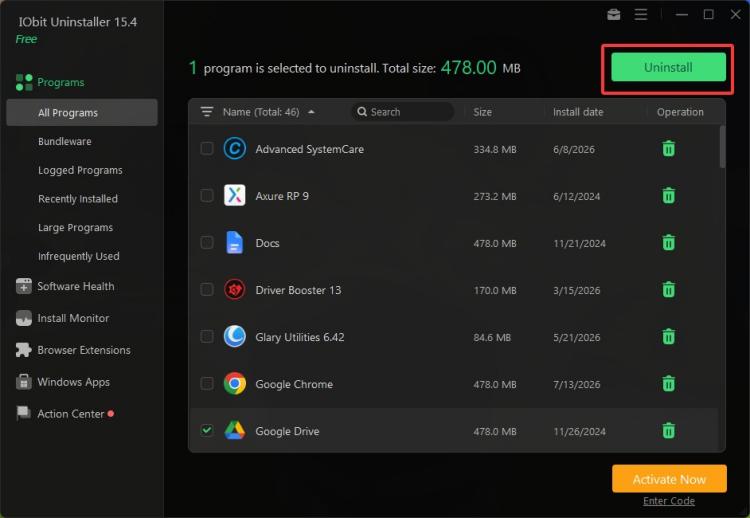
Step 3. The tool will automatically scan for any leftover files and registry entries. Confirm the cleanup when prompted.
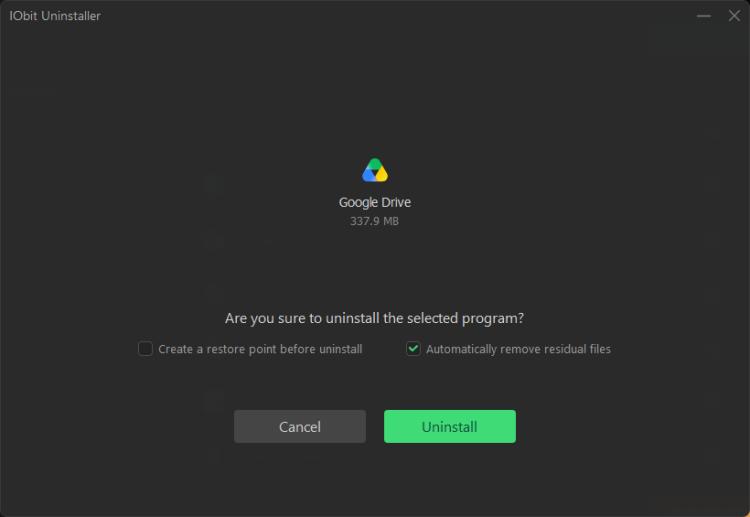
Highlight features of IObit Uninstaller:
One-click uninstall of Google Drive and other unwanted programs, such as remove Norton from PC.
Automatically scans and removes leftover files, folders, and registry entries after uninstalling.
Supports Force Uninstall for corrupted or stubborn applications that won't uninstall normally.
Batch uninstall multiple programs to free up disk space more efficiently.
Helps keep Windows clean by removing software residues that can affect system performance.
User-friendly interface suitable for beginners to perform easy uninstallation.
How to Remove Google Drive with Windows Built-in Tool
How do I uninstall an app on Windows with its own tool? If you prefer not to install additional software, Windows provides a straightforward way to remove Google Drive.
Method 1: Use Windows Settings
Step 1. Close Google Drive if it's currently running.
Step 2. Press Windows + I to open Settings.
Step 3. Go to Apps > Installed Apps (or Apps & Features on Windows 10).
Step 4. Locate Google Drive in the application list. Click Uninstall, then follow the on-screen instructions.
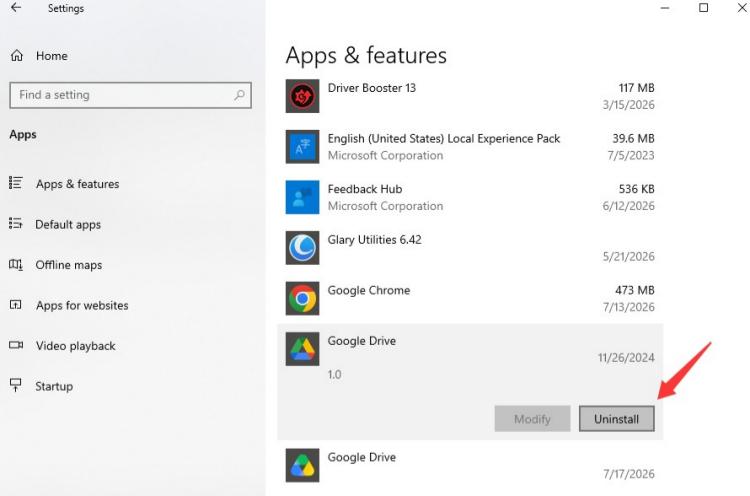
Method 2: Use Control Panel
Step 1. Open Control Panel.
Step 2. Select Programs and Features.
Step 3. Find Google Drive. Right-click it and choose Uninstall.
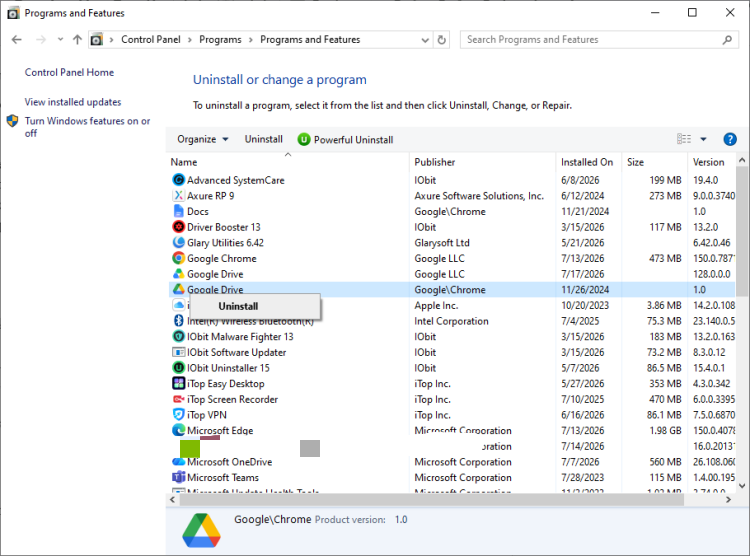 After the uninstall finishes, consider deleting leftover folders located in AppData or the Google Drive installation directory if they remain. Empty the Recycle Bin afterward to recover disk space. Following these steps is the standard way for anyone wondering how to uninstall Google Drive from PC.
How to Uninstall Google Drive from Mac
Uninstalling Google Drive on a Mac is a bit different—and it takes more than just dragging the app to the Trash. Here’s how to do it properly.
Step 1. Similarly, close the Google Drive application and disconnect your account.
Step 2. Open Finder and go to the Applications folder. Find Google Drive in the list. Drag it to the Trash on your Dock, or right-click and select Move to Trash.
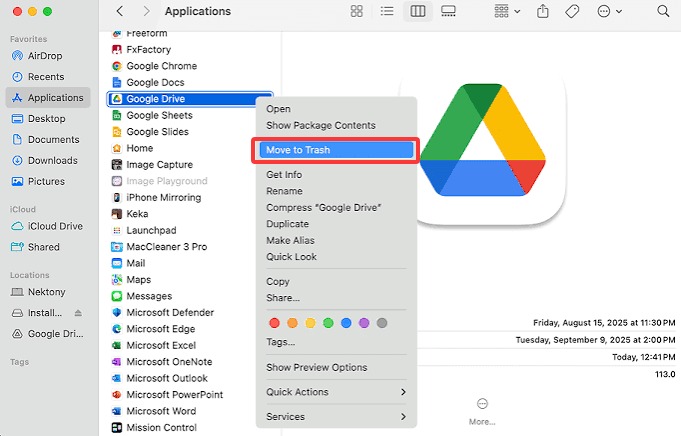
Step 3. Empty the Trash to complete the deletion.
If you want a cleaner removal, you can also delete related support files stored in your user Library, such as those under Application Support, Caches, and Preferences. These files mainly contain cached data and configuration settings.
Can't Uninstall Google Drive from Desktop? Try These Fixes
Sometimes Google Drive refuses to uninstall normally. If that happens, don't worry—it's usually easy to resolve.
Google Drive is still running
If Windows reports that the app is in use, open Task Manager, locate any Google Drive processes, and click End Task before trying again. On macOS, use Activity Monitor to force quit the application.
Permission denied
Try running the uninstall process as an administrator. If you're using a work or school computer, administrative permissions may be required.
The uninstall keeps failing
Restart your computer and try again. If the problem persists, boot Windows into Safe Mode or use a professional uninstaller like IObit Uninstaller, which can remove corrupted or incomplete installations with its Force Uninstall feature.
Q&A: How to Remove Google Drive from PC
Does uninstalling Google Drive delete my cloud files?
No. Removing the application only stops syncing and removes the desktop client. Your files remain safely stored in your Google Drive account.
Can I reinstall Google Drive later?
Absolutely. You can download the latest version from Google's official website and sign back into your account whenever you need it.
How do I stop syncing without uninstalling Google Drive?
Open Google Drive, go to Settings, and either Pause syncing or disconnect your account. This keeps the application installed while stopping synchronization.
Can I delete the local Google Drive folder after uninstalling?
Yes, but only after confirming that everything important has already been uploaded to the cloud. Deleting the local folder permanently removes those files from your computer.
Conclusion
Your problem, “how do I remove Google Drive,” can be easily solved. Whether you're replacing Google Drive with another cloud storage service or simply cleaning up your PC, removing it is a straightforward process. Start by stopping synchronization and disconnecting your account if necessary, then uninstall the application using Windows or macOS.
If you want to remove Google Drive from PC completely—including leftover files, folders, and registr`y entries—IObit Uninstaller provides the quickest and most convenient solution. It saves time, reduces manual cleanup, and helps keep your system tidy long after Google Drive has been removed.