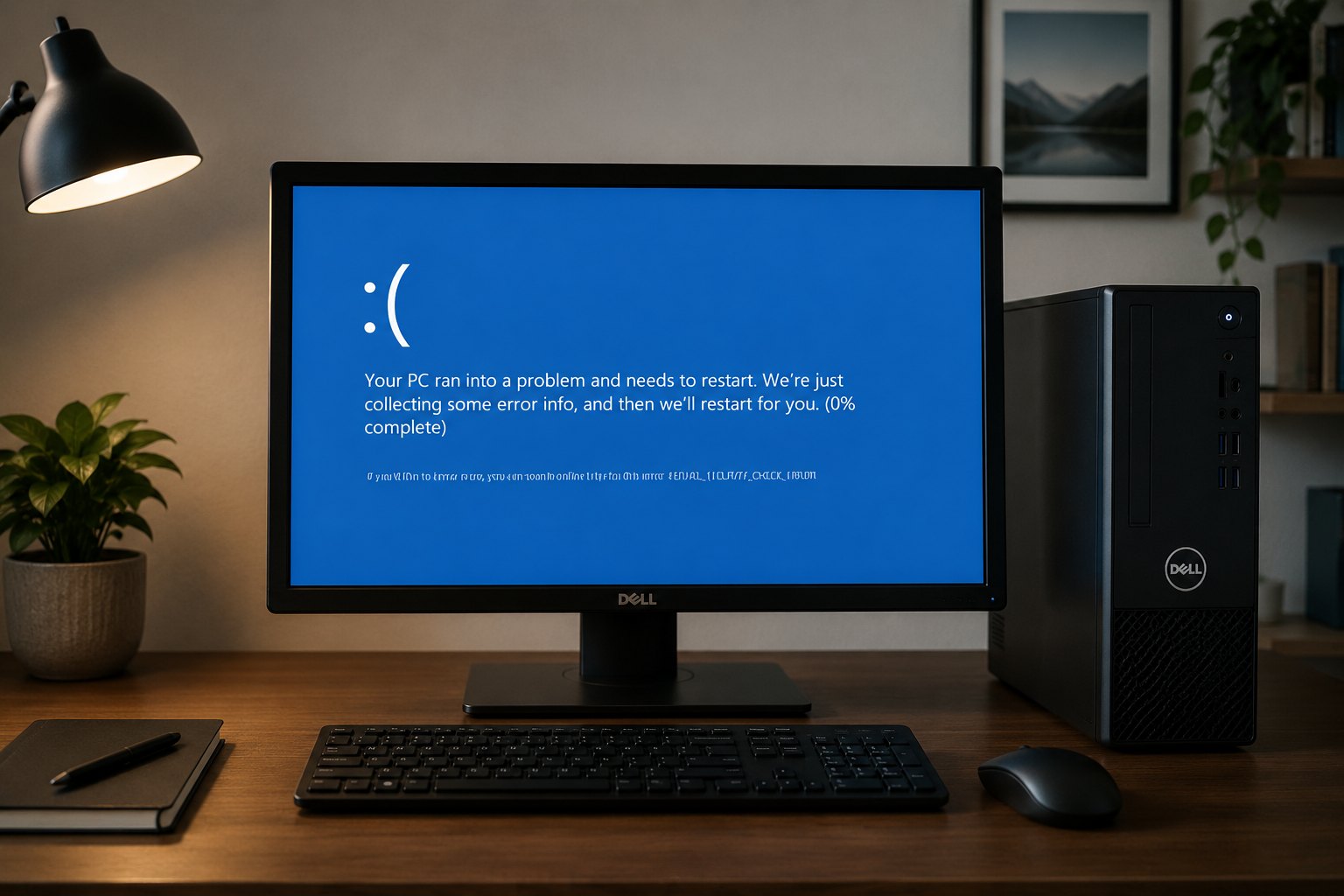
It is a common perception that you need expensive antivirus tools to clear your system, but that’s not the case. You can use Windows because there are many free tools available, such as Microsoft Defender, Command Prompt, and Safe Mode. However, some people don’t know how to remove virus without antivirus. This article includes the easiest steps to clean your PC. If these steps still don’t work because of the advanced viruses, reliable antivirus software is still needed.
How to Remove Virus Without Antivirus? Scan with Microsoft Defender Offline
One of the easiest ways to learn how to remove virus without antivirus is when you use Microsoft Defender Offline. This will scan your computer even before Windows fully starts. It’s important because some viruses hide when Windows is fully running, so the offline scan helps detect them even if the normal scan misses them.
Step 1: Open Windows Security
Open the Start menu and go to Settings. Go to Update & Security and choose Windows Security. It will help access the built-in protection tools.
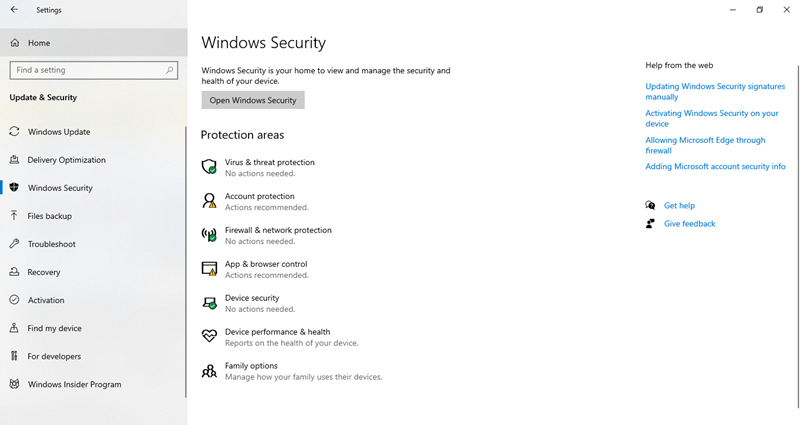
Step 2: Choose Virus & Threat Protection
Choose Virus & Threat Protection from the options. It will help you scan the computer for malware and manage different security settings.
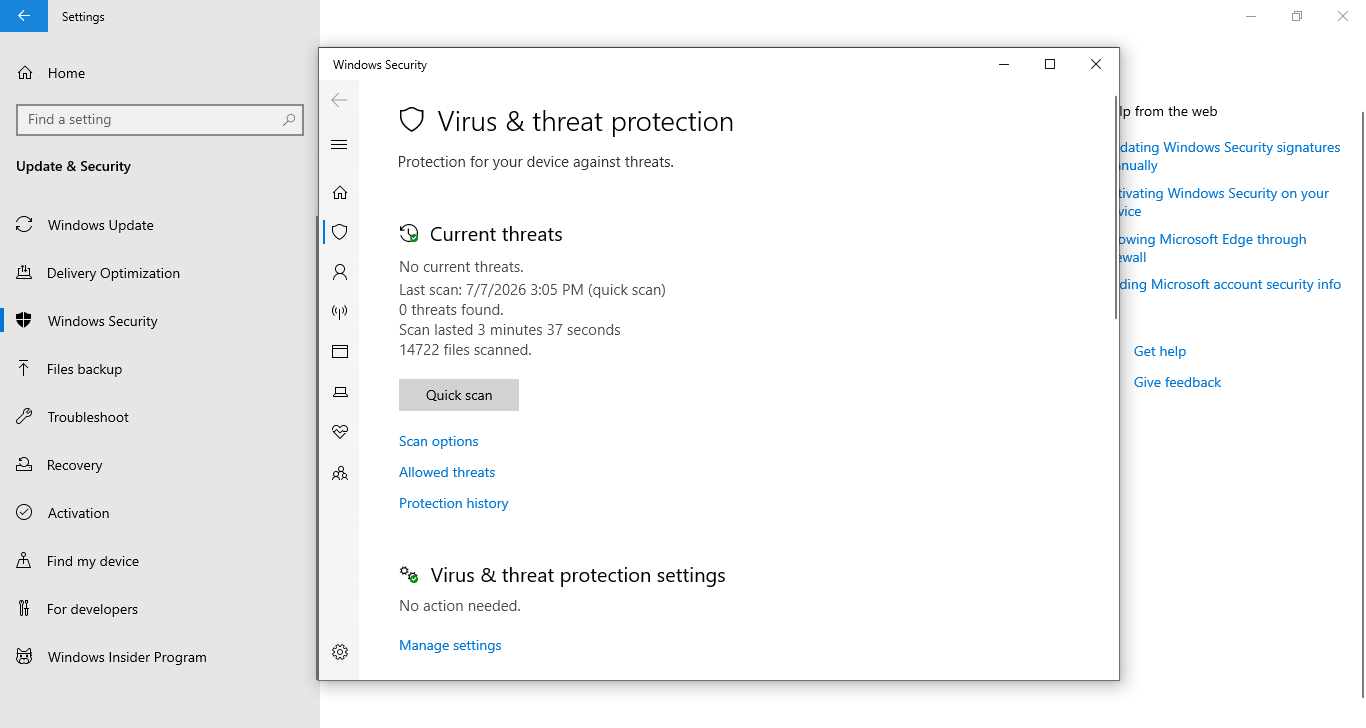
Step 3: Select Microsoft Defender Offline Scan
Tap on the Scan options and choose Microsoft Defender Offline Scan. It will run before Windows starts operating. It will help detect the hidden threats.
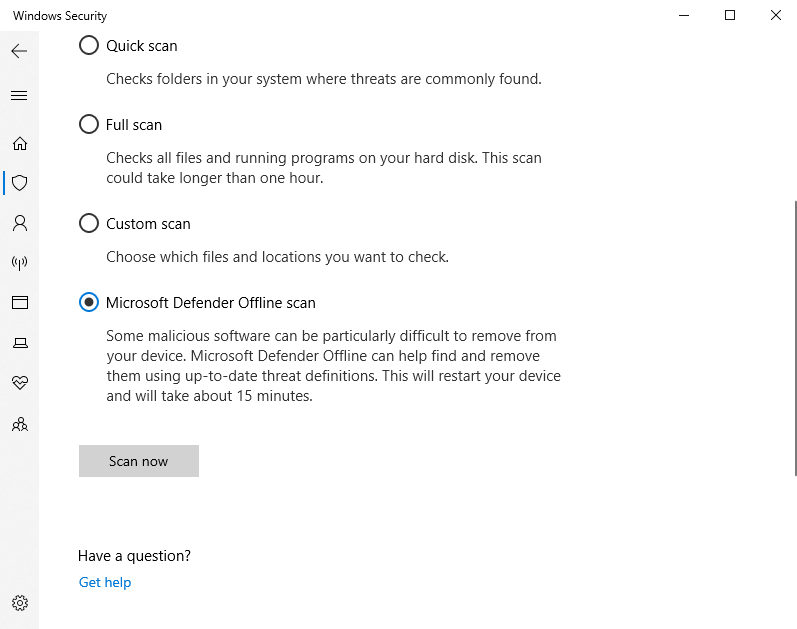
Step 4: Start the Offline Scan
Click on the Scan now button. This will restart your computer automatically and start the offline scan. Make sure you give it time to complete the scan.
This is a good option for basic protection, but there are limits. This is because the new malware tends to show up every day, and the virus database by Microsoft won’t be able to detect the threats quickly. For example, it won’t be able to detect advanced viruses, ransomware, and rootkits.
If Microsoft Defender is unable to clean your computer completely, you should use another antivirus solution for a deeper scan. This is because the dedicated malware removal tools can detect more threats and remove the hidden infections. For this purpose, you check out the best malware removal solutions, as they will help improve the computer's security.
How to Remove Virus Without Antivirus Using Command Prompt?
Many people ask how to remove virus without antivirus using command prompt. For all those people, Command Prompt is the built-in tool on Windows that helps you control your computer with the help of text commands. It will help identify hidden files and remove simple virus files from local storage or USB drives. CMD is quite powerful, but it is recommended for experienced people. This is because typing the wrong command can actually delete important files or mess with the settings.
Step 1: Open Command Prompt as Administrator
The first step is to press Windows and R button and type cmd. Then, press the Ctrl, Shift, and Enter buttons together. Click on the Yes button when the User Account Control window shows up.
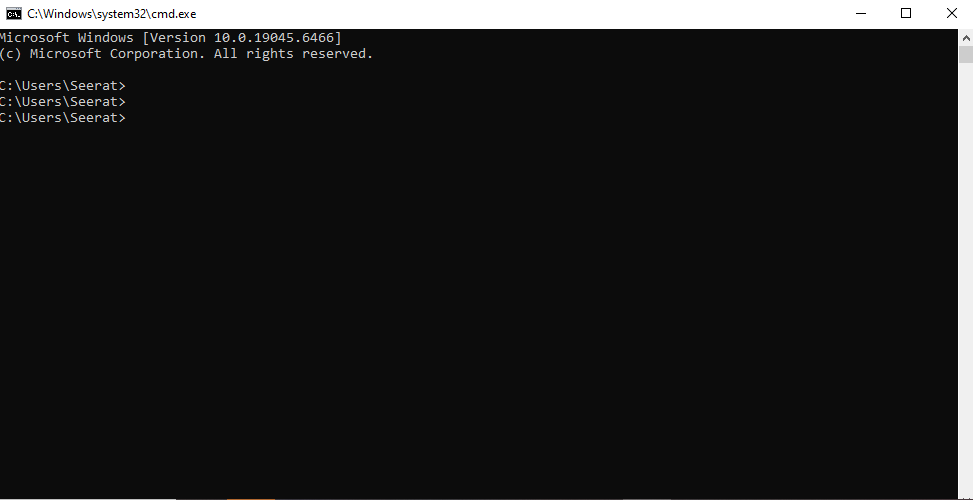
Step 2: Go to the Infected Drive
Type the drive letters with infected files, such as D or E. Then, just press the Enter button.
Step 3: Run the Attrib Command
Type this command and press Enter: attrib -h -r -s /s /d *.*
This will remove the system, read-only, and hidden parts of the files. This means the hidden files will be visible for inspection.
Step 4: Delete Suspicious Files
You’ve to review the files carefully and delete the ones that you think are malicious. Make sure you don’t delete the personal or Windows files.
This process is also known as remove virus using CMD Windows 10. However, you can follow the same steps on Windows 11, but there are some downsides of using it, such as:
It cannot detect every type of malware.
It does not scan your whole system automatically.
It cannot remove ransomware or advanced spyware.
You must know which files are dangerous before deleting them.
A wrong command may delete important Windows files.
Many people search how to remove virus without antivirus using command prompt because they want a free solution. We know that CMD can help remove the simple hidden files, but it cannot replace antivirus systems.
What Default Virus Removal Windows 11/10/7 Can Offer?
There are many other tools available for Windows users (yes, in addition to Command Prompt and Microsoft Defender) which can help remove the viruses manually. They are easy to access and completely free, but it’s important to mention that they are suitable for small issues only. They cannot handle serious infections.
When it comes to Safe Mode, it means Windows will start only with essential services and drives. This is because some viruses cannot run when your computer is in safe mode, so it will be easier to remove them.
You can use the Task Manager to find programs that are using too much memory or CPU that you cannot recognize. When you end these processes, the malware will stop running but it will be temporary.
You’ve to open Apps from Settings and remove all the software or apps that you didn’t install. This is because some malware enters the computer in the form of fake software.
There are times when temporary files can store malware. You’ve to open the Storage Sense and Disk Cleanup and remove all the unnecessary temporary files. It will delete the unwanted data and free up the space.
You should run a full scan instead of a quick scan. This will help you check the hard drive for known threats. If you are looking for how can I delete virus from my computer without antivirus Windows 11, this is one of the safest built-in methods to try first.
If you are wondering how can I delete virus from my computer without antivirus Windows 10, you can use the Windows Security Full Scan. It works in Windows 10 as well.
If the computer got an infection recently, you can use System Restore. It will help you return your system to the old point before the computer was infected. However, it will only work if the restore points are available.
Are these methods enough?
The Windows tools can remove some viruses, but they cannot stop every threat out there. This is because the advanced malware will hide in your system, steal your passwords, and reinstall automatically after restarting.
If you want to know how to remove virus without antivirus, these built-in methods are good starting points. However, you should still use the full disk scan with a good security software. Also, check out the guide on how to remove virus from PC Windows 11. It will help you understand complete virus removal.
When Things Get Serious, You Still Need Antivirus
The Windows tools are good, but they don’t stop every virus. If your computer has a serious infection, the built-in features won’t be enough. For this reason, you should choose the antivirus app. With this section, we are sharing the threats that Windows cannot help with.
Ransomware locks your files and asks you to pay money to get them back. Once your files are encrypted, Windows cannot always recover them. A good antivirus will be able to block ransomware before it causes any damage.
Some viruses hide deep inside Windows. They can return every time you restart your computer. Remember that even if you know how to remove virus without antivirus, these threats will still be on the PC.
As the name suggests, they will collect your usernames and passwords from different apps and browsers. That’s because they will send out your personal information to hackers.
Banking Trojans
They will steal the information related to online banking. They will see what you type and change the sites to trick you. This means they will be able to see your login details too.
These files will spy on you to check your activity. This means it will record what you are typing, track the websites you are visiting, and collect your personal files. The spyware isn’t usually detected by the built-in tools.
Sometimes a computer has more than one virus. One infection may download another, making the problem much worse. Removing only one virus may leave several others behind.
If your computer crashes often, runs very slowly, shows strange pop-ups, or keeps opening unknown programs, it is a sign that you need stronger protection. So, rather than using Windows, you should choose a good antivirus because Windows alone will not be enough. The antivirus apps offer deep scanning.
If you want to improve your computer's security before anything actually happens, this guide on how to protect your computer from viruses will help.
How to Full Scan Virus and Remove Them in One Click?
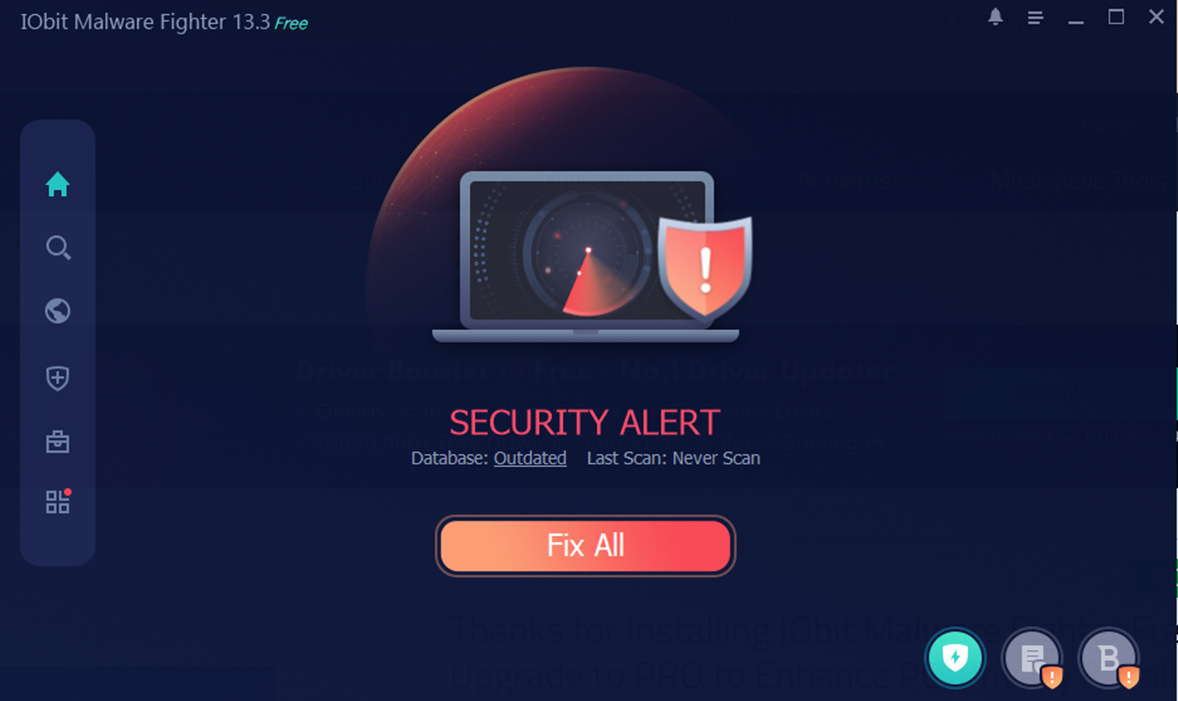
When the Windows built-in tools don’t work, you should use IObit Malware Fighter. This is because it will be able to scan the system and remove the threats within a few clicks. It provides protection against ransomware, detects malware, and offers real-time security. This will help keep the computer safe. You can opt for IObit Malware Fighter and install it.
Step 1: Download and Install IObit Malware Fighter
Visit the official IObit website and download IObit Malware Fighter. You will have to run the installer and follow the instructions on screen to complete the installation process. Then, click on the install button.
Step 2: Run a Full System Scan
Open the app and click on the Run Now button. It will help you check the computer for spyware, viruses, malware, ransomware, and other threats.Step 3: Review the Scan Results
You’ve to wait for a few minutes to complete the scan. There will be a list of threats and information related to risk levels.
Step 4: Remove All Detected Threats
Then, just click on the Fix All button and it will delete the threats from your system. If it asks, you should restart your PC.
Core Features for Virus Removal
Real-Time Malware Blocking: It will watch the computer all the time and block malware before it infects the files.
One-Click Threat Removal: It will delete all the threats with one click (you won’t have to delete them one by one).
Deep System Scan: Checks the hard drive to see if there is any hidden malware.
Ransomware Protection: Protects the important files from ransomware attacks by stopping the changes.
Daily System Protection
Browser Protection: Blocks dangerous websites to keep browsing safe.
Anti-Phishing Protection: Get a warning about fake websites that steal personal information and passwords.
USB Drive Protection: Scans the USB on its own to stop the viruses from spreading.
Privacy Protection (Anti-Spyware): Stops the spyware from accessing the personal details.
If you are looking for a free antivirus without ads, IObit Malware Fighter is worth considering because it offers important security features while keeping the interface simple and easy to use.
After using Windows tools and learning how to remove virus without antivirus, a full scan with dedicated security software gives you much stronger protection against both old and new threats.
Conclusion
Learning how to remove virus without antivirus is pretty useful. This is because Windows already has tools like Microsoft Defender, Safe Mode, and Command Prompt. They might be able to remove simple viruses and infections, but not enough for advanced malware. If you want something that works on advanced issues, you can use IObit Malware Fighter because it’s good for regular deep scans. It also means better virus detection and threat removal in one click.
IObit Malware Fighter Free
- Quick and deep system scanning throughout PC system.
- Smart defense against all malicious infestations.
- High-level security and privacy protection in real time.
- Leading anti-malware and anti-virus engines.