Malware rarely shows itself directly, but the warning signs are hard to ignore, such as unexpected slowdowns, strange pop-ups, or programs you don’t remember installing. Once these issues start stacking up, it quickly turns from a minor annoyance into something that affects both performance and personal data safety. In cases like this, knowing how to clean malware from PC becomes essential. The following content focuses on clear ways to identify the problem and deal with it effectively.
What Is Malware
Before learning how to remove suspicious programs or check for unusual activity, it helps to understand what malware actually is. Malware refers to malicious software designed to damage a system, steal information, or gain unauthorized access to a device. Common types of malware include:
Virus: A type of malware that attaches itself to files or programs and spreads when those files are opened or shared.
Trojan: A Trojan can create hidden backdoors, expose stored passwords, or allow attackers to gain remote control over the system.
Ransomware: A threat that locks files or the entire system and demands payment to restore access.
Spyware: Software that secretly monitors user activity, such as browsing habits, login credentials, or financial information.
Signs When Infected with Malware
Paying attention to unusual changes can make it easier to check for malware on PC devices before the problem becomes more serious.
Unknown apps appearing: Programs you never installed may suddenly show up on the desktop, taskbar, or app list.
Unusual data usage: A sudden spike in internet or background network activity can indicate malware sending data to external servers without permission.
Constant pop-ups: Excessive ads, fake security alerts, or browsers opening random websites are common warning signs of adware or browser hijackers.
Slow system performance: Slower-than-usual performance, especially during basic tasks, can be a warning sign that malware is quietly using up CPU, memory, or disk resources in the background.
Comprehensive Guide: How to Clean Malware from PC
Before trying to remove computer malware, it is important to isolate the system and inspect Windows carefully instead of deleting files randomly.
Step 1. Disconnect from the Internet
The first step is disconnecting the PC from the internet. This prevents malware from communicating with external servers, downloading additional threats, or sending out personal data. Turn off Wi-Fi, unplug the Ethernet cable, and disconnect unnecessary external devices.
Step 2. Enter Safe Mode to Check for Malware on PC
It is commonly used to check for malware on computer systems when normal scans fail or the PC becomes unstable.
For Windows 10 and Windows 11:
1. Open Settings > System > Recovery.
2. Under Advanced startup, select Restart now.
3. Go to Troubleshoot > Advanced options > Startup Settings on Windows PC. Click Restart.
4. Press 4 or F4 to enter Safe Mode.
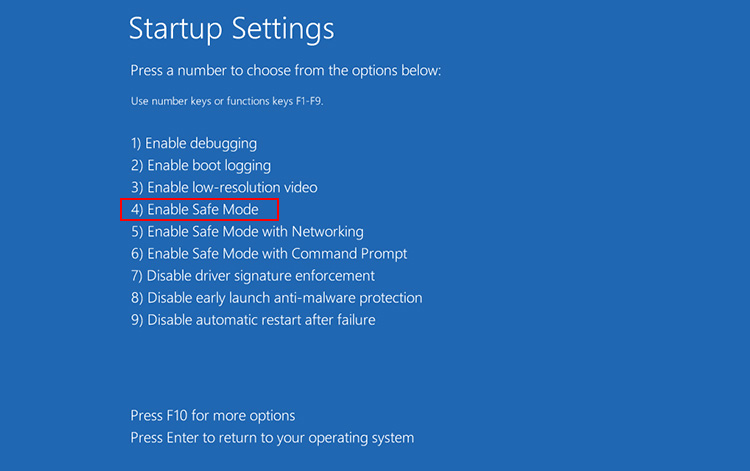
Once inside Safe Mode, run Windows Security or another trusted antivirus tool to check for malware on PC devices thoroughly.
Step 3. Check Event Viewer to Find Malware on PC
Event Viewer can help identify suspicious actions linked to malware infections.
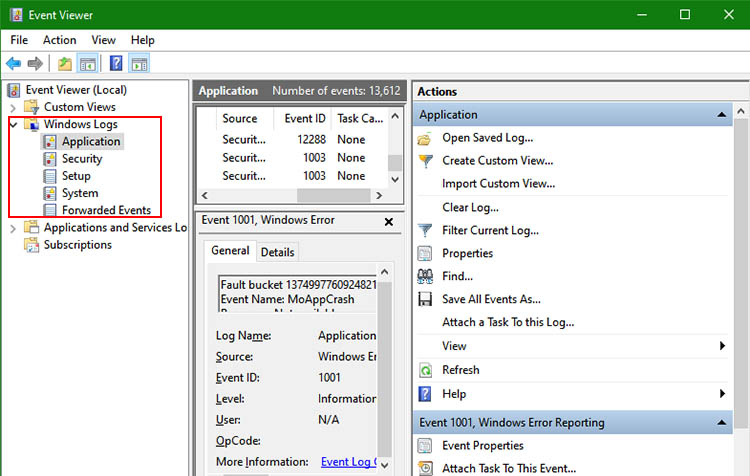
1. Type Event Viewer into the Windows search bar and launch the app.
2. Under Windows Logs, review categories such as System, Application, and Security.
3. Repeated error messages, failed login attempts, unknown processes, or unusual background activity may indicate hidden malware behavior. Reviewing these logs carefully can provide useful clues during the process of how to clean malware from PC systems safely and effectively.
Step 4. Download Professional Anti-Malware & Remove Computer Malware
While built-in Windows protection can detect many threats, deeper infections often require specialized software designed to remove hidden malware, spyware, ransomware, and browser-based attacks.
IObit Malware Fighter is a powerful anti-malware solution designed to deliver real-time threat blocking, ransomware defense, and in-depth system scanning for hidden infections. It is especially useful for users who need additional protection when trying to check for malware on computer systems that continue behaving abnormally after basic troubleshooting.
IObit Malware Fighter Free
- Quick and deep system scanning throughout PC system.
- Smart defense against all malicious infestations.
- High-level security and privacy protection in real time.
- Leading anti-malware and anti-virus engines.

1. On a clean computer, download the IObit Malware Fighter installer from the official website.
2. Copy the setup file to a USB drive. Connect the USB drive to the infected PC and install the software carefully.
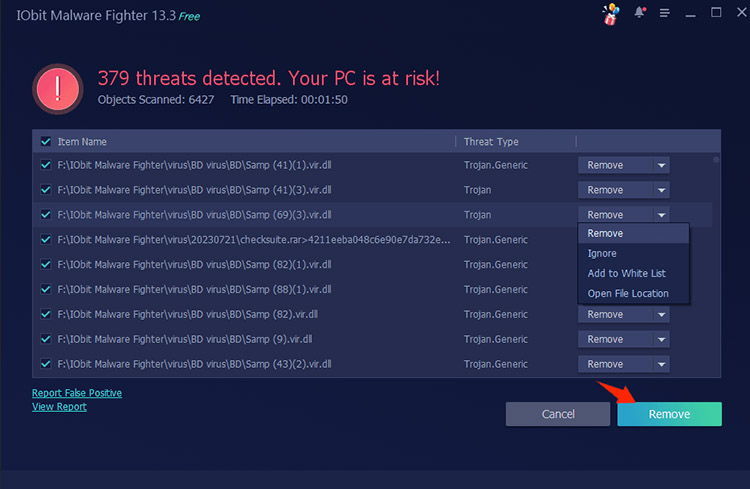
3. Choose a scan mode. A quick scan checks critical areas, while a full scan examines the entire system for hidden threats.
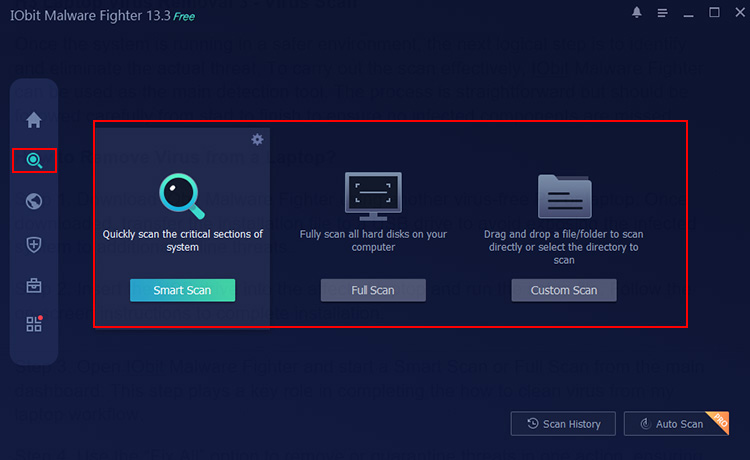
4. Once the scan finishes, review the detected items and select the repair or removal option to remove computer malware safely.
Step 5. Reset Browser & Restart
Restarting the browser helps clear temporary processes and ensures security changes take effect properly. Also, remember to block ads in Chrome or any other web browser you are using to prevent malware and scams.
3 Best PC Anti-Malware Worth Trying
This section focuses on reliable security tools that can strengthen your system defense and reduce the chance of reinfection. If you are still figuring out how to clean malware from PC, these solutions can serve as a practical follow-up to reinforce overall protection and stability.
IObit Malware Fighter - Check for Malware on PC with Triple Engines
Among the available options, IObit Malware Fighter is picked as a balanced Windows anti-malware tool that combines detection, prevention, and system protection in one package. Its strength lies in combining multiple layers of defense while keeping the interface simple enough for everyday use.
IObit Malware Fighter Free
- Quick and deep system scanning throughout PC system.
- Smart defense against all malicious infestations.
- High-level security and privacy protection in real time.
- Leading anti-malware and anti-virus engines.
Features:
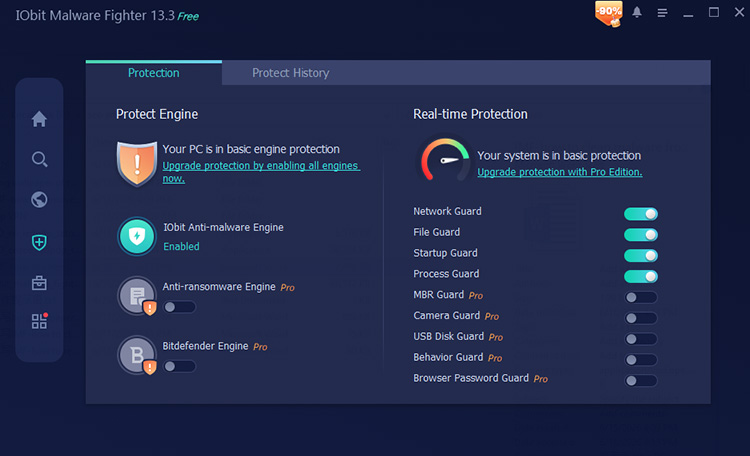
Triple Anti-Malware Engines Form a Solid Guard: The free antivirus software integrates self-developed scanning technology with well-established security engines, creating layered protection that improves detection accuracy while maintaining stable system performance during both quick and deep security checks.
On-Demand & Customizable Scanning Methods: IObit Malware Fighter offers Auto scans, smart scans, full system scans, and scheduled tasks, with bonus options like scanning specific folders, filtering large files, or excluding trusted ZIP archives for faster results.
Protect Your PC in Real-Time, Online & Local: It runs continuous monitoring across online browser activity, local system behavior, webcams, and external drives, stopping suspicious actions early before they can spread or harm files on the device.
Drawbacks:
Pricing: Free version available, with Pro version $19.95/year for 1 PC.
Malwarebytes - Remove Computer Malware with Expert Advice
If you're looking into how to clean malware from PC without having to deal with complicated security tools, Malwarebytes is often one of the first solutions users turn to. For people wondering how to find malware on PC devices, the best malware removal software combines traditional threat detection with several privacy and scam-prevention tools.
Features:
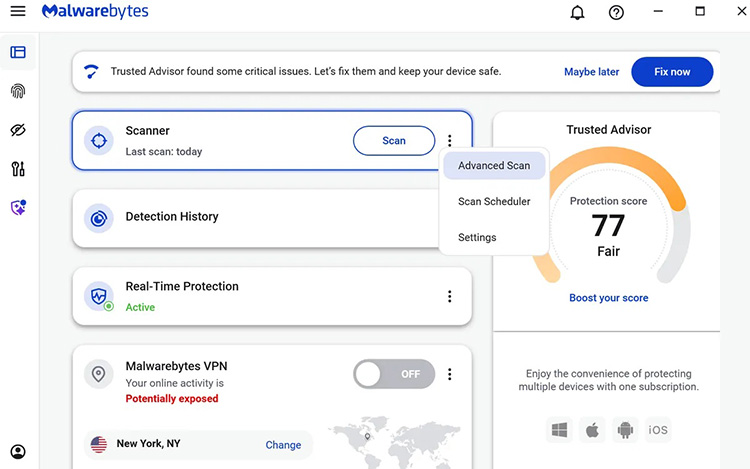
Provides personalized security recommendations based on vulnerabilities and risky settings detected on your device.
Blocks malware, ransomware, exploits, and malicious websites through multiple security layers working simultaneously.
Includes personal data exposure checks, AI Scam Guard, Windows privacy controls, and remote access monitoring.
Drawbacks:
Pricing: Starts at about $45/year.
McAfee - Malware Protection for Unlimited Devices
For households juggling multiple PCs, phones, and tablets, McAfee remains one of the few security suites built around broad device coverage rather than single-device protection. McAfee is also a good option for users researching how to search for malware on PC systems or learning how to clean malware from my computer after a suspicious download or phishing attempt.
Features:
Allows eligible plans to protect all compatible devices in a household under one subscription.
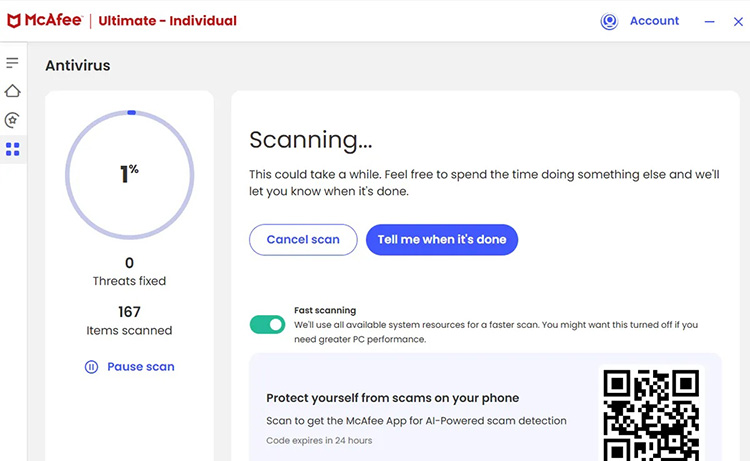
The scam detection feature flags phishing attempts, fake links, and potentially harmful messages to help users avoid online fraud.
Watches for exposed personal information and alerts users when sensitive data appears in risky locations online.
Drawbacks:
Pricing: Starts at about $50/year for unlimited-device plans.
FAQ about Malware Removal
Here are answers to some of the most common questions users ask when dealing with malware removal.
Q1: Where Can You Get Infected with Malware?
A1: Malware is commonly spread through phishing emails, fake software downloads, malicious advertisements, compromised websites, and pirated content.
Q2: How to Protect Against Malware?
A2: Make sure your operating system stays up to date, don’t open unfamiliar links, only install software from trusted official websites, and rely on well-known security tools for protection.
Q3: Does Resetting My PC Remove Malware?
A3: In many cases, a full system reset removes malware by deleting infected files and settings. However, some advanced threats may survive if infected files are restored.
Q4: Can Malware Steal My Personal Information?
A4: Yes. Certain types of malware are designed to collect passwords, banking details, browsing activity, and other sensitive information.
The Bottom Line
Knowing how to clean malware from PC systems is essential for protecting your files, privacy, and overall device performance. From built-in Windows tools to dedicated security software, there are several effective ways to detect and remove threats. For malware removal, real-time protection, and anti-ransomware defenses in one package, download IObit Malware Fighter and give your PC an extra layer of security against today's evolving threats.