

Kevin Hart
Kevin is an experienced editor focused on tech blog writing. Familiar with all kinds of PC software on the market. All the topics he chooses are aimed at bringing more benefits to users.
Expert in
PC Health Solution

All-in-one PC health solution: clean, optimize and secure

Comprehensive PC cleaning, optimization and protection

Keep drivers always up-to-date

More stable performance with less system crashes

Protect millions of computers against malware

Top computer security with full-round protection

Protect against viruses & boost PC performance
Automatically scan and update drivers.
Update game ready drivers for peak gaming performance.
Identify and fix various common of hardware issues.
Boost 30% of system performance for fast & smooth running.

Lower your LoL ping and eliminate delay in minutes. Discover the best tools, router settings, and Windows tweaks on how to reduce ping in League of Legends.

Kevin Hart


How to reduce ping in League of Legends? Nothing ruins a crucial team fight in League of Legends faster than high latency. When every millisecond counts for landing skill shots or flashing out of danger, a ping spike can mean the difference between victory and defeat.

Ping measures the time (in milliseconds) it takes for data to travel from your PC to Riot’s servers and back. High ping usually stems from hardware bottlenecks, driver issues, network congestion, or inefficient Internet Service Provider (ISP) routing. Below are two automated software solutions alongside advanced network optimization techniques on how to reduce ping in LoL.
Software tools perform best on a clean, optimized local network setup.
Wi-Fi signals are inherently prone to packet loss, wireless interference, and wall obstruction. Connecting your PC directly to your router with a Cat 5e or Cat 6 cable reduces jitter and flattens latency.
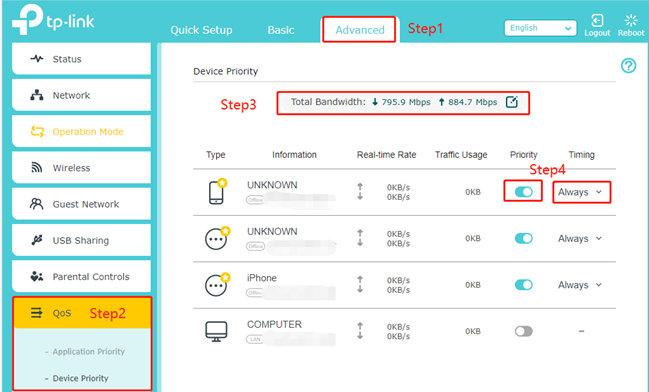
Most modern routers support Quality of Service (QoS). This setting prioritizes gaming data over general internet traffic (like video streaming or software downloads) across all connected home devices.
Type your router's default gateway (e.g., 192.168.1.1 or 192.168.0.1) into your browser.
Log into the administrative console.
Navigate to QoS / Traffic Management.
Add your PC or League of Legends as a High Priority rule.
Routers cache data and handle active connection tables that build up over time. Unplug your modem and router from power for 30 seconds once every few weeks to clear routing memory and re-establish fresh handshakes with your ISP.
| Fix Method | Target Area | Primary Benefit |
| Change DNS Servers | Network Protocols | Faster domain resolution and lower initial connection setup. |
| Flush DNS Cache |
Windows OS | Removes corrupted or outdated network IP mapping. |
| Riot Hextech Tool | Game Client | Repairs corrupted game installation files and config. |
Your ISP's default Domain Name System (DNS) server might be slow or prone to routing delays. Switching to faster public DNS addresses like Google DNS or Cloudflare improves lookup speeds.
Press Win + R, type ncpa.cpl, and hit Enter.
Right-click your active connection (Ethernet) and choose Properties.
Double-click Internet Protocol Version 4 (TCP/IPv4).
Select Use the following DNS server addresses and enter:
Cloudflare: Preferred 1.1.1.1 | Alternate 1.0.0.1
Google: Preferred 8.8.8.8 | Alternate 8.8.4.4
Click OK to apply.
Corrupted network cache leads to unexpected disconnects and latency spikes. You can clear this cache using Command Prompt commands:
Press the Windows Key, search for cmd, right-click it, and select Run as Administrator.
Input the following commands one by one, pressing Enter after each:
ipconfig /flushdns
ipconfig /release
ipconfig /renew
netsh winsock reset
Restart your PC to complete the network stack reset.
Adjusting internal game settings reduces CPU/GPU bottlenecks, ensuring system lag doesn't compound network delay.
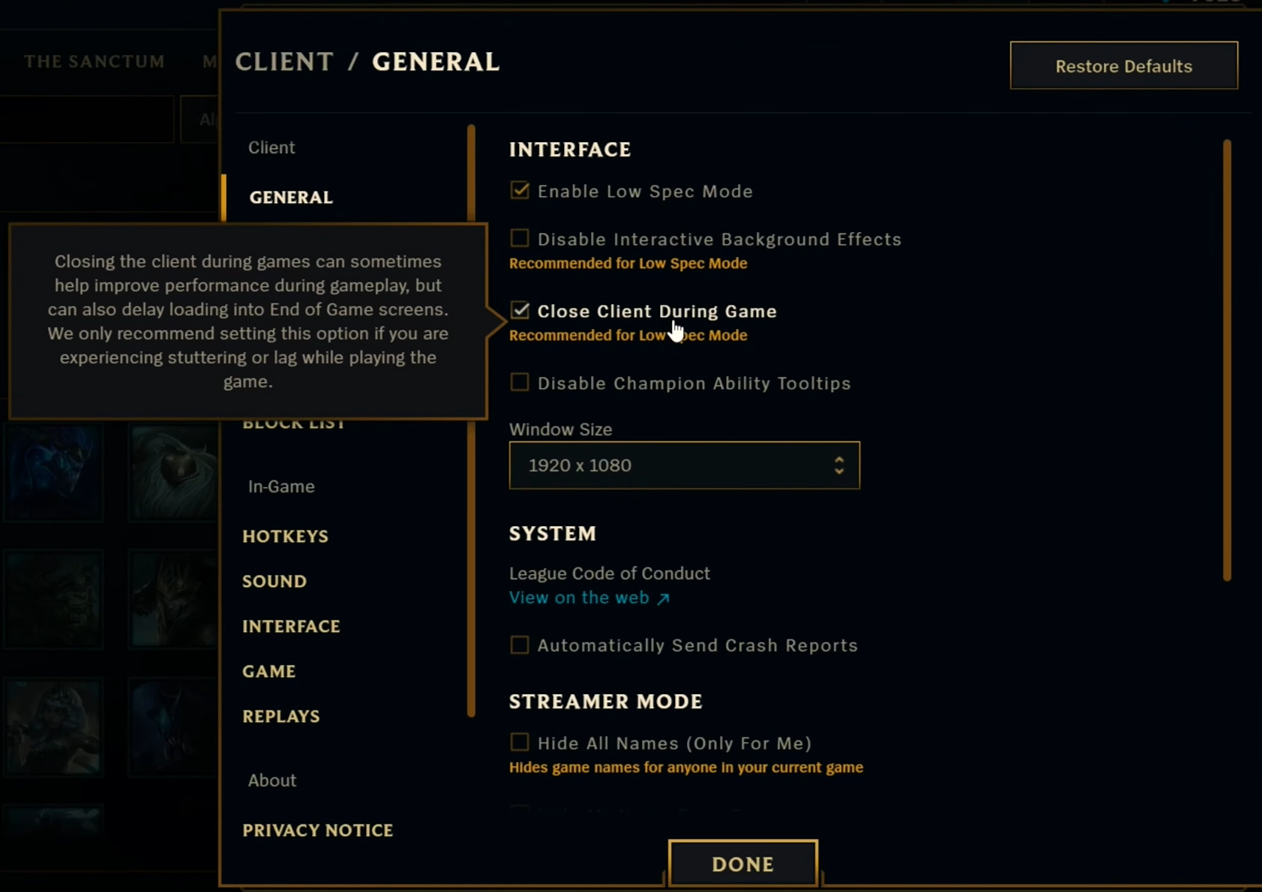
Enable Low Spec Mode: In the League client settings, tick Low Spec Mode and enable Close Client During Game to free up memory.
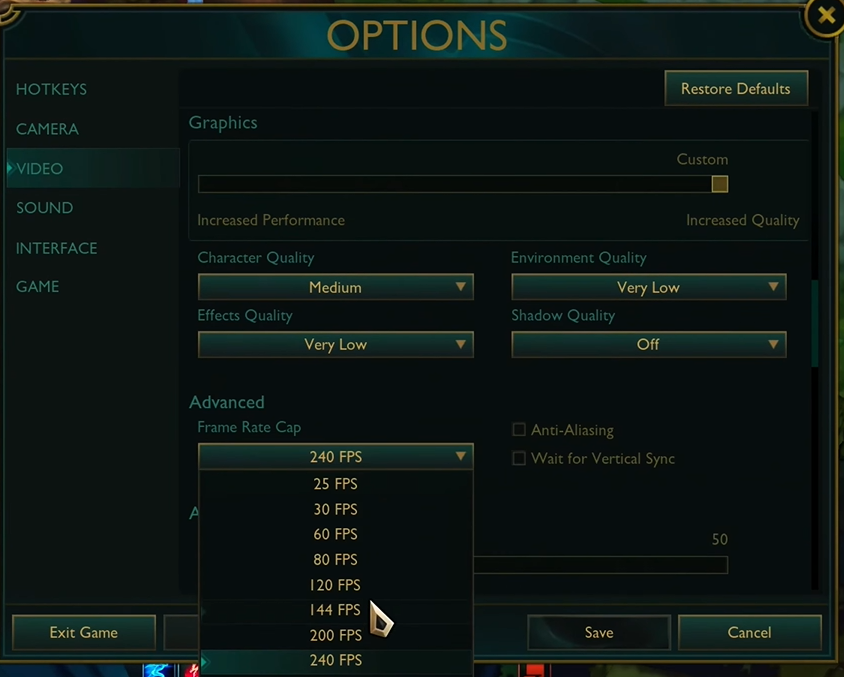
Toggle Frame Rate Cap: Match your frame rate to your monitor's refresh rate (e.g., 60Hz, 144Hz) to prevent CPU overhead from over-rendering frames.
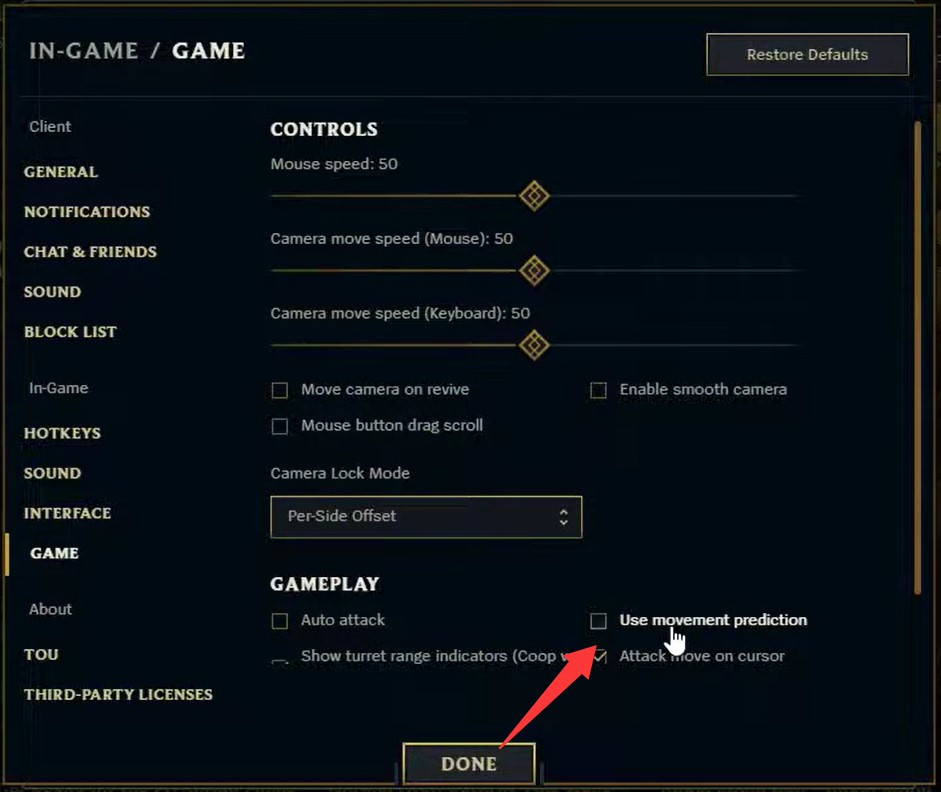
Turn Off Movement Prediction: Located under Game Settings in-game. On unstable connections, Movement Prediction can cause champion "rubber-banding" or desyncing.
Outdated network drivers can cause unstable packet transmission, leading to high latency and unexpected lag spikes. For how to improve ping in League of Legends, using Driver Booster to keep your network adapter updated ensures efficient communication between your OS and your network hardware.
1.Download and Install Driver Booster:
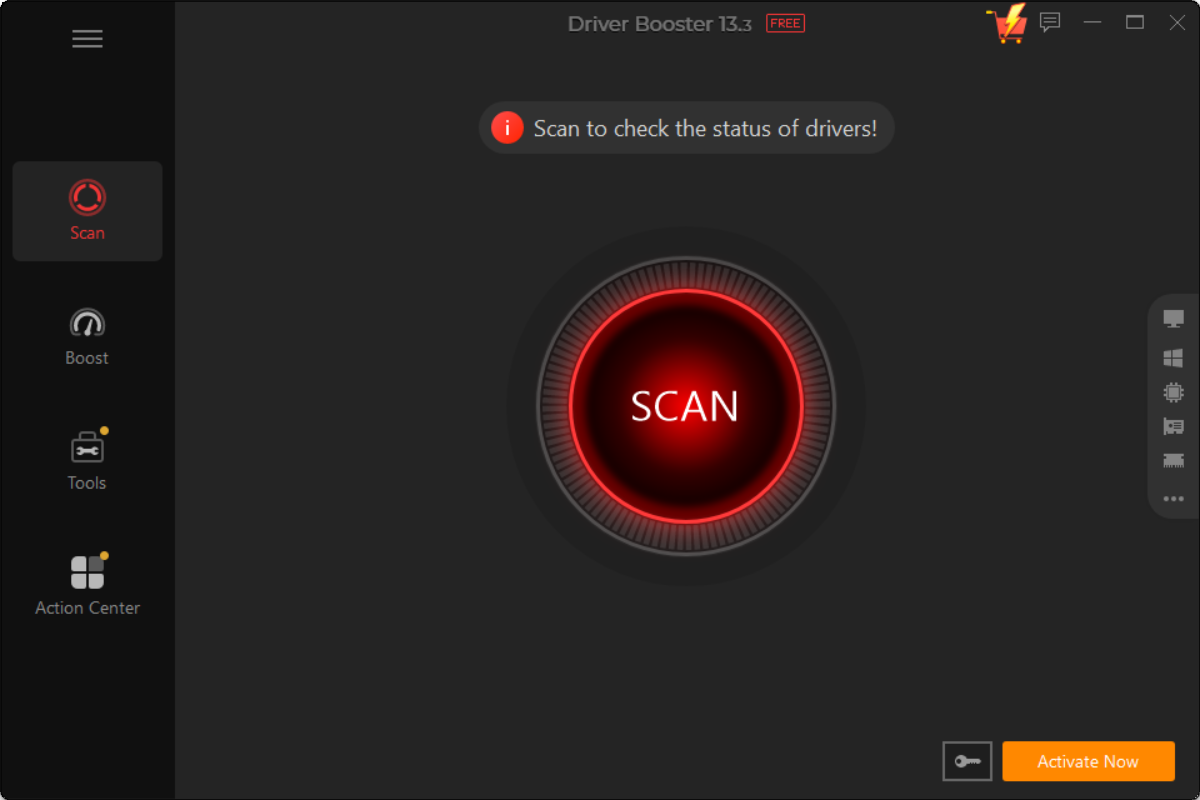
2.Run a Hardware Scan:
Launch the application and click Scan. This automatic driver updater will analyze your hardware, targeting outdated network and graphics drivers.
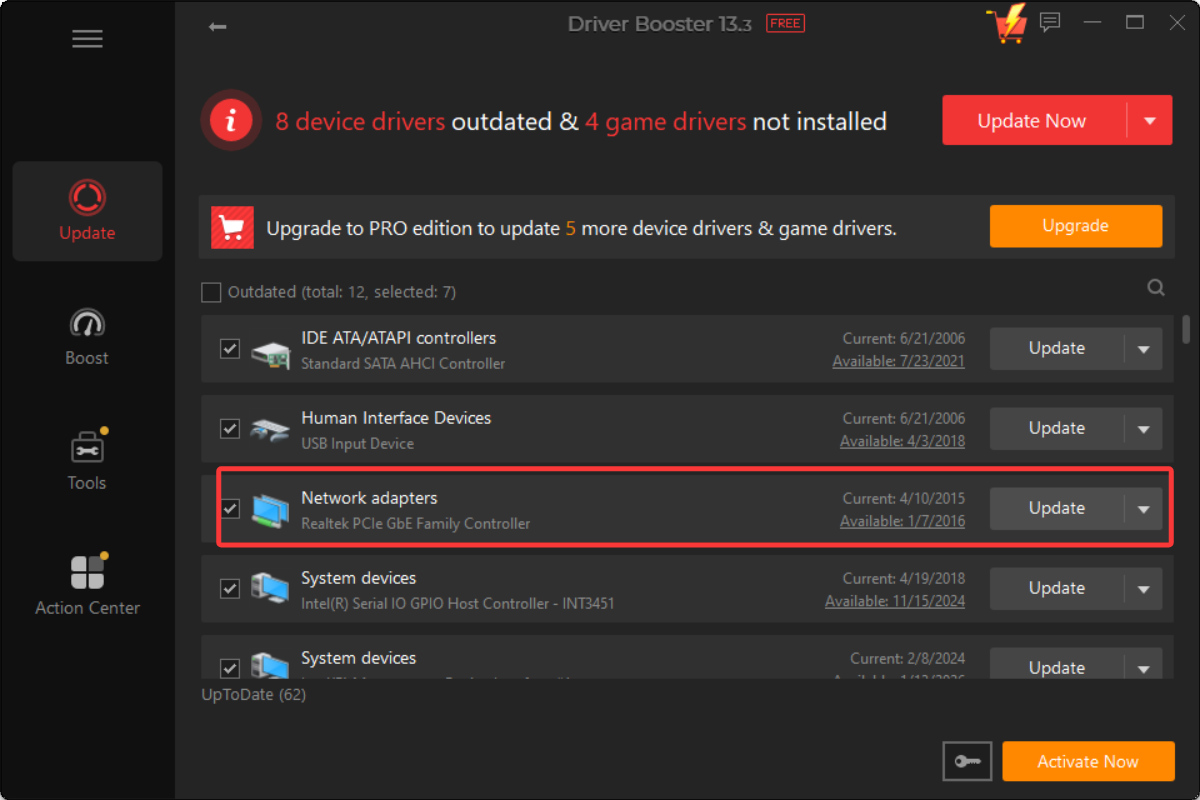
3.Update Network Adapters:
Locate your Network Adapters in the results list and click Update (or Update Now) to pull the official drivers directly from manufacturers.
4.Reboot Your Computer:
Restart your machine after the installation finishes to properly refresh system network protocols.
Even with clean drivers, background resource consumption and inefficient ISP routing can inflate your ping. Smart Game Booster frees up system RAM, suspends bandwidth-hogging processes, and tunes network priorities. Check the steps below to see how to get lower ping in League of Legends.
1.Download Smart Game Booster:
Head over to the Smart Game Booster Page and download the software.
2.Add League of Legends to Launcher:
Open the application. If League of Legends isn't auto-detected on the dashboard, manually browse and add the game executable.
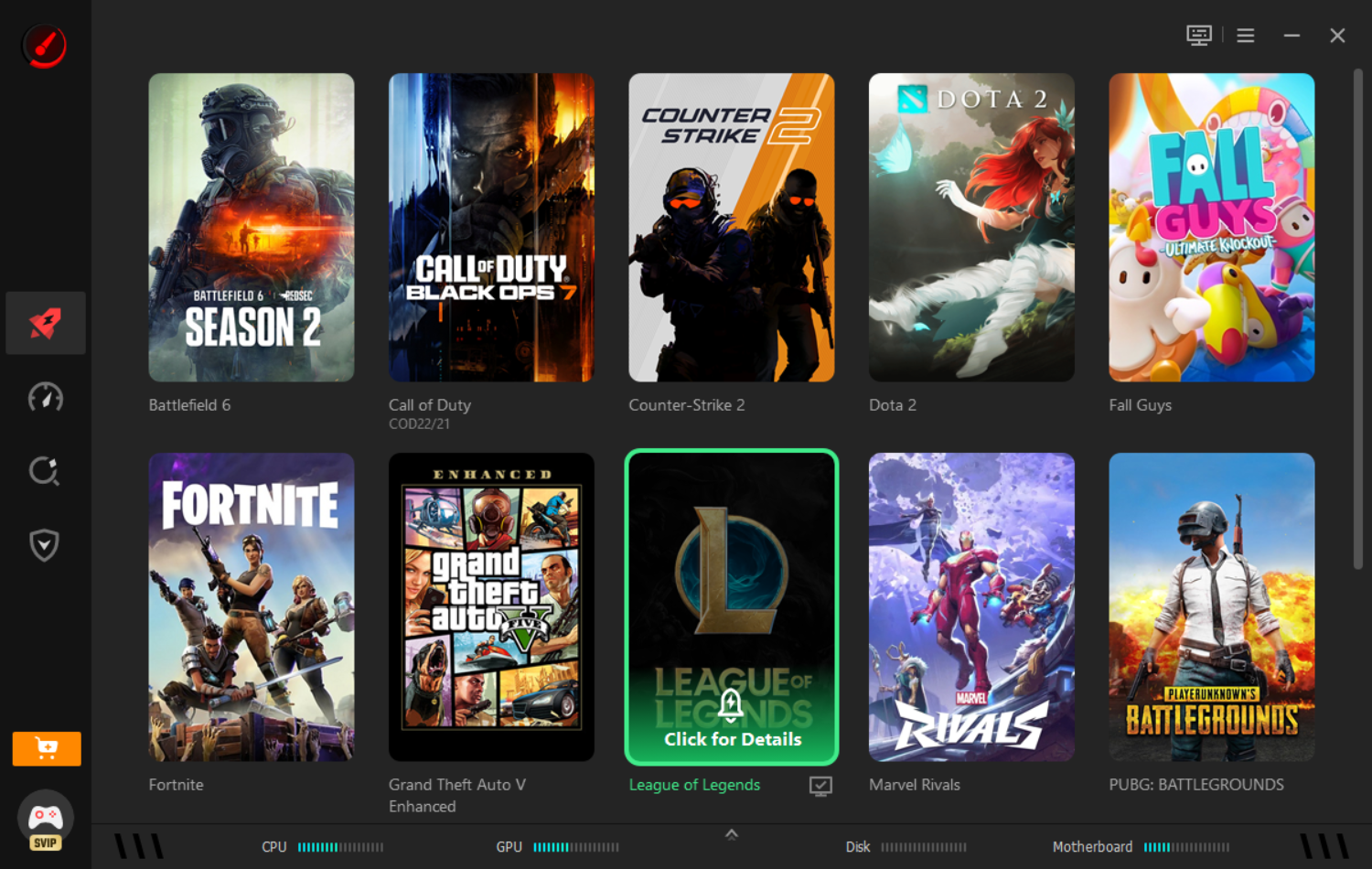
3.Activate Boost & Network Tweak:
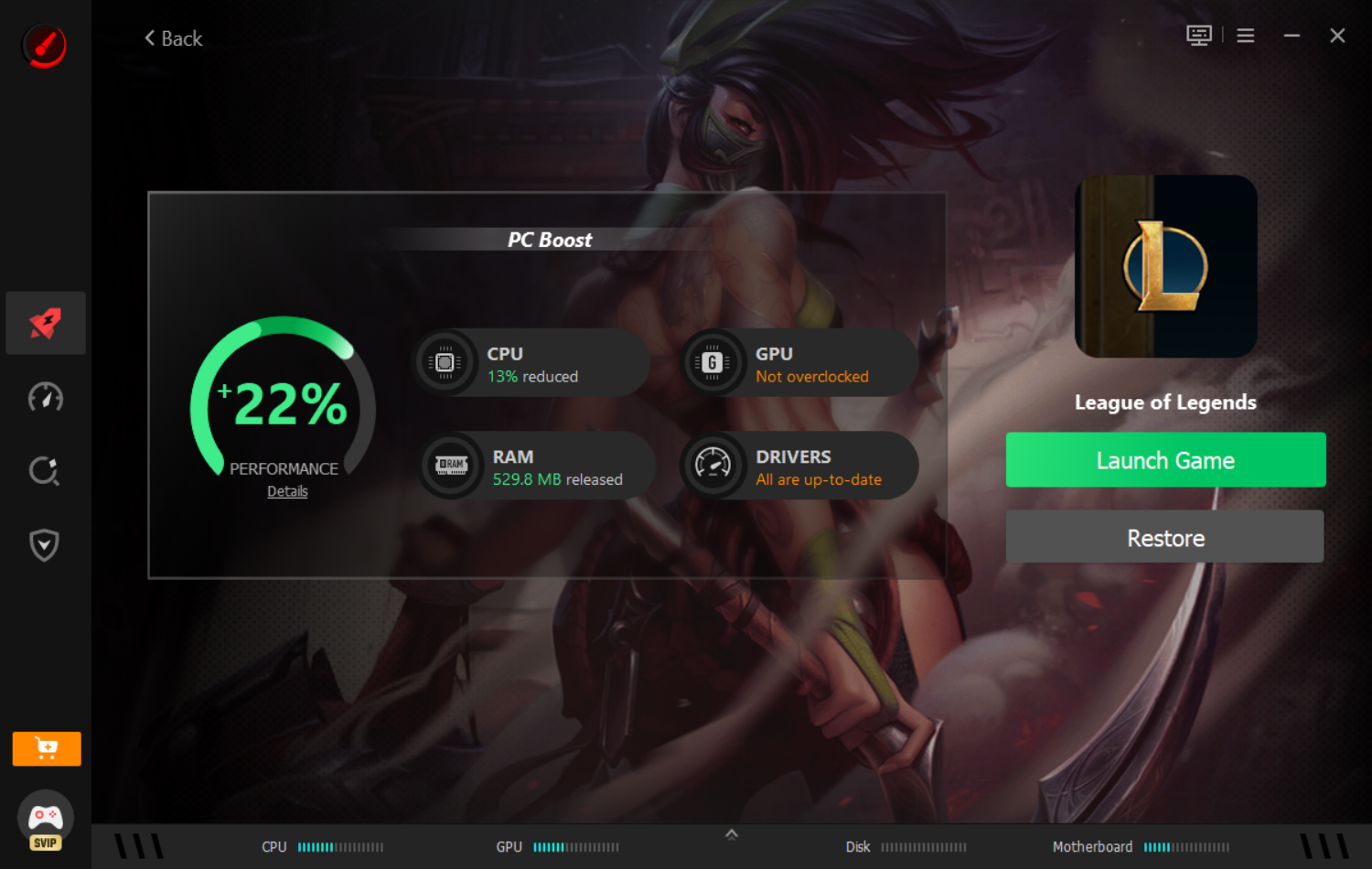
Toggle the Boost button before queueing up. This stops background apps, clears idle memory, and prioritizes game traffic.

4.Launch the Game Direct:
Launch League directly through the Smart Game Booster client to preserve operational tweaks throughout your match.
Combining automated tools like Driver Booster and Smart Game Booster with solid physical connection habits ensures your PC gets the cleanest, fastest path to Riot's servers every match.
Also Read: Why is My Roblox So Laggy & How to Make It Less Laggy>>
All about how to reduce ping in League of Legends has been presented above. Having a low, stable ping is just as critical as mastering your champion's mechanics or tracking enemy cooldowns. High latency and sudden lag spikes pull you out of the action and directly undermine your competitive performance.
By applying a combination of hardware tweaks, proper router settings, and Windows network resets, you lay a solid foundation for a fast internet connection. Software tools make maintaining that connection simple—routinely using Driver Booster to keep your network adapters operating with the latest bug-free drivers prevents hardware-level packet loss, while Smart Game Booster ensures your system background tasks don't siphon precious bandwidth mid-game. Take a few minutes to optimize your setup, hit the Rift with minimal delay, and land your abilities exactly when they count.


Keep drivers always up-to-date.
Free Download