





Kevin Hart
Kevin is an experienced editor focused on tech blog writing. Familiar with all kinds of PC software on the market. All the topics he chooses are aimed at bringing more benefits to users.
Expert in
PC Health Solution

All-in-one PC health solution: clean, optimize and secure

Comprehensive PC cleaning, optimization and protection

Keep drivers always up-to-date

More stable performance with less system crashes

Protect millions of computers against malware

Top computer security with full-round protection

Protect against viruses & boost PC performance
Clean: 420 billion traces removed & 85 EB junk files cleaned
Protect: 80 million unauthorized access blocked & 20 million bugs fixed
Speed Up: 6 million hours of startup time saved & Turbo boost
Optimize: Auto clean and auto care your PC with AI mode

Check how to optimize gaming for PC for high refresh rates like 120, 144, or even 240Hz. No need to upgrade hardware. 5 fast, easy hacks inside.

Kevin Hart


Playing games but underperforming because of lag? Low refresh rates causing unbearable motion blur and screen tearing? Trying to update hardware but have a budget limit? Learn how to optimize gaming PC for high refresh rates here! Higher refresh rates along with better FPS performance can be attained after reading this—no need to update any part of your PC. 5 easy but effective settings collected for you below:
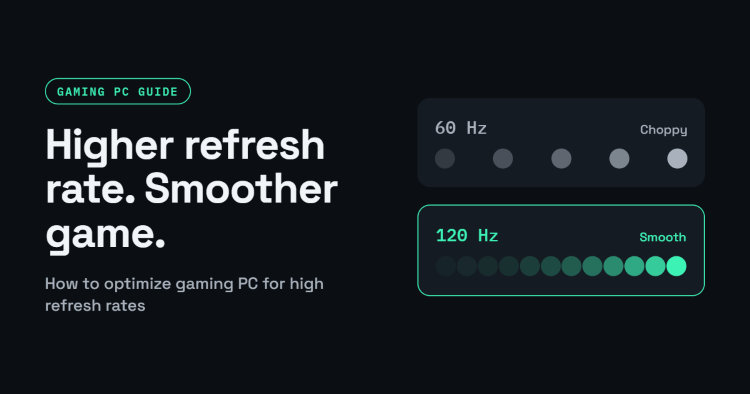
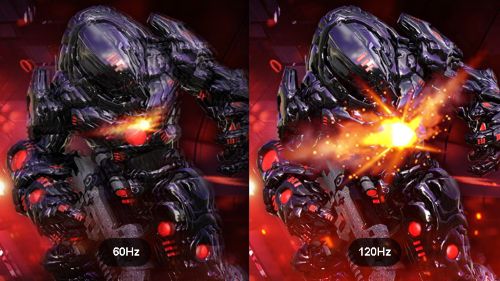
Users whose monitors are running at 120Hz can see much smoother motion than those at 60Hz. It means that they will have an advantage when playing games like CS: GO because their enemies will appear in a smooth way.
A high refresh rate monitor can reduce motion blur and screen tearing to help you take advantage when gaming. Reducing input lag and increasing responsiveness can also be achieved.
Here’s how the refresh rate works for different occasions. For gamers like you, the higher the refresh rate, the better the gaming experience you will have.
60Hz - Daily work/entertainment
120/144Hz - Most Games
240Hz or Higher - Competitive e-sports gaming like first-person shooter games.
So, let’s find out how to optimize gaming PC for 120Hz now!
Here are 5 easy settings that you can find to get your PC prepared for 120Hz or even 144Hz. Check them one by one below!
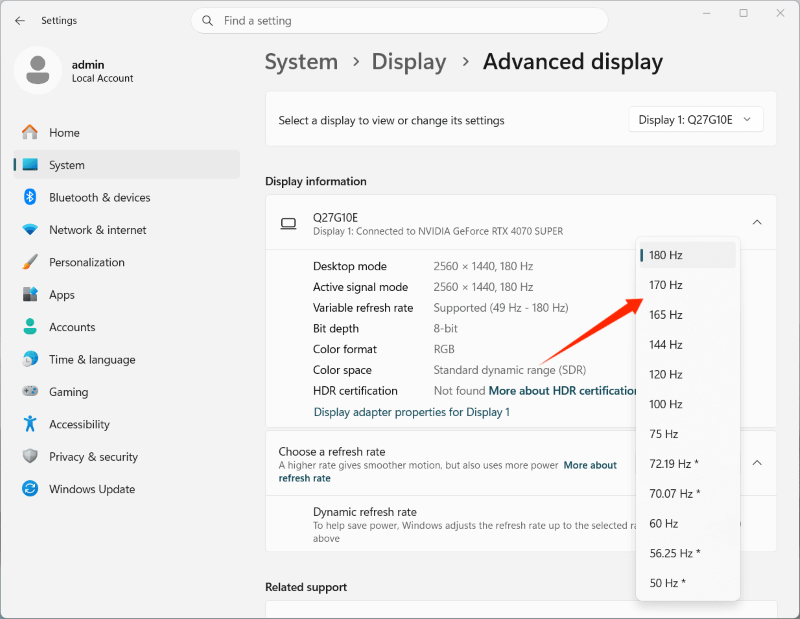
First of all, make sure that you have chosen the highest refresh rate for your monitor. No matter it is 120Hz or 144Hz, check your refresh rate in the display settings just like the steps shown below:
Step 1. Right-click your mouse and select Display Settings.
Step 2. Scroll down to find Advanced display.
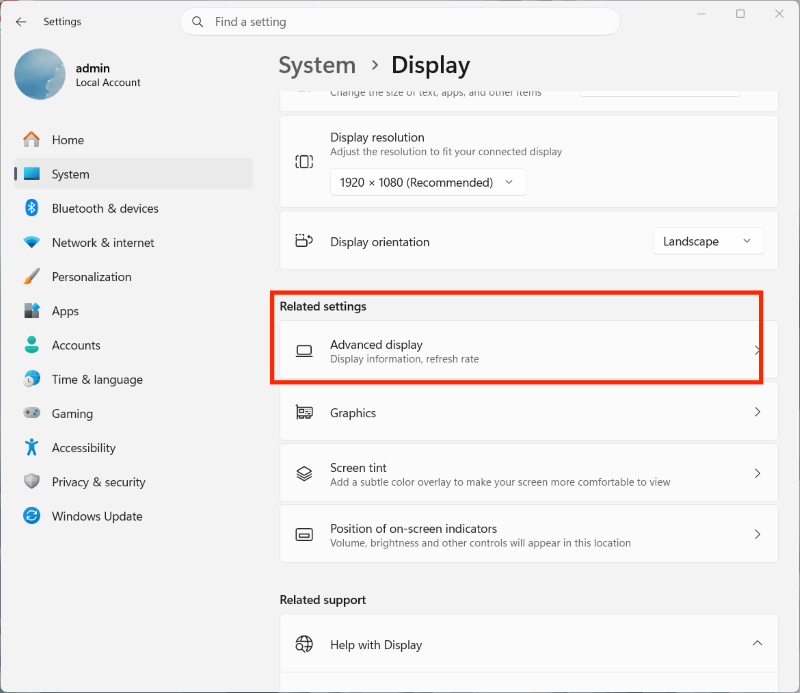
Step 3. Find Choose a refresh rate and select 120Hz or higher as long as your monitor supports.
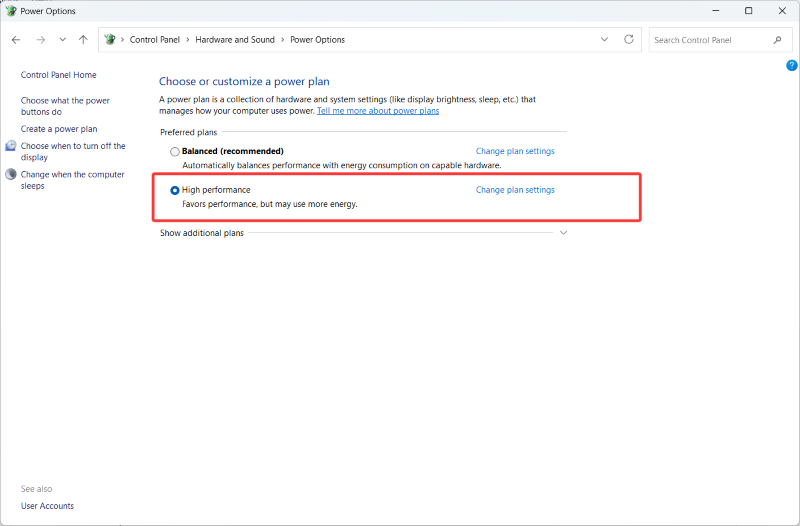
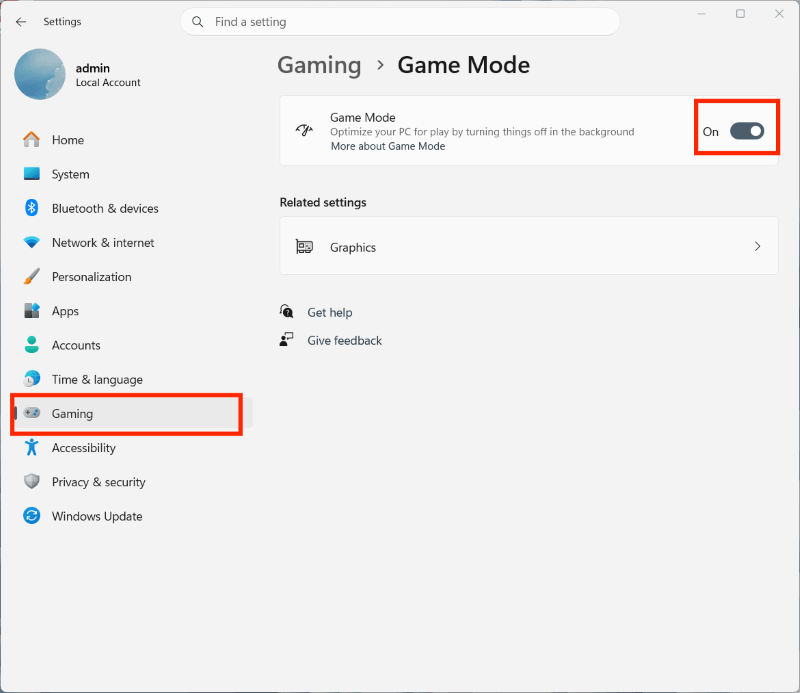
How to optimize gaming PC for 144Hz? Follow the steps below to choose a High performance power plan and enable Game Mode as a solution.
Step 1. Go to the Control Panel and find Power settings.
Step 2. Click Choose a power plan and select High Performance.
Windows Game Mode can be toggled on by Settings > Gaming > Game Mode.
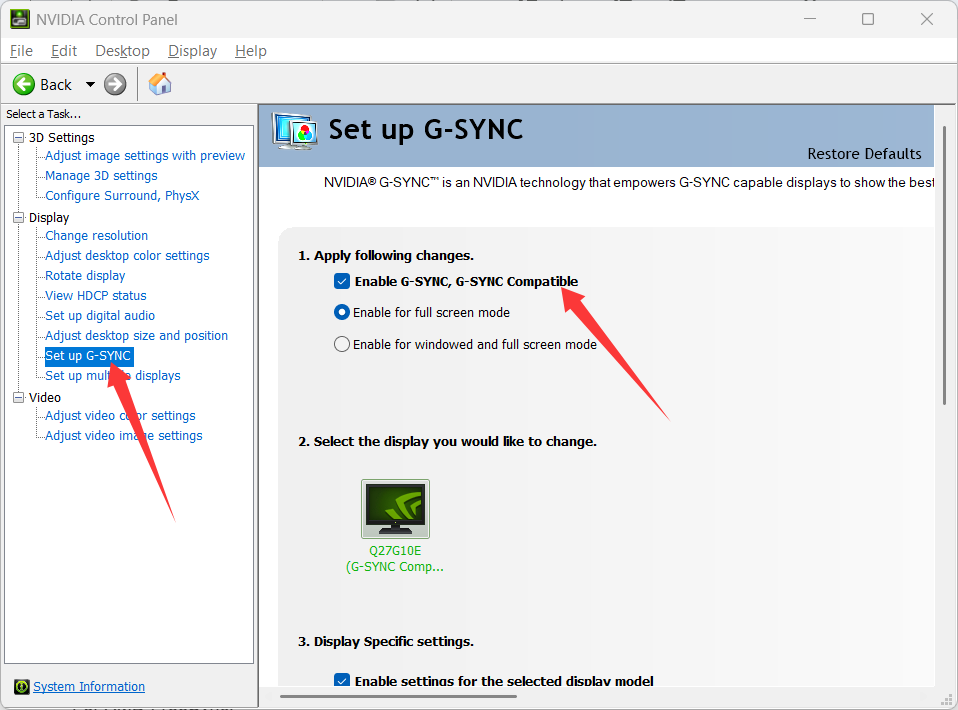
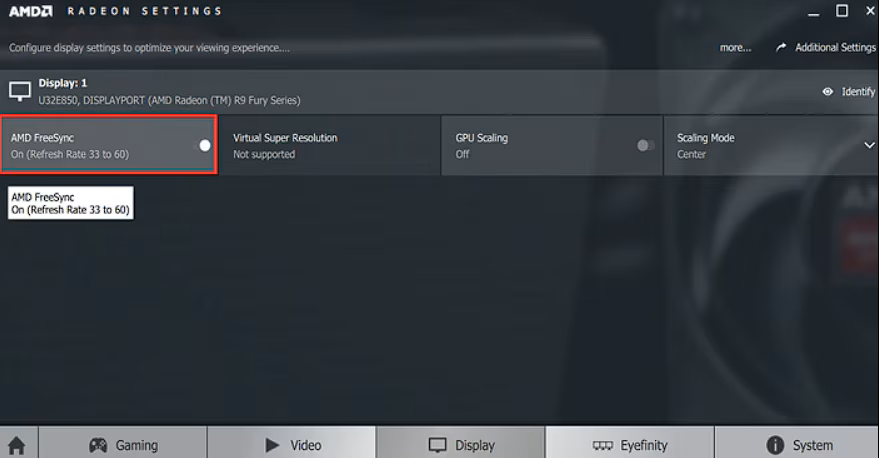
If your monitors and graphics cards support G-SYNC or FreeSync, you can have a tear-free experience, low latency, low framerate compensation, etc. when it’s enabled. Therefore, it is vital to learn how to use it:
For NVIDIA G-SYNC
Go to NVIDIA Control Panel > Display > Set up G-SYNC.
Click Enable G-SYNC.
For AMD FreeSync:
Go to AMD Radeon Settings > Display > AMD FreeSync.
Make sure it’s on.
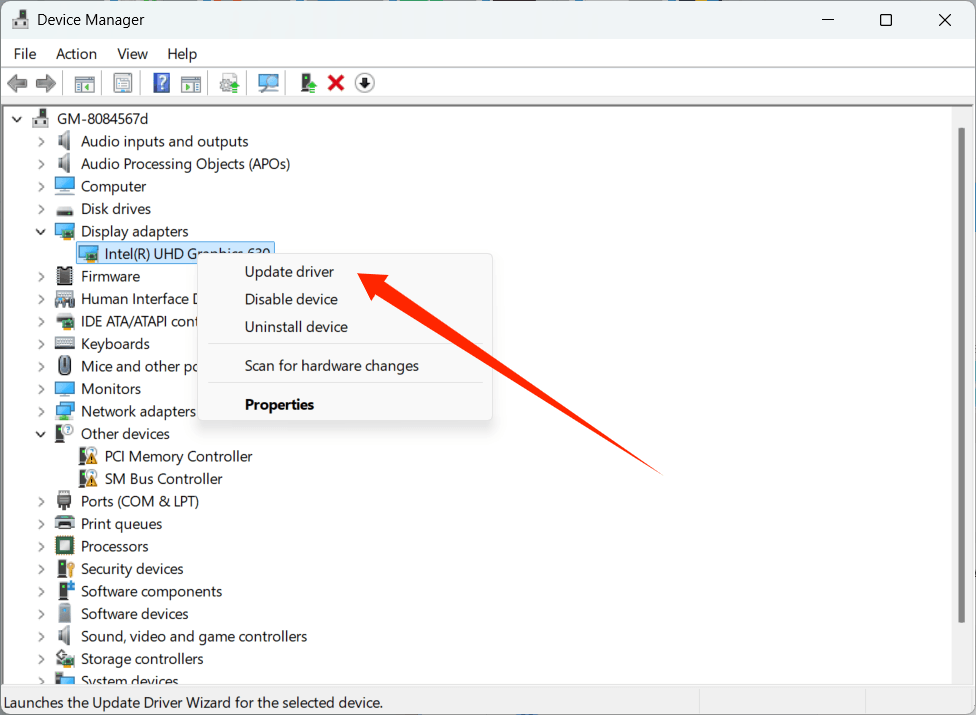
Graphics drivers and display drivers are also important for high refresh rates. Make sure they are updated for the best performance. Here’s how you can update them: Search Device Manager > find Monitors/Display adapters > Update driver > Choose Search automatically for drivers.
If you want to save time and are not sure which is the best version of drivers, a one-click solution is also here for you. Driver Booster, a free driver updater that can find the best drivers for your PC in seconds, is available here.

In the Graphics quality settings of games, choose very low for shadows, textures, post-processing, etc., to achieve higher FPS to match your refresh rate. You can start with very low for all and adjust one demanding option, like effects, at a time to find the balance of FPS and graphics quality.
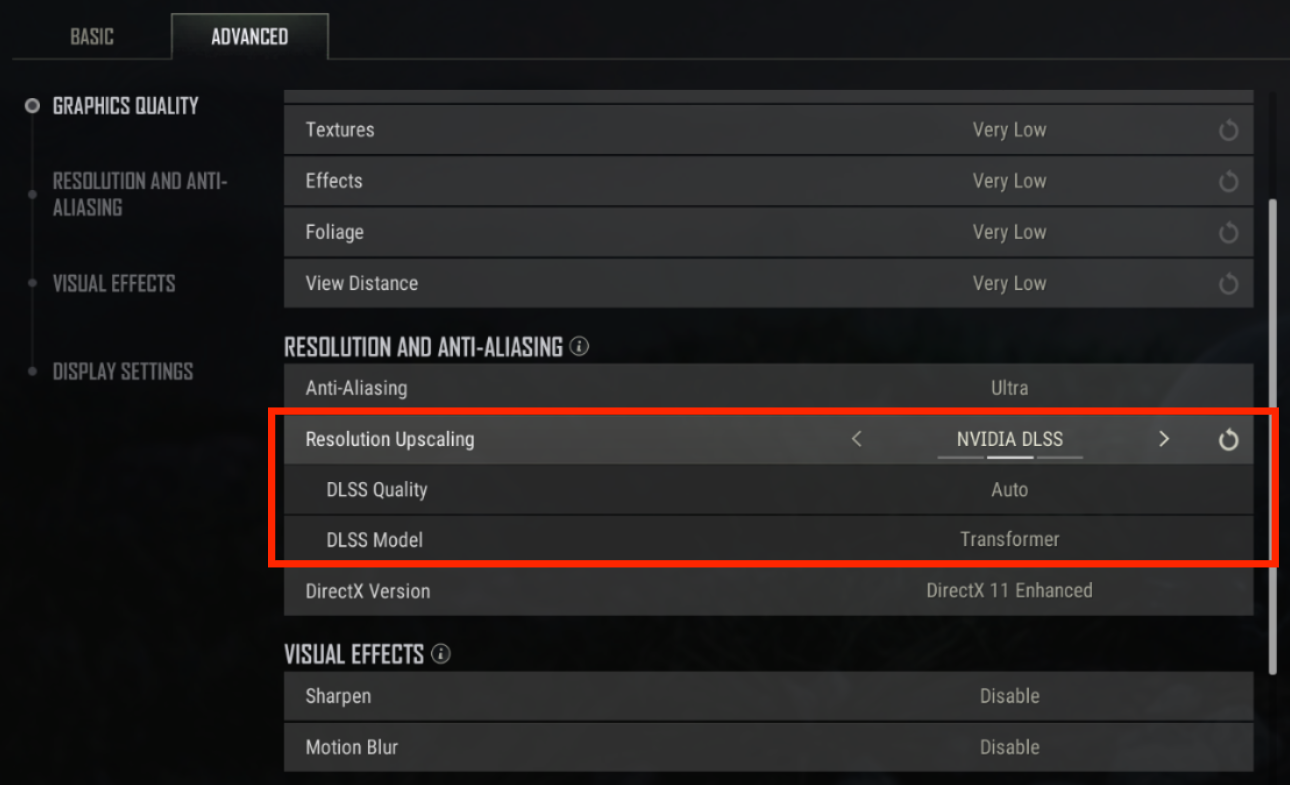
Use NVIDIA DLSS/AMD FSR
NVIDIA DLSS/AMD FSR can improve FPS significantly to match high refresh rates. No need to upgrade hardware, and all you need to do is check if the game you play supports DLSS/FSR or not. Then open it in the settings, just like the screenshot shown below:
Besides adjusting your PC and game, there is also a tool for upgrading your gameplay. Clearing RAM, boosting PC performance, monitoring CPU and GPU performance, etc., can be done with it. IObit Advanced System Care, this free tool, is ready for you. Let’s check its brilliant features one by one below:
Clear RAM to Get Your PC Ready for Gaming
High RAM usage making your gaming PC laggy? Advanced SystemCare has a PC performance monitor to enable you to clear RAM at any time. Just one click to release 1.5GB RAM, reducing usage from 87% to 53%.
Game Mode
It has a Game Mode that can boost your PC for a superior gaming experience by terminating unnecessary system and non-Windows services, as well as heavy background apps.
PC Monitoring
It also has a CPU GPU temperature monitor. Net speed, process, CPU & GPU usage, mainboard temp, fan speed, etc., all are in your control.
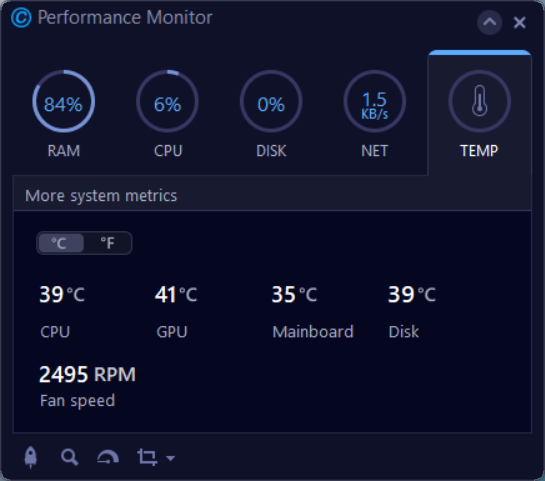
Here are the steps on how you can make use of this tool:
Step 1. Download Advanced SystemCare and install it.
Step 2. Launch this free tool and find Speed Up.
Step 3. Turn on Game Mode and Performance Monitor.
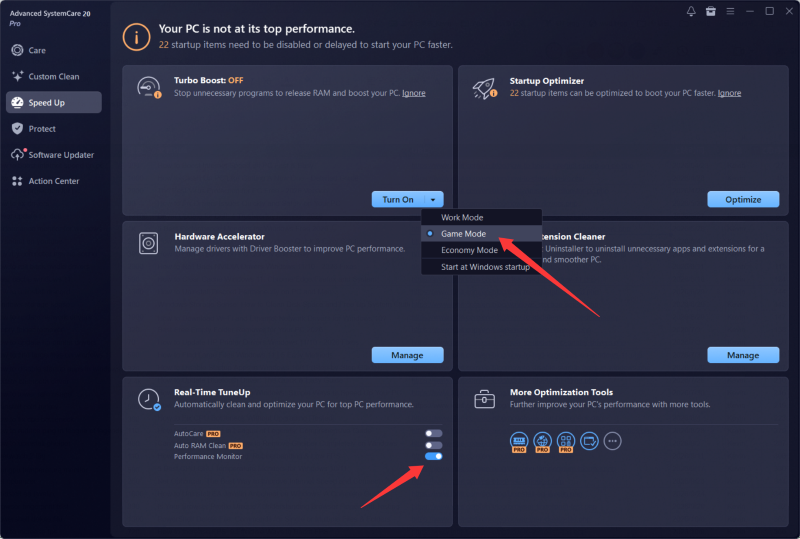
With this PC gaming optimizer, you can use all the features mentioned above and enjoy gaming with a better experience!
All about how to optimize gaming PC for high refresh rates has been introduced above. 6 free and easy methods, along with a one-stop solution: Advanced SystemCare, can be chosen by you now! No hesitation or wasting your time. Try some of them to improve your refresh rates and FPS right away!


All-in-one PC health solution.
Free Download