




Kevin Hart
Kevin is an experienced editor focused on tech blog writing. Familiar with all kinds of PC software on the market. All the topics he chooses are aimed at bringing more benefits to users.
Expert in
PC Health Solution

All-in-one PC health solution: clean, optimize and secure

Comprehensive PC cleaning, optimization and protection

Keep drivers always up-to-date

More stable performance with less system crashes

Protect millions of computers against malware

Top computer security with full-round protection

Protect against viruses & boost PC performance
Clean: 420 billion traces removed & 85 EB junk files cleaned
Protect: 80 million unauthorized access blocked & 20 million bugs fixed
Speed Up: 6 million hours of startup time saved & Turbo boost
Optimize: Auto clean and auto care your PC with AI mode

Is your PC running slow? Learn simple, step-by-step ways on how to lower RAM usage and boost system performance using Windows tools and a one-stop solution.

Kevin Hart


Have you ever noticed your computer slowing down to a crawl when you open a few extra tabs or try to switch between apps? You click on a window, and instead of responding instantly, your PC freezes for a moment while the cooling fans spin up.
If this sounds familiar, your system is likely running low on Random Access Memory (RAM).
When your memory usage hits 80% or 90%, your PC runs out of quick-access space and starts relying on your hard drive or SSD to handle short-term data. Because storage drives are much slower than physical RAM sticks, everything slows down.
So, how to lower RAM usage? The good news? You don't need to spend money on extra memory sticks right away. With a few simple tweaks—and a dedicated optimization tool—you can clear out memory hogging programs and keep your system running smoothly. Just keep reading!
Think of RAM as your computer’s temporary workstation desk. Every time you open a web browser, play a game, or launch a document, Windows places those files on the "desk" so your processor can reach them in a fraction of a millisecond.
However, your desk only has so much surface area. Here are the most common reasons why RAM runs out:
Too many browser tabs open: Modern web browsers (like Chrome or Edge) save every open tab as a separate background process.
Unnecessary startup programs: Dozens of apps silently set themselves to launch the moment you turn on your PC.
Background services: App updaters, cloud sync tools, and hidden telemetry utilities consume memory without your knowledge.
Memory leaks: Poorly written software can fail to return memory to Windows even after you close the app.
Here are three quick manual habits to adopt today:
Windows includes a built-in monitor that shows exactly which apps consume your resources:
Press Ctrl + Shift + Esc on your keyboard to open Task Manager.
Click on the Memory column header to sort processes from highest to lowest usage.
Look for non-essential programs (like unused media players or updater utilities). Right-click them and select End task.
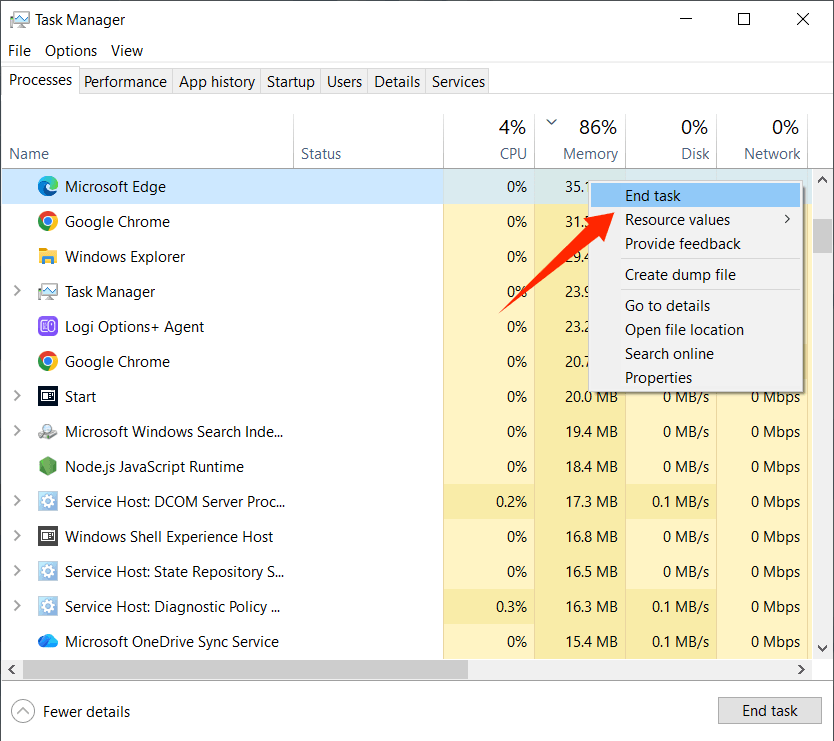
Warning: Avoid ending tasks labeled System, Windows Explorer, or Host Process, as these are required to keep your operating system stable.
When you install software, many tools secretly add themselves to your system startup routine. They start running quietly behind the scenes every time you turn on your computer, consuming RAM before you even launch a browser.
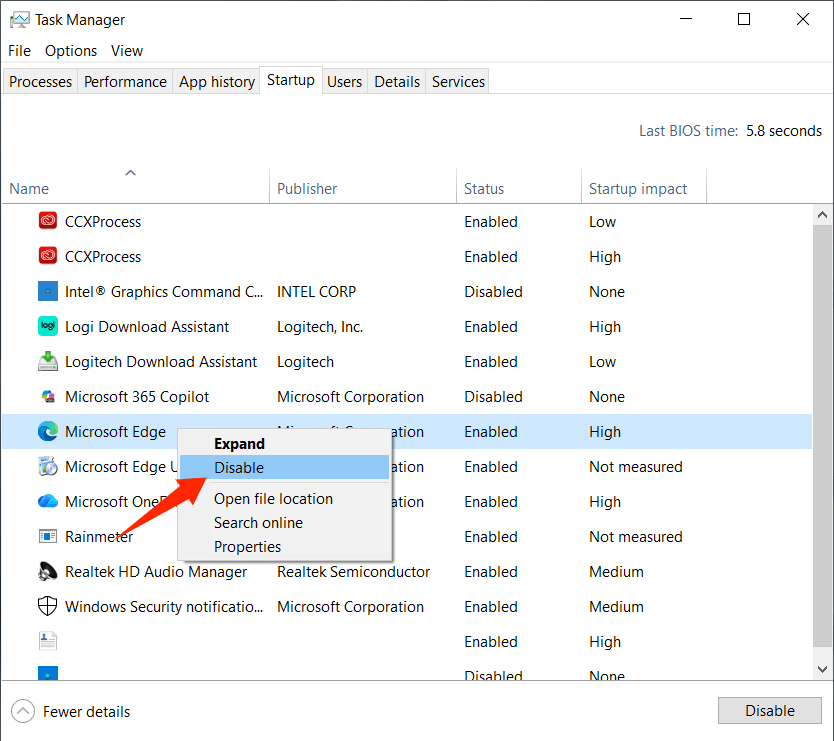
In Windows Task Manager: Go to the Startup apps tab, right-click non-essential applications (like game launchers or chat apps), and select Disable.
Web browsers are notoriously memory-hungry. A single media-heavy website tab can easily claim 300MB to 500MB of RAM.
Bookmark tabs for later: Instead of leaving 30 tabs open, save them in a bookmark folder.
Turn on built-in saver modes: Both Chrome and Edge offer "Memory Saver" features in their settings that put idle tabs to sleep.
Remove heavy browser extensions: Ad blockers, price trackers, and toolbar extensions continuously consume memory while running in the background. Remove any extensions you no longer use.
While Windows includes manual tools to manage tasks, hunting down memory hogs every hour gets frustrating fast. Automated system utilities make memory cleanup effortless.
Advanced SystemCare by IObit is an all-in-one system optimizer designed to automate computer maintenance. Instead of forcing you to hunt through hidden sub-menus, it manages background applications, cleans junk files, and optimizes memory allocation with a single click.
Follow the steps below to see how to reduce RAM usage with Advanced SystemCare effortlessly.
1.Download and install Advanced SystemCare
2.Run an initial System Scan
Launch the software and click the large SCAN button on the main screen. It will analyze your PC for system bottlenecks, startup clutter, and memory hogs. Click Fix to resolve the issues.
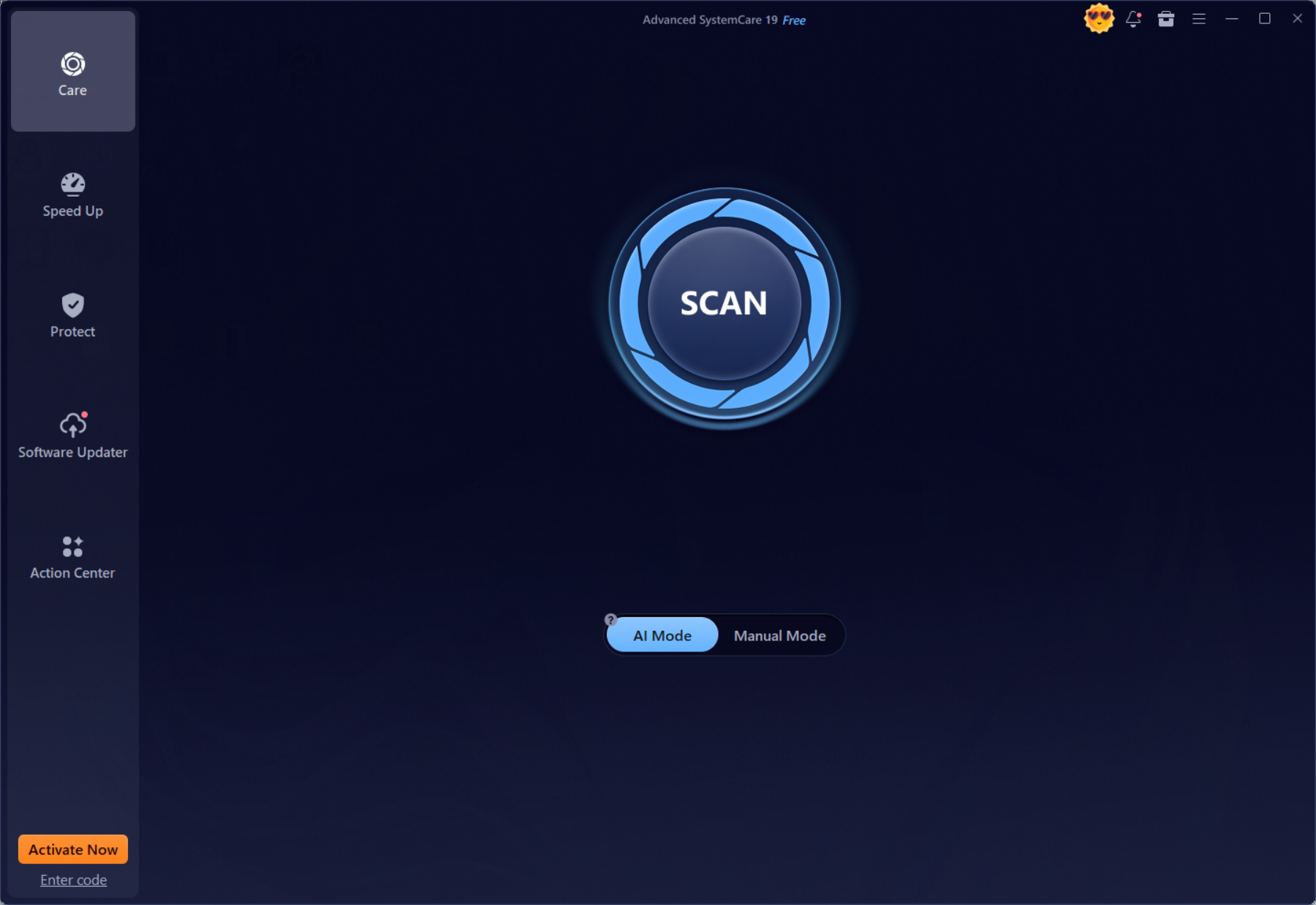
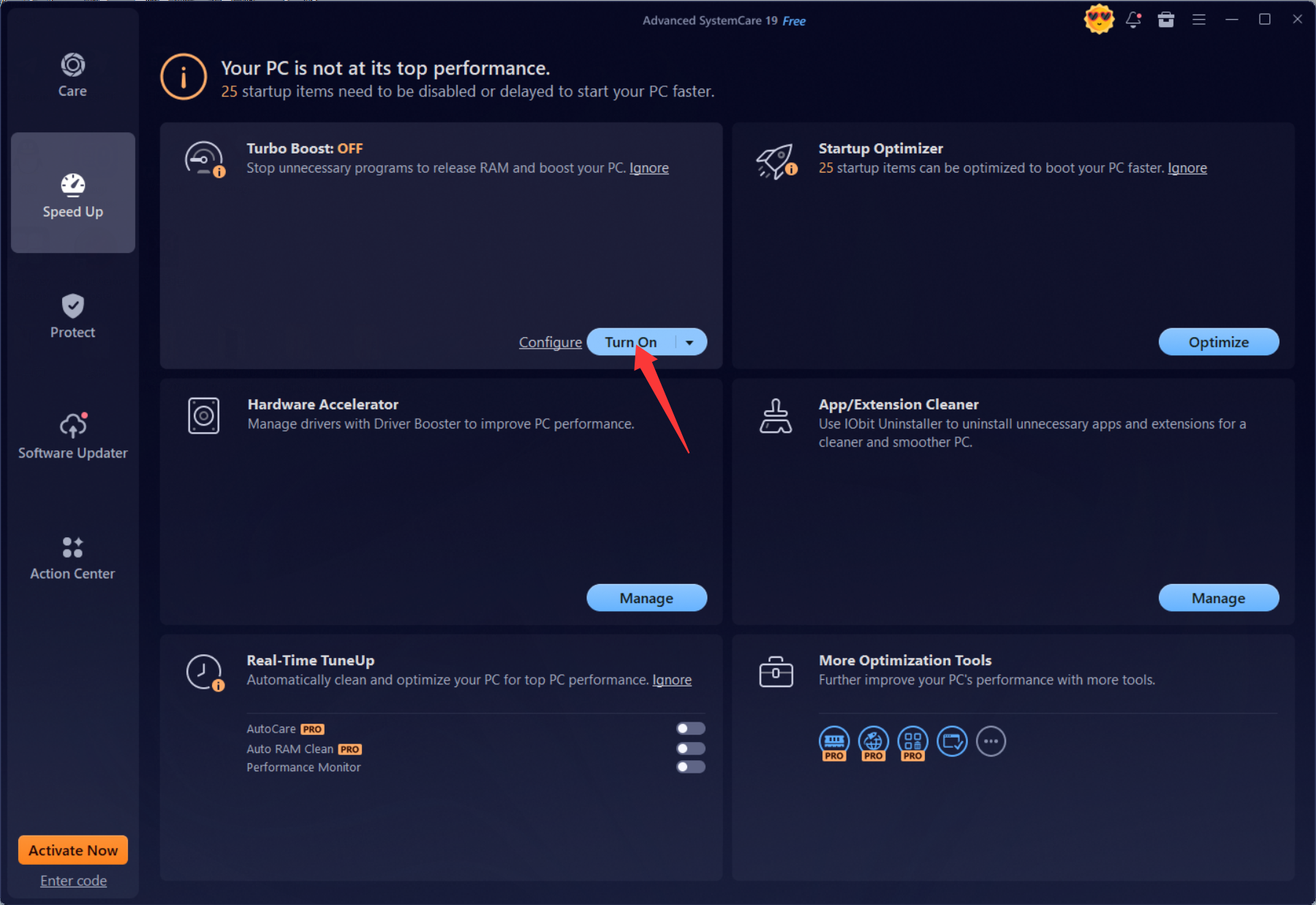
3.Enable Turbo Boost
Navigate to the Speed tab on the side menu and turn on Turbo Boost. This mode automatically stops inactive background services and releases allocated RAM back to your system.
4.Use Performance Monitor for real-time cleaning
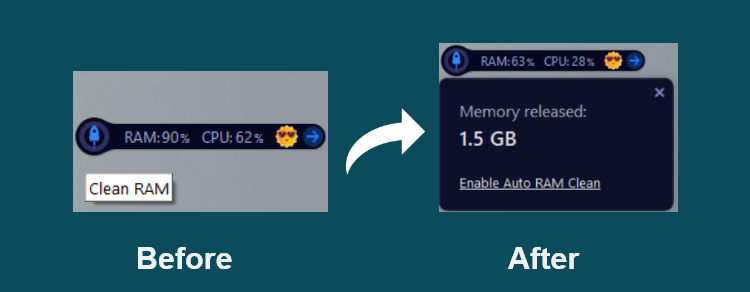
This RAM optimizer Windows 11 also includes a small desktop widget called Performance Monitor. Whenever you see your memory usage climbing, hover over the widget and click the Rocket Icon (Clean RAM) to instantly flush cached memory.
Here a comparison table between Windows built-on tools and Advanced SystemCare on how to decrease RAM usage. Check it to see which method is better.
| Optimization Method | Time Needed | Difficulty Level | Keep Cleaning Automatically? |
| Manual Task Manager Cleanup | 5-10 minutes per day | Moderate (requires caution) | No |
| Disabling Startup Apps | 5 minutes once | Easy | Yes (for startup only) |
| Advanced SystemCare Turbo Boost | Instant (1 click) | Very Easy | Yes (real-time monitoring) |
Once you have freed up your computer's short-term memory, keeping it running fast comes down to a few healthy habits:
Restart your PC regularly: Turning off your PC at night or restarting it every few days fully resets your system RAM, clearing out leftover cache files and memory leaks.
Keep Windows updated: System updates frequently fix memory leak bugs in core OS drivers.
Automate maintenance: Schedule Advanced SystemCare to run background scans during off-hours so your system stays fast without manual effort.
If high RAM usage is slowing down your daily tasks, you don't need to be a tech expert to fix it. Give this Windows optimizer a try to let automated tools handle the background cleanup for you!
That’s all about how to lower RAM usage. A slow, sluggish PC doesn’t always mean you need expensive hardware upgrades. More often than not, high RAM usage is simply the result of background clutter and unoptimized settings accumulating over time.
By adopting a few simple browsing habits and letting automated tools like Advanced SystemCare handle the daily maintenance, you can keep your computer responsive, stable, and ready for whatever you throw at it. Give these quick tips a try today and enjoy a faster, smoother PC experience!


All-in-one PC health solution.
Free Download