As an ASUS PC owner, it's important to remember that even your trusted work or gaming companion won't stay fast forever. If your computer starts feeling sluggish, laggy, or less responsive than before, it may be a sign that your drivers need an update. Keeping your ASUS drivers up to date helps patch security vulnerabilities, improve compatibility with new software and hardware, and maintain overall system performance.
However, how to install ASUS drivers? This guide will walk you through four effective ways to install and update ASUS drivers, including both an automatic solution using a powerful driver updater and manual methods built into Windows.
What are ASUS Drivers? Do You Need Them on Windows?
Before learning how to update ASUS drivers, it's worth taking a moment to understand what these drivers do and why keeping them updated matters.
What Are ASUS Drivers?
ASUS drivers act as the bridge between your ASUS hardware and the Windows operating system. They allow Windows to recognize what each hardware component is capable of and ensure that everything functions as intended.
ASUS and hardware manufacturers regularly release driver updates to add new features, improve performance, fix common bugs, and patch security vulnerabilities.
In short, ASUS drivers are essential to your computer. Whether your PC continues to run smoothly often depends on whether these drivers are properly maintained and kept up to date.
To function correctly, a typical ASUS computer relies on the following essential ASUS drivers:
ASUS Chipset Drivers
ASUS Graphics Drivers
ASUS Audio Drivers
ASUS LAN Drivers
ASUS Wireless (Wi-Fi) Drivers
ASUS Bluetooth Drivers
ASUS Touchpad Drivers
ASUS Keyboard Drivers
ASUS USB Drivers
ASUS SATA / Storage Controller Drivers
ASUS Intel Management Engine Interface (MEI) Drivers
ASUS Camera Drivers
Other ASUS Drivers
How to Install ASUS Drivers with Automatic Updates (Easiest Solution)
Now that you understand the role drivers play and how outdated drivers can affect your PC's performance, you're ready to learn how to update ASUS drivers and put the solution into practice.
The first method recommended in this guide is also the easiest and fastest for users of all experience levels: using a professional driver updater to handle everything automatically. Instead of checking drivers one by one, figuring out which ones need updates, searching for the correct versions, and manually installing them, you can save a significant amount of time and effort.
The tool recommended here is IObit Driver Booster. It can automatically scan your system for outdated drivers and, after your approval, download and install all necessary updates in one go.
Driver Booster Free
- Automatically scan and update drivers.
- Update game ready drivers for peak gaming performance.
- Identify and fix various common of hardware issues.
- Boost 30% of system performance for fast & smooth running.

Here is how to update ASUS motherboard drivers via IObit Driver Booster.
Step 1. Download and install IObit Driver Booster on your ASUS computer.
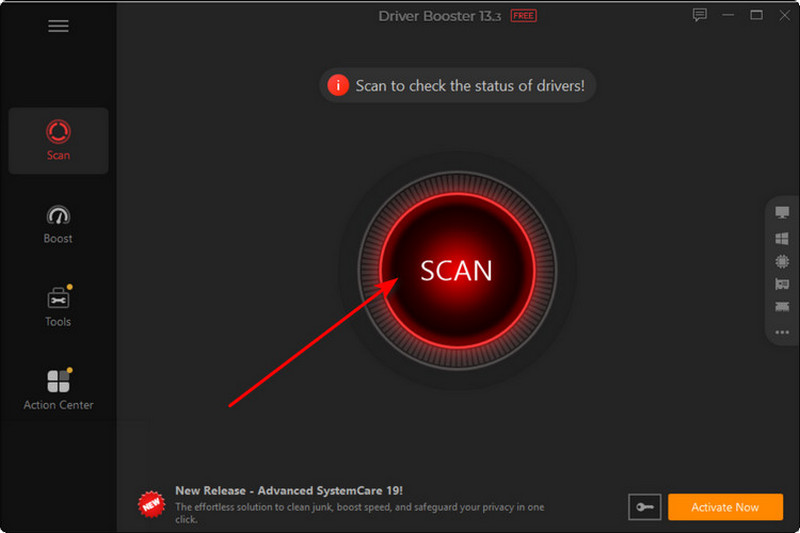
Step 2. Launch the software. On the main screen, you'll see a prominent Scan button. Click it, and Driver Booster will begin checking your system for available driver updates.
Step 3. Once the scan is complete, a list of available driver updates will appear. Select the drivers you want to update, then click the Update button in the upper-right corner to start the process.
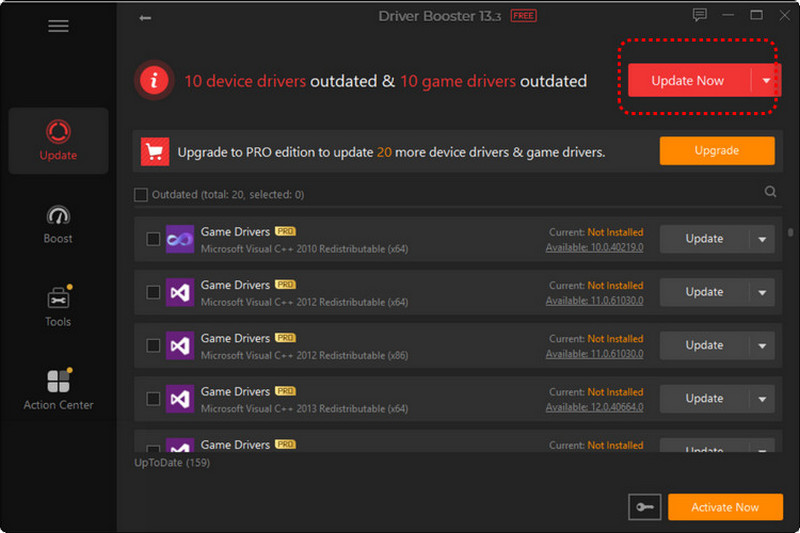
Why Do You Use IObit Driver Booster for ASUS Drivers?
Driver Booster automatically performs a comprehensive scan of your system and recommends the most suitable drivers for your ASUS device. With its fast scanning speed, efficient update process, and verified driver database, you can update your drivers with confidence.
For gamers, the dedicated Game Ready driver update feature makes it easy to update NVIDIA graphics drivers, Intel graphics drivers, and other video-related drivers to ensure the best gaming performance.
How to fix audio drivers on Windows 11? Driver Booster goes beyond driver updates. It also includes troubleshooting tools that can help resolve common PC issues, such as no sound, blue screen errors, system lag, USB device connection failures, and other driver-related problems.
A favorite feature among gamers, Game Boost and System Optimization help improve overall performance and get a smoother experience by closing unnecessary background processes and freeing up system resources.
Need more than just an answer to how to update driver? Driver Booster includes a variety of additional tools designed to make driver management easier, such as offline driver updates, backup and restore drivers, and handling other driver-related tasks with minimal effort.
How to Install ASUS Drivers Manually from the Official Website
Does ASUS have a driver update utility?
For those looking for how to update ASUS laptop drivers, ASUS did provide an official solution. If you prefer downloading drivers directly from the manufacturer, this method allows you to manually find and install the latest drivers for your device.
Here is how to install ASUS motherboard drivers via the ASUS official website.
Step 1. Open your web browser and visit the ASUS Support website.
Step 2. On the homepage, enter your ASUS device model into the search box and search for available driver updates.
Step 3. Once you've located your product, click Driver & Tools below the device information.
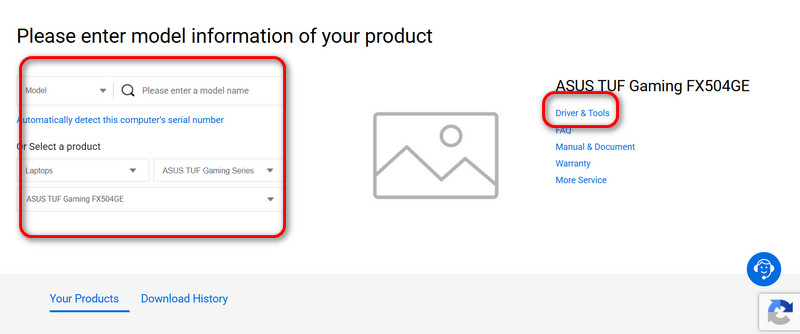
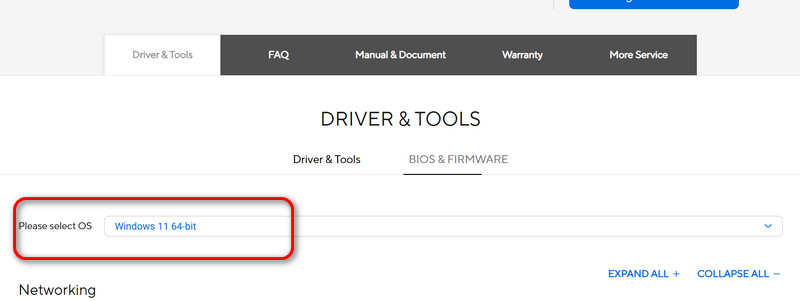
Step 4. You will be taken to a new page. Find the Please select OS option and choose the version of Windows installed on your computer from the drop-down menu.
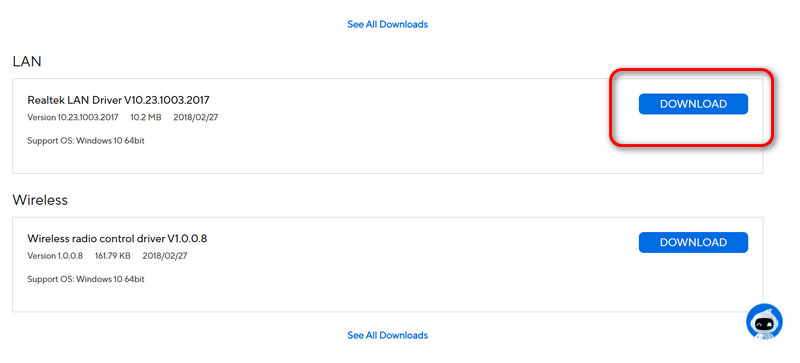
Step 5. Scroll down to view all available drivers for your device. Locate the driver category you need and click DOWNLOAD to begin the installation process.
How to Install the Latest ASUS Drivers Through Built-in Tools
Among the official answers to how to install ASUS drivers Windows 11, one of the easiest methods is to use the built-in MyASUS application that comes with many ASUS computers.
Here is how to install ASUS drivers using MyASUS.
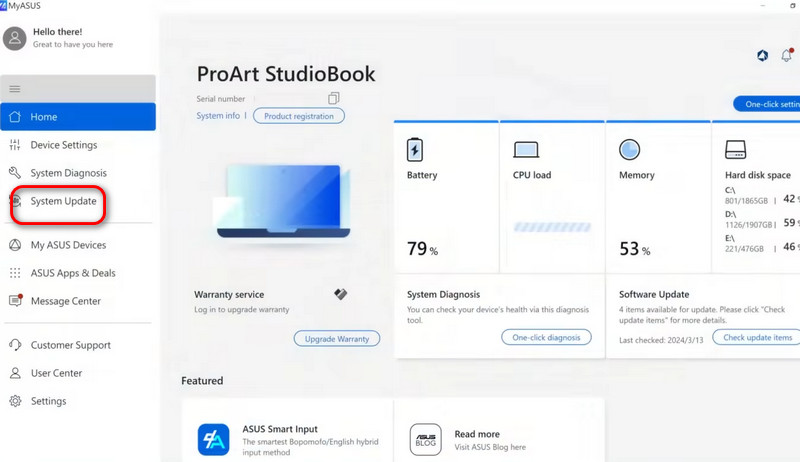
Step 1. Open your ASUS computer, locate the MyASUS app, and launch it.
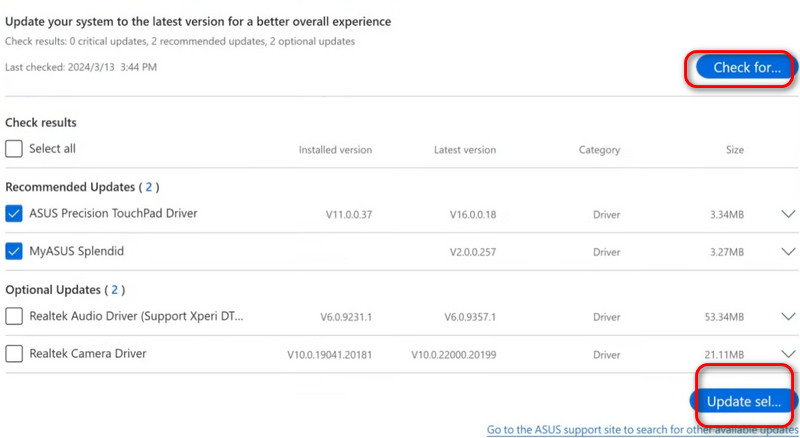
Step 2. In the left-hand menu, select System Update. On the new page, click Check for Update to scan your device for available driver updates.
Step 3. Once the scan is complete, MyASUS will display a list of drivers and updates available for your computer. Select the drivers you want to install, then click the blue Update button in the lower-right corner to begin the update process.
How to Update ASUS Drivers Using Windows Update
This guide has one final method to share. Instead of using ASUS-specific tools, you can update drivers directly through Windows using the built-in update feature.
Here is how to update Windows drivers via Windows Update.
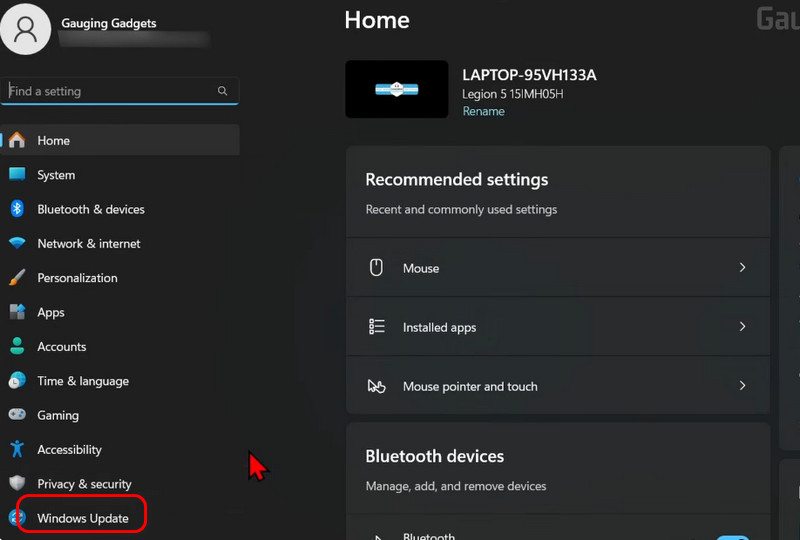
Step 1. Open the Settings app on your computer.
Step 2. Navigate to Update & Security, then select Windows Update.
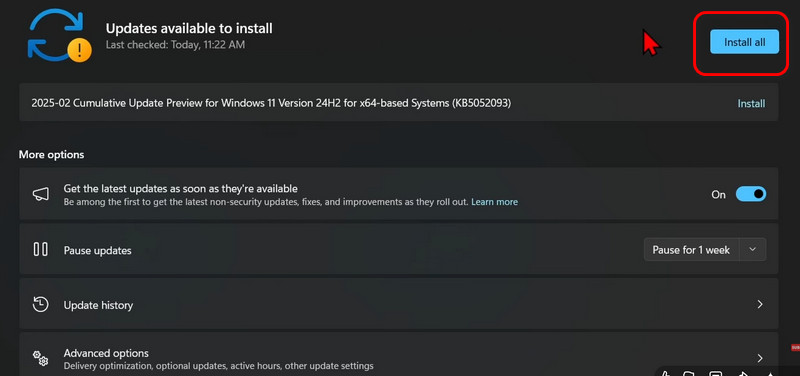
Step 3. Check whether any driver updates are available for your device. If updates are found, simply follow the on-screen instructions to download and install them.
Recommended Order to Install ASUS Drivers (Best Practices)
Now that you know several ways to solve how to install ASUS drivers Windows 11, it's worth following a recommended installation order, which helps prevent hardware conflicts, device recognition issues, and system instability, especially after a fresh Windows installation.
Update chipset drivers first. Chipset drivers act as the communication bridge between the motherboard, CPU, storage devices, and other hardware components. Installing them first provides a stable foundation for all other drivers.
Install storage and controller drivers next. SATA, NVMe, RAID, and storage controller drivers help ensure optimal SSD and HDD performance while improving compatibility with your system.
Update graphics drivers after that. Once the chipset is properly configured, installing the latest GPU driver can improve display performance and reduce the risk of driver conflicts.
Install network, audio, and peripheral drivers last. This includes Wi-Fi, Ethernet, Bluetooth, audio, touchpad, and other ASUS-specific device drivers. Installing them at the end helps ensure all hardware functions correctly on a fully configured system.
Bonus Tip: Restart your PC after installing major drivers, especially chipset and graphics drivers. This allows Windows to properly load the new components and helps avoid unexpected compatibility issues.
Troubleshooting Common ASUS Drivers Installation Issues
You may run into installation errors, hardware detection problems, or unexpected system behavior. Here are three common ASUS driver installation problems and what you can do about them.
Error 1. Driver Installation Failed
Fix: First, make sure you've downloaded the correct driver for your ASUS model and Windows version. Running the installer as an administrator can also help. If the installation still fails, temporarily disable your antivirus software and try again, as security programs sometimes block driver installations.
Error 2. Device Still Not Working After Installation
Fix: If your device isn't recognized even after installing the driver, open Device Manager and look for any devices marked with a yellow warning icon. Uninstall the problematic driver, restart your computer, and reinstall the latest version.
Updating the chipset driver first may also help Windows properly detect the hardware.
Error 3. System Crashes or Performance Issues After Updating
Fix: If your PC starts freezing, lagging, or showing blue screen errors after a driver update, the new driver may not be fully compatible with your system. Try rolling back to the previous version or installing an older stable release from ASUS. (Restart your PC after each major driver update to avoid potential conflicts.)
The Bottom Line
How to install ASUS drivers? If you're looking for the fastest and most hassle-free option, IObit Driver Booster is worth trying. It can automatically scan for outdated drivers and update them in just a few clicks, saving you from searching, downloading, and installing drivers one by one. Download it today and keep your ASUS computer performing at its best.
Driver Booster Free
- Automatically scan and update drivers.
- Update game ready drivers for peak gaming performance.
- Identify and fix various common of hardware issues.
- Boost 30% of system performance for fast & smooth running.