If your laptop has suddenly started slowing down, freezing at random moments, or flooding you with strange pop-ups, it’s easy to assume something deeper is going on behind the scenes. In many cases, these issues come from hidden malware quietly affecting system performance and even putting personal data at risk. Here you’ll find how to remove virus from a laptop, along with simple steps to clean your system and reduce the risk of it happening again.
Preparation Before You Remove Virus in Laptop
Viruses are malicious programs designed to infiltrate a system, slow it down, steal information, or disrupt normal operations without the user’s awareness. Before starting the cleanup process, a bit of preparation makes it much safer and more effective to remove virus in laptop.
A laptop virus removal application: Before learning how to remove virus from a laptop, download the app on a clean, unaffected computer to ensure the installer itself is not compromised or tampered with before use.
USB stick: Use it to safely transfer the antivirus installer from a clean device to the infected laptop without exposing it to online threats again.
Back up data: Save important documents, photos, and work files to an external drive or cloud storage before any cleaning process begins.
Create a system restore point: This allows you to revert the system when something goes wrong during removal or system changes.
Best Laptop Virus Protection & Removal Software
Building on the earlier idea of using a dedicated laptop virus removal application, the next step is choosing a tool that not only cleans infections but also prevents them from returning. This is where IObit Malware Fighter positions itself as a top-rated option, combining removal capability with ongoing protection.
It is designed to support users dealing with both active infections and long-term security needs, making it relevant for anyone researching how to remove virus from a laptop, while also maintaining strong laptop virus protection for daily use and helping to remove virus in laptop when threats appear.
IObit Malware Fighter Free
- Quick and deep system scanning throughout PC system.
- Smart defense against all malicious infestations.
- High-level security and privacy protection in real time.
- Leading anti-malware and anti-virus engines.

● Best Free Laptop Virus Scan, Removal, and Protection
IObit Malware Fighter offers a completely free Windows virus scanning and removal function, requiring no subscription or account setup, and it is accessible for quick and straightforward cleanup tasks. It focuses on detecting common threats efficiently and helps remove virus in laptop while keeping the process simple for non-technical users.
● Customizable, On-Demand Laptop Virus Scanning
Users can choose between Auto Scan, Smart Scan, Full Scan, or Custom Scan depending on the situation, with additional filters for file types, ZIP archives, and file size limits to improve scanning precision and control.
● Well-Rounded Defense Based on Massive Virus Database
The protection system relies on a continuously updated database containing over 200 million known threats, allowing the software to identify both common and emerging malware patterns with reduced risk of missed infections.
● Real-Time Protection for Future Prevention
The free antivirus software runs continuous background monitoring across system entry points such as files, network activity, startup items, USB devices, camera access, and passwords, while also blocking online threats like tracking attempts, malicious downloads, and homepage hijacking.
Step-by-Step Guide: How to Remove a Virus from a Laptop
Below are several practical actions that help bring an infected system back under control. If you are trying to understand how to remove virus from a laptop, or dealing with an active infection where you need to remove virus from HP laptop, the following steps will help you move through the process more confidently.
Laptop Virus Removal 1 - Disconnect Your Network
Before making any system changes, cutting off internet access is one of the most important moves. Many malware types depend on network connections to communicate with remote servers or spread through shared folders.
Benefits of disconnecting the network include:
Stop spreading: Blocks malware from sending infected files or malicious links to other devices on the same Wi-Fi or shared network environment.
Prevent re-infection: Cuts off access to external servers that may deliver additional payloads or reinstall removed components.
Reduce hidden activity: Limits background data transfer that can slow down performance or expose sensitive system information.
Protect connected devices: Helps prevent other laptops, smartphones, or external storage from becoming secondary infection targets.
To disconnect safely, disable Wi-Fi through system settings, unplug any Ethernet cable, and turn on airplane mode. This immediately isolates the device and creates a safer environment for the next removal steps.
Laptop Virus Removal 2 - Reboot Laptop in Safe Mode
For anyone still learning how to remove virus from a laptop, Safe Mode is often a key turning point in the process. It is also a core step in many structured laptop virus removal workflows because it reduces interference from active threats.
Step 1. Open the Start menu, go to Settings, then select Update & Security. From there, navigate to Recovery and choose “Restart now” under Advanced startup.
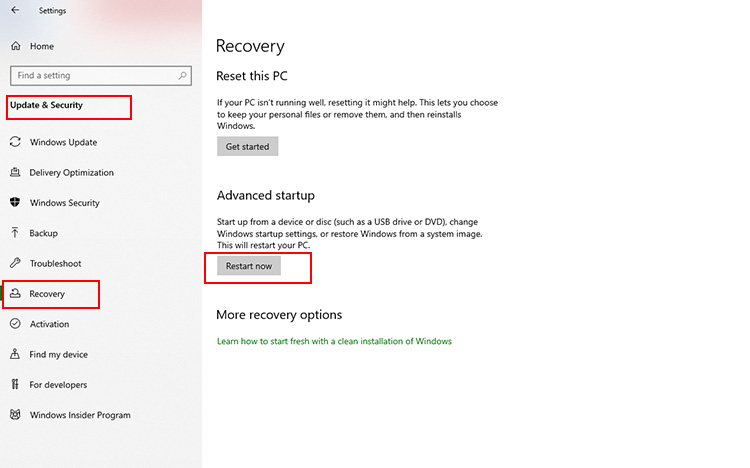
Step 2. After the restart, select Troubleshoot, then Advanced options, and finally click Startup Settings. This section controls how Windows boots and allows you to enable Safe Mode options.
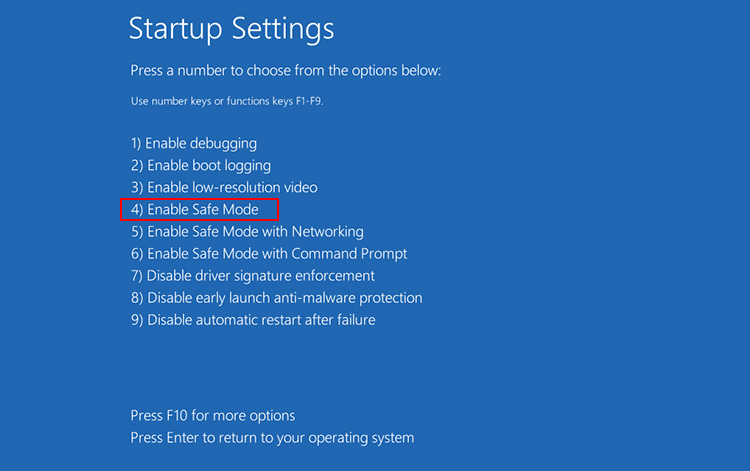
Step 3. Click Restart again, then press the corresponding number key (usually 4 or F4) to enter Safe Mode. Once the system restarts, Windows will load with minimal drivers and restricted background processes to remove virus in laptop.
Laptop Virus Removal 3 - Virus Scan
Once the system is running in a safer environment, the next logical step is to identify and eliminate the actual threat. To carry out the scan effectively, IObit Malware Fighter can be used as the main detection tool. The process is straightforward but should be followed carefully from start to finish to ensure no infected components are missed.
How to Remove Virus from a Laptop?
Step 1. Download IObit Malware Fighter using another virus-free PC or laptop. Once downloaded, transfer the installation file to a USB drive to avoid exposing the infected system to additional online threats.
Step 2. Insert the USB drive into the affected laptop and run the setup file. Follow the on-screen instructions to complete the installation.
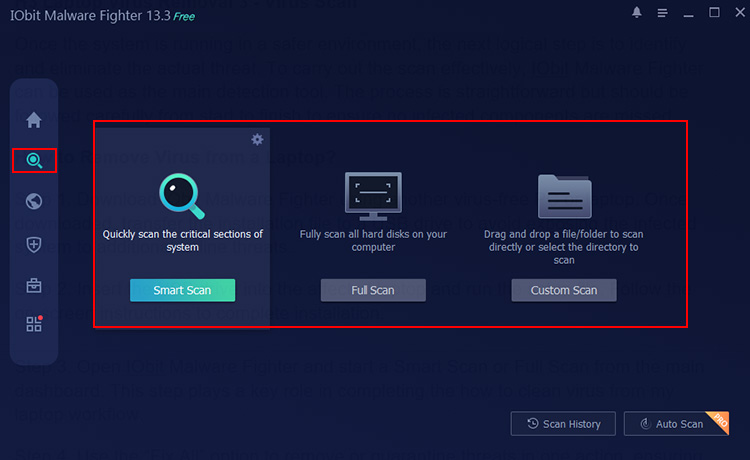
Step 3. Open IObit Malware Fighter and start a Smart Scan or Full Scan from the main dashboard. This step plays a key role in completing the how to clean virus from my laptop workflow.
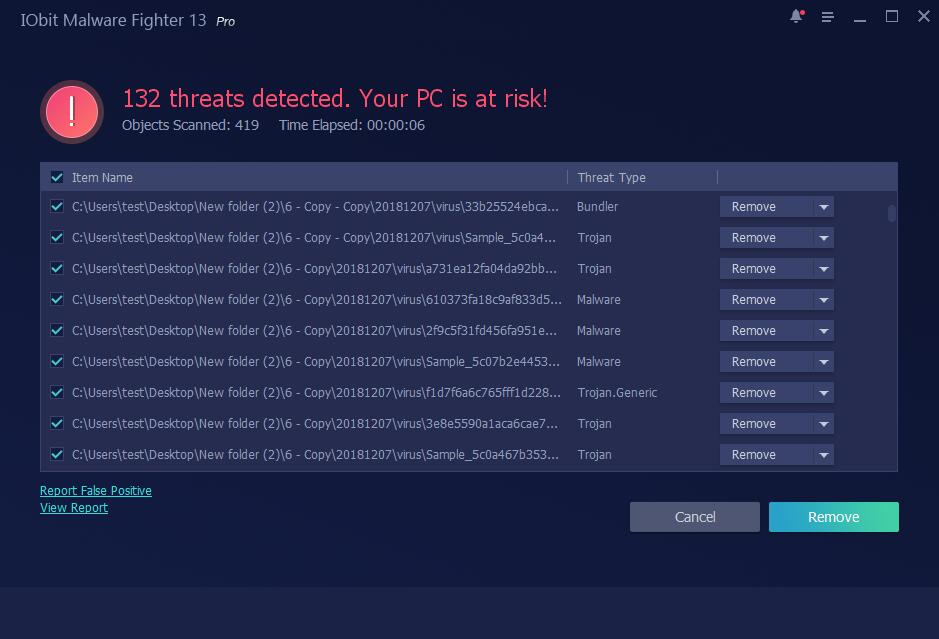
Step 4. Click Remove to get rid of threats in one action, ensuring no malicious files remain active.
Laptop Virus Removal 4 - Restart Laptop
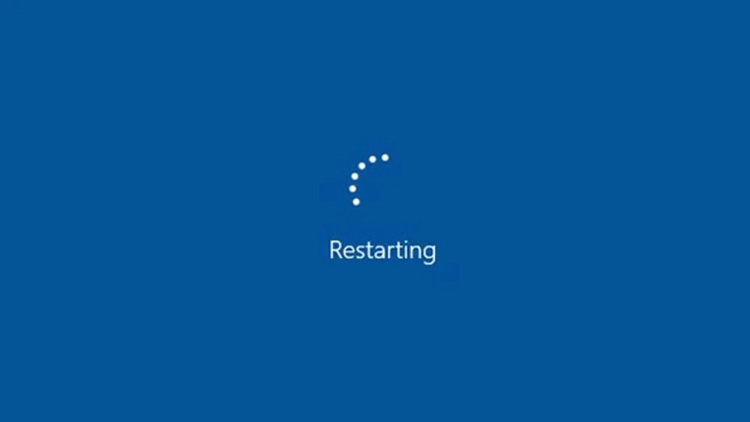
A restart may look simple, but it plays an important role in finalizing changes made during cleanup. If you are still figuring out how to remove virus from a laptop, or going through a structured laptop virus removal process, this step helps stabilize the system after isolation. It also supports users who are trying to understand how to remove virus from laptop for free in a complete and controlled way.
Quit Safe Mode: Restarting returns Windows to its normal startup state, allowing you to confirm whether suspicious behavior still appears under regular conditions.
Flush the memory: A reboot clears active system memory (RAM), removing temporary data that malware may have used during execution or hiding processes.
Apply system changes: Any removed files, cleaned registry entries, or disabled startup items become fully effective only after a fresh restart cycle.
Future Laptop Virus Protection Tips
After going through the removal process, the focus naturally shifts toward preventing the same problem from coming back. Once you understand how to protect my laptop from viruses, the next step is building habits that reduce future risks.
Use antivirus software for real-time protection: Keep a trusted security tool running in the background to detect threats.
Use a strong password: Combine letters, numbers, and symbols to reduce the risk of unauthorized access and credential-based attacks.
Regular data backup: Store important files on an external drive or cloud service so data can be restored.
Avoid unsafe downloads: Stick to verified sources, block ads in Chrome/Firefox/Safari, and avoid installing unknown software that may carry hidden malware.
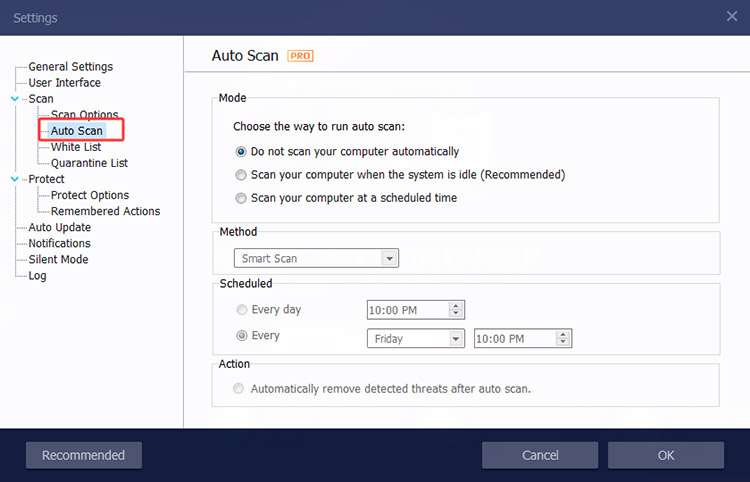
To make protection even more effortless, IObit Malware Fighter includes an Auto Scan feature that runs scheduled checks without manual input. You can enable it by going to Options (top-right corner) > Settings > Auto Scan, ensuring your laptop stays protected with minimal effort.
The Bottom Line
Laptop virus removal is not just about cleanup but also about restoring stability and preventing future threats. The above steps for how to remove virus from a laptop shoulde improve overall system security on the laptop. For a simpler and more reliable way to stay protected, download IObit Malware Fighter and run a full scan today to keep your system clean and secure.
IObit Malware Fighter Free
- Quick and deep system scanning throughout PC system.
- Smart defense against all malicious infestations.
- High-level security and privacy protection in real time.
- Leading anti-malware and anti-virus engines.