Ever opened your PC only to find it lagging, crashing, or acting like it has a mind of its own? You’re not alone. You might be dealing with a Trojan virus. What is it? How do you get rid of Trojan virus easily on a computer? Don't panic. Getting your system back to peak performance is easier than you think. Here is a full guide on Trojan virus and how to remove Trojan virus from Windows step by step.
What is a Trojan Virus?
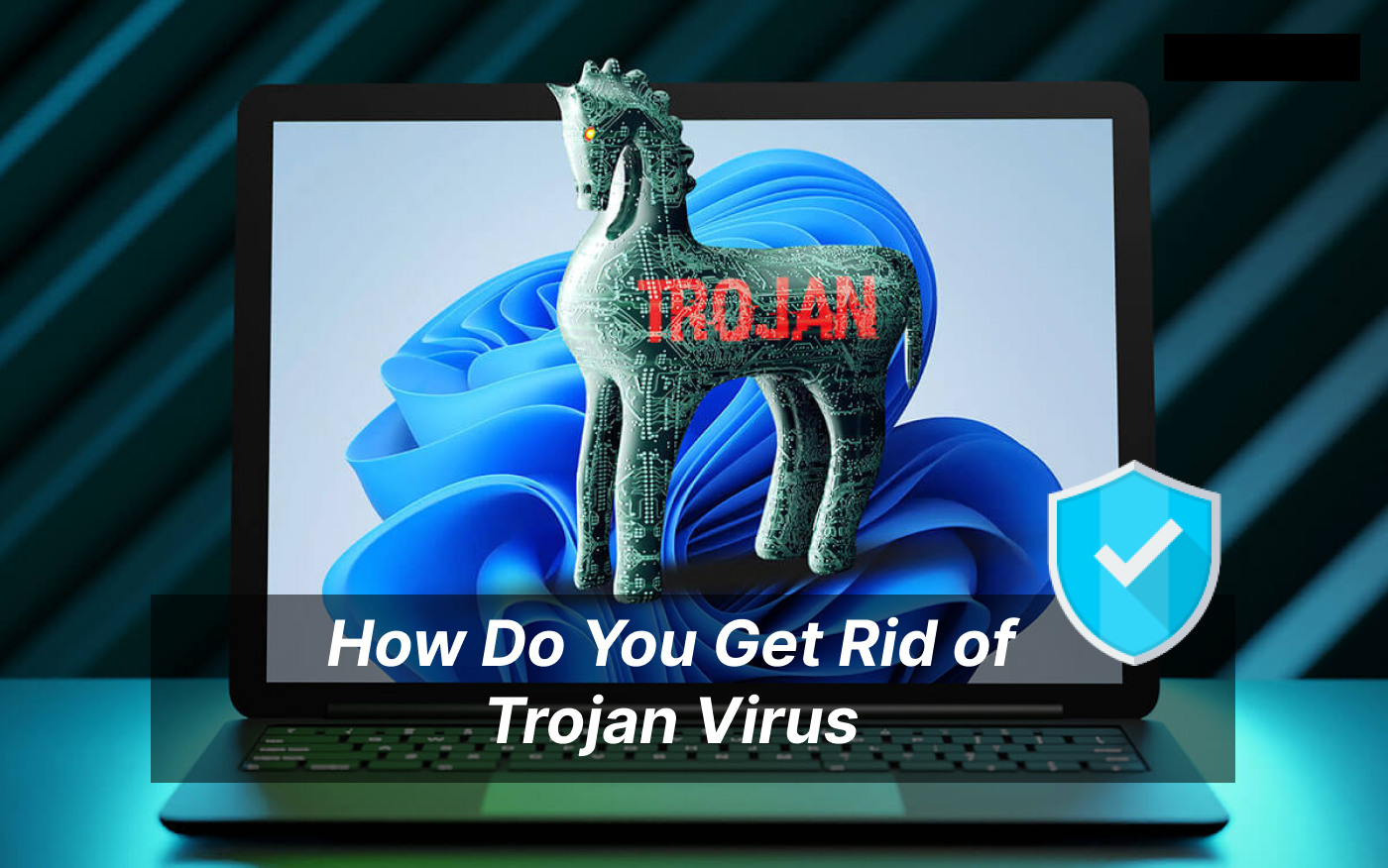
So what exactly is a Trojan virus? A Trojan virus is a type of malicious software disguised as a legitimate file or program. Once downloaded, it tricks the user into activating it, allowing hackers to secretly access the system, steal sensitive data, spy on user activity, or install additional harmful malware without detection.
Common Types of Trojan Viruses:
Here are the common types of Trojan viruses that might infect your computer.
Backdoor Trojans: Give attackers remote control over your device.
Banker Trojans: Target your financial accounts and credit card details.
Downloader Trojans: Secretly download and install even more malicious programs.
Ransomware Trojans: Lock your files and demand a fee to release them.
How to get rid of Trojan virus for free? We will walk you through a detailed guide to remove the harmful Trojan virus easily from your computer.
How to Remove Trojan Virus from Windows 11/10?
Because Trojans disguise themselves as legitimate files, trying to find and delete them manually is highly risky and often ineffective.
Here’s how to remove Trojan virus from Windows 11 safely and effectively:
Step 1. Disconnect from the Internet
First of all, unplug your Ethernet cable or disconnect from Wi-Fi immediately. Trojans often communicate with a remote server to steal your data or download more malware. Cutting the internet stops this communication instantly.
Step 2. Enter Safe Mode
Booting your computer in Safe Mode prevents non-essential programs, including most malware, like Trojan virus, from starting up automatically.
Hold the Shift key while clicking Restart in the Start Menu.
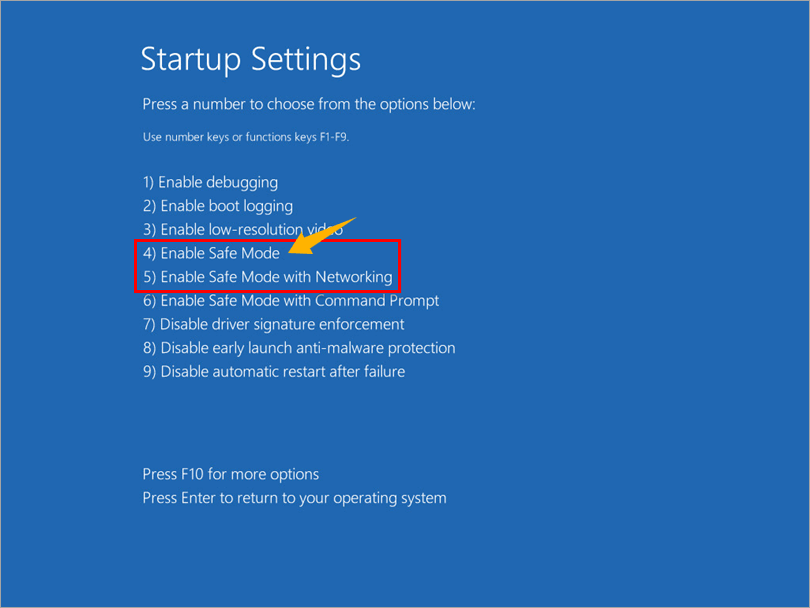
Go to Troubleshoot > Advanced options > Startup Settings > Restart, then press 4 or F4 for Safe Mode.
Step 3. Run a Full Scan & Trojan Virus Removal
How to detect Trojan virus on computer? You need to use reliable anti virus software for free (such as IObit Malware Fighter and Malwarebytes) to isolate and destroy the malicious code. Run a Full System Scan for a deep Trojan virus detection and remove all hidden virus instantly.
IObit Malware Fighter Free
- Quick and deep system scanning throughout PC system.
- Smart defense against all malicious infestations.
- High-level security and privacy protection in real time.
- Leading anti-malware and anti-virus engines.

Step 4. Clear Temporary Files
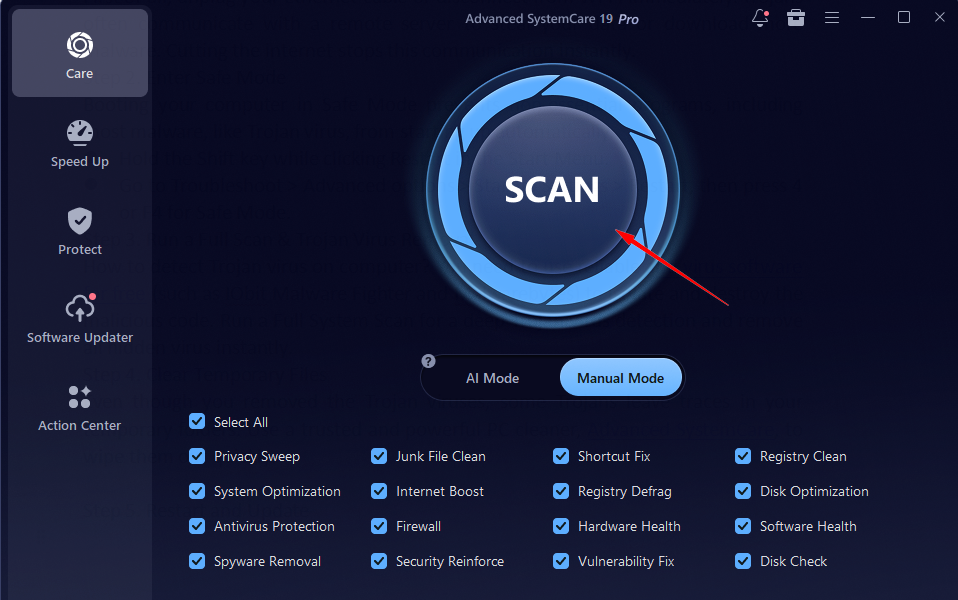
Even though you removed the Trojan viruses, some Trojans leave traces in your temporary folders. How to delete Trojan virus Windows 11 completely? Use a trusted and powerful PC cleaner, Advanced SystemCare, to wipe them out quickly.
Step 5. Restart and Update
How to get rid of a Trojan virus Windows 11? Last but not least, Reconnect to the internet, restart your computer normally, and immediately update your device and antivirus software to the latest versions to fix any security vulnerabilities.
Best Tool to Detect & Remove Trojan Virus Free on Computer (Most Effective)
How to detect Trojan virus on computer in real time smartly? IObit Malware Fighter is a must-have antivirus tool that delivers real-time protection and clean Trojan virus removal by 1 click. With this powerful malware fighter, you won’t fall victim to malicious viruses, and all your privacy and data will be fully safeguarded.
IObit Malware Fighter Free
- Quick and deep system scanning throughout PC system.
- Smart defense against all malicious infestations.
- High-level security and privacy protection in real time.
- Leading anti-malware and anti-virus engines.
Why is IObit Malware Fighter Your Best Choice?
Full Trojan Virus Detection & Removal: It’s robust antivirus software that fully scans all hard disks on your computer, helping you detect and remove all hidden Trojan viruses completely and easily.
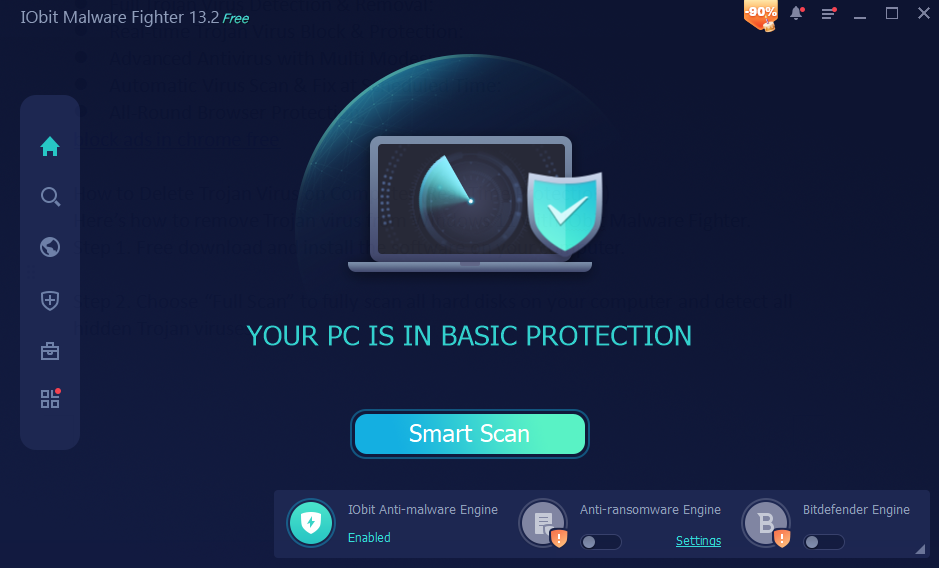
Real-time Trojan Virus Block & Protection: IObit Malware Fighter provides real-time antivirus protection anytime with powerful Anti-malware Engine, Anti-ransomware Engine, and Bitdefender Engine.
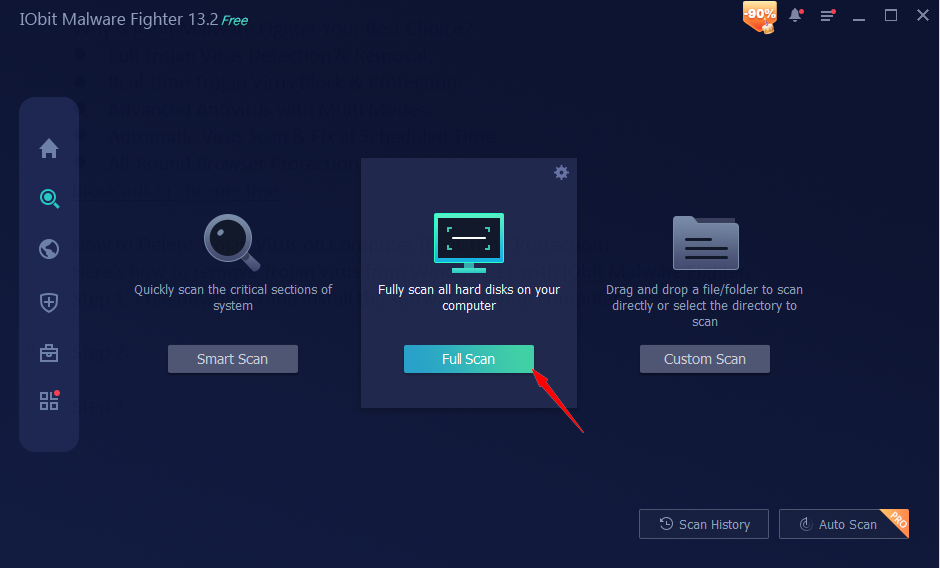
Advanced Antivirus with Multi Modes: You can enjoy multiple virus scanning modes on your computer, including Smart Scan, Full Scan, and Custom Scan. Whether you need a quick, thorough, or customized Trojan removal, it will deliver impressive results.
Automatic Virus Scan & Fix at Scheduled Time: It supports customizing automatic scanning tasks based on your usage habits. You can set a fixed time (such as weekly deep scanning) to let the software automatically check for and clear potential Trojan threats, which saves you time and effort.
All-Round Browser Protection: It can block ads in Chrome free, malicious pop-ups, dangerous download links, and phishing websites that often carry Trojan viruses when you browse the web, preventing infection before the malware can reach your device.
How to Delete Trojan Virus on Computer (Real-Time Protection)
Here’s how to remove Trojan virus from Windows 11 with IObit Malware Fighter.
Step 1. Free download and install the software on your computer.
Step 2. Choose “Full Scan” to fully scan all hard disks on your computer and detect all hidden Trojan viruses.
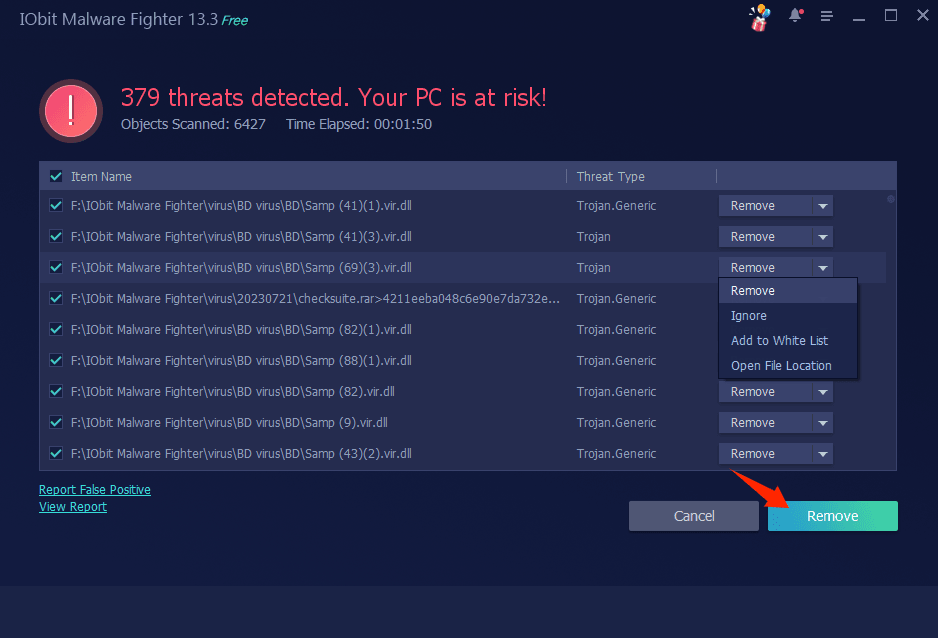
Step 3. When the scan is finished, check how many threats, including Trojan virus detected on your PC. Click “Remove” to get a safe cleanup for free.
Advanced: Real-time Trojan Virus Protection
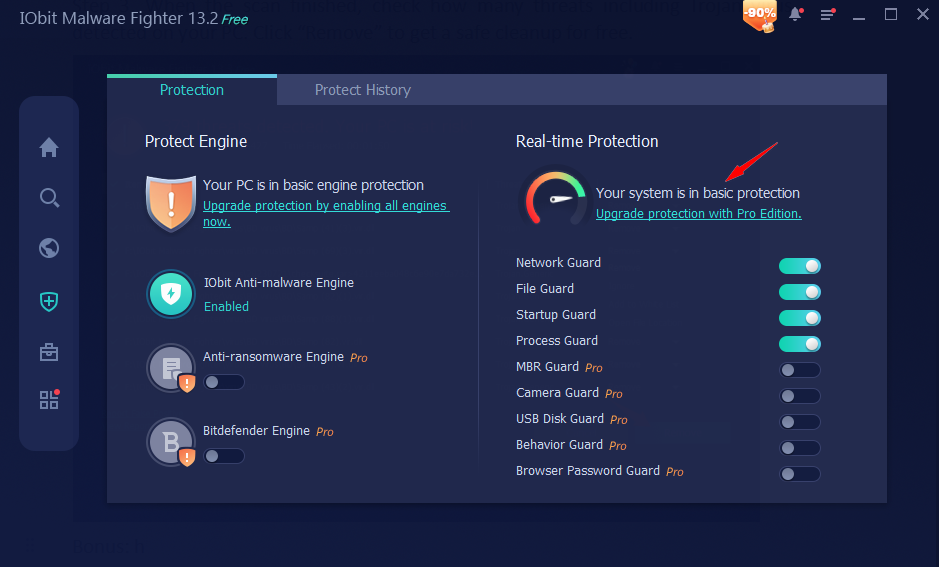
Can you get real-time anti-malware protection on your PC? Yes, with this excellent Trojan malware removal tool, your PC is fully in real-time protection. Locate “Security Guard” on the left taskbar, and enable all the basic protections, such as Network Guard, File Guard, etc.
If you need more protection against Trojan viruses, upgrade to Pro and enjoy MBR Guard, Behavior Guard, or Browser Password Guard.
That’s how to remove a Trojan virus from Windows 11. How to check for viruses on Windows 10? Do the same as how to remove Trojan virus from PC with IObit Malware Fighter.
Tips on How to Stay Trojan-Free on Windows
Aside from detecting and removing Trojan viruses with the professional virus cleaner, how to protect your computer from viruses? Keeping your Windows PC safe from Trojans doesn't require you to be a tech genius. It just takes a few smart habits and the right settings.
1. Keep Windows and Software Updated
Frequently update your operating system, web browsers like Chrome, Edge, Firefox, Internet Explorer, and all other third-party software. These updates can help patch security holes that attackers normally exploit.
2. Use a Robust Firewall or Antivirus
It’s helpful to install reliable security software on your device for Trojan virus defense. Firewalls like McAfee and powerful antivirus software like IObit Malware Fighter provide real-time protection and block Trojans in advance.
IObit Malware Fighter Free
- Quick and deep system scanning throughout PC system.
- Smart defense against all malicious infestations.
- High-level security and privacy protection in real time.
- Leading anti-malware and anti-virus engines.
3. Connect to a Safe VPN When on Public Wi-Fi
Ensure you’ve connected to a trusted VPN when using a public Wi-Fi. It’s a great way to encrypt your data and prevent viruses from intercepting it.
4. Be Careful of Each Click
To prevent malicious Trojan virus infection, you must be careful of each click on your computer. It includes:
Unsecured websites or app installations: Unofficial websites and app downloads may contain Trojan viruses.
Cracked game or software: "Free" versions of paid games or software are the number one hiding spot for Trojans.
Inspect email attachments: Never open files from unknown senders, especially if they end in .exe, .vbs, or .scr.
Suspicious URL: Think twice before you click on a URL. Only download files from official websites.
5. Use a Non-Admin Account for Daily Use
Create a Standard User account for your daily gaming, browsing, and homework. If a Trojan tries to install itself, Windows will pause and ask for an admin password, giving you a chance to stop it.
FAQs on How Do You Get Rid of Trojan Virus
1. How Does a Trojan Virus Work?
A Trojan virus works by pretending to be a safe, legitimate file—like a free game, an email attachment, or a software update. When you click and install it, the malware activates in the background, and hackers can spy on you, steal data, or control your device.
2. How to Fully Remove a Trojan Virus?
How to remove Trojan virus from Windows 10/11 fully? Run a full scan on your operating system with IObit Malware Fighter and remove all Trojan viruses to safely clean your computer instantly.
3. How to Tell If Your Computer Might Have a Trojan Virus?
Signs that you may be infected include sudden sluggishness, frequent crashes, unauthorized password changes, or strange pop-ups. You might find your security software has been mysteriously disabled, or see unexplained internet data usage spikes.
4. How to Get Rid of Trojan Virus on Phone?
First, restart your phone in Safe Mode to block the virus. Next, check your app list to uninstall any suspicious applications. Finally, run a full scan with a trusted mobile security app to eliminate remaining malicious code.
The Bottom Line
How do you get rid of Trojan virus? Wiping out a Trojan virus might feel overwhelming, but following this step-by-step guide is simple enough. How do you remove Trojan virus from your computer? By staying proactive with smart system scans and removals with IObit Malware Fighter, you can keep your digital life secure anytime!
IObit Malware Fighter Free
- Quick and deep system scanning throughout PC system.
- Smart defense against all malicious infestations.
- High-level security and privacy protection in real time.
- Leading anti-malware and anti-virus engines.