Removing AutoCAD through Windows Settings or macOS Applications may not delete every associated file. Configuration folders, cached installers, user profiles, licensing components, and registry entries can remain on the computer. These leftovers may consume storage space or cause errors when you reinstall a different AutoCAD version.
This guide explains how to clean leftover files from AutoCAD uninstall safely. You will learn how to clean uninstall AutoCAD normally, locate residual folders, use the official removal options, and perform an AutoCAD clean uninstall with a professional uninstaller.
Why Does AutoCAD Leave Files After Uninstallation?
AutoCAD saves data in different locations to keep your settings, templates, plug-ins, and preferences. When you uninstall it, only the main program is removed, so some files may stay behind. Common leftover files include:
Settings and workspace profiles
Templates, fonts, and scripts
Temporary and installation files
Folders in AppData or ProgramData
Registry entries
Shared Autodesk components
Do not delete all Autodesk files. Some are shared with other programs like Revit, Maya, or 3ds Max and may still be needed.
What to Do Before You Clean Uninstall AutoCAD
Before removing anything manually, protect the files and settings you may need later. This is especially important when AutoCAD contains customized workspaces, templates, plot configurations, or third-party plug-ins. Complete these preparations:
Back up DWG files and active projects.
Export customized AutoCAD settings when necessary.
Save templates, plot styles, fonts, scripts, and plug-ins.
Close AutoCAD and every Autodesk application.
Sign in with an administrator account.
Create a Windows restore point before making changes to the registry.
After protecting your data, choose one of the following methods based on your operating system and AutoCAD version.
Method 1. Uninstall AutoCAD Through Windows Settings
Users asking “how do I uninstall an app on Windows?” should begin with the built-in Apps section. It is the safest and quickest way to run AutoCAD’s official uninstaller first, then manually clean up any remaining files and data. Here are the steps to uninstall AutoCAD through Windows settings.
Step 1. Press Windows + I to open Settings.
Step 2. Select Apps > Apps & features.
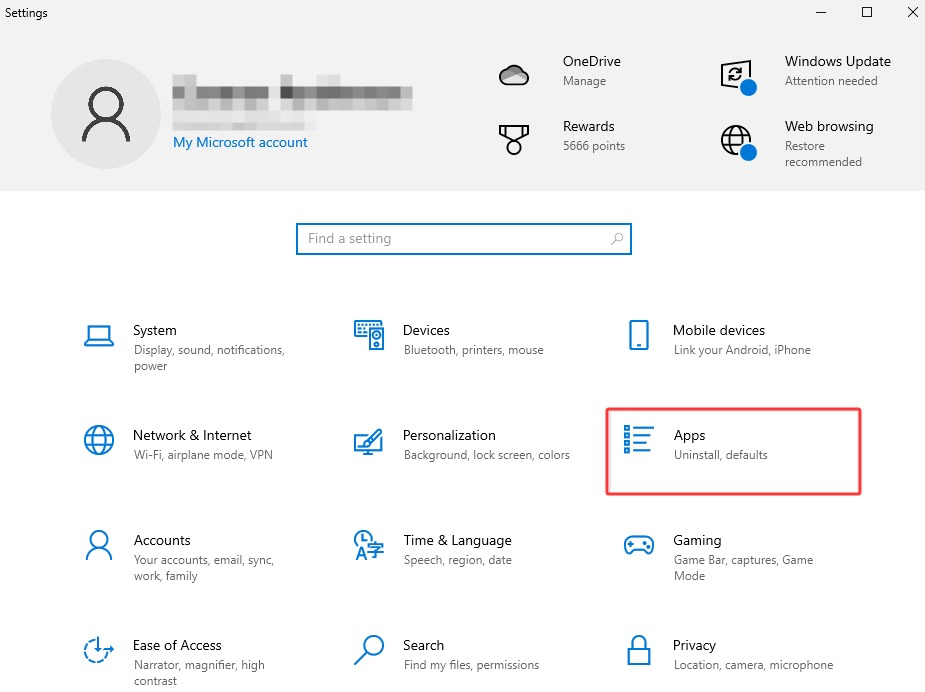
Step 3. Type AutoCAD in the search box.
Step 4. Right-click AutoCAD and select Uninstall.
Step 5. Follow the removal wizard.
Step 6. Remove related AutoCAD language packs or add-ons you no longer need.
The application should now be removed, but folders containing preferences and cached data may remain.
Method 2. How to Clean Leftover Files from AutoCAD Uninstall Manually
Manual cleanup gives you direct control over which AutoCAD files are deleted. However, you should remove only folders related to the AutoCAD product and version you uninstalled.
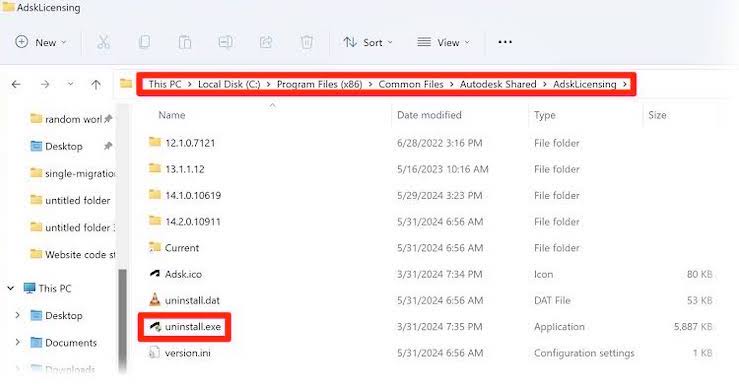
Delete AutoCAD Installation Folders
Step 1. Open File Explorer and check these locations:
C:\Program Files\Autodesk\
C:\Program Files (x86)\Autodesk\
C:\ProgramData\Autodesk\
C:\Users\Public\Documents\Autodesk\
Step 2. Look for folders containing the removed AutoCAD product name or version. Delete only the relevant folders.
Delete AutoCAD Files from AppData
AppData contains user-specific preferences, caches, profiles, and customization files.
Step 1. Press Windows + R.
Step 2. Enter %appdata% and press Enter.
Step 3. Open the Autodesk folder.
Step 4. Delete the folder for the removed AutoCAD version.
Step 5. Press Windows + R again.
Step 6. Enter %localappdata%.
Step 7. Open Autodesk and remove the matching AutoCAD folder.
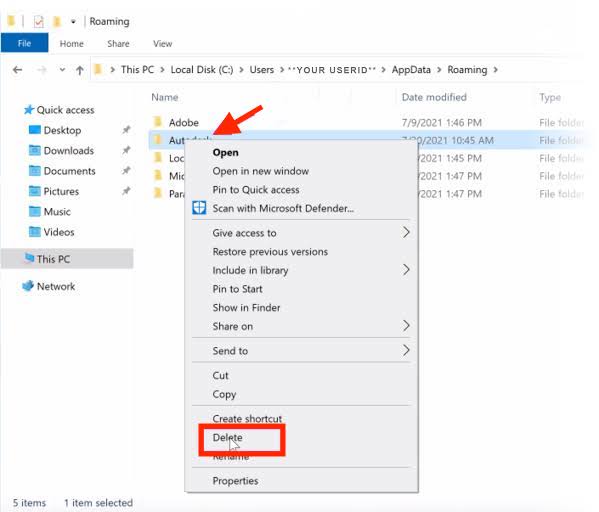
Notice: Do not delete settings belonging to an AutoCAD version you still use.
Clear Temporary AutoCAD Files
Temporary installation files may remain after you uninstall AutoCAD.
Step 1. Press Windows + R.
Step 2. Enter %temp%.
Step 3. Press Ctrl + A.
Step 4. Delete files that are no longer needed.
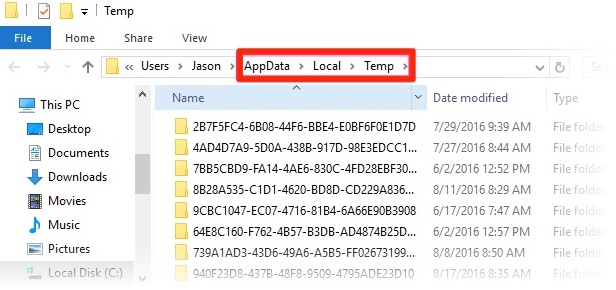
Step 5. Skip any file currently being used by Windows or another program.
Step 6. Empty the Recycle Bin after confirming the computer works correctly.
Method 3. Remove AutoCAD Registry Leftovers Carefully
The Windows Registry may retain AutoCAD preferences and installer records. Incorrect registry changes can affect Windows or other Autodesk products, so this method should only be used when you understand the risks.
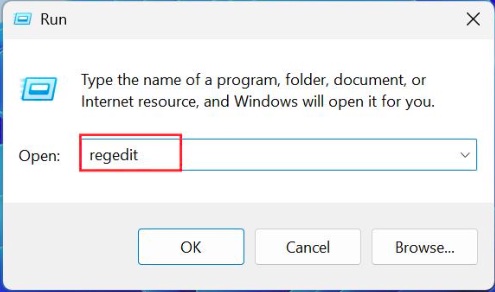
Step 1. First, you need to back up the registry.
Press Windows + R.
Type regedit.
Select Yes when User Account Control appears.
Click File > Export.
Select All under Export range.
Save the backup in a secure location.
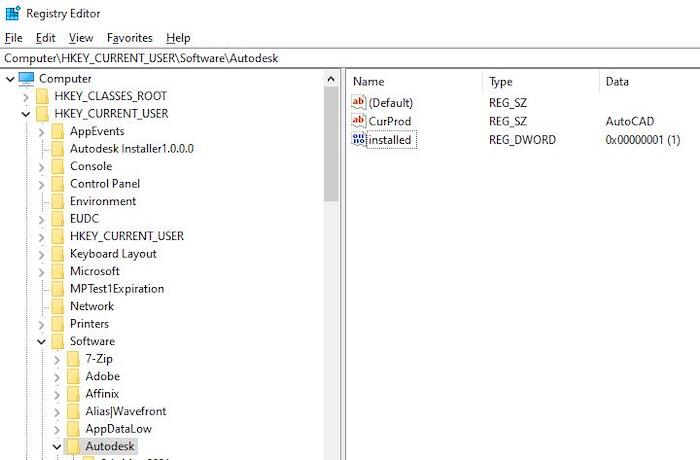
Step 2. Check the current user Autodesk registry key
In Registry Editor, navigate to: HKEY_CURRENT_USER\Software\Autodesk
Expand Autodesk and look for entries specifically associated with the AutoCAD version you removed.
Step 3. Check the Local Machine Autodesk Key
Next, navigate to: HKEY_LOCAL_MACHINE\SOFTWARE\Autodesk
Look for AutoCAD-specific entries corresponding to the version you uninstalled. Right-click only the confirmed obsolete key and select Delete, then confirm.
Tip: Avoid removing broad Autodesk registry branches when other Autodesk programs remain installed. A safer alternative is to use an uninstall utility that automatically detects related entries.
Method 4. Perform an AutoCAD Clean Uninstall with IObit Uninstaller
Manual removal can be time-consuming because AutoCAD stores data across multiple system locations. A dedicated tool can scan for related files and registry records after running the program’s original uninstaller.
IObit Uninstaller is a practical best uninstaller option for Windows users who want to uninstall AutoCAD and automatically check for residual data. Its official documentation states that it can scan for leftover files, folders, and registry entries after an application is removed.
IObit Uninstaller Free
- Complete forced uninstallation for stubborn programs.
- Uninstall a batch of programs at once.
- Scan and remove leftover files, folders, and registry entries.
- Support the management of Universal Windows Platform apps.

Useful Features for AutoCAD Removal
Leftover File Scanning: It checks common system locations for files and folders associated with recently removed programs.
Registry Residue Detection: It identifies registry entries linked to the uninstalled application, reducing the need for manual Registry Editor searches.
Stubborn Program Removal: As one of the best uninstallers for Windows 11, it can help when AutoCAD is damaged, missing an uninstaller, or refuses to disappear from the application list.
Restore Point Support: The program can create a system restore point before removal, providing an additional recovery option.
Automatic Residual Cleanup: It can detect leftovers even when AutoCAD was originally removed through Windows Settings or another uninstall method.
Steps to Uninstall AutoCAD with IObit Uninstaller
Step 1. Download and install IObit Uninstaller on your computer.
Step 2. Launch it and click All Programs in the left sidebar. Then, find AutoCAD from the right hand and check the box next it. Click Uninstall.
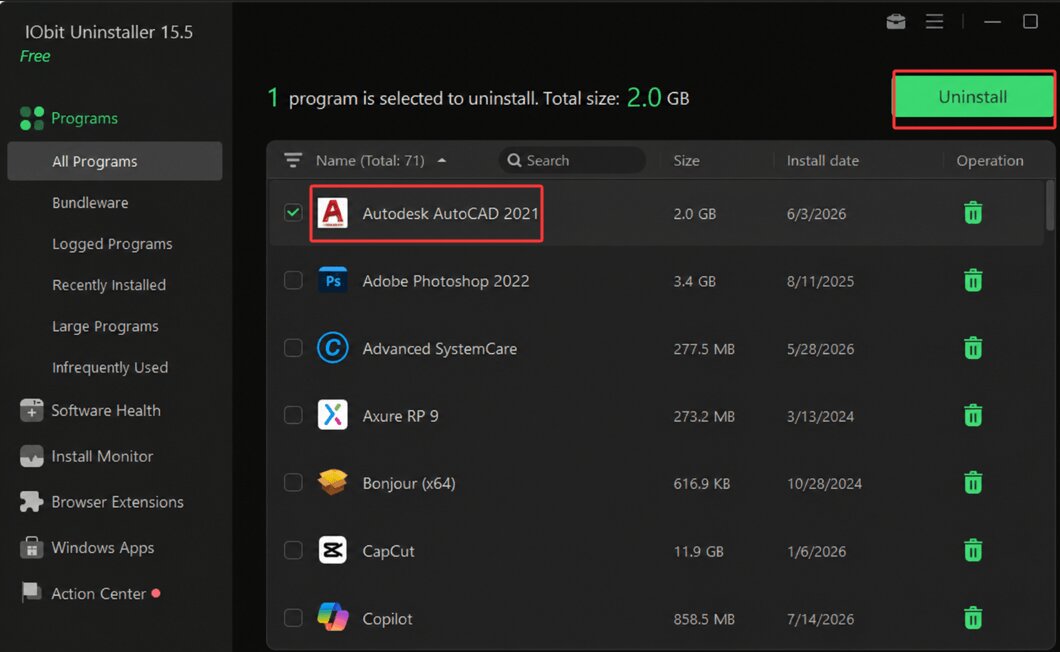
Step 3. In the new window, enable “Automatically remove residual files” and click Uninstall to start removing AutoCAD.
Tip: This method is particularly helpful when you need to force uninstall program Windows 11 installations that cannot be removed through Settings.
Method 5. How to Clean Leftover Files from AutoCAD Uninstall Utility on Mac
Mac users can often remove AutoCAD with the official Remove utility. Compared with simply dragging the application to the Trash, the utility is designed to remove the main program and associated residual files. This is the preferred answer for users searching for how to clean leftover files from AutoCAD uninstall tool on macOS.
Step 1. Open the AutoCAD uninstall utility.
Open Finder > Applications.
Open the Autodesk or AutoCAD folder.
Launch the available Remove AutoCAD/Uninstall AutoCAD utility for your version.
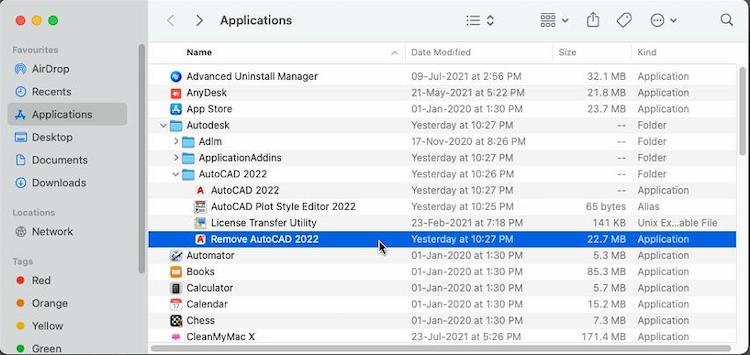 Step 2. Select AutoCAD and uninstall it.
Follow the utility’s prompts to select the AutoCAD product/version you want removed.
Confirm the removal and enter your Mac administrator password if requested.
Wait until the uninstall process finishes.
Step 3. Check for remaining Autodesk files.
In Finder, choose Go > Go to Folder and enter ~/Library.
Check locations such as Application Support/Autodesk, Preferences, and Caches for files clearly associated with the AutoCAD version you just removed.
Step 4. Delete confirmed AutoCAD leftovers.
Move only obsolete AutoCAD-specific files and folders to the Trash. If you have other Autodesk products installed, do not delete the entire Autodesk folder, because it may contain shared licensing or application components.
Step 5. Empty Trash and restart.
Method 6. How to Clean Leftover Files from AutoCAD Uninstall Mac Manually
When the Remove utility is missing or an installation is corrupted, you may need to search for residual folders manually.
Step 1. Uninstall AutoCAD First
Open Finder > Applications > Autodesk.
Look for the Remove/Uninstall AutoCAD utility associated with your installed version.
Run it and follow the prompts to remove AutoCAD.
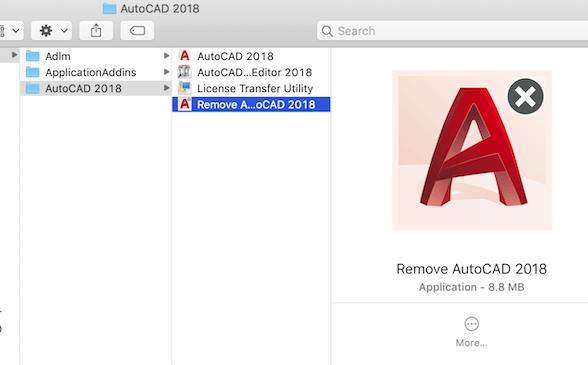
Step 2. Open the User Library Folder
After uninstalling, open Finder. Click Go in the menu bar while holding the Option (⌥) key, then select Library.
Alternatively, choose Go > Go to Folder, enter: ~/Library and press Return.
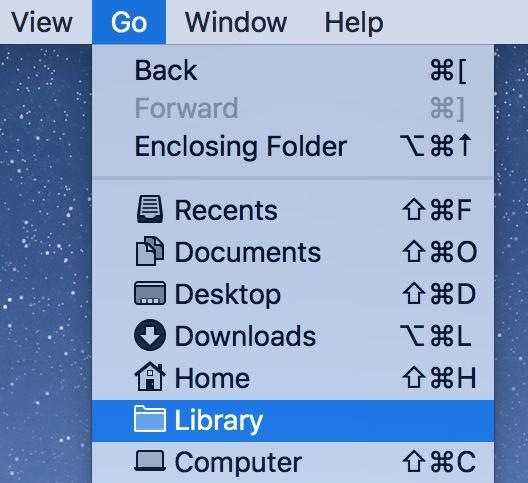
Step 3. Remove AutoCAD Preference Files
Check: ~/Library/Preferences/
Look for preference files or folders clearly associated with the AutoCAD version you removed, including Autodesk/AutoCAD-named items.
Move only confirmed AutoCAD-related leftovers to the Trash.
Step 4. Clean Application Support Files
In Finder, select Go > Go to Folder and check: ~/Library/Application Support/Autodesk/
Look for folders belonging specifically to the removed AutoCAD installation and move those obsolete files to Trash.
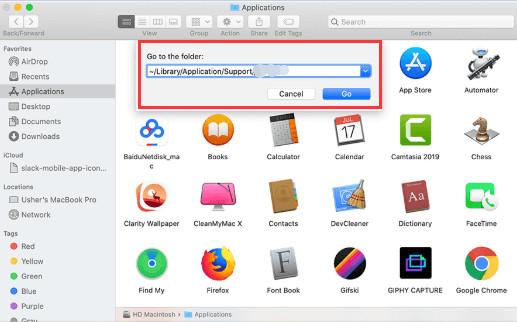
Step 5. Remove AutoCAD Cache and Saved-State Data
Check these user Library locations:
/Library/Application Support/Autodesk/
/Library/Preferences/Autodesk/
/Library/Autodesk/
~/Library/Application Support/Autodesk/
~/Library/Preferences/
~/Library/Caches/
Search for folders clearly associated with Autodesk AutoCAD or the removed AutoCAD version. Move confirmed leftovers to Trash.
What to Do If AutoCAD Will Not Uninstall
A broken installation may display errors, disappear from the installed-app list, or stop during removal. Try these solutions:
Restart the computer and rerun the uninstaller as an administrator.
Close Autodesk processes through Task Manager.
Use Microsoft’s Program Install and Uninstall troubleshooter.
Use a professional uninstall utility to scan for a broken installation.
Reinstall the same AutoCAD version and then uninstall it again.
Start Windows in Safe Mode if running services prevent folder deletion.
Autodesk recommends Microsoft’s troubleshooter when Autodesk software cannot be removed normally.
FAQs About AutoCAD Clean Uninstall
Does Uninstalling AutoCAD Delete DWG Files?
Normally, uninstalling AutoCAD does not delete drawings saved in personal project folders. However, always create a backup before removing application folders or user-profile data.
Can I Delete the Entire Autodesk Folder?
Only when every Autodesk product has been removed and you no longer need shared components. Otherwise, delete only AutoCAD-specific folders and version data.
Why Does AutoCAD Still Appear After Uninstallation?
The uninstall process may have failed, or Windows Installer records may still exist. Restart Windows, use Microsoft’s troubleshooter, or run a forced uninstall scan.
Should I Remove Autodesk Licensing Services?
Do not remove shared licensing services when other Autodesk applications remain installed. Remove them only when uninstalling every Autodesk product or when official troubleshooting instructions require it.
Is Manual Removal Better Than an Uninstall Tool?
Manual removal provides more control, but it also increases the risk of deleting shared files. An uninstall tool is usually easier for users unfamiliar with AppData folders or registry entries.
Final Words
Knowing how to clean leftover files from AutoCAD uninstall helps prevent installation conflicts, recover storage space, and prepare Windows or macOS for a clean reinstall. Start with AutoCAD’s official removal method, back up custom files, and delete only version-specific remnants. For a faster Windows cleanup, a professional uninstaller can easily help you uninstall applications and scan for hidden folders and registry leftovers automatically.
IObit Uninstaller Free
- Complete forced uninstallation for stubborn programs.
- Uninstall a batch of programs at once.
- Scan and remove leftover files, folders, and registry entries.
- Support the management of Universal Windows Platform apps.