Windows Input Experience is a built-in Windows process that manages typing-related features, including the touch keyboard, handwriting input, emoji suggestions, voice typing, and language services. However, some users notice Windows Input Experience high memory usage in Task Manager, causing system slowdowns, lag, or reduced performance.
If you are experiencing Windows Input Experience taking up memory or dealing with Windows Input Experience high RAM usage, you are not alone. This guide will explain why Windows Input Experience consumes too much memory and provide effective Windows Input Experience high memory fix methods to restore normal performance.
What Is Windows Input Experience and Why Is It Using High Memory?
Windows Input Experience is a Windows system component that improves how users interact with their computers. It controls several input-related functions, such as touch keyboard suggestions, handwriting recognition, voice input, emoji panels, and multilingual typing support.
Under normal conditions, Windows Input Experience should only use a small amount of RAM. However, when the service encounters errors, it may continue running unnecessary background tasks and result in Windows Input Experience high memory Windows 11 problems.
Common causes include:
Temporary Windows system bugs
Corrupted system files
Outdated Windows versions
Conflicts with third-party input methods
Excessive background services
Incorrect language or keyboard settings
Although high memory usage can be frustrating, Windows Input Experience is a legitimate Microsoft process. Instead of removing it, fixing the underlying cause is usually the best solution.
Fix 1. Restart Windows Input Experience in Task Manager
The fastest way to fix Windows Input Experience high RAM usage is to restart the related process. Sometimes, Windows services may continue running incorrectly after an update or system change. Ending the process allows Windows to reload it with a fresh state.
Steps to restart Windows Input Experience:
Step 1. Press Ctrl + Shift + Esc to open Task Manager.
Step 2. Click the Processes tab.
Step 3. Find Windows Input Experience.
Step 4. Right-click the process and select End task.
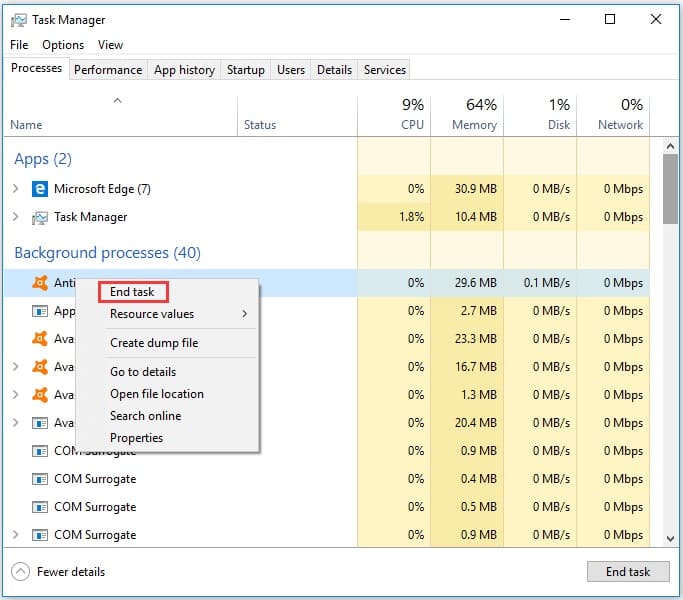
Step 5. Wait a few seconds. Windows will automatically restart the service when required.
After restarting the process, monitor memory usage in Task Manager. If the RAM consumption returns to normal, the issue was likely caused by a temporary system glitch.
Fix 2. Install the Latest Windows Updates
Microsoft regularly releases updates to improve system stability and fix bugs affecting Windows components. If you encounter Windows Input Experience high memory reddit, an outdated system version may be responsible.
Step 1. Open Settings from the Start menu.
Step 2. Select Windows Update on Windows 11 or Update & Security on Windows 10.
Step 3. Click Check for updates.
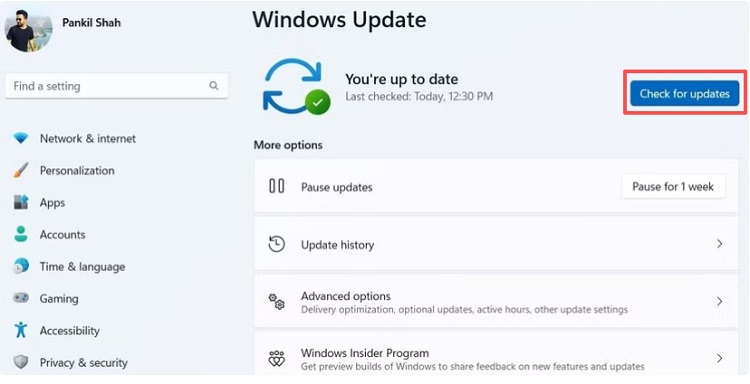
Step 4. Download and install available updates.
Step 5. Restart your computer.
Keeping Windows updated ensures that built-in services like Windows Input Experience work properly and reduces the chance of recurring memory issues.
Fix 3. Disable Unnecessary Input Features
Windows Input Experience supports many advanced typing functions, but not every user needs them. Features such as text suggestions, handwriting recognition, and multilingual predictions can increase background activity. Disabling unused input options can reduce situations where Windows Input Experience taking up memory occurs.
Disable extra typing features:
Step 1. Open Settings.
Step 2. Go to Time & language.
Step 3. Select Typing.
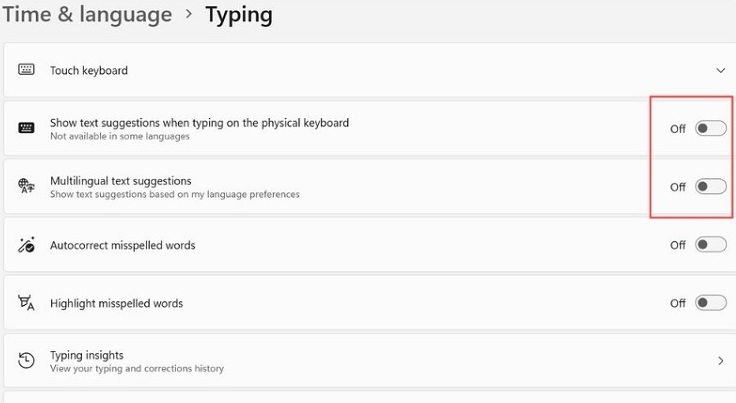
Step 4. Turn off unnecessary options, including:
This allows Windows to focus only on the input features you actually use.
Fix 4. Repair Corrupted Windows System Files
Damaged Windows files can cause system processes to behave abnormally. If Windows Input Experience repeatedly consumes excessive RAM, running built-in repair tools can help restore related system components.
Use System File Checker:
Step 1. Search Command Prompt in Windows Search.
Step 2. Right-click it and select Run as administrator.
Step 3. Enter the following command:
sfc /scannow
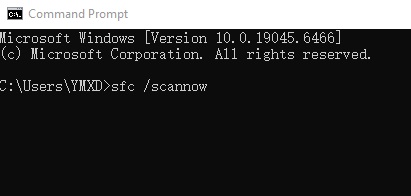
Step 4. Hit Enter and wait until the scan is fully completed.
Step 5. Restart your PC.
Fix 5. Clean Junk Files and Optimize Memory with Advanced SystemCare
Accumulated temporary files, redundant background processes, and inefficient system management can affect overall memory performance. Instead of manually checking different Windows settings, you can use a system optimization tool to simplify maintenance.
Advanced SystemCare is designed to improve Windows performance by cleaning unnecessary files, optimizing system resources, and managing background activities.
For users looking for a solution to Windows Input Experience high memory usage, Advanced SystemCare can help lower RAM consumption by clearing unnecessary files and optimizing resource-heavy system processes.
Advanced SystemCare Free
- Clean: 420 billion traces removed & 85 EB junk files cleaned
- Protect: 80 million unauthorized access blocked & 20 million bugs fixed
- Speed Up: 6 million hours of startup time saved & Turbo boost
- Optimize: Auto clean and auto care your PC with AI mode

Key features:
AI System Optimization
Uses intelligent scanning to detect performance problems and automatically apply suitable optimization settings.
RAM Optimization
As one of the best RAM optimizer for Windows 11 and 10, it frees unused memory resources from unnecessary background processes to improve system responsiveness.
Junk File Cleaning
Clears temporary files, cached data, and leftover system files that consume disk space and may slow down overall performance.
Startup Optimization
Disables unnecessary startup programs that consume memory after Windows launches.
Browser and Privacy Cleanup
Clears browser cache and privacy traces to maintain smoother system operation. It also works as a hard disk cleaner that can help you clean junk files on the hard disk.
With one-click scanning and optimization, Advanced SystemCare provides a convenient way to maintain Windows performance while reducing unnecessary resource usage. Here are the steps.
Step 1. Visit the official Advanced SystemCare website and download the latest version on your Windows.
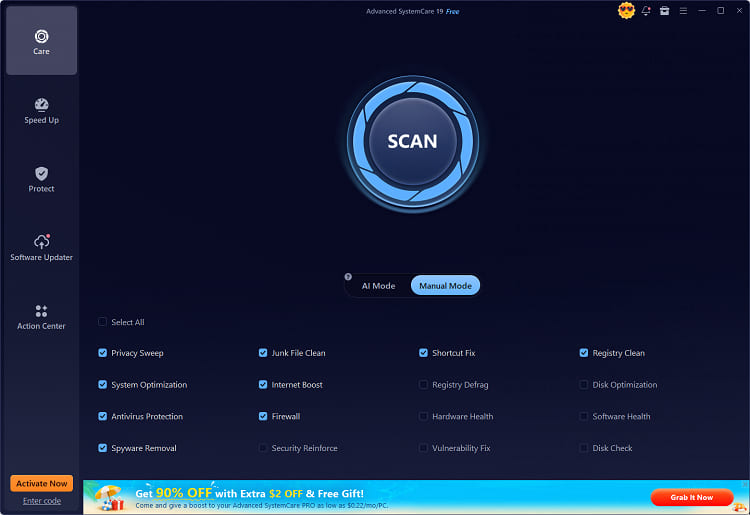
Step 2. Open Advanced SystemCare and click the Scan button on the main dashboard. Then, it will analyze your system for junk files, registry issues, etc. Click Fix to resolve issues it lists.
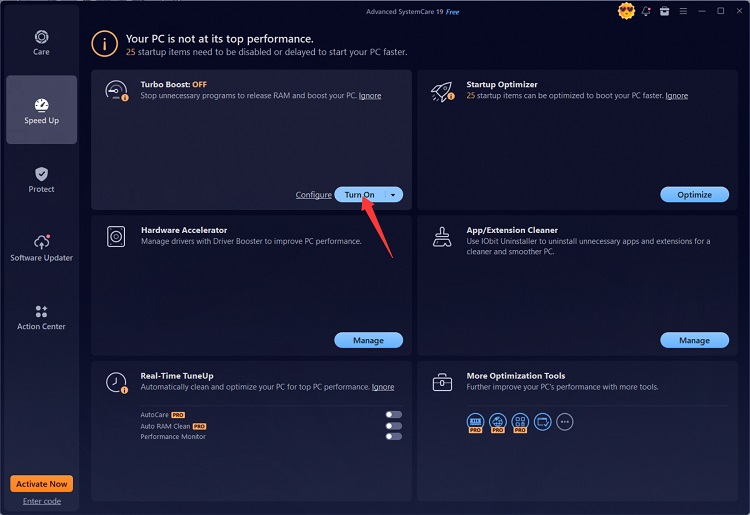
Step 3. Navigate to the Speed Up tab in the left sidebar and enable Turbo Boost. This mode automatically stops inactive background services and releases allocated RAM back to your system.
Fix 6. Disable Touch Keyboard and Handwriting Services
If you do not use touchscreen input or handwriting features, related services may run unnecessarily in the background. Disabling them can help reduce background activity linked to Windows Input Experience.
Disable Touch Keyboard service:
Step 1. Press Windows + R.
Step 2. Type services.msc and press Enter.
Step 3. Find Touch Keyboard and Handwriting Panel Service.
Step 4. Right-click it and select Properties.
Step 5. Change Startup type to Disabled.
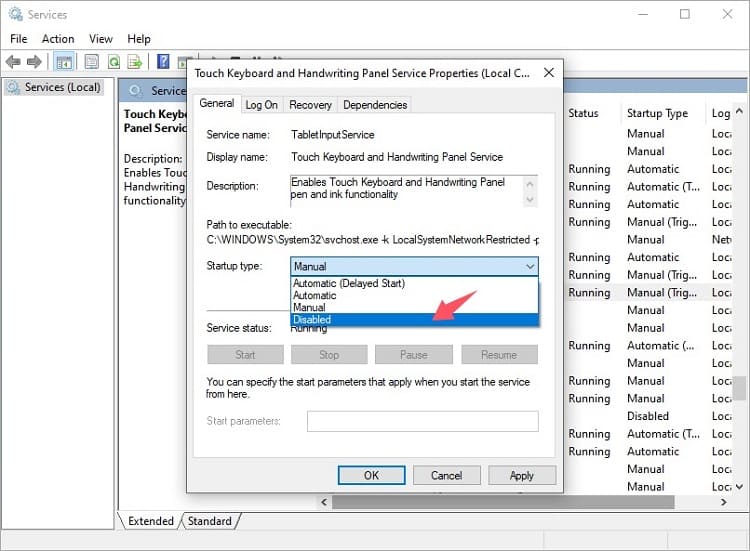
Step 6. Click Apply and restart your PC.
This method is especially useful for desktop users who do not rely on touch-based input.
Fix 7. Create a New Windows User Account
A damaged user profile can sometimes cause Windows services to behave incorrectly. Creating a new account helps determine whether the issue is related to your current profile settings. Here are the steps to create a new account:
Step 1. Open Settings.
Step 2. Select Accounts.
Step 3. Choose Family & other users.
Step 4. Under Other users, click Add account.
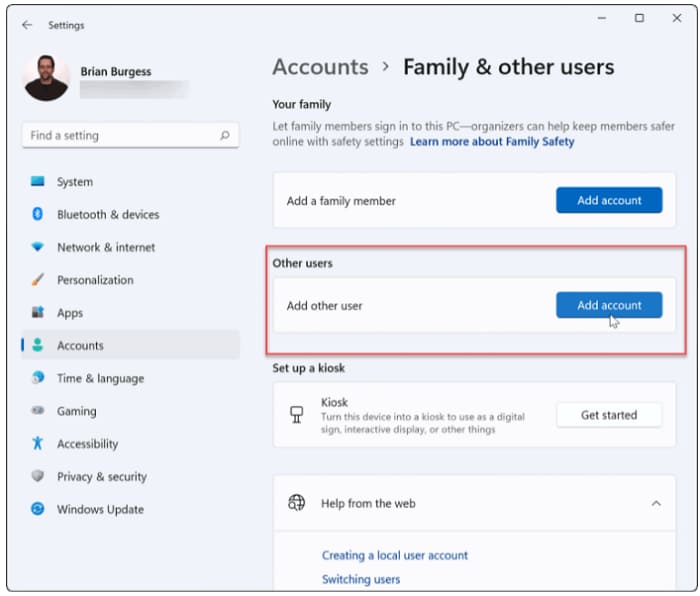
Step 5. Create a new Windows user by following the on-screen prompts.
Log into the new account and check whether Windows Input Experience still shows high memory usage.
Fix 8. Perform a Clean Boot to Find Software Conflicts
Third-party applications running in the background may interfere with Windows services. A clean boot starts Windows with only essential services enabled, making it easier to identify conflicts.
Perform a clean boot:
Step 1. Press Windows + R.
Step 2. Enter msconfig.
Step 3. Open the Services tab.
Step 4. Select Hide all Microsoft services.
Step 5. Click Disable all.
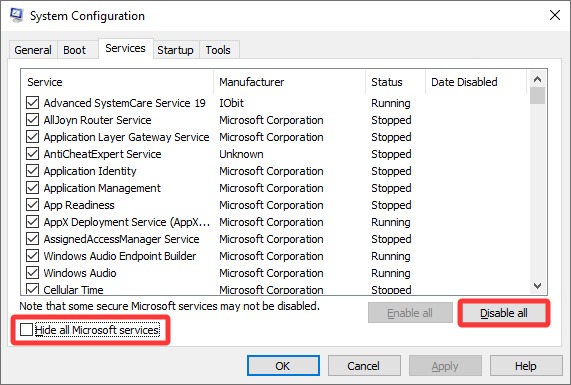
Step 6. Restart your computer.
If memory usage improves after the clean boot, enable services gradually to find the application causing the conflict.
Final Words
Windows Input Experience high memory issues can affect system speed, but they are usually easy to resolve with the right troubleshooting methods. Restarting the process, updating Windows, repairing system files, and optimizing memory usage can help restore normal performance.
For users who want a simpler way to maintain their PCs, this Windows optimizer - Advanced SystemCare provides automatic cleanup and optimization tools to reduce unnecessary resource usage and keep Windows running smoothly.