Has your Windows PC become slow at startup? Do apps take longer to open than they used to? On a traditional hard disk drive, parts of a single file can be stored in different locations. The drive then has to move between those locations to read the file. The disk defragmenter in Windows reorganizes fragmented data on an HDD so files can be read more efficiently.
This article is a complete guide to the Windows drive-optimization utility. It explains what the tool does, how to open and use it in Windows 11 and 10, whether defragmenting is still useful, and what else you can do to improve PC performance. Read on to find the right steps for your drive.
What Is Disk Defragmenter in Windows?
Before changing any drive settings, it helps to know what the tool actually does. Although people often search for disk defragmenter Windows, Microsoft lists the utility as Defragment and Optimize Drives. The Windows Disk Defragmenter analyzes a drive and reorganizes fragmented file data on a mechanical HDD. During disk defragmentation, pieces of the same file are placed in more continuous locations, which can reduce unnecessary movement of the drive’s read/write head.
The same Optimize Drives app also works with SSDs, but it handles them differently. Windows normally sends a TRIM command to an SSD instead of running traditional HDD-style defragmentation. In other words, the tool chooses an optimization method based on the drive type. Its main purpose is to maintain drive efficiency without requiring users to manage file placement themselves.
How to Open and Use Disk Defragmenter in Windows 11/10?
Now that the purpose is clear, you can open the tool and check the drive’s status. The steps are almost the same in Windows 11 and Windows 10. Search results for the phrase “Windows disk defragmenter” open the same Optimize Drives app in both systems.
Method 1: Open Disk Defragmenter via Windows Search
This is the quickest method when you only need to inspect or optimize a drive.
Select the Search box or Search icon on the taskbar.
Type defrag.
Select Defragment and Optimize Drives from the results.
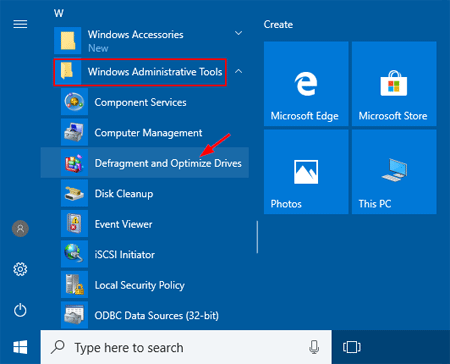
Wait for the Optimize Drives window to list the drives, media types, last-run dates, and current status.
Method 2: Open Disk Defragmenter Through File Explorer
Press Win + E to open File Explorer.
Select This PC in the left pane.
Right-click the drive you want to check and select Properties.
Open the Tools tab.
Under Optimize and defragment drive, select Optimize.
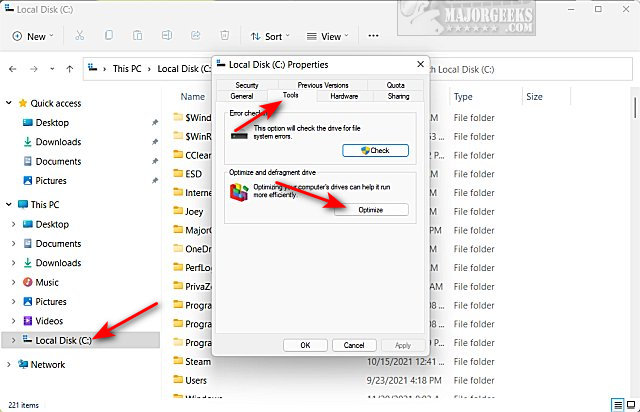 This route is useful when you are already viewing a drive in File Explorer. It opens the same Optimize Drives window with the same analysis and scheduling options. The wording may differ slightly between Windows builds.
How to Analyze and Defrag a Drive?
Readers asking how to defrag C drive should first check the Media type column. If C: drive is an HDD, continue with these steps:
Select the HDD in the Optimize Drives window.
Select Analyze to check its fragmentation level.
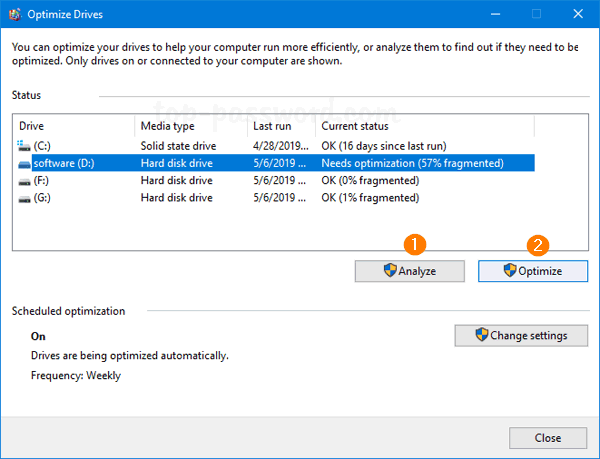
Read the Current status result. The percentage estimates fragmentation; it does not show that the same percentage of the drive is damaged.
If Windows reports Needs optimization, select Optimize. Readers who need to defrag hard drives should not apply the same process manually to an SSD; let Optimize Drives choose the appropriate operation.
There is no need to chase a particular percentage if Windows reports that the drive is OK. Analyze may also be unavailable for some drive types. In that case, follow the status and media-type information shown by Windows.
Windows normally optimizes drives once a week. To change the schedule, select Change settings, choose Daily, Weekly, or Monthly, and select the drives to include.
Is Windows Disk Defragmentation Still Necessary?
The need for optimization depends on the storage device. Routine defragmenting can help an HDD when fragmented files cause extra movement of the read/write head. SSDs do not need the same traditional process; Windows uses TRIM-based optimization instead. This is why the built-in tool remains useful for HDDs but is not a complete PC tune-up. The Windows defragmentation tool cannot remove junk files, manage startup apps, repair every registry issue, or stop unnecessary background processes. If several problems are slowing the PC, users may need disk optimization tools alongside the built-in utility.
Advanced Method: Fully Optimize Your PC with One Click
Because the disk defragmenter in Windows focuses on drive optimization, it will not address every cause of a slow computer. IObit Advanced SystemCare brings together junk-file cleanup, startup management, Internet Boost, privacy cleanup, and system monitoring.
Its Manual Mode lets you choose the modules to scan. Registry Defrag compacts and optimizes the Windows Registry. Disk Optimization defragments HDDs and sends TRIM commands to supported SSDs. Disk Check looks for and repairs disk errors. You can also select Junk File Clean to remove unneeded files and free up disk space.
Advanced SystemCare Free
- Clean: 420 billion traces removed & 85 EB junk files cleaned
- Protect: 80 million unauthorized access blocked & 20 million bugs fixed
- Speed Up: 6 million hours of startup time saved & Turbo boost
- Optimize: Auto clean and auto care your PC with AI mode

The main benefits are easy to understand:
Defrags fragmented HDD files for faster access: Disk Optimization reorganizes scattered file fragments on mechanical hard drives, helping the system access stored data more efficiently.
Optimizes disk performance with minimal effort: Instead of adjusting drive settings manually, users can select the appropriate optimization module and let Advanced SystemCare complete the process.
Analyzes drive status before optimization: Manual Mode scans the selected modules and displays the detected results, allowing users to review the findings before applying any changes.
Combines disk optimization with junk cleanup: Disk Optimization can run alongside Junk File Clean to improve drive organization while removing unnecessary files and recovering storage space.
Improves overall PC performance, not just storage: Advanced SystemCare also provides Startup Optimizer, Turbo Boost, Internet Boost, and Performance Monitor to address startup delays, background activity, network performance, and resource usage.
Follow these steps:
Step 1. Download and install Advanced SystemCare by clicking the button below.
Step 2. Go to the Care tab, choose Manual Mode, and select Registry Defrag, Disk Optimization, and Disk Check. Add Junk File Clean only when you also want to check removable junk files.
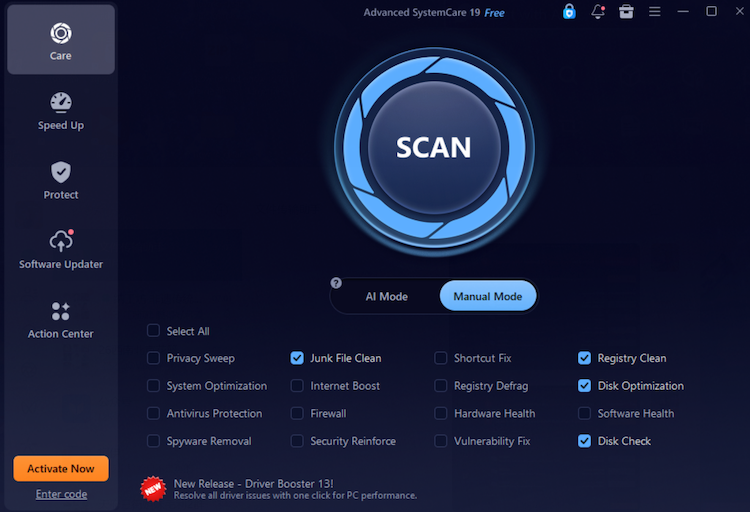 Step 3. Select SCAN and wait for the chosen modules to finish.
Step 4. Open each result category, review the detected items, deselect anything you do not want to change, and select Fix.
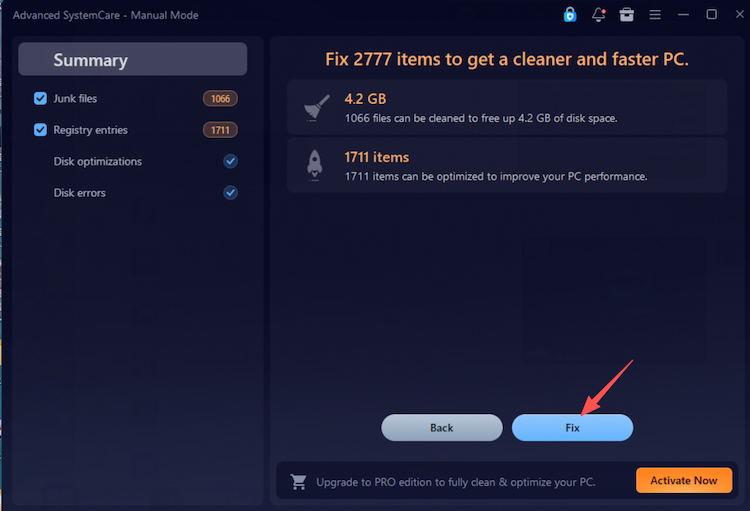
Step 5. Check the summary after the fix. The Rescue Center can review or undo supported registry and optimization changes later.
Manual Mode is safer than selecting every module without checking what it does. Save your work and close important applications before disk or registry maintenance. And do not approve a change simply because it appears in the scan results.
Pro Tips to Keep Your Windows System Running Fast
Drive optimization works best when it is part of routine PC care.
Manage Startup Apps: Open Task Manager, select Startup apps, and disable programs that do not need to start with Windows.
Clean Junk Files Regularly: Use Storage Sense or Windows disk cleanup tools to remove temporary files and old installation data.
Update Windows and Drivers: Install Windows updates and suitable driver updates, since they may include fixes and compatibility improvements.
Remove Unused Software: Uninstall programs you no longer use to recover storage and reduce background activity.
Reduce Visual Effects: Search for Adjust the appearance and performance of Windows, then choose settings that place less load on the system.
Check Resource Use: Run a PC performance check in Task Manager and review CPU, memory, and disk use before changing more settings.
Conclusion
The built-in disk defragmenter in Windows is still useful for HDD maintenance, while Optimize Drives automatically applies the appropriate optimization method to SSDs. It does not fix every source of poor performance, so regular cleanup and startup management also matter. Try Advanced SystemCare when you want to scan drives, the registry, junk files, and startup-related items from one program, but review every result before applying a fix.
Advanced SystemCare Free
- Clean: 420 billion traces removed & 85 EB junk files cleaned
- Protect: 80 million unauthorized access blocked & 20 million bugs fixed
- Speed Up: 6 million hours of startup time saved & Turbo boost
- Optimize: Auto clean and auto care your PC with AI mode