

Kevin Hart
Kevin is an experienced editor focused on tech blog writing. Familiar with all kinds of PC software on the market. All the topics he chooses are aimed at bringing more benefits to users.
Expert in
PC Health Solution

All-in-one PC health solution: clean, optimize and secure

Comprehensive PC cleaning, optimization and protection

Keep drivers always up-to-date

More stable performance with less system crashes

Protect millions of computers against malware

Top computer security with full-round protection

Protect against viruses & boost PC performance
Clean: 420 billion traces removed & 85 EB junk files cleaned
Protect: 80 million unauthorized access blocked & 20 million bugs fixed
Speed Up: 6 million hours of startup time saved & Turbo boost
Optimize: Auto clean and auto care your PC with AI mode

Running out of disk space? Learn how to use Windows Storage Sense to clear clutter, discover its limitations, and optimize your PC with a one-click solution.

Kevin Hart


As you use your computer daily for downloading files, browsing the web, and installing applications, your system partition gradually fills up. When your hard drive runs out of space, you will experience sudden system lags, slow app launches, and failure to install major Windows updates.
Windows Storage Sense is a built-in maintenance tool designed to address this exact problem. By automatically deleting temporary files and managing system clutter, it keeps your hard disk from filling up.
In this article, we will break down what Storage Sense Windows 11 is, how it works, and how to configure it to improve your system performance. We will also introduce an automated alternative that offers a comprehensive cleanup beyond the basic features of Windows.
Windows Storage Sense is an integrated storage management tool available in Windows 10 and Windows 11. Its primary objective is to monitor your local drives and automatically delete unnecessary files—such as temporary application logs, old setup files, and items left in your Recycle Bin—when your system runs low on space.
Instead of requiring users to manually run the legacy Disk Cleanup tool every few weeks, Storage Sense functions silently in the background.
By default, Storage Sense Windows focuses on clearing three primary types of unnecessary data:
Temporary Files: Residual data created by running applications that are no longer needed.
Recycle Bin Items: Files you deleted that have been sitting in the Recycle Bin for a long duration.
Downloads Folder Clutter: Unused installers or files left untouched in your main Downloads directory.
Cloud Content Hydration: Offloading local copies of files synced to OneDrive that you haven't opened recently, converting them back to "online-only" status to preserve local storage.
The built-in tool provides pre-configured parameters that you can adjust depending on your data habits. By tailoring these options, you ensure your computer clears space without deleting files you still intend to keep.
1. Automated Cleanup Schedules
You can choose how frequently Windows analyzes your storage. The options include running the tool daily, weekly, monthly, or only when Windows detects that your system is critically low on free disk space.
2. File Retention Rules
You can set strict aging rules for the Recycle Bin and the Downloads folder. For instance, you can tell Storage Sense to only delete files that have been in the Recycle Bin for more than 14, 30, or 60 days.
3. OneDrive Local Cache Management
If you use Microsoft OneDrive, Storage Sense can manage files synced to your computer. If a cloud-backed file remains unopened for a specific number of days, Storage Sense clears the local copy from your hard drive while leaving the cloud shortcut intact.
Setting up Storage Sense for Windows takes only a few steps. Follow this guide to activate it and optimize your storage parameters:
Step 1: Click the Start Menu and open Settings (or press Windows Key + I).
Step 2: Select System from the sidebar, then click on Storage.
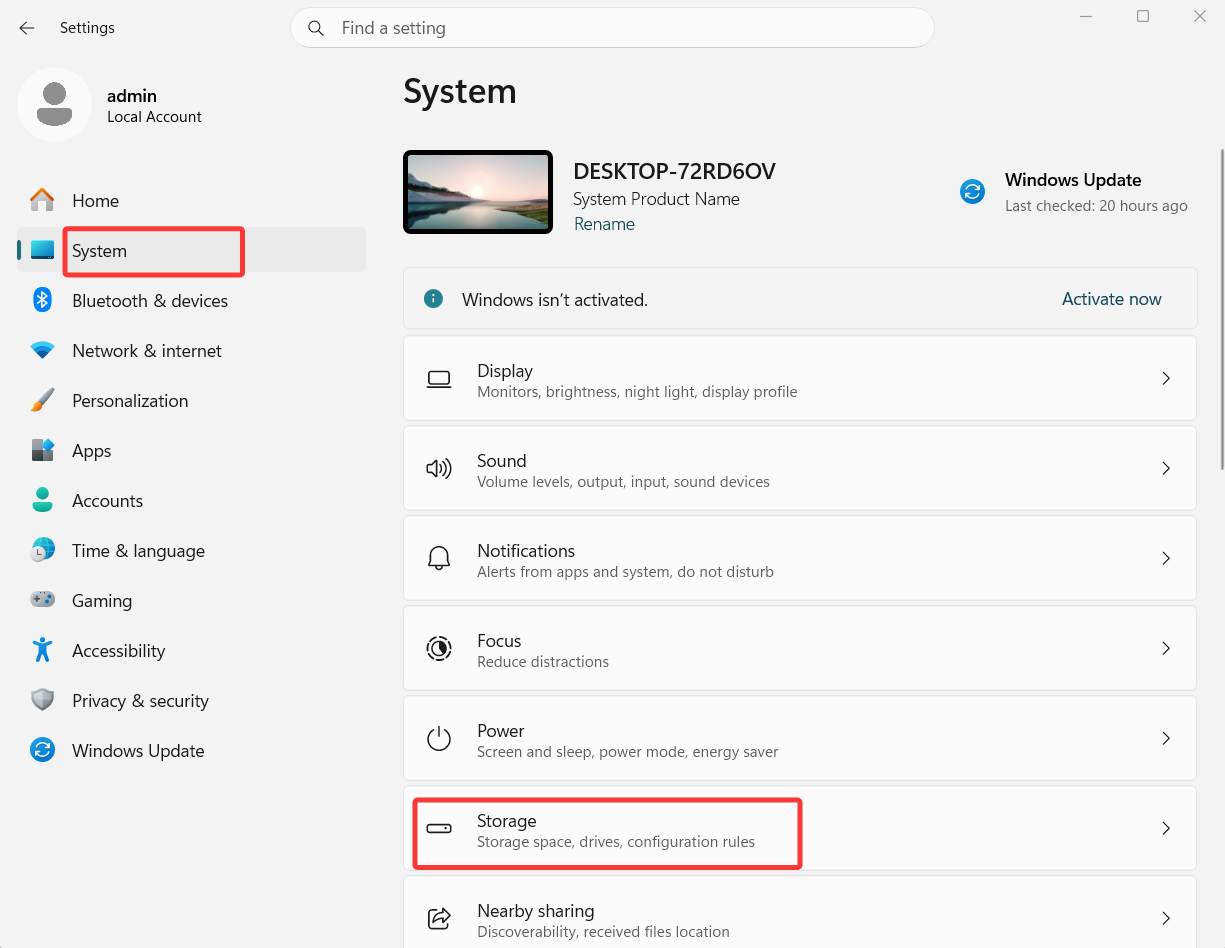
Step 3: Toggle the switch under Storage Sense to On.
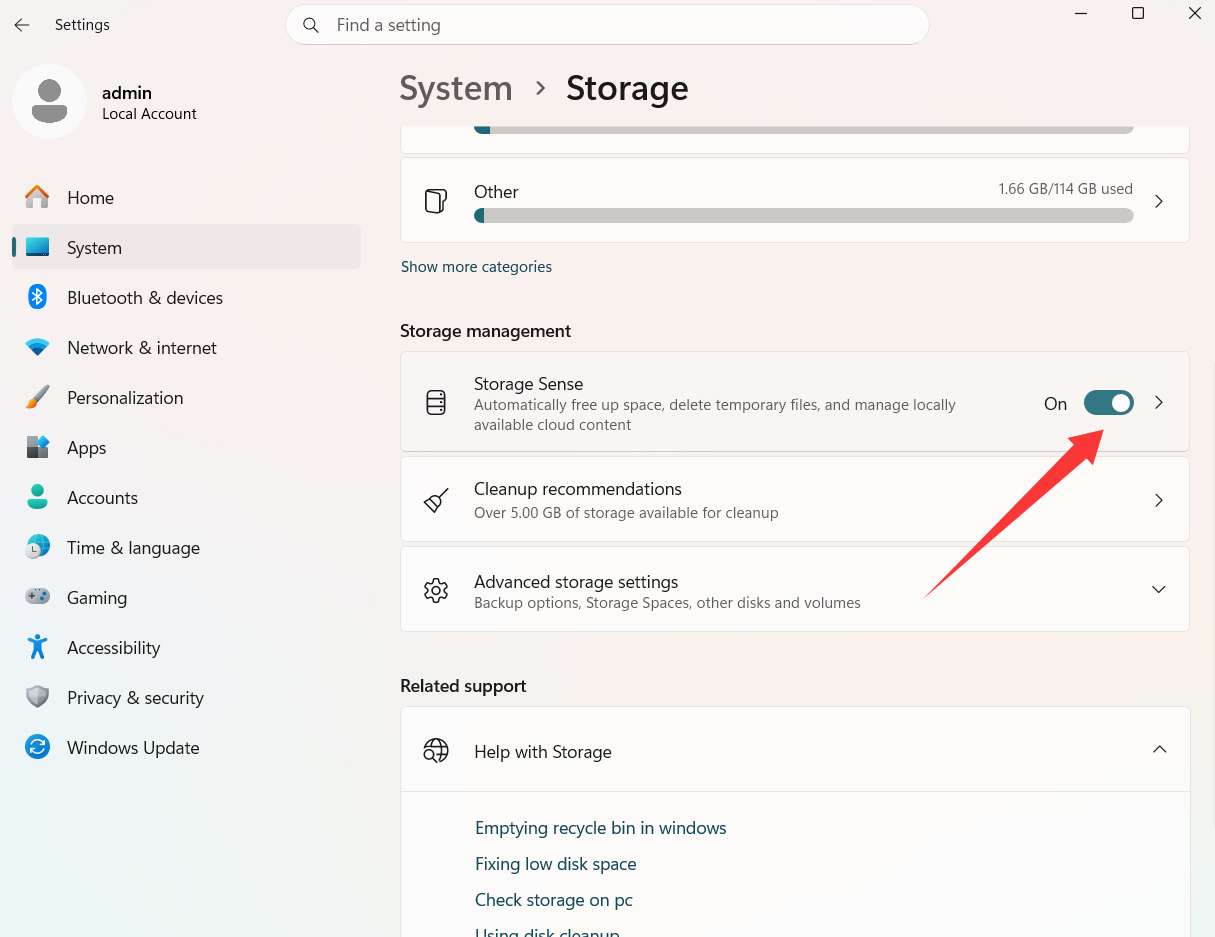
Step 4: Click on Storage Sense (or "Configure Storage Sense or run it now") to adjust the schedule.
Step 5: Choose your preferred frequency under Run Storage Sense (e.g., During low free disk space is recommended for most users).
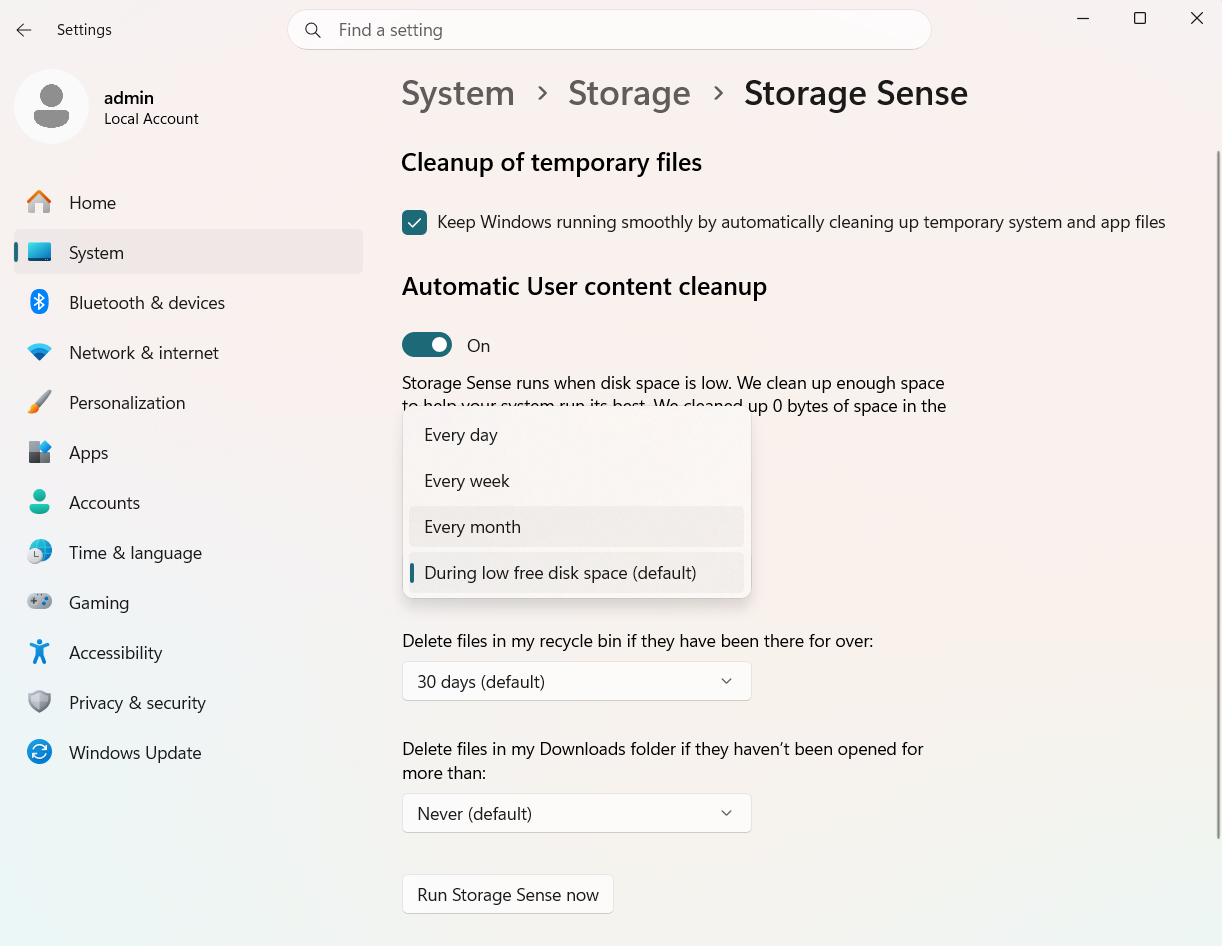
Step 6: Adjust the deletion thresholds for your Recycle Bin and Downloads folder. If you often keep important files in your Downloads folder, set this option to Never.
Step 7: Scroll down and click Run Storage Sense now if your drive is full and needs an immediate cleanup.
While Windows Storage Sense is highly convenient for general system maintenance, it is built with conservative parameters to avoid altering deep system files. Because of this, it leaves behind significant amounts of hidden junk.
The primary downsides of relying solely on Storage Sense include:
Missed System Clutter: It does not thoroughly clean deep third-party browser caches, broken registry keys, duplicate files, or orphaned app installation folders.
No Software Leftovers Cleanup: When you uninstall programs via Windows, residual files and registry changes are left behind; Storage Sense does not clean these up.
Lack of Performance Tuning: It only deletes files. It does not optimize startup items, defragment registries, or manage background RAM consumption to actively speed up the PC like a Ram optimizer Windows 11.
Basic Automation: It runs strictly on basic time schedules or critical low-space triggers, missing real-time junk accumulation.
For users who want a deeper, safer, and completely automated solution that clears all hidden clutter while boosting computer speeds, a comprehensive optimization tool is required.
If you want an efficient way to clean your hard drive and speed up your entire system with a single click, Advanced SystemCare offers an advanced alternative. Instead of focusing only on basic temporary files, Advanced SystemCare uses an AI-powered engine to detect and eliminate deep-rooted system junk, invalid shortcuts, and privacy traces that Storage Sense misses entirely.
Key Benefits of Advanced SystemCare over Storage Sense:
AI-Powered Deep Cleaning: Intelligently identifies temporary files from hundreds of third-party applications alongside deep system cache logs to fix Windows 11 100 disk usage.
Registry Repair and Optimization: Safely cleans invalid registry entries to prevent application crashes and system instability.
Real-Time Ram and Startup Optimization: Includes a Startup Optimizer and Turbo Boost feature to terminate unnecessary background processes and speed up slow boot times.
Privacy Sweep: Deletes tracking cookies, browser history, and saved caches across all major web browsers to safeguard your identity.

Follow these steps to see how to free up disk space and enhance your overall system performance:
Step 1: Download and install the latest version of Advanced SystemCare from the official IObit website.
Step 2: Launch the program to open the main Care tab interface.
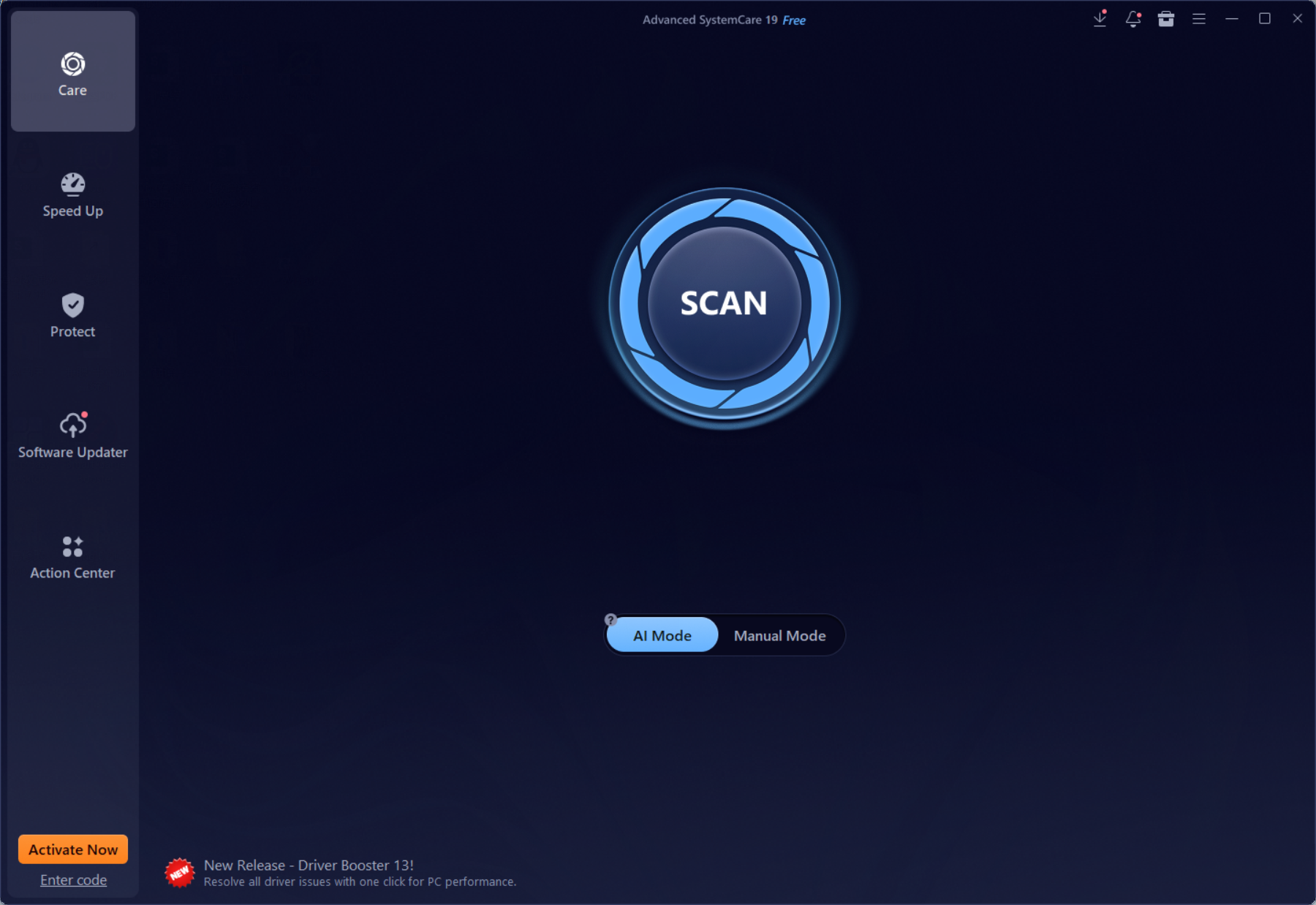
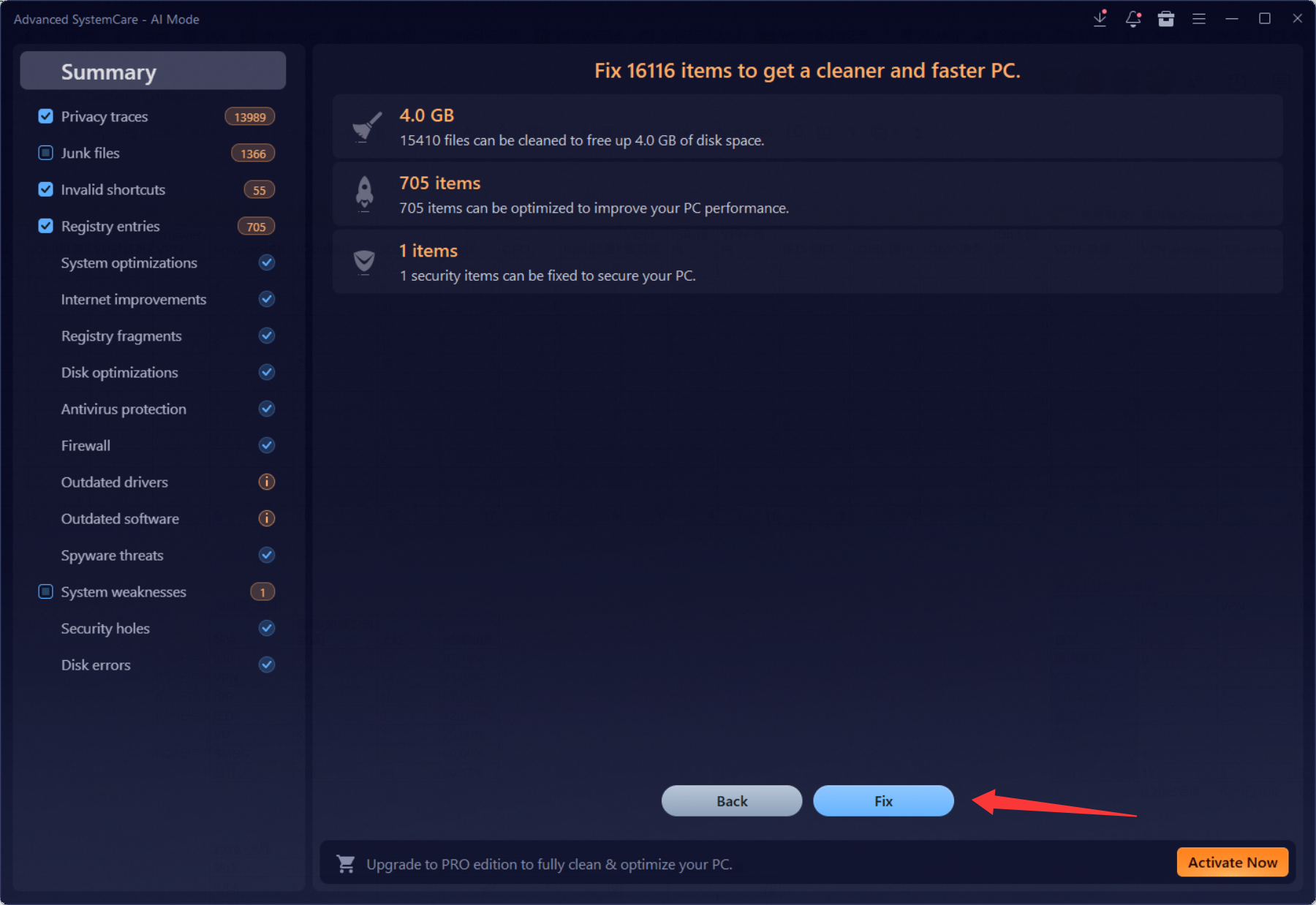
Step 3: Click the large Scan button in the center. The software will scan your drive for junk files, privacy logs, registry errors, and startup bottlenecks.
Step 4: Once the scan finishes, click Fix to safely clear the selected junk items and apply all system enhancements.
Windows Storage Sense is an excellent, lightweight native feature to prevent your PC from completely running out of room. However, it lacks the depth required to keep your operating system fast and completely free of residual software clutter over extended periods.
Using a comprehensive utility like Advanced SystemCare gives you the best of both worlds: thorough disk space recovery and real-time performance optimization in a hassle-free, one-click interface.

All-in-one PC health solution.
Free Download