"AMD detected that a driver timeout has occurred on your system."
"Crashes with AMD driver timeout and a black screen."
These messages usually appear after a game freezes, closes, or briefly blanks the display. AMD driver timeout means Windows decided that the GPU had stopped responding and reset the graphics stack so the desktop could recover. This guide explains the error, its common causes, and how to fix AMD driver timeout issue with seven practical checks, from driver updates to hardware testing.
AMD Driver Timeout Explained
Windows uses a built-in feature called Timeout Detection and Recovery (TDR) to prevent the entire system from freezing when the graphics card or its driver stops responding. Normally, the GPU is expected to complete graphics tasks within a certain amount of time. If Windows detects that the GPU has become unresponsive or is taking too long to process a task, it automatically attempts to reset the graphics driver instead of forcing you to restart your computer. The game, video player, or graphics-intensive application you were using may crash or close unexpectedly because it loses access to the graphics driver while it is being reset.
If you see the message "AMD driver timeout has occurred", it means Windows detected that the AMD graphics driver stopped responding within the expected time limit and had to restart it. This warning does not necessarily indicate that your AMD graphics card is faulty. Instead, it signals that the GPU or driver encountered a temporary issue that prevented it from completing its workload on time.
Common Causes of AMD Driver Timeout
Why does AMD driver timeout appears? Understanding the possible causes can help you troubleshoot the error more efficiently.
Outdated or corrupted drivers: An older or incomplete Radeon driver may conflict with a game or Windows update.
Unstable tuning: GPU, VRAM, voltage, or power settings may fail under load.
Conflicting software: Overlays, recorders, monitoring tools, browser hardware acceleration, and security software can interact with the graphics stack.
Corrupted shader cache: Old compiled shaders may no longer match the game or driver.
Demanding graphics options: A particular Radeon feature or game profile may be unstable on one system.
Hardware problems: High temperatures, loose PCIe power cables, unstable RAM, or a failing GPU can cause repeated resets.
How to Fix AMD Driver Timeout Issue
Fix 1. Update AMD Driver
Driver updates often include bug fixes, new features, performance improvement, available to eliminate driver glitches and system issues in most cases. If you are experiencing AMD driver timeout, the first tip is to update your AMD driver.
Driver Booster streamlines driver update, allowing non-technical users to keep all drivers up-to-date just in a single click. It performs a quick scan to dig out the outdated drivers in your system and provides the latest driver version that matches with your hardware for correct update. Designed as an automatic driver updater, it requires no manual driver downloads and installs.
Moreover, Driver Booster has a large database that includes drivers from thousands of manufacturers, including AMD, NVIDIA, Intel and more. All drivers are verified to ensure safe and reliable update.
Download and install Driver Booster on your PC. Next, update the necessary driver to fix AMD driver timeout issue.
Driver Booster Free
- Automatically scan and update drivers.
- Update game ready drivers for peak gaming performance.
- Identify and fix various common of hardware issues.
- Boost 30% of system performance for fast & smooth running.

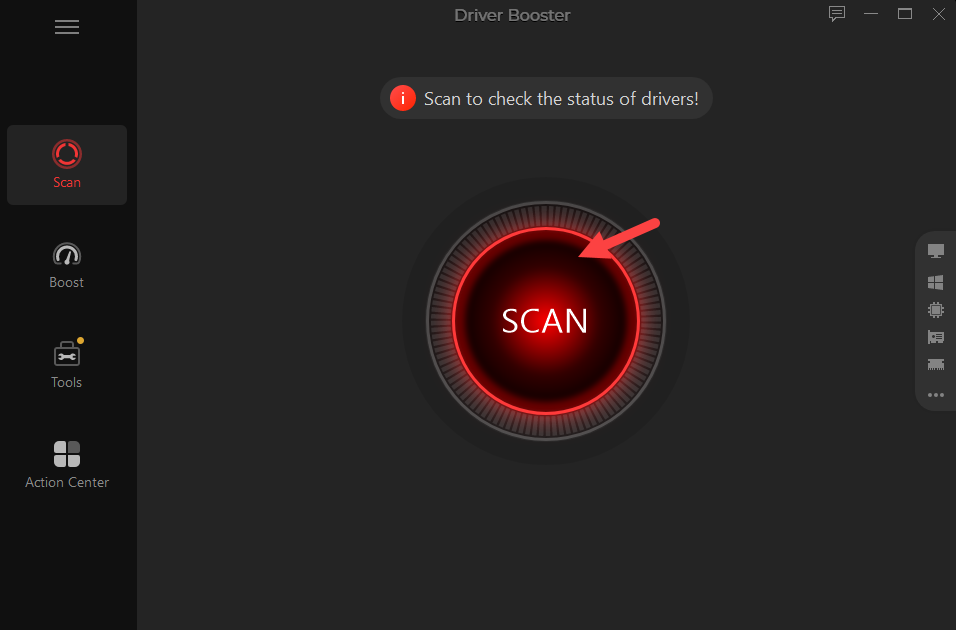
Step 1. Launch Driver Booster and click SCAN to detect outdated driver.
Step 2. Find the AMD graphic driver you need to update and click Update. The driver updater will automatically install the latest and appropriate version.
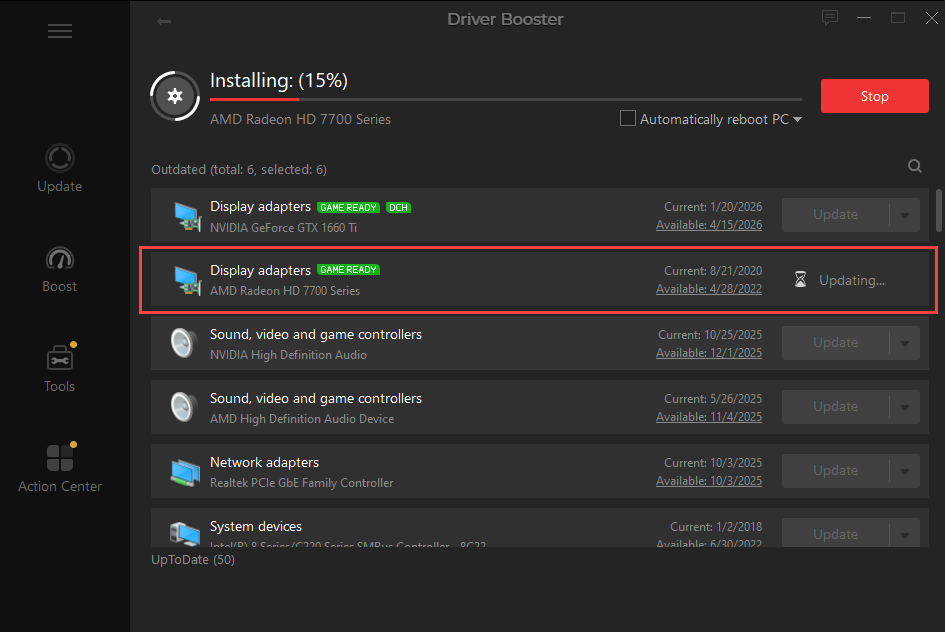
Step 3. After the update process is finished, check the driver in UpToDate panel.
Notice: If the problem began after the update, use Roll Back when available or reinstall a known-stable AMD driver. Driver Booster‘s manual confirms that users can update individual drivers, create a restore point before installation, and roll back supported drivers.
Fix 2. Update Windows
Outdated Windows may contain bugs and compatibility problems that interfere with AMD graphic drivers, triggering a timeout. The latest Windows updates ensure your system has the newest fixes and improvement, which can help the GPU and its driver operate more reliably.
1. Press Win + I.
2. In Windows 11, open Windows Update. In Windows 10, open Update & Security > Windows Update.
3. Click Check for updates.
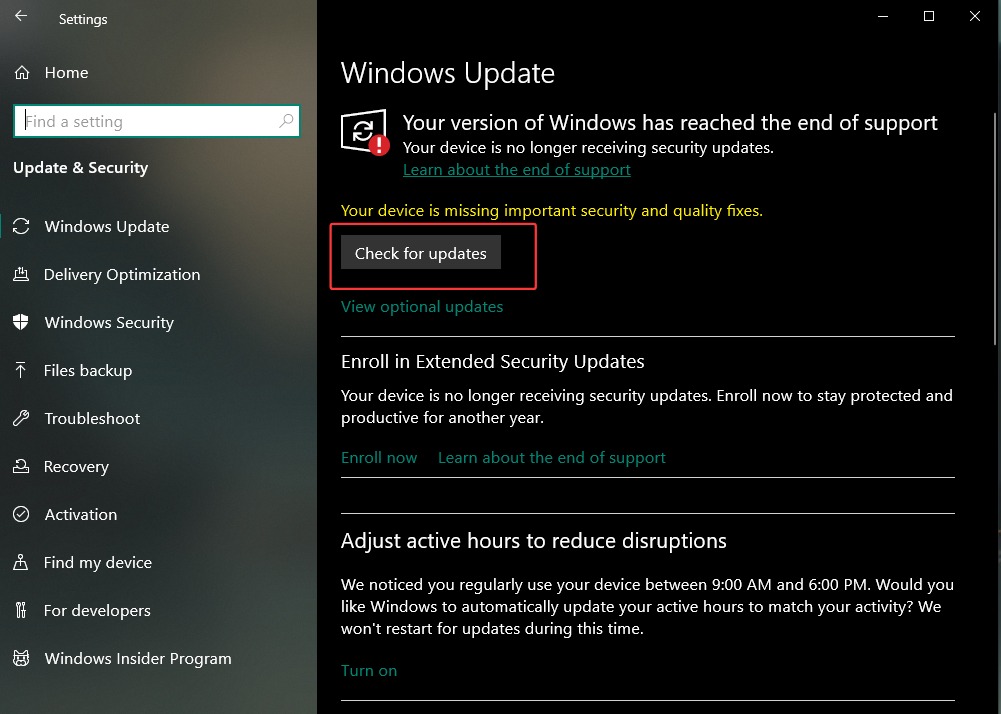
4. Install the available quality updates.
5. Restart the PC, then check for updates again.
Notice: Use the normal stable update channel rather than installing a preview build only to solve this error. Microsoft recommends checking Windows Update manually and restarting when an update requires it.
Also Read: How to Clear Windows Update Cache >>
Fix 3. Reset Shader Cache
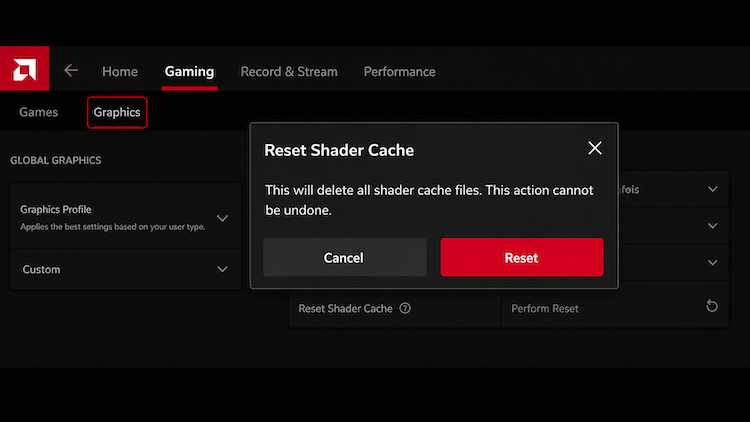
When outdated or corrupted AMD shader caches no longer match your current graphics driver, game version or Windows installation, the GPU may speed long time to compile or execute them that increases the chance of causing AMD driver timeout issue. Reset shader caches can remove those problematic files and make your GPU run normally.
1. Close all games and open AMD Software: Adrenalin Edition.
2. Open Gaming > Graphics, then expand Advanced.
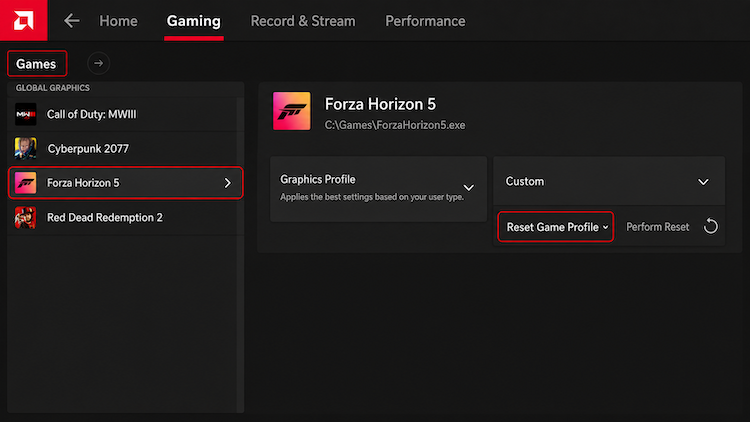
3. Find Reset Shader Cache and choose the available reset option.
4. Confirm the reset and launch the affected game again.
Fix 4. Adjust Game Settings in AMD Software
Your GPU is probably overloaded by demanding visual effects, high resolutions, or rendering setting. When it takes too long to process the commands, Windows may assume the GPU has stopped responding and AMD driver timeout occurs. Adjusting game settings can reduce the workload placed on the GPU.
1. Open Gaming in AMD Software and select the affected game.
2. Reset its profile to the default settings.
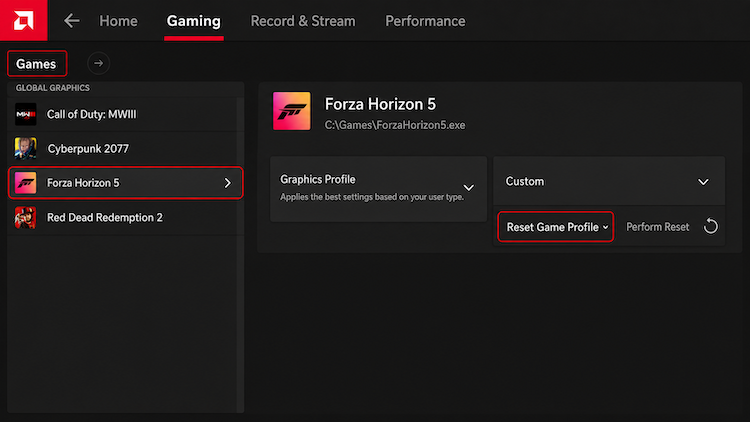
3. If the timeout continues, disable Radeon Enhanced Sync, Radeon Boost, and custom overrides one at a time.
4. Set anti-aliasing and tessellation to Use Application Settings where available.
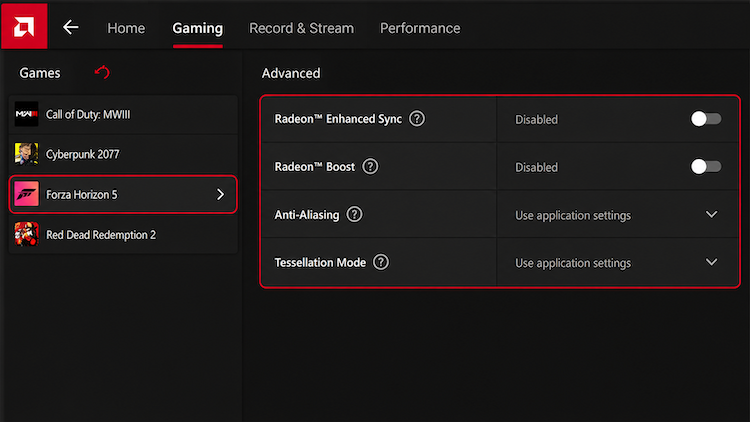
5. Test the same scene after each change.
Fix 5. Disable Multi-Plane Overlay
Multi-Plane Overlay, or MPO, lets display hardware efficiently combine several visual layers. Disabling it is a diagnostic workaround for systems showing flicker, black screens, or repeated display resets.
1. Create a Windows restore point and close your apps.
2. Press Win + R, type regedit, and press Enter.
3. Go to: HKEY_LOCAL_MACHINE\SOFTWARE\Microsoft\Windows\Dwm
4. Right click an empty space, select New > DWORD (32-bit) Value.
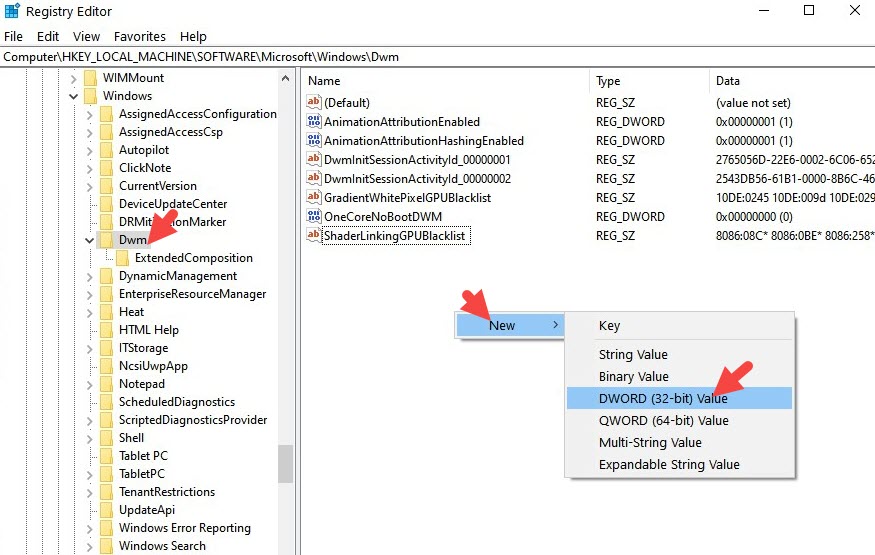
5. Rename it as OverlayTestMode. Set its value to 5.
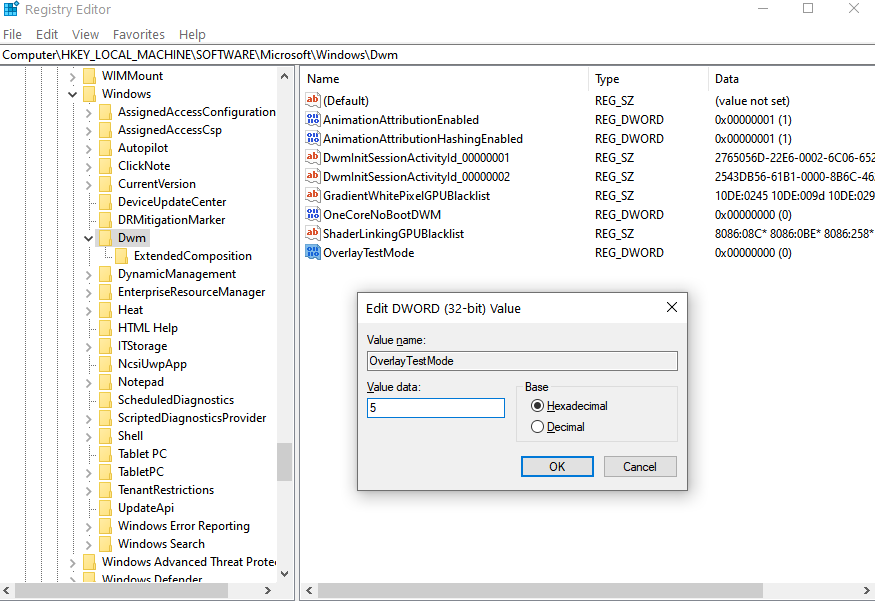
7. Restart Windows and test the affected app.
To restore MPO, delete OverlayTestMode and restart. Undo the change if it makes no difference.
Fix 6. Underclock Your GPU
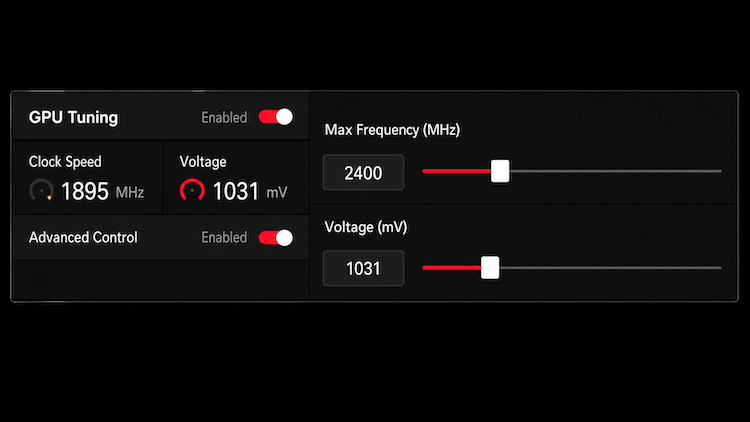
Return any GPU or VRAM overclock to its default. If the card still times out under load, a small reduction in maximum frequency may improve stability. AMD Software allows supported GPUs to adjust maximum frequency through Manual Tuning and provides a stress test for checking the current settings. Available controls vary by Radeon model.
1. Search for Performance Tuning in AMD Software.
2. Use the reset arrow to restore default tuning and test again.
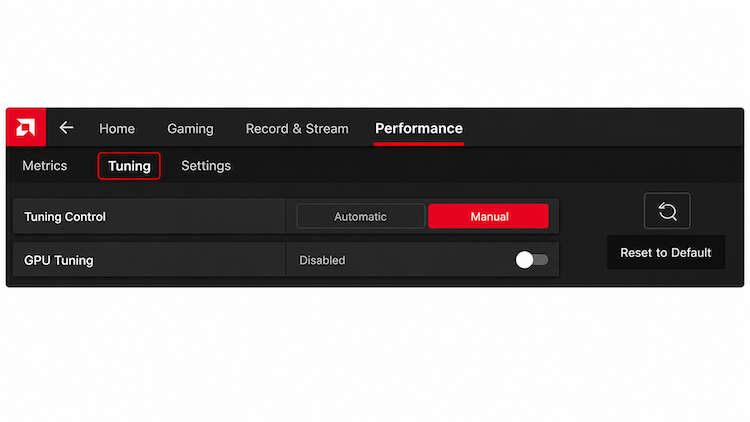
3. If needed, select Custom and enable GPU Tuning.
4. Lower Max Frequency by a small step, such as 5%.
5. Leave voltage at its default value and apply the change.
6. Run the built-in stress test if it is available.
7. Monitor temperature and stability in the affected game.
Fix 7. Check Your Hardware
If software changes fail, test the system at factory settings. AMD recommends testing stability with factory-default hardware settings, adequate cooling, supported memory, current drivers, and a power supply that meets the system’s requirements. If the AMD driver timeout occurs across several games at default settings, contact the GPU or PC manufacturer for hardware testing.
1. Clean dust and verify that the GPU fans work.
2. Reset the graphics card and PCIe power connectors after shutting down and unplugging the PC.
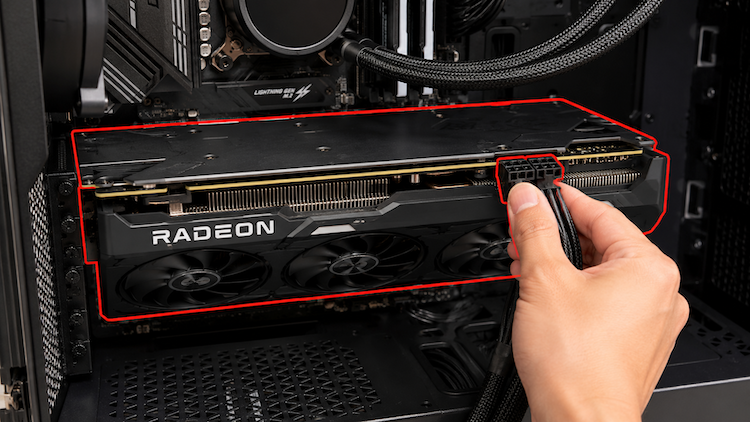
3. Use the power-cable arrangement recommended by the GPU and power-supply manufacturers.
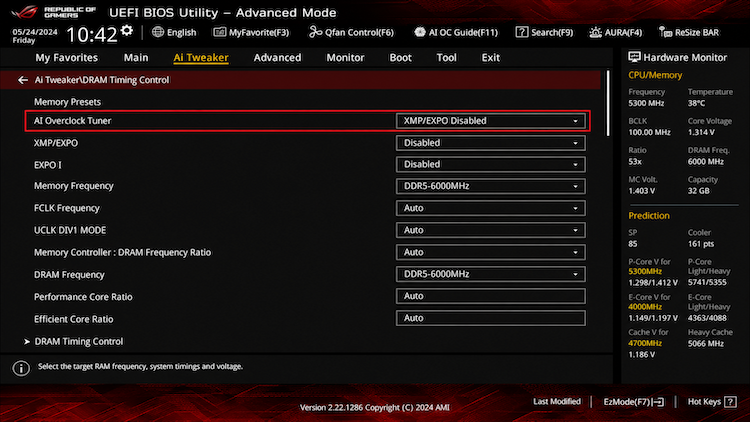
4. Disable unstable XMP or EXPO settings temporarily and run a memory test.
5. Try another display cable, port, or monitor.
6. Confirm that the driver matches the exact Radeon model.
7. Check that the power supply meets the system builder’s requirements.
The Bottom Line
An AMD driver timeout issue can happen during gaming and other graphics-intensive tasks, but it does not always mean that the GPU has failed. There are several ways to fix AMD driver timeout issue. Try them and check whether the issue is resolved. And, you'd better keep your drivers up to date and avoid unstable tuning settings to reduce the risk of AMD driver timeout.
Driver Booster Free
- Automatically scan and update drivers.
- Update game ready drivers for peak gaming performance.
- Identify and fix various common of hardware issues.
- Boost 30% of system performance for fast & smooth running.