

- Support Center
- Multiple Languages
- Language
- Help Us Translate
Expert in
PC Health Solution

All-in-one PC health solution: clean, optimize and secure

Comprehensive PC cleaning, optimization and protection

Keep drivers always up-to-date

More stable performance with less system crashes

Protect millions of computers against malware

Top computer security with full-round protection

Protect against viruses & boost PC performance
Automatically scan and update drivers.
Update game ready drivers for peak gaming performance.
Identify and fix various common of hardware issues.
Boost 30% of system performance for fast & smooth running.

Getting "NVIDIA Drivers Try Again Later" when installing drivers on Windows? Check causes and fixes to resolve network, security and corrupted driver problems.



Understand the NVIDIA Drivers Try Again Later error on Windows 10/11
Find 6 causes and actionable fixes for NVIDIA driver install failures
Use one-click automatic NVIDIA driver updates to bypass server connection issues
Seeing the “NVIDIA Drivers Try Again Later” error when checking for driver updates in GeForce Experience or the NVIDIA App? This issue usually occurs when the application cannot communicate with NVIDIA servers, but it can also be caused by other factors. This guide will explain why this error appears and how to fix it.
This NVIDIA Drivers Try Again Later message means NVIDIA App or GeForce Experience is unable to connect to NVIDIA update servers to check or download new graphics drivers. This error means that the NVIDIA drivers update failed.
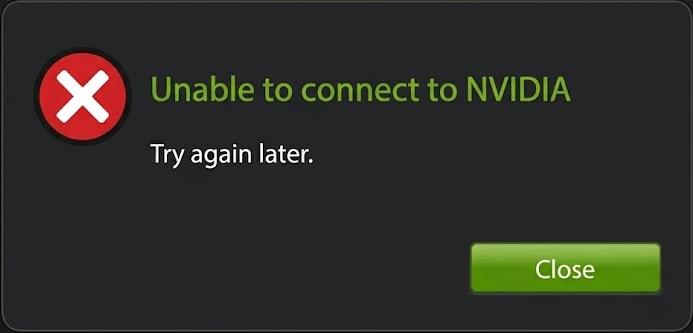
Manual driver downloads avoid this server check, so this warning rarely shows up. However, doing it manually takes more time. To ensure quick driver updates in the future, it is essential to understand the cause of this error and perform the corresponding solution.
Tips: NVIDIA drivers causing crashes is another frequent problem you may encounter on Windows 11/10.
This is the most common cause of the “NVIDIA Drivers Try Again Later” error. While your browser may load websites fine, the NVIDIA driver installer fails to establish a stable connection to NVIDIA’s download servers.
✅ Fix: Check NVIDIA server connectivity
Disable VPN or proxy, verify firewall settings, and switch to a faster DNS provider.
These corrupted cache files from previous NVIDIA downloads or incomplete installs confuse the NVIDIA installer and stop it from downloading or unpacking new GPU drivers.
✅ Fix: Clear NVIDIA cache
Close NVIDIA App or GeForce Experience first, then remove cached data from NVIDIA cache folders, including %LocalAppData%\NVIDIA Corporation\NVIDIA App, DXCache, and GLCache.
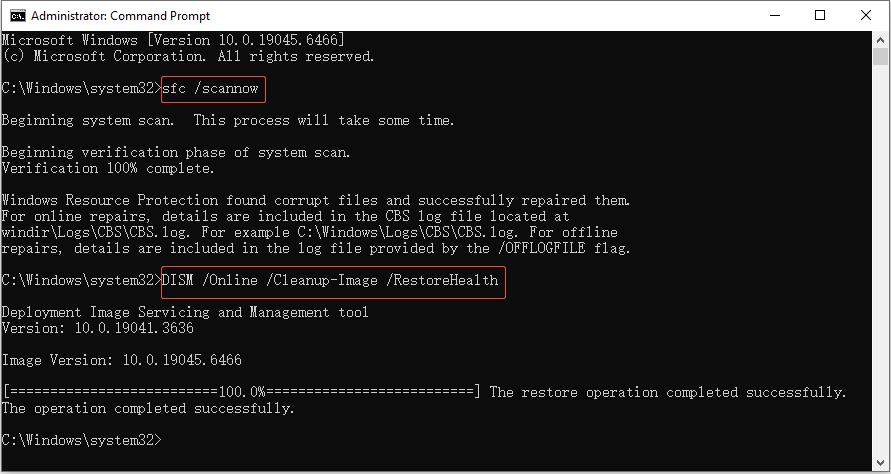
Broken Windows system files may break the core functions needed for driver setup. File corruption stops the NVIDIA installer from operating normally and causes the “Try Again Later” error during NVIDIA GPU driver installation.
✅ Fix: Repair Windows system components
Open an elevated Command Prompt. Run sfc /scannow to scan and fix system file corruption. Run DISM /Online /Cleanup-Image /RestoreHealth to repair the Windows image.
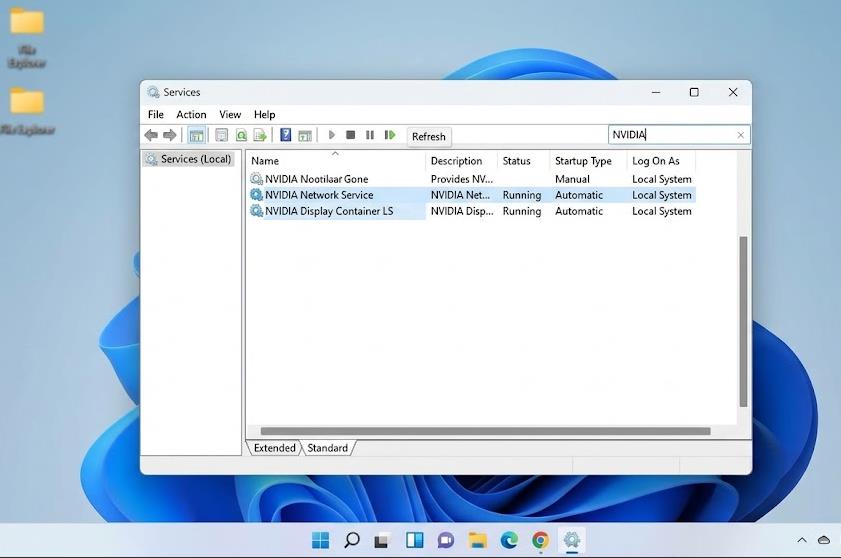
The NVIDIA installer relies on dedicated background services to communicate and process driver files. Broken or disabled NVIDIA background services cut off these required functions, blocking the installation.
✅ Fix: Restart the NVIDIA services
Press Win + R, input services.msc, and press Enter. Locate NVIDIA Network Service and NVIDIA Display Container LS. Restart both services and set the startup type to Automatic.
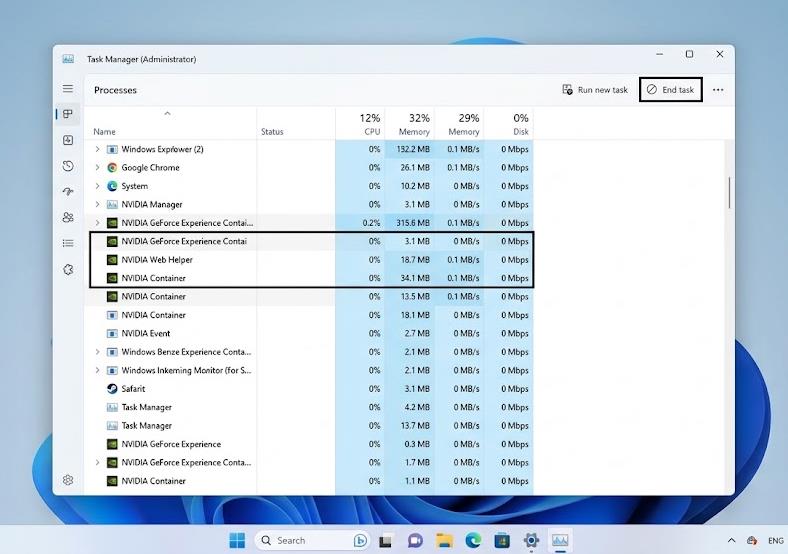
Corrupted or missing program files in the NVIDIA App or GeForce Experience client may cause application launch failures, driver update issues, sign-in problems, or “Try again later” errors.
✅ Fix: End the NVIDIA-related processes
Open Task Manager and end all NVIDIA-related processes. Uninstall the client, then download the latest installer from NVIDIA.
Old driver files, incomplete installations, or leftover registry entries from previous NVIDIA drivers may interfere with new driver deployments. The installer may fail to verify, download, or unpack required files.
✅ Fix: Perform a clean NVIDIA driver installation
Run Display Driver Uninstaller to completely remove existing NVIDIA drivers. Restart Windows and install the latest driver downloaded directly from NVIDIA’s official website.
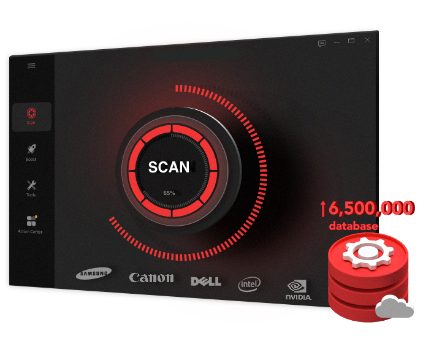
When NVIDIA drivers won’t update, here is an automatic option for you - try IObit Driver Booster. This powerful driver updater offers one-click operation to automatically update NVIDIA graphics drivers, bypassing server connection troubles that trigger the "Try Again Later" error.
The Bottom Line
In short, the "NVIDIA Drivers Try Again Later" error has many possible causes. This post details the causes and corresponding solutions. Follow these methods to fix the installation failure instantly and keep your NVIDIA graphics drivers up-to-date for stable PC and gaming performance.
 People Also Ask
Discover Tiny10, a lightweight version of Windows 10 built for low-spec devices. Learn its features, benefits, requirements, and limitations.
PC stuck on boot screen? Learn how to fix pc stuck on boot screen with proven methods like Safe Mode, SFC scan, and driver updates.
Yes. You can try 3 ways on how to uninstall the Realtek audio driver and reinstall it to solve the problem that PC sound is not working generally.