- Support Center
- Multiple Languages
- Language
- Help Us Translate
Expert in
PC Health Solution

All-in-one PC health solution: clean, optimize and secure

Comprehensive PC cleaning, optimization and protection

Keep drivers always up-to-date

More stable performance with less system crashes

Protect millions of computers against malware

Top computer security with full-round protection

Protect against viruses & boost PC performance
Automatically scan and update drivers.
Update game ready drivers for peak gaming performance.
Identify and fix various common of hardware issues.
Boost 30% of system performance for fast & smooth running.

Why is my PC screen black? How to fix a black screen? What can I do as a normal person?



Connection issues with the monitor
Display adapter error code
Driver update crashes
PSU insufficiency or failure
Hardware overheating
Why is my PC screen black and ways to fix it? Explained one by one.
A loose connection or faulty connection between the monitor and the computer can cause the computer screen to go black. In this situation, the computer is usually running normally in the background, but your image data cannot be transmitted to the monitor.
How to fix it:
Unplug the cable connecting the monitor to the computer, at both ends, and then plug it back in again.
If the monitor's port is incompatible with your cable's port, the monitor will display "No Signal" and quickly go black. In this case, use the physical button on the bottom or back of the monitor to open the built-in menu (OSC), find the "Input Select" or "Source" setting, and manually switch to the option that matches your cable.
If Windows detects problems with the Display adapter, it will shut it down to prevent further crashes.
To fix it:
Boot into Safe Mode, right-click the Start menu and open Device Manager.
Expand the Display adapters section. If there is a yellow exclamation mark next to your card, right-Click it and select Properties to check the error code (Often error code 43).
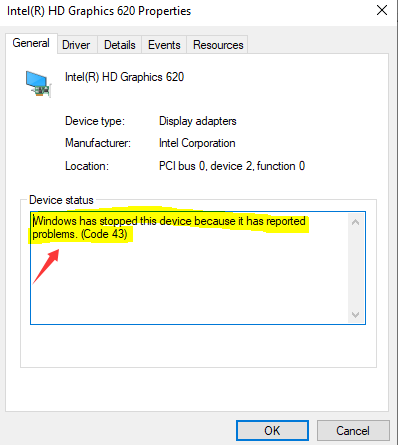
Right-click the adapter, choose Uninstall device and check the box which says "Attempt to remove the driver from this device".
Restart your PC.
When your PC screen suddenly gets into black during a driver updating or after driver updates, roll it back to the previous driver version. If you update drivers using Driver Booster and back up before updating, automatically restore it to the previous version. (Scroll down to the last part to know more about Driver Booster.)
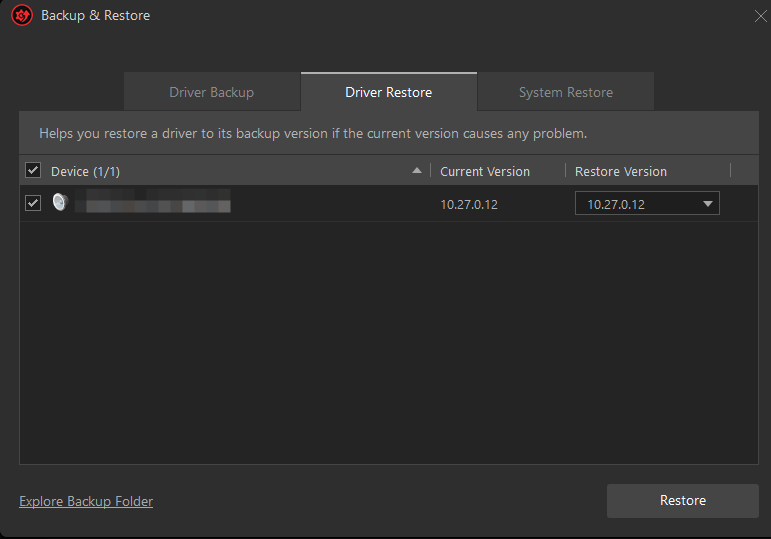
Or use Device Manager to roll back in Safe Mode.
To prevent itself from overheating or catching fire due to this extreme strain, the PSU's built-in safety switches instantly trip and cut the power. At that moment, your graphics card stops sending data to your monitor, leading to an unresponsive black screen.
The simplest solution is to reduce load by unplugging unnecessary RGB controllers, extra hard drives, and USB devices.
Tips: Calculate your PSU with the online tool Power Supply Calculator to estimate the correct PSU wattage.
If the temperature keeps climbing and hits a critical limit of CPU or GPU, the hardware triggers an emergency hardware shutdown which causes black screen to mitigate damages.
How to fix it:
Way 1: Drop your Windows power plan
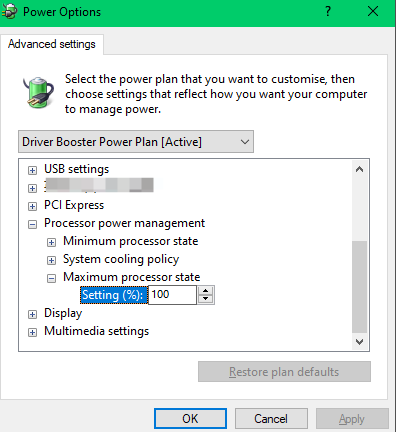
Open your Windows Start Menu, search for Edit Power Plan, and open it.
Click on Change advanced power settings.
Scroll down to Processor power management and click on it.
Change Maximum processor state from 100% to 95% or 90%.
Way 2: Reduce the game's framerate
Open your game's graphics settings and turn on V-Sync, or use the Max Frame Rate slider.
Set the limit to match your monitor's refresh rate (usually 60, 120, or 144 FPS).
Bonus Tips: Use Driver Booster to Update Drivers with Backup Feature
Driver Booster is a professional driver updater for Windows. It detects and updates your drivers in time. To quickly fix black screen or other issues caused by driver updates, you could use its backup and restore tool to roll a driver back to its previous version.
You can also use Driver Booster to fix some minor issues, such as no sound, device error, network failure.
 People Also Ask
How to improve Steam download speed? Check how to make Steam download faster in 12 ways: Check Internet Connection, Switch Steam Download Server Region…
Stuck with the “This app can’t run on your PC” error? Learn quick fixes, compatibility settings, and advanced ways to make programs run smoothly on Windows.
Startup Repair is not working. What to do when it shows Startup Repair couldn’t repair your PC?