

- Support Center
- Multiple Languages
- Language
- Help Us Translate
Expert in
PC Health Solution

All-in-one PC health solution: clean, optimize and secure

Comprehensive PC cleaning, optimization and protection

Keep drivers always up-to-date

More stable performance with less system crashes

Protect millions of computers against malware

Top computer security with full-round protection

Protect against viruses & boost PC performance
Automatically scan and update drivers.
Update game ready drivers for peak gaming performance.
Identify and fix various common of hardware issues.
Boost 30% of system performance for fast & smooth running.

Learn how to update drivers via CMD in Windows 10/11 with PnPUtil and DISM commands. Back up drivers, fix common errors, or update all drivers automatically.



Run Command Prompt as administrator before using any driver command
Use PnPUtil in Command Prompt to install or update compatible drivers from .inf files
Back up your drivers first to restore them if an update causes problems
Update all drivers automatically with Driver Booster to avoid manual errors
Updating drivers in Windows can be done quickly with Command Prompt (CMD), without relying on the graphical interface. In this guide, you'll learn how to update drivers via CMD on Windows 10 and 11, including the CMD command to update all drivers stored in a folder, plus simple commands to check and manage your drivers. If you're wondering how to update all drivers at once using CMD, PnPUtil can install multiple compatible driver packages from a folder, but you'll need to download the correct driver files first. If you're new to the topic, it helps to first understand what a device driver is and what it does.
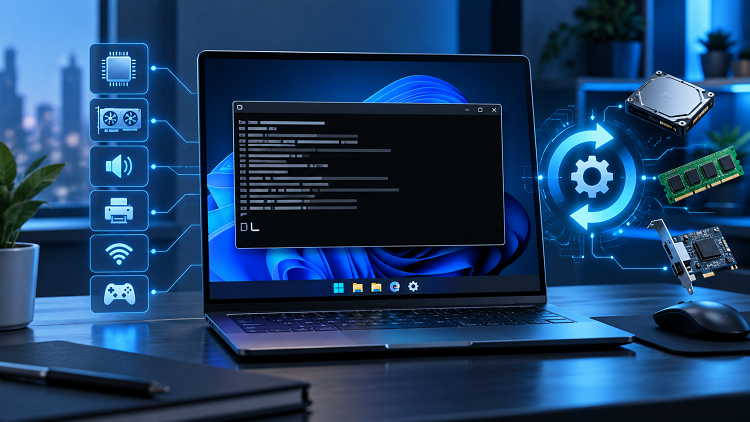
Tip: Before running any command, it's recommended to run CMD as administrator and back up your drivers to avoid errors or incompatibilities.
For any command to update drivers via CMD to work properly, Command Prompt must be run with administrator privileges. The same steps apply if you want to know how to update drivers in Windows 11 using CMD.
Type cmd in the Windows search bar.
Select Run as administrator.
Without this permission, driver installation and update commands may fail.
Below are the main ways of using the Command Prompt to update drivers, both individually and in bulk. If you're looking for a CMD command to update all drivers at once, Method 1 is the most practical built-in option for installing compatible driver packages on a running Windows PC.
Before using PnPUtil, download the correct INF driver packages from your hardware manufacturer's official website and extract them to a folder such as C:\Drivers. PnPUtil is a native Windows tool for managing Plug and Play drivers. It is one of the most commonly used methods when looking for a CMD command to update all drivers manually.
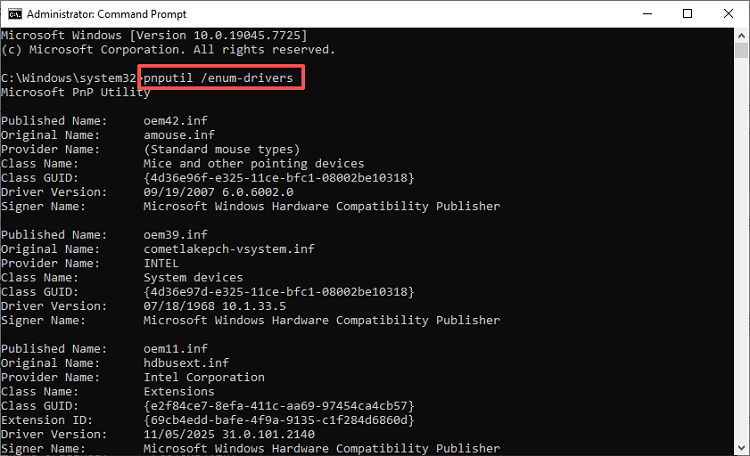
List third-party driver packages in the Windows driver store: pnputil /enum-drivers
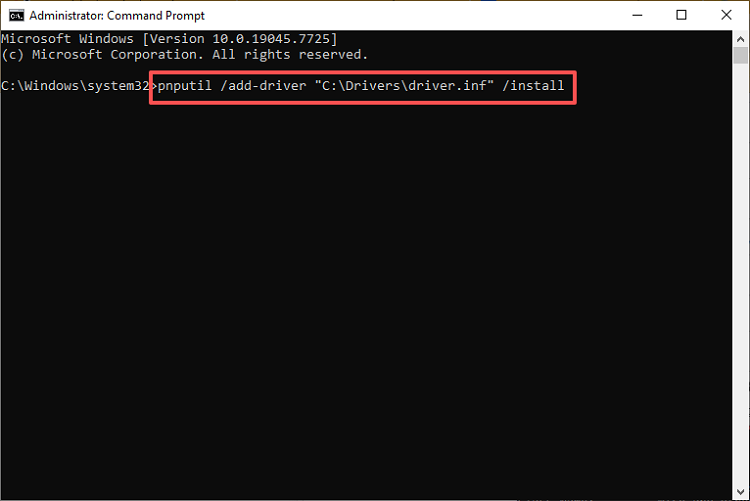
Install or update a specific driver (.inf): pnputil /add-driver "C:\Drivers\driver.inf" /install
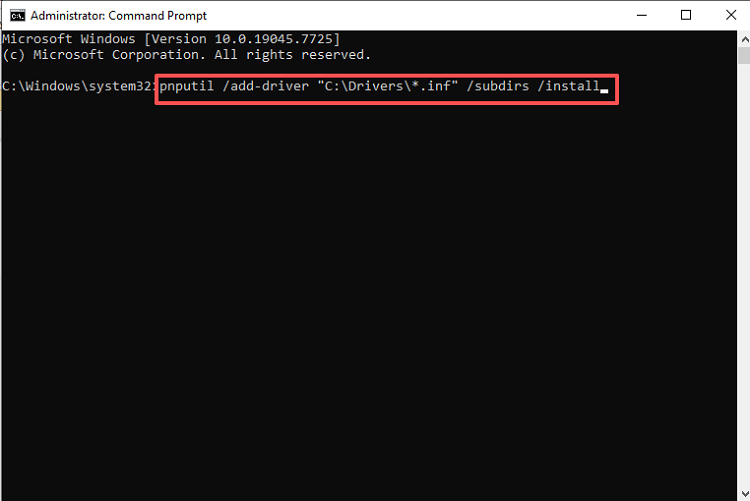
Update all drivers in a folder: pnputil /add-driver "C:\Drivers\*.inf" /subdirs /install
Why it works:
This method is suitable when you already have the correct driver files and need to update drivers via CMD without relying on Windows Update. If you're wondering how to update all drivers in Windows 11 using CMD, the bulk PnPUtil command can update drivers for matching devices. The same command works on Windows 10, but it cannot download missing drivers or force every device to use a newer driver. If you're not sure how to handle a downloaded driver package, see this guide on how to install a device driver.
DISM can add multiple INF driver packages to a mounted offline Windows image, but it cannot directly install drivers on your currently running Windows PC.
Add drivers from a folder to an already mounted offline Windows image:
DISM /Image:C:\Mount /Add-Driver /Driver:C:\Drivers /Recurse
Replace C:\Mount with the actual path of your mounted offline Windows image.
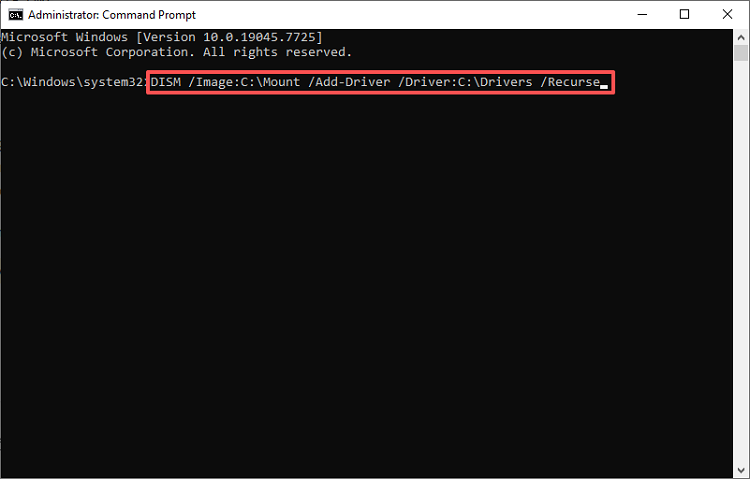
This method is intended for offline Windows image servicing. If you want to update drivers on your current Windows 10 or 11 PC, use PnPUtil in Method 1 instead.
You can use Command Prompt to check for available driver updates through Windows Update Agent without manually downloading driver files.
To check for available driver updates, run the following command in CMD as administrator:
powershell -NoProfile -Command "$s=New-Object -ComObject Microsoft.Update.Session; $s.CreateUpdateSearcher().Search('IsInstalled=0 and IsHidden=0 and Type=''Driver''').Updates | ForEach-Object { $_.Title }"
This command uses PowerShell from CMD to search for driver updates offered by your configured Windows Update service. It displays available update titles but does not install the drivers.
If driver updates are found, you can install the appropriate ones through Windows Update. On Windows 11, go to Settings > Windows Update > Advanced options > Optional updates. On Windows 10, check View optional updates under Windows Update if available. Not every driver update is offered through Windows Update.
Winget is the native package manager for Windows 10 and 11. It lets you update installed apps and packages directly from CMD, without using the graphical interface.
Update all installed packages at once: winget upgrade --all
This command automatically checks for and installs available updates for all apps managed by Windows Package Manager.
Tip: Although you may find references to a winget driver update command, winget upgrade --all mainly updates software applications, not hardware drivers such as graphics, Wi-Fi, or Bluetooth drivers. For hardware driver updates via CMD, use PnPUtil with compatible INF files as described in Method 1.
If you're wondering how to update all drivers using CMD, the table shows that no single built-in command covers every driver. PnPUtil can install compatible INF drivers from a folder, while DISM is intended for offline image
| Method | Command | When to use | Updates all drivers? |
| PnPUtil | pnputil /add-driver "C:\Drivers\*.inf" /subdirs /install | Install matching INF drivers in bulk | Matching drivers only |
| DISM | DISM /Image:C:\Mount /Add-Driver /Driver:C:\Drivers /Recurse | Add drivers to offline Windows images | No, not on a running PC |
| Windows Update | Windows Update Agent via CMD | Check available driver updates | Search only |
| Winget | winget upgrade --all | Update software applications | ✗ |
| Driver Booster | Graphical interface | Scan and update supported outdated drivers | ✓ |
Besides updating drivers, CMD also lets you look up important information about the drivers installed on your PC.
Command: driverquery
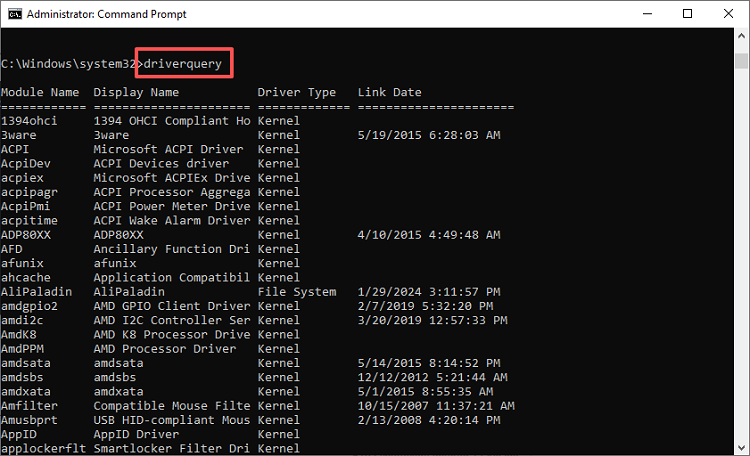
This command displays installed device drivers and their properties, but it does not check whether newer driver updates are available online.
Command: DISM /Online /Export-Driver /Destination:C:\BackupDrivers
This command exports third-party driver packages to the specified folder, allowing you to reinstall compatible drivers if an update causes problems. It does not create a full system backup.
Most common cause: CMD was not opened as administrator.
How to fix it: Run Command Prompt with administrative privileges and try again.
Most common cause: The driver doesn't match the system version or architecture.
How to fix it: Check that the driver is compatible with Windows 10 or 11 and with the correct architecture.
Most common cause: The system is still using an old version, or needs to be restarted.
How to fix it: Restart your computer and confirm that the driver was applied correctly.
Most common cause: Windows blocks drivers without a digital signature.
How to fix it: Download a properly signed, compatible driver from the hardware manufacturer's official website instead of bypassing Windows driver signature checks.
Most common cause: An incompatible or faulty driver.
How to fix it: Roll back to a stable version or use a previous backup.
Tip: If these problems occur often, automatic tools such as Driver Booster help you avoid compatibility errors.
Although it's possible to use the command prompt to update drivers, the process requires care, the right files, and technical knowledge. Small mistakes can cause failures or system instability. If you're unsure whether an update is even necessary, learn what driver updates do before you start.
For a simpler, automatic solution, IObit Driver Booster is a recommended alternative:
Why use Driver Booster instead of manual commands:
Detect outdated drivers automatically: No need to search for each driver manually.
Install the correct drivers with one click: Download and update drivers from one place.
Create a restore point before updating: Add an extra safeguard in case something goes wrong.
Works with Windows 10 and 11: Compatible with both systems.
It's a practical option for anyone who prefers to avoid manual commands.
Using a CMD command to update all drivers from a folder is a practical option when you have compatible INF driver files. PnPUtil can install or update matching drivers on Windows 10/11, but it cannot automatically download every latest driver.
For most users, an automatic tool like Driver Booster is the most practical and safest way to keep drivers up to date at all times.
 People Also Ask
My computer says my printer driver is unavailable. What to do next? Get a step-by-step guide to solve your problem effectively.
From downloading to Safe Mode booting and clean restart – follow these 6 easy steps on how to use DDU and resolve persistent display driver problems.
Struggling with “why won't my GeForce driver update”? Learn why you can’t update NVIDIA driver and discover fixes for GeForce driver installation errors.